
Use this node from the SDK
Add it in Python with
pipeline.add(name="...").llm(...). See the SDK reference.Core Functionality
- Generate text completions and conversational responses using Grok models
- Access specialized model variants including search-enabled and fast-reasoning models
- Process system instructions and dynamic prompts with variable interpolation
- Stream responses in real time for long-running generations
- Return structured JSON output with optional schema enforcement
- Track token usage and credit consumption per run
- Apply content moderation, PII detection, and safety guardrails
- Retry failed executions automatically with configurable intervals
Tool Inputs
System Instructions— (String) Instructions that guide the model’s behavior, tone, and how it should use data provided in the promptPrompt— (String) The data sent to the model. Type{{to open the variable builder and reference outputs from other nodesModel* — (Enum (Dropdown), default:grok-4-0709) Select from available Grok modelsUse Personal Api Key— (Boolean, default:Yes) Toggle to use your own xAI API keyApi Key— (String) Your xAI API key. Visible whenUse Personal Api Keyis enabled
Tool Outputs
response— (String (or Stream<String> when streaming)) The generated text response from the modelprompt_response— (String) The combined prompt and response contenttokens_used— (Integer) Total number of tokens consumed (input + output)input_tokens— (Integer) Number of input tokens sent to the modeloutput_tokens— (Integer) Number of output tokens generated by the modelcredits_used— (Decimal) VectorShift AI credits consumed for this run
- Workflows
Overview
The xAI LLM node in workflows lets you place a Grok model on the canvas and configure it through the settings panel. xAI offers models with different speed-reasoning tradeoffs and built-in search capabilities.Use Cases
- Market commentary generation — Generate real-time market commentary using Grok’s search-enabled models that can access current data.
- Financial document analysis — Analyze earnings reports, SEC filings, or research notes using Grok’s reasoning capabilities.
- Fast classification tasks — Use fast-reasoning variants for high-throughput classification of financial transactions or documents.
- Research synthesis — Combine search capabilities with reasoning to synthesize information across multiple sources for investment research.
- Client communication drafting — Draft personalized financial communications using Grok’s conversational capabilities.
How It Works
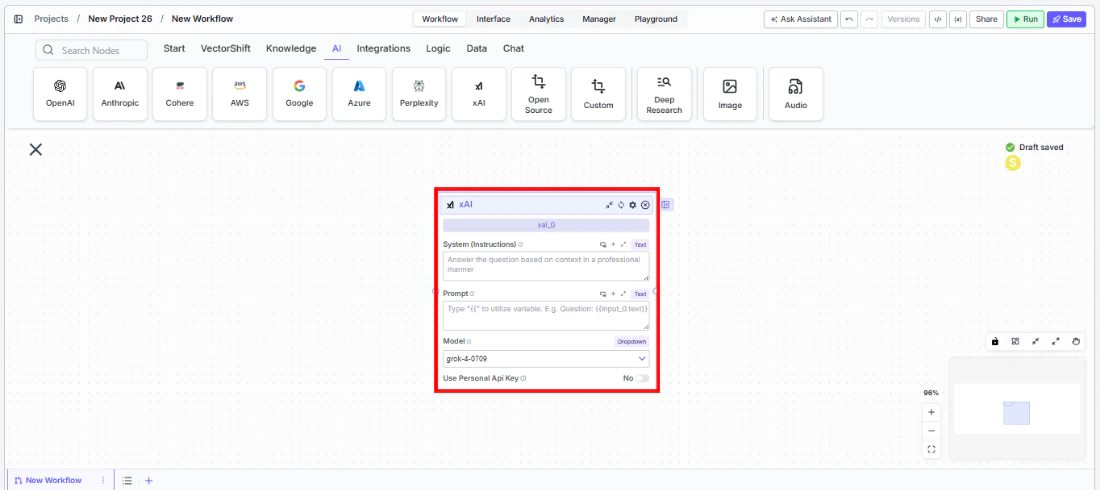
- Add the node to your workflow. From the toolbar, open the AI category and drag the xAI node onto the canvas.
-
Write your System Instructions. Enter instructions in the
System Instructionsfield. -
Configure the Prompt. In the
Promptfield, type{{to reference upstream node outputs. -
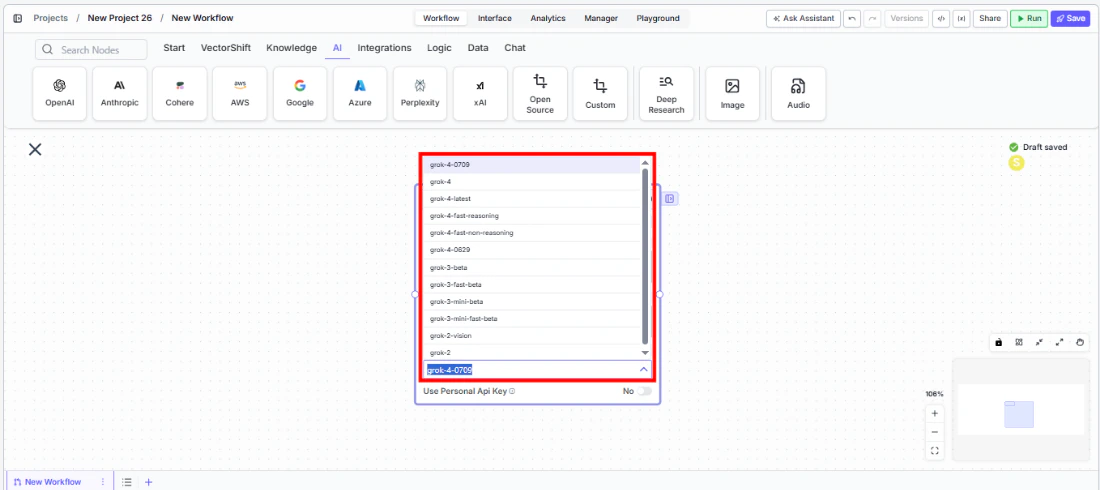
Select a model. Use the
Modeldropdown to choose a Grok model. Available options includegrok-4-0709,grok-4,grok-4-search,grok-4-fast-reasoning,grok-4-fast-non-reasoning,grok-4-0625,grok-3-fast,grok-3-fast-beta,grok-3-mini-beta, and others.
-
Provide an API key. The
Use Personal Api Keytoggle defaults to Yes. Enter your xAI API key in theApi Keyfield. - Open settings. Click the gear icon (⚙) to configure settings.
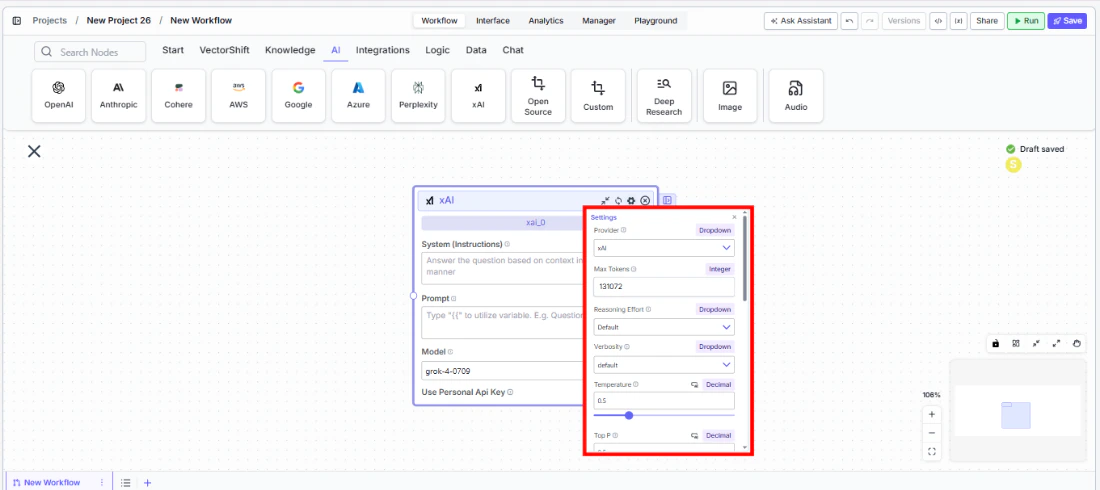
- Connect outputs. Wire the
responseoutput to downstream nodes. Click the Outputs button to see all available outputs.
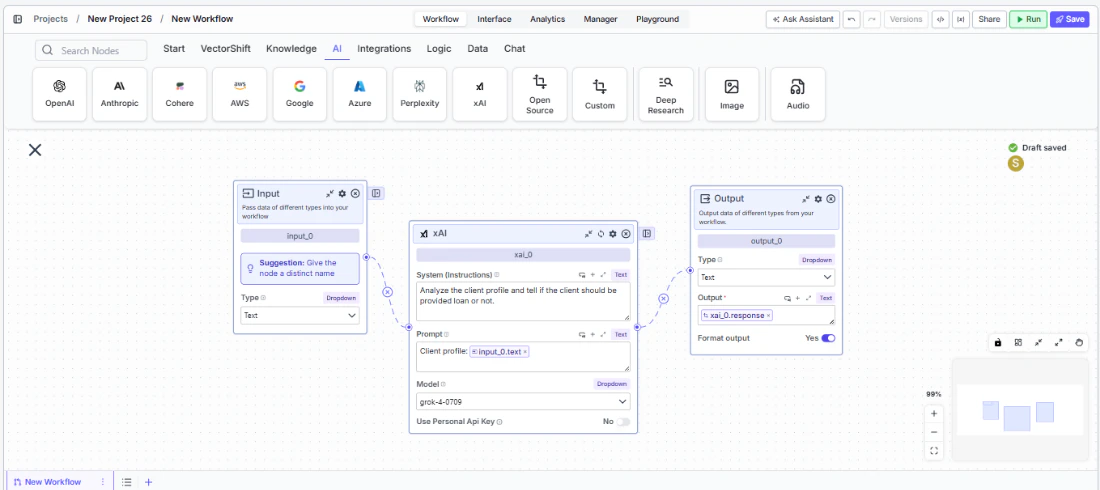
- Run your workflow. Execute the workflow to process inputs through the Grok model.
Settings
All settings below are accessed via the gear icon (⚙) on the node.Best Practices
- Choose the right Grok variant. Use
grok-4-searchfor queries needing current web data,grok-4-fast-reasoningfor speed-optimized reasoning, andgrok-4for general-purpose tasks. - Use JSON mode for structured extraction. Enable
JSON Outputfor consistent output when extracting financial data from documents. - Monitor token usage. Connect
tokens_usedandcredits_usedfor cost tracking across high-volume workloads. - Enable Safe Context Token Window. This is on by default for xAI — keep it enabled to prevent token-limit errors.
- Apply PII detection for sensitive data. Enable PII toggles when processing client financial information.