
Use this node from the SDK
Add it in Python with
pipeline.add(name="...").llm(...). See the SDK reference.Core Functionality
- Connect to any LLM provider compatible with the OpenAI Chat API format
- Access local models via LM Studio, Ollama, or other local serving frameworks
- Specify a custom base URL, model name, and API key
- Process system instructions and dynamic prompts with variable interpolation
- Stream responses in real time for long-running generations
- Track token usage and credit consumption per run
- Apply content moderation, PII detection, and safety guardrails
- Retry failed executions automatically with configurable intervals
Tool Inputs
System Instructions— (String) Instructions that guide the model’s behavior, tone, and how it should use data provided in the promptPrompt— (String) The data sent to the model. Type{{to open the variable builder and reference outputs from other nodesModel* — (String (Text input)) The model identifier to use. This is a free-text field — enter the exact model name as specified by your providerUse Personal Api Key— (Boolean, default:No) Toggle to provide your own API keyBase URL* — (String) The base URL of your model provider (e.g.,https://api.together.xyzorhttp://localhost:1234/v1)Api Key— (String) Your API key for the model provider. Required whenUse Personal Api Keyis enabled
Tool Outputs
response— (String (or Stream<String> when streaming)) The generated text response from the modeltokens_used— (Integer) Total number of tokens consumed (input + output)input_tokens— (Integer) Number of input tokens sent to the modeloutput_tokens— (Integer) Number of output tokens generated by the modelcredits_used— (Decimal) VectorShift AI credits consumed for this run
- Workflows
Overview
The Custom LLM node in workflows lets you connect to any OpenAI-compatible model endpoint by specifying a base URL, model name, and API key. This provides maximum flexibility — you can use commercial API providers, privately hosted models, or local development servers, all within the same workflow canvas.Use Cases
- Fine-tuned model deployment — Connect to a custom fine-tuned model hosted on Together AI or Replicate that’s been trained on your organization’s financial documents and terminology.
- Local model prototyping — Test and iterate with locally hosted models via LM Studio or Ollama before committing to a cloud provider for production workloads.
- Cost-optimized batch processing — Route high-volume, low-complexity tasks (like transaction tagging) to cost-effective open-source models while reserving premium models for complex analysis.
- Multi-provider evaluation — Compare outputs from different model providers by swapping the base URL and model name to find the best quality-to-cost ratio for your financial workflows.
- Private infrastructure compliance — Connect to models hosted within your organization’s private infrastructure to meet data residency and security requirements.
How It Works
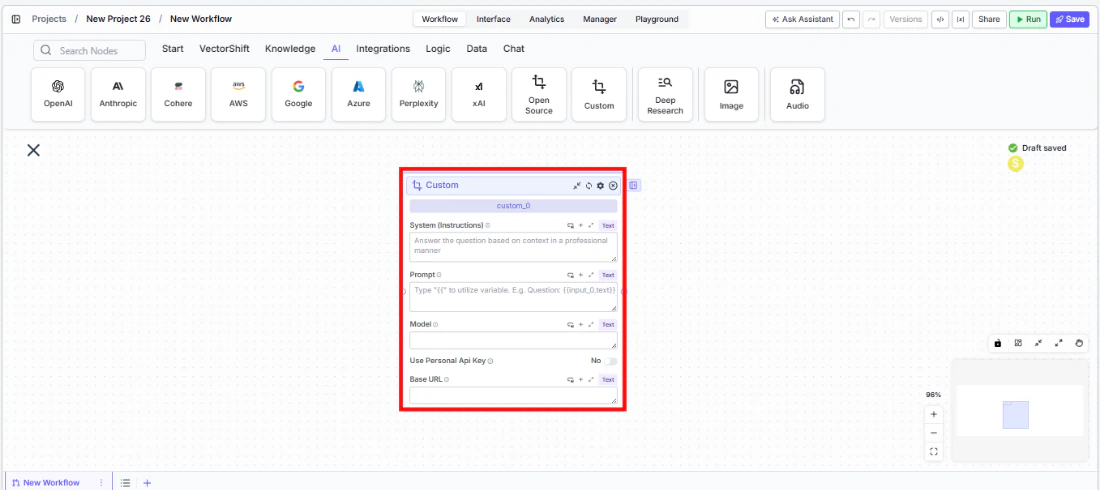
- Add the node to your workflow. From the toolbar, open the AI category and drag the Custom node onto the canvas.
-
Write your System Instructions. Enter instructions in the
System Instructionsfield to define the model’s behavior, tone, and how it should use any data provided in the prompt. -
Configure the Prompt. In the
Promptfield, type{{to open the variable builder and reference outputs from upstream nodes. -
Enter the model name. In the
Modelfield, type the exact model identifier as specified by your provider (e.g.,meta-llama/Llama-3-70b-chat-hffor Together AI, orlocal-modelfor LM Studio). -
Set the Base URL. Enter the base URL for your model provider in the
Base URLfield. Examples:- Together AI:
https://api.together.xyz - Replicate:
https://api.replicate.com - Local LM Studio:
http://localhost:1234/v1
- Together AI:
-
Provide an API key (optional). Toggle
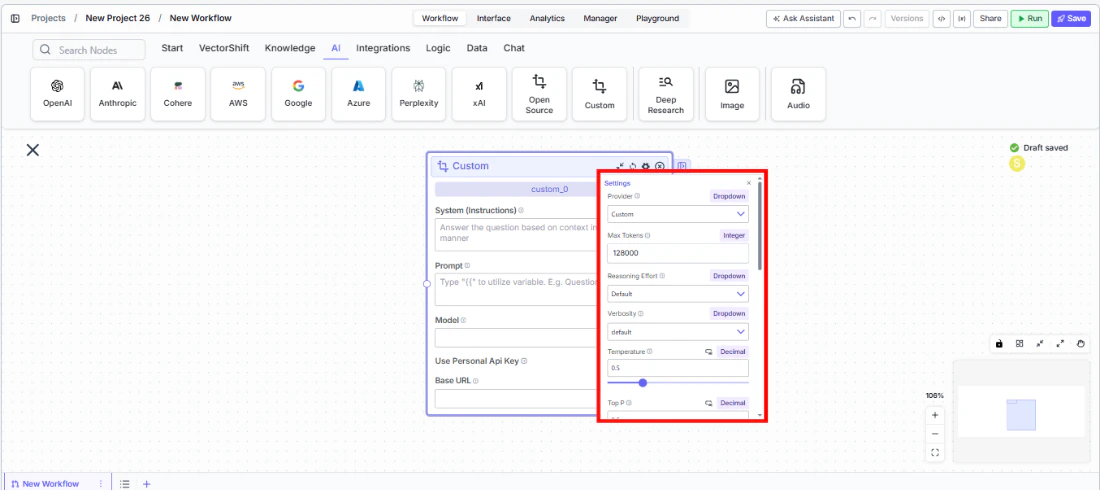
Use Personal Api Keyto Yes and enter your provider’s API key. For local models, you may use a placeholder key (e.g.,lm-studio). - Open settings. Click the gear icon (⚙) on the node to configure token limits, temperature, retry behavior, and more.
- Connect outputs and run. Wire the
responseoutput to downstream nodes. Execute the workflow to process inputs through your custom model endpoint.
Settings
All settings below are accessed via the gear icon (⚙) on the node.Best Practices
- Verify base URL format. Ensure your base URL does not include a trailing slash and matches the provider’s API documentation exactly. A common mistake is including extra path segments.
- Match model names precisely. The model identifier must exactly match what the provider expects. Check your provider’s model catalog for the correct string.
- Start with local models for prototyping. Use LM Studio or Ollama during development to iterate quickly without incurring API costs, then swap to a cloud provider for production.
- Set appropriate Max Tokens. Different custom models have vastly different context windows. Set
Max Tokensto match your model’s actual limit to avoid errors. - Enable retry for unreliable endpoints. If connecting to a self-hosted or development server, enable
Retry On Failurewith reasonable intervals to handle transient failures. - Apply PII detection for client data. Even when using private infrastructure, enable PII toggles as a defense-in-depth measure for workflows processing sensitive financial information.
Related Templates
Custom API Chatbot
A configurable chatbot that connects to custom APIs to retrieve and present dynamic data.