
Use this node from the SDK
Add it in Python with
pipeline.add(name="...").llm(...). See the SDK reference.Core Functionality
- Generate text completions using models available through AWS Bedrock
- Authenticate with your own AWS credentials for enterprise-grade access control
- Process system instructions and dynamic prompts with variable interpolation
- Stream responses in real time for long-running generations
- Return structured JSON output with optional schema enforcement
- Track token usage and credit consumption per run
- Apply content moderation, PII detection, and safety guardrails
- Retry failed executions automatically with configurable intervals
Tool Inputs
System Instructions— (String) Instructions that guide the model’s behavior, tone, and how it should use data provided in the promptPrompt— (String) The data sent to the model. Type{{to open the variable builder and reference outputs from other nodesModel* — (Enum (Dropdown), default:us.anthropic.claude-sonnet-4-5) Select from available Bedrock modelsUse Personal AWS Credentials— (Boolean, default: No) Toggle to authenticate with your own AWS credentialsAWS Access Key ID— (String) Your AWS access key. Only visible whenUse Personal AWS Credentialsis enabledAWS Secret Key— (String) Your AWS secret key. Only visible whenUse Personal AWS Credentialsis enabledAWS Region— (Dropdown, default: US East N. Virginia) The AWS region for Bedrock API calls. Only visible whenUse Personal AWS Credentialsis enabledJSON Schema— (String) JSON schema to enforce structured output format. Only visible whenJSON Responseis enabled in the settings panel
Tool Outputs
response— (String (or Stream<String> when streaming)) The generated text response from the modelprompt_response— (String) The combined prompt and response contenttokens_used— (Integer) Total number of tokens consumed (input + output)input_tokens— (Integer) Number of input tokens sent to the modeloutput_tokens— (Integer) Number of output tokens generated by the modelcredits_used— (Decimal) VectorShift AI credits consumed for this run
- Workflows
Overview
The Bedrock LLM node in workflows lets you place an AWS Bedrock model directly on the canvas, optionally authenticate with your own AWS credentials, and configure model behavior through the settings panel. This is ideal for organizations that require data to stay within their AWS environment or need access to Bedrock-exclusive models.Use Cases
- Compliant document processing — Process sensitive financial documents using models hosted within your AWS account, ensuring data residency and compliance requirements are met.
- Multi-model evaluation — Compare outputs from different foundation models (Claude, Titan, Llama) available on Bedrock to find the best fit for your financial analysis tasks.
- Automated report generation — Generate quarterly portfolio reports by combining market data with client holdings, using enterprise-grade AWS infrastructure.
- Regulatory filing extraction — Parse and extract structured data from SEC filings or tax documents using JSON mode, keeping all data within your AWS boundary.
- Internal knowledge Q&A — Build internal chatbots that answer compliance questions by grounding responses in your organization’s policy knowledge base.
How It Works
- Add the node to your workflow. From the toolbar, open the AI category and drag the AWS node onto the canvas. It appears as “Bedrock” on the node.
-
Write your System Instructions. Enter instructions in the
System Instructionsfield to define the model’s behavior, tone, and how it should use any data provided in the prompt. -
Configure the Prompt. In the
Promptfield, type{{to open the variable builder and reference outputs from upstream nodes. -
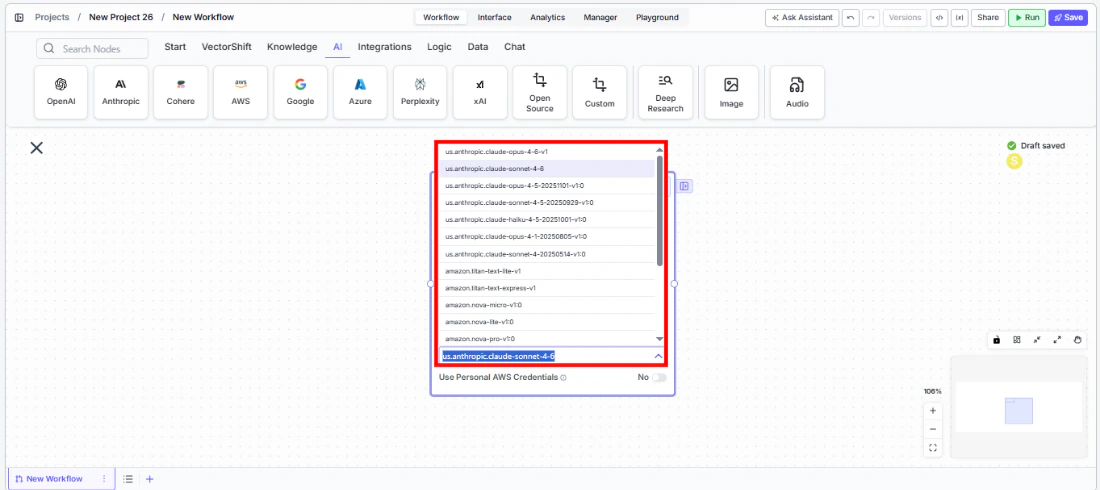
Select a model. Use the
Modeldropdown to choose from available Bedrock models, includingus.anthropic.claude-sonnet-4-5and other foundation models.
-
Enable streaming (optional). Click the Streaming toggle on the node face to receive responses token-by-token. When streaming is enabled, the
responseoutput type changes toStream<String>. -
Use personal AWS credentials (optional). Toggle
Use Personal AWS Credentialsto enable authentication with your own AWS account. Three fields appear:AWS Access Key ID— Your AWS access keyAWS Secret Key— Your AWS secret access keyAWS Region— Select your preferred AWS region (e.g., US East N. Virginia)
- Open settings. Click the gear icon (⚙) on the node to open the settings panel, where you can configure token limits, temperature, retry behavior, safety features, and more.
-
Connect outputs. Click the Outputs button to open the outputs panel. Wire the
responseoutput to downstream nodes. Usetokens_used,input_tokens,output_tokens, andcredits_usedfor monitoring.
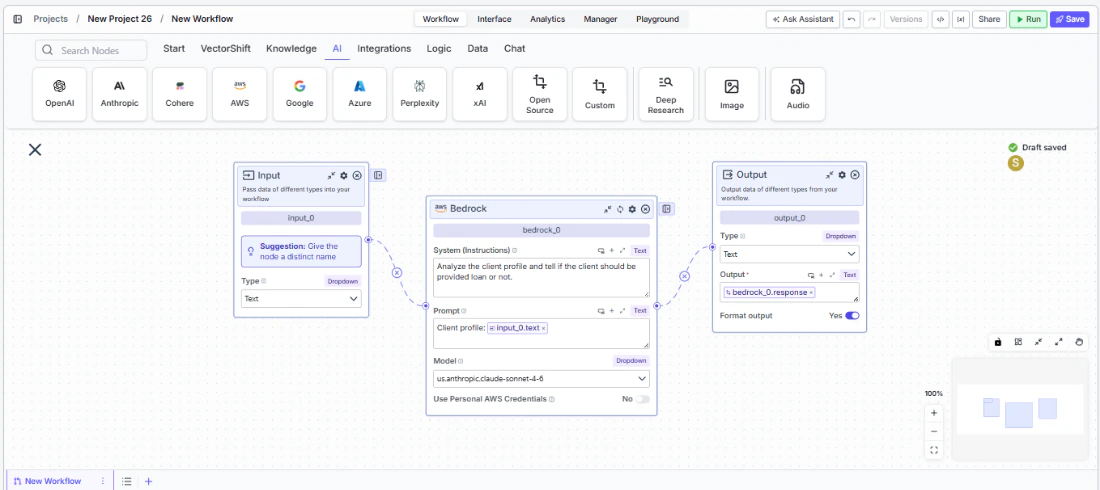
- Run your workflow. Execute the workflow. The Bedrock node processes its inputs through AWS and returns the generated response along with usage metrics.
Settings
All settings below are accessed via the gear icon (⚙) on the node.Best Practices
- Use personal AWS credentials for production workloads. This ensures data stays within your AWS account and lets you leverage AWS IAM policies for fine-grained access control.
- Select the appropriate region. Choose an AWS region close to your users or one that meets your data residency requirements for compliance-sensitive financial workflows.
- Use JSON mode for structured extraction. When pulling financial metrics from documents, enable
JSON Responseand provide a schema for consistent, machine-readable output. - Enable Safe Context Token Window for variable-length inputs. Prevents token-limit errors when processing documents of unpredictable size like earnings transcripts or multi-page filings.
- Monitor token usage for cost management. Bedrock charges per token — connect
tokens_usedandcredits_usedto tracking nodes to monitor spend across high-volume processing. - Apply PII detection for regulated data. When handling client financial data subject to regulatory requirements, enable PII toggles including SSN detection.