
Use this node from the SDK
Add it in Python with
pipeline.add(name="...").llm(...). See the SDK reference.Core Functionality
- Generate text completions and conversational responses using Gemini models
- Process system instructions and dynamic prompts with variable interpolation
- Configure thinking tokens for extended reasoning on complex tasks
- Stream responses in real time for long-running generations
- Return structured JSON output with optional schema enforcement
- Track token usage and credit consumption per run
- Apply content moderation, PII detection, and safety guardrails
- Retry failed executions automatically with configurable intervals
Tool Inputs
System Instructions— (String) Instructions that guide the model’s behavior, tone, and how it should use data provided in the promptPrompt— (String) The data sent to the model. Type{{to open the variable builder and reference outputs from other nodesModel* — (Enum (Dropdown), default:gemini-2.5-flash) Select from available Gemini models. Click Dropdown to view all optionsUse Personal Api Key— (Boolean, default:No) Toggle to use your own Google API key instead of VectorShift’s shared keyApi Key— (String) Your Google API key. Only visible whenUse Personal Api Keyis enabledJSON Schema— (String) JSON schema to enforce structured output format. Only visible whenJSON Responseis enabled
Tool Outputs
response— (String (or Stream<String> when streaming)) The generated text response from the modelprompt_response— (String) The combined prompt and response contenttokens_used— (Integer) Total number of tokens consumed (input + output)input_tokens— (Integer) Number of input tokens sent to the modeloutput_tokens— (Integer) Number of output tokens generated by the modelcredits_used— (Decimal) VectorShift AI credits consumed for this run
- Workflows
Overview
The Google LLM node in workflows lets you place a Gemini model directly on the canvas, wire inputs and outputs to other nodes, and configure model behavior through the settings panel. Google Gemini models offer large context windows and extended thinking capabilities, making them well-suited for complex analysis tasks.Use Cases
- Extended reasoning for financial analysis — Leverage thinking tokens to perform multi-step financial reasoning, such as evaluating a company’s valuation based on multiple data points across filings and market data.
- Large document processing — Analyze lengthy regulatory documents or multi-page contracts using Gemini’s large context window to capture all relevant details in a single pass.
- Earnings call summarization — Summarize quarterly earnings transcripts, extracting key metrics like revenue, EPS, and forward guidance for analyst review.
- Structured data extraction — Pull structured fields from unstructured financial documents using JSON mode for consistent, machine-readable output.
- Client Q&A systems — Build knowledge-grounded chatbots that answer investor or client questions using retrieved context from knowledge bases.
How It Works
- Add the node to your workflow. From the toolbar, open the AI category and drag the Google node onto the canvas.
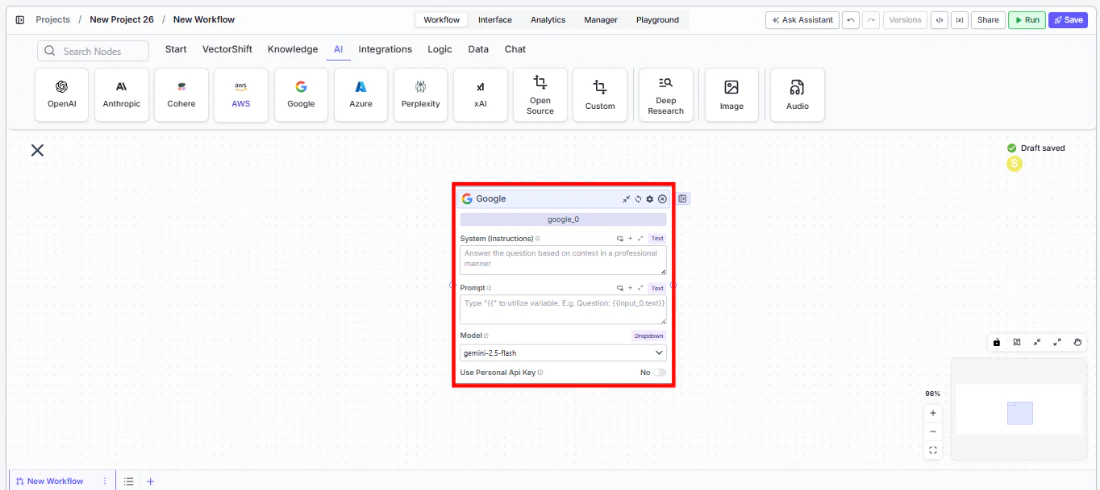
-
Write your System Instructions. Enter instructions in the
System Instructionsfield to define the model’s behavior, tone, and how it should use any data provided in the prompt. -
Configure the Prompt. In the
Promptfield, type{{to open the variable builder and reference outputs from upstream nodes. -
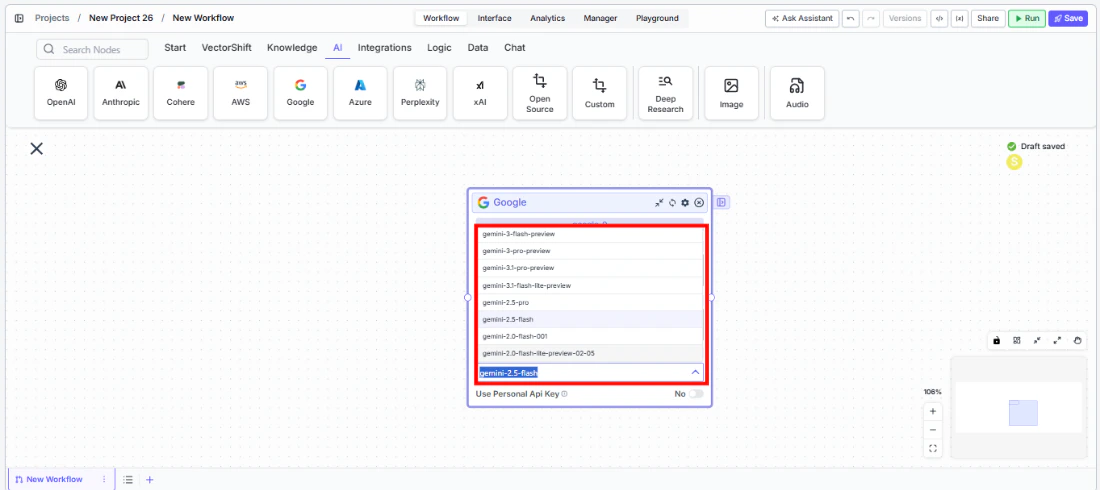
Select a model. Use the
Modeldropdown to choose a Gemini model. Available options includegemini-2.5-flash,gemini-2.5-pro,gemini-2.5-flash-preview,gemini-2.0-flash-001,gemini-2.0-pro-preview, and others.
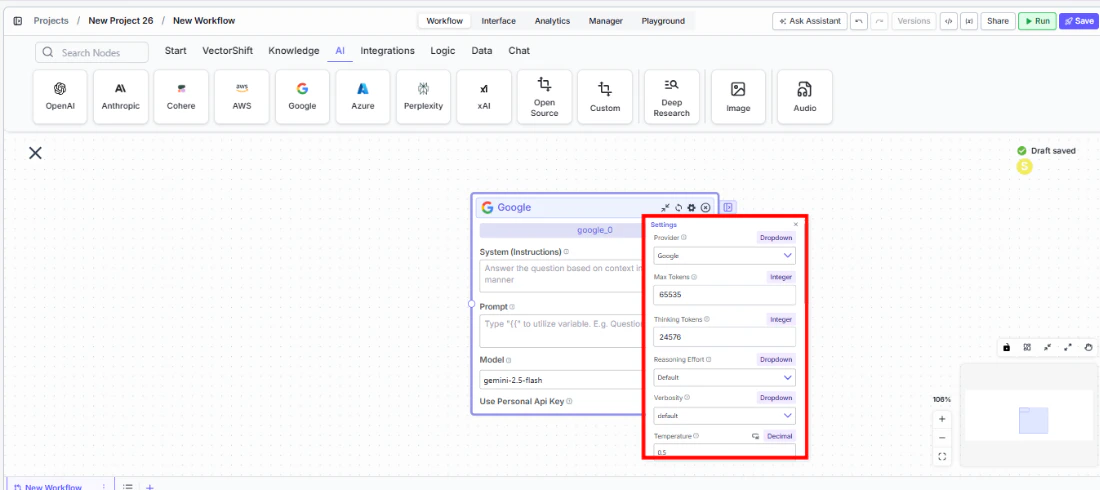
- Open settings. Click the gear icon (⚙) on the node to open the settings panel, where you can configure thinking tokens, token limits, temperature, retry behavior, and more.
- Connect outputs. Click the Outputs button to open the outputs panel. Wire the
responseoutput to downstream nodes. Use token and credit outputs for monitoring.
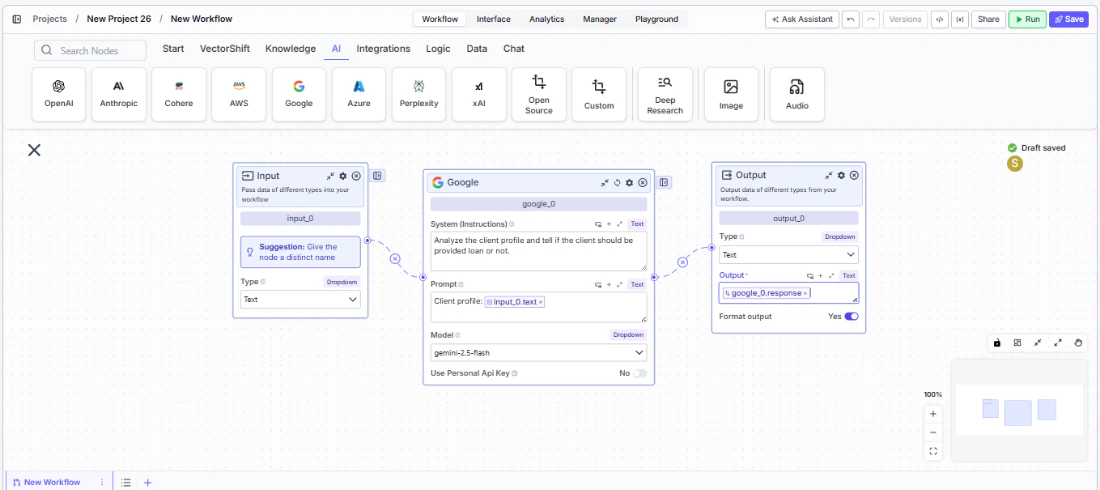
- Run your workflow. Execute the workflow. The Google node processes its inputs and returns the generated response along with usage metrics.
Settings
All settings below are accessed via the gear icon (⚙) on the node.Best Practices
- Use thinking tokens for complex analysis. When the model needs to reason through multi-step financial calculations or weigh competing data points, increase the
Thinking Tokenssetting to give it more reasoning capacity. - Leverage large context windows. Gemini models support very large context windows — use this to feed entire financial documents rather than chunking, for more coherent analysis.
- Use JSON mode for structured extraction. Enable
JSON Outputand provide a schema when extracting data from financial documents for consistent output. - Monitor token usage carefully. Thinking tokens count toward total usage. Connect
tokens_usedandcredits_usedto monitoring nodes. - Enable Safe Context Token Window for variable-length inputs. Prevents token-limit errors when processing documents of unpredictable size.
- Apply PII detection including address. Google supports address-level PII detection in addition to standard fields — enable it for workflows processing client correspondence.
Related Templates
Grant Matching AI Agent
Matches organizations or individuals to relevant grants based on their profile and eligibility criteria.
Spreadsheet Comparison Assistant
Compares two or more spreadsheets to identify discrepancies, changes, and anomalies.
Control Checker and Writer Agent
Audits existing controls and drafts new control documentation based on compliance requirements.
Application Risk Agent
Assesses risk levels in incoming applications using scoring models and policy rules.