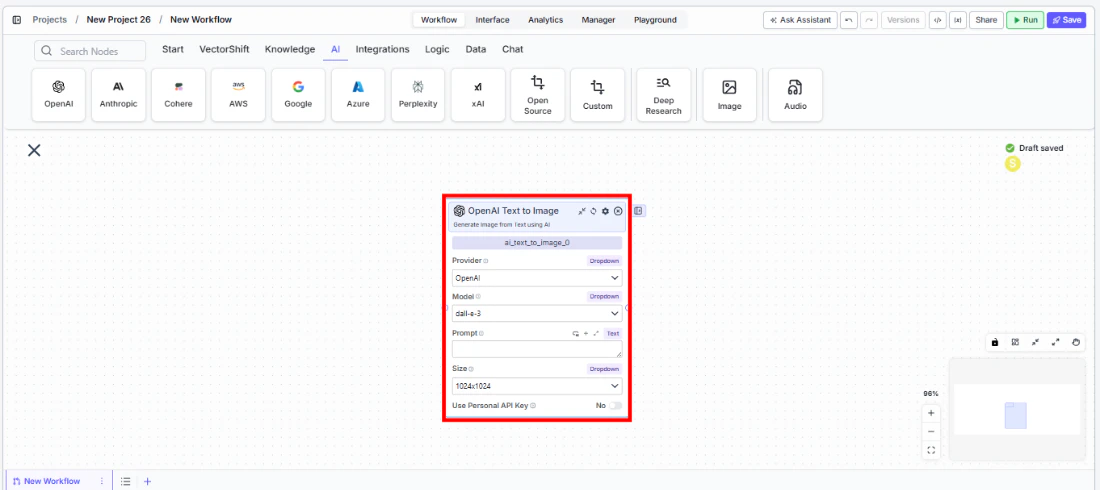
Use this node from the SDK
Add it in Python with
pipeline.add(name="...").ai_text_to_image(...). See the SDK reference.Core Functionality
- Generate images from text descriptions using AI models
- Support multiple providers including Google, OpenAI, Stability AI, Flux, and xAI
- Configure output size and aspect ratio
- Use personal API keys for dedicated access
Tool Inputs
Provider* — (Enum (Dropdown), default:Google) Select the image generation providerModel* — (Enum (Dropdown), default:gemini-2.5-flash-image) Select the text-to-image model. Options vary by providerPrompt* — (String) Text description of the image to generate. Be specific about desired content, style, and compositionSize— (Enum (Dropdown), default:1024x1024) Output image dimensions. Only visible for OpenAI providerAspect Ratio— (Enum (Dropdown), default:1:1) Output aspect ratio. Workflows onlyUse Personal API Key— (Boolean, default:No) Toggle to use your own API keyApi Key— (String) Your API key. Only visible whenUse Personal API Keyis enabled
Tool Outputs
image— (Image) The generated image
- Agents
- Workflows
Overview
The Text to Image tool in agents allows the AI to generate images during conversations based on user descriptions. The agent interprets the user’s request and creates appropriate prompts for the image generation model.Use Cases
- Presentation visual creation — Users describe the visual they need and the agent generates it for their presentation.
- Report illustration — Generate custom illustrations or diagrams to accompany financial reports.
- Marketing content — Create visual content from text descriptions for marketing materials.
- Concept visualization — Turn abstract financial concepts into visual representations.
How It Works
- Add the tool to your agent. In the agent builder, click Add Tool and select Text to Image from the available tools.
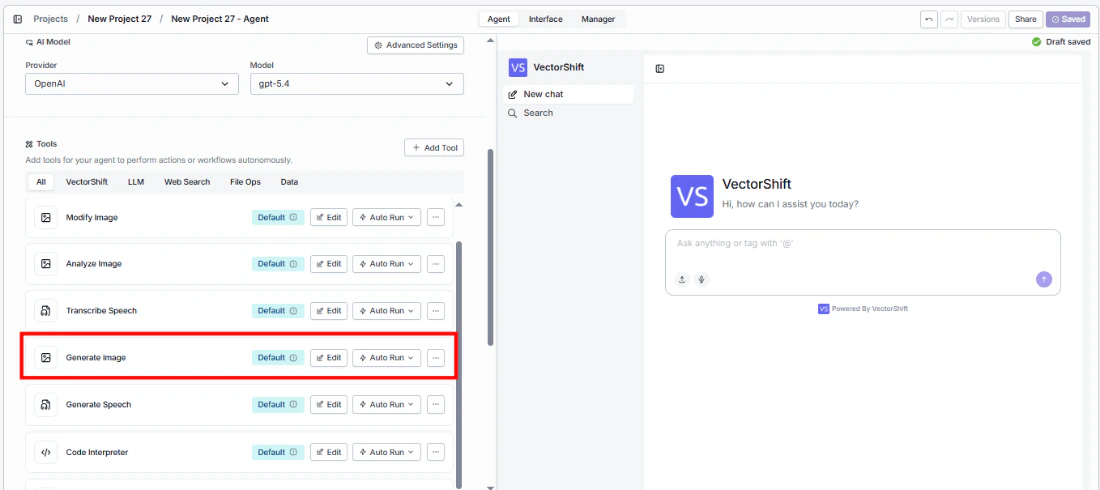
- Configure input fields. Each field can either be filled automatically by the agent based on conversation context, or locked to a fixed value:
Provider— Select the image generation providerModel— Choose the generation modelPrompt— The agent fills this based on the user’s requestQuality— Set the output quality
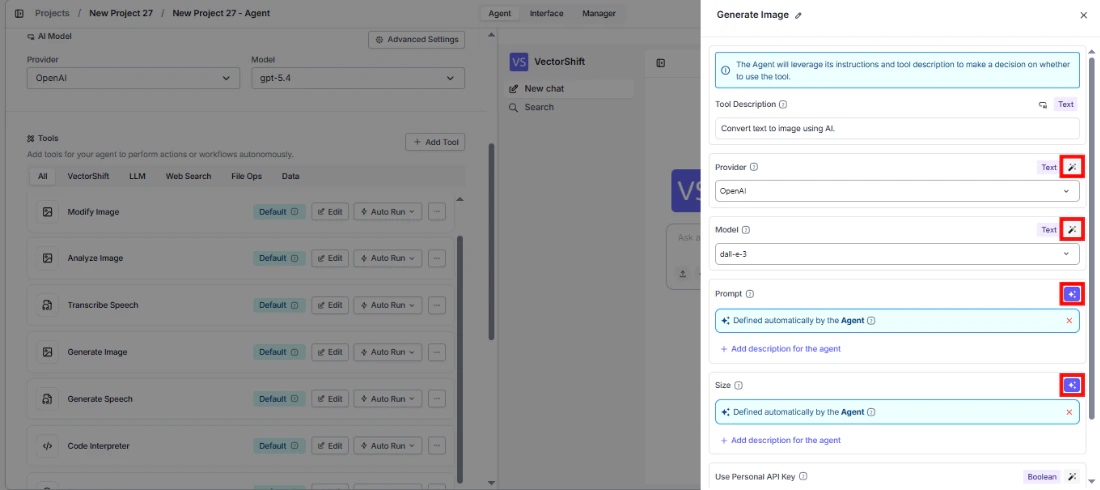
- Write the Tool Description. Describe what the tool does so the agent knows when to use it.
- Set Auto Run behavior. Choose: Auto Run, Require User Approval, or Let Agent Decide.
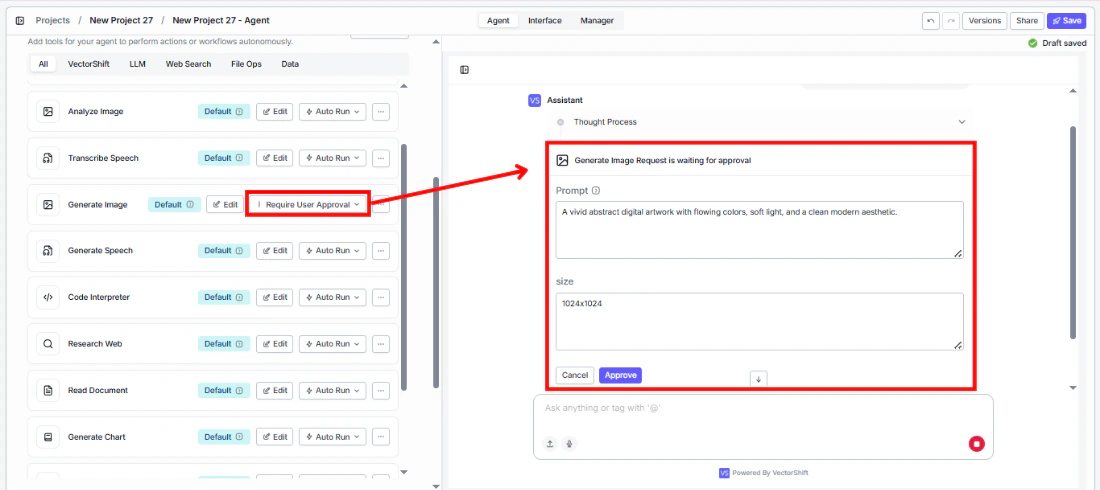
- Test the tool. Ask the agent to generate an image and verify the output.
Settings
Best Practices
- Write detailed prompts. The more specific the description, the better the output. Include details about composition, style, colors, and content.
- Use Require User Approval. Let users review generated images before they’re used in outputs.
- Match the provider to your quality needs. Different providers excel at different image styles.