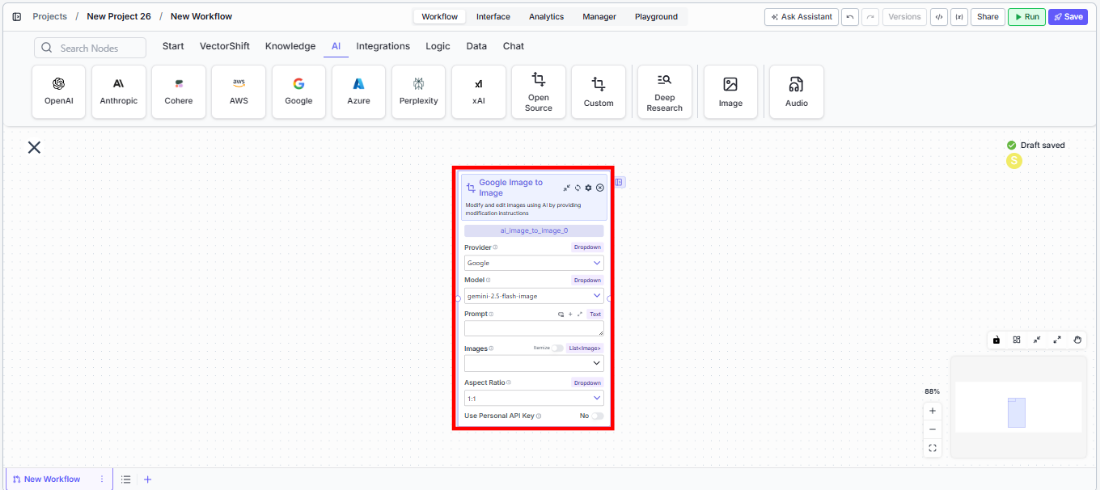
Use this node from the SDK
Add it in Python with
pipeline.add(name="...").ai_image_to_image(...). See the SDK reference.Core Functionality
- Modify and edit images using AI based on text prompts
- Support multiple input images (1–3) for best results
- Select aspect ratio for output images
- Choose from available image generation providers and models
- Use personal API keys for dedicated access
Tool Inputs
Provider* — (Enum (Dropdown), default:Google) Select the model providerModel* — (Enum (Dropdown), default:gemini-2.5-flash-image) Select the image-to-image modelPrompt* — (String) Instructions for how the AI should modify the images. Be specific about desired changesImages* — (List<Image>) Array of input images to modify. Provide 1–3 images for best resultsAspect Ratio— (Enum (Dropdown), default:1:1) Select the aspect ratio for the output image. Workflows onlyUse Personal API Key— (Boolean, default:No) Toggle to use your own API key from the model providerApi Key— (String) Your API key. Only visible whenUse Personal API Keyis enabled
Tool Outputs
image— (Image) The modified image
- Agents
- Workflows
Overview
The Image to Image tool in agents allows the AI to modify images during conversations based on user requests. The agent can automatically determine what modifications to make based on conversation context, or you can lock specific fields to fixed values.Use Cases
- Chart annotation — Users can ask the agent to add labels, highlights, or callouts to financial charts and graphs.
- Brand consistency — Apply consistent branding, color schemes, or watermarks to report visuals during a conversation.
- Document redaction — Redact sensitive information from document images before sharing.
- Presentation graphics — Transform or restyle presentation visuals to match corporate templates.
How It Works
- Add the tool to your agent. In the agent builder, click Add Tool and select Image to Image from the available tools.
-
Configure input fields. Each field can either be filled automatically by the agent based on conversation context, or locked to a fixed value:
Provider— Select the model provider (e.g., Google)Model— Choose the image model (e.g.,gemini-2.5-flash-image)Prompt— The agent fills this based on the user’s request, or you can set a fixed instructionUse Personal API Key— Toggle if using your own key
- Write the Tool Description. Provide a clear description of what this tool does so the agent knows when to use it. For example: “Use this tool to modify or edit images. Describe the desired changes clearly.”
-
Set Auto Run behavior. Choose how the tool executes:
- Auto Run — Executes automatically without user confirmation
- Require User Approval — Asks the user before executing
- Let Agent Decide — The agent determines whether to ask for approval
- Test the tool. Send a message to the agent with an image and modification instructions to verify the tool works correctly.
Settings
Best Practices
- Write specific prompts. Instead of “make it better,” use precise instructions like “add a red circle highlighting the revenue growth bar in Q4.”
- Provide 1–3 images. The model works best with a small number of high-quality input images.
- Use Require User Approval for client-facing agents. This lets users review modifications before they’re applied.