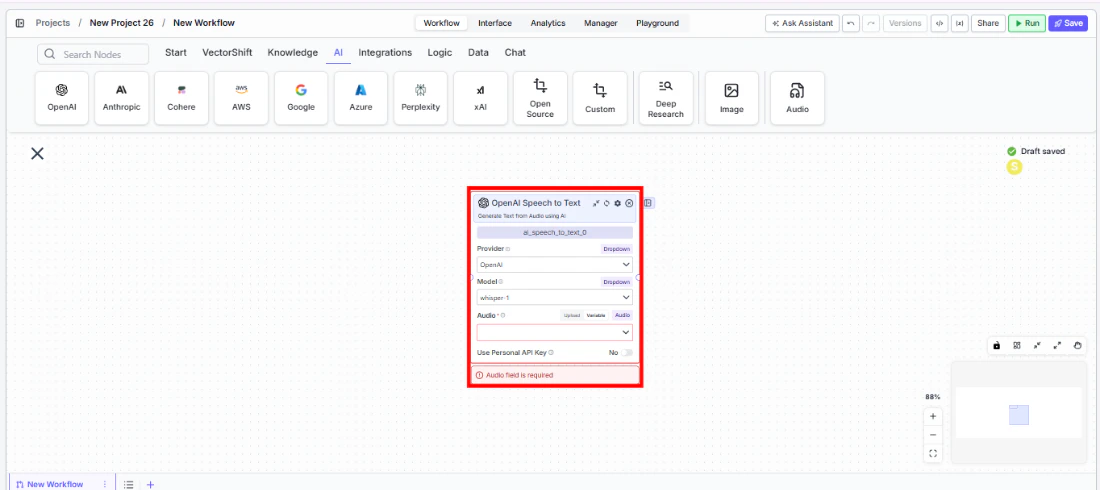
Use this node from the SDK
Add it in Python with
pipeline.add(name="...").ai_speech_to_text(...). See the SDK reference.Core Functionality
- Transcribe audio files to text using AI speech recognition models
- Support multiple providers including OpenAI (Whisper) and Deepgram
- Select specialized model tiers for different accuracy and speed tradeoffs
- Use personal API keys for dedicated access
Tool Inputs
Provider* — (Enum (Dropdown), default:OpenAI) Select the transcription provider (OpenAI, Deepgram)Model* — (Enum (Dropdown), default:whisper-1) Select the speech-to-text modelAudio* — (Audio) The audio file to transcribeTier— (Enum (Dropdown), default:general) Deepgram-specific: select the transcription tier. Only visible when provider is DeepgramUse Personal API Key— (Boolean, default:No) Toggle to use your own API keyApi Key— (String) Your API key. Only visible whenUse Personal API Keyis enabled
Tool Outputs
text— (String) The transcribed text from the audio
- Agents
- Workflows
Overview
The Speech to Text tool in agents allows the AI to transcribe audio files shared during conversations. The agent can process voice messages, meeting recordings, or any audio content and return the transcribed text.Use Cases
- Meeting transcription — Users share meeting recordings and the agent provides full transcriptions for note-taking.
- Voicemail processing — Transcribe client voicemails for documentation and follow-up tracking.
- Audio content search — Convert audio to text to enable search across audio archives.
- Compliance recording review — Transcribe compliance-relevant recordings for review and documentation.
How It Works
- Add the tool to your agent. In the agent builder, click Add Tool and select Speech to Text from the available tools.
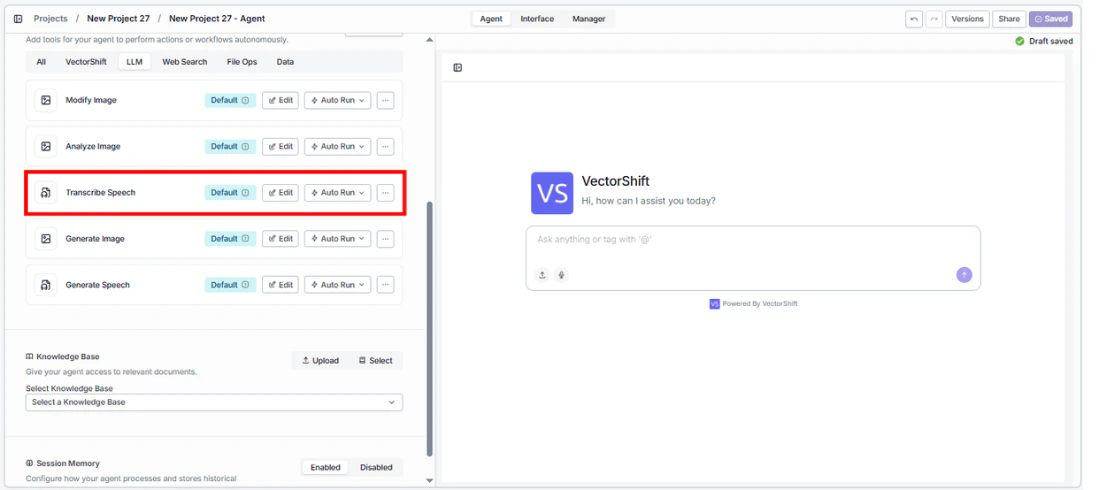
- Configure input fields. Each field can either be filled automatically by the agent based on conversation context, or locked to a fixed value:
Provider— Select the transcription provider (e.g., OpenAI)Model— Choose the model (e.g.,whisper-1)Audio— The agent uses audio files shared in the conversation
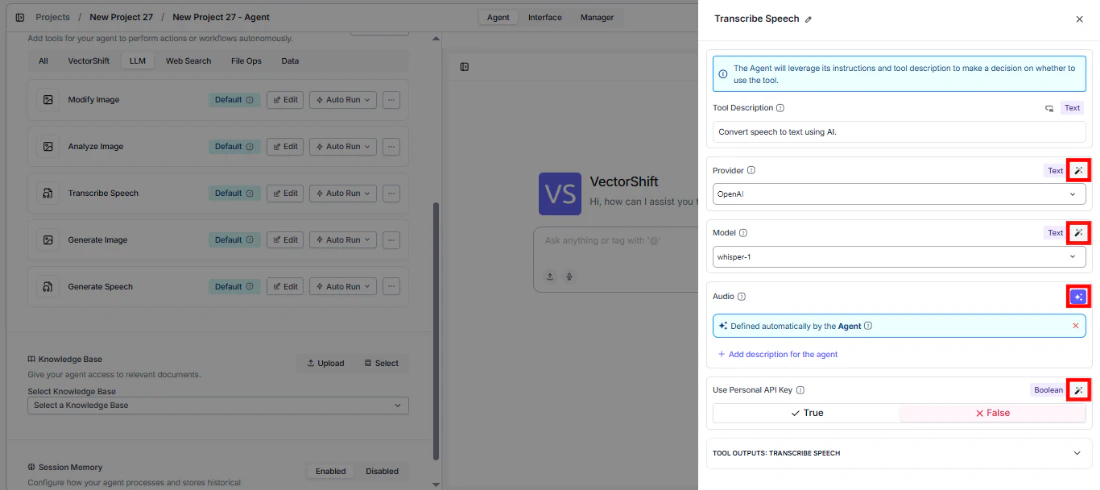
- Write the Tool Description. Describe what the tool does so the agent knows when to use it.
- Set Auto Run behavior. Choose: Auto Run, Require User Approval, or Let Agent Decide.
- Test the tool. Share an audio file with the agent and ask it to transcribe.
Settings
Best Practices
- Use OpenAI Whisper for general transcription. It provides strong accuracy across languages and accents.
- Select Deepgram for specialized needs. Deepgram offers different tiers optimized for specific use cases.
- Chain with an LLM node. Connect the
textoutput to an LLM node for automatic summarization of transcribed content.
Related Templates
Earnings Call Insight and Sentiment Analyzer
Analyzes earnings call transcripts for sentiment, key themes, and forward-looking signals.