What is a knowledge base?
A knowledge base helps your team — or your customers — get instant, accurate answers from your own documents, files, and data using plain language. No more digging through folders or scrolling through PDFs. Here’s what you can accomplish:- Help employees find answers instantly — search internal docs in plain language and get direct, cited answers instead of hunting through files
- Resolve customer questions faster — power a support assistant that pulls answers straight from your help center, so customers get help 24/7
- Unlock insights from contracts and reports — ask natural language questions across hundreds of documents and surface the information that matters
- Keep everything up to date automatically — connect tools like Google Drive, Slack, or Gmail so new content becomes searchable as soon as it’s added
How a knowledge base works
When you add a document, VectorShift automatically processes it so your team can search it. Here’s what happens behind the scenes:- Ingestion — Bring in your content however works best: upload files (documents, images, audio, video, ZIP archives), connect an integration, scrape a URL, or pull data from VectorShift files and tables.
- Chunking — Documents are broken into smaller, meaningful pieces so the AI can pinpoint exactly what’s relevant to each query. You choose the splitter method (Sentence, Markdown, or Dynamic) and chunk size. Code files are automatically split along function and class boundaries.
- Processing — A processing model reads and extracts text from your files. Different models are optimized for different content — for example, scanned PDFs vs. structured documents.
- Embedding — Each chunk is converted into a vector (a numerical representation) using an embedding model. This is what makes semantic search possible: the system understands meaning, not just keywords.
- Search and retrieval — When someone searches, the system finds the most relevant chunks, retrieves them, and an LLM generates a clear answer with citations back to the source documents.
Usage limits
Keep your knowledge bases running smoothly by monitoring capacity with the Usage Limits banner at the top of the listing page. It tells you at a glance whether any knowledge base is approaching or has hit its limit — so you can take action before search quality is affected.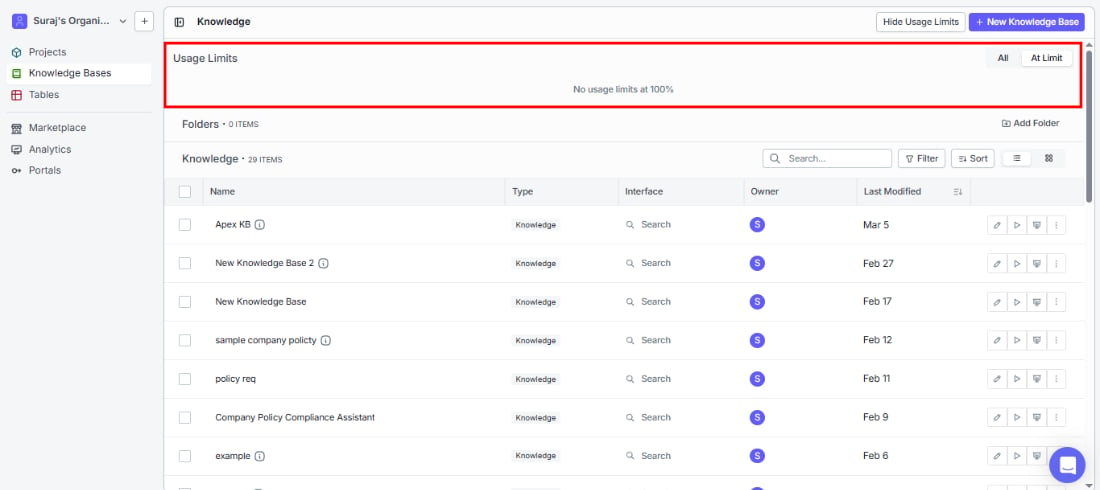
- All tab: see usage status across all your knowledge bases.
- At Limit tab: quickly find knowledge bases that need attention.
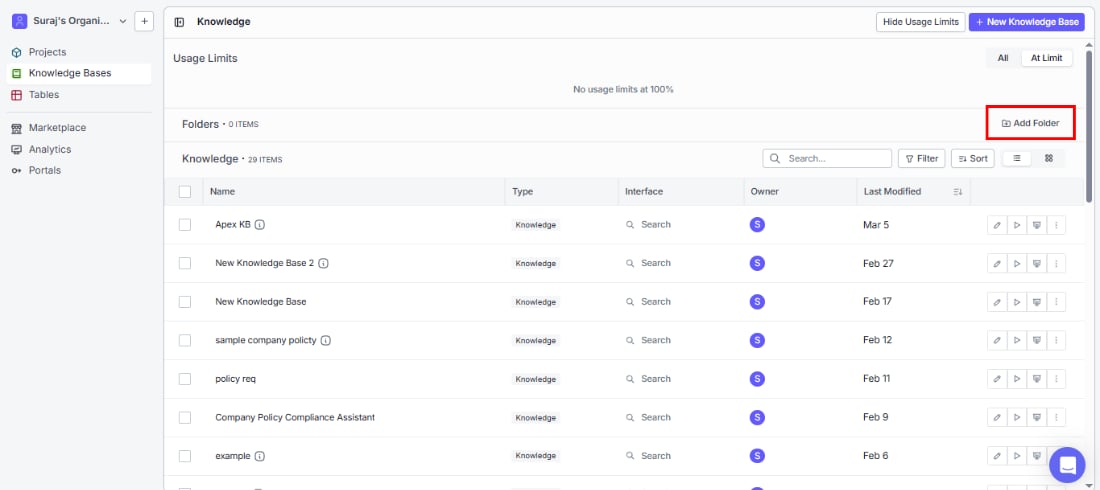
Folders
Browsing your knowledge bases
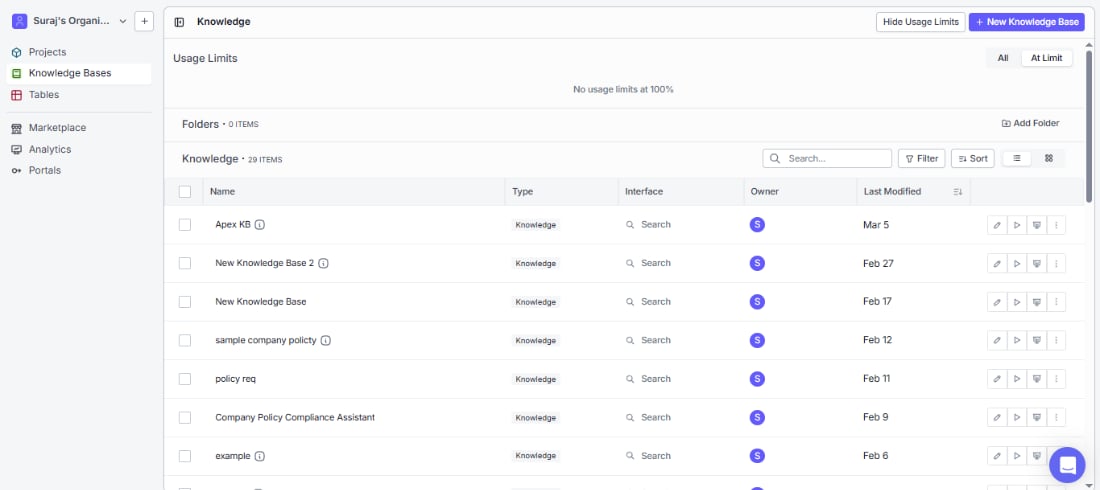
Find the knowledge base you need quickly using the listing page:
You can customize the columns displayed by clicking the column settings icon to the right of the Last Modified header.
- Search for a knowledge base by name using the search bar above the list.
- Filter to narrow the list by specific criteria.
- Sort to reorder by any column.
- Switch views between list view (table rows) and grid view (visual cards) using the toggle icons next to Sort.
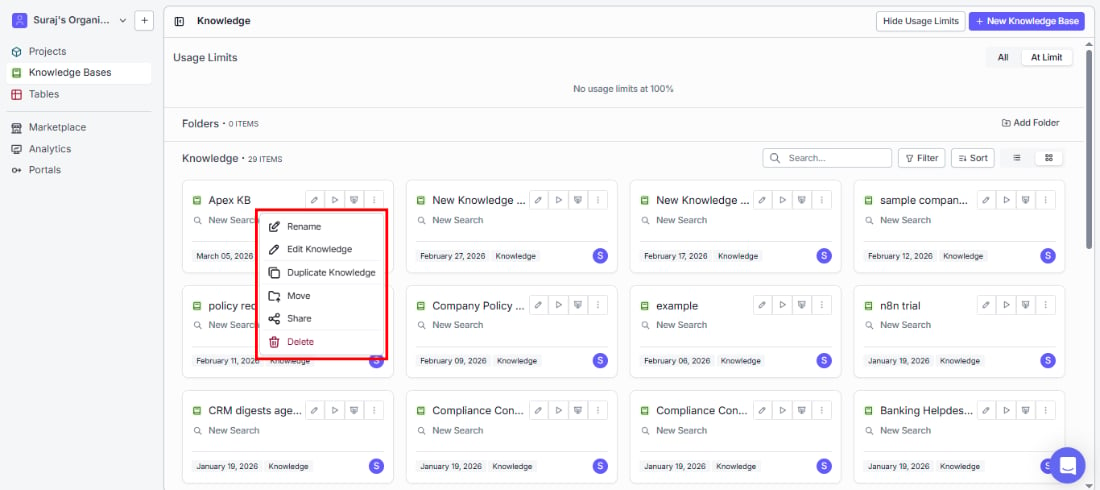
Quick actions on each knowledge base
Get to what you need in one click from any knowledge base row: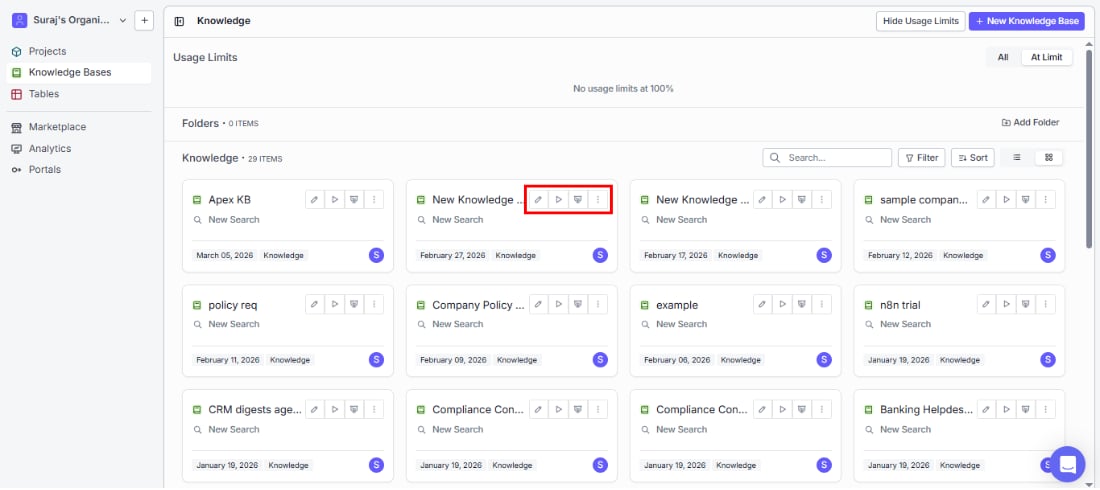
Three-dot menu options