Build a branded, AI-powered search experience your team or customers can start using right away
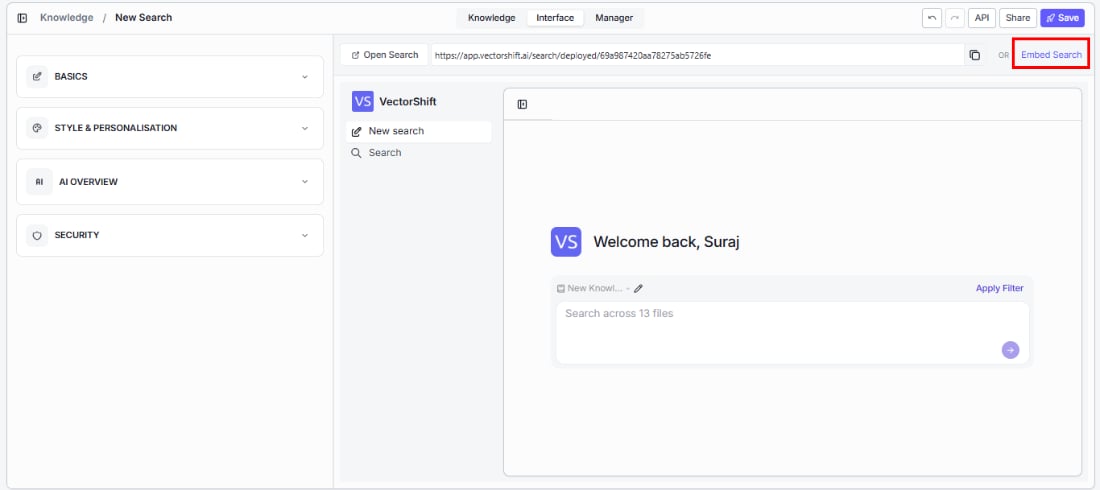
Turn your knowledge base into a polished search experience your team or customers can use right away. The Interface tab lets you control how your search looks, behaves, and who can access it — with a live preview so you can see every change as you make it.To access it, open a knowledge base and click the Interface tab in the top navigation.The left side of the screen shows all configuration sections. The right side shows a live preview that updates as you make changes.
Shape what your users see when they search.Max document results per searchSet how many document results appear per query (default: 6). More results give users more to explore; fewer results keep the experience focused and faster to scan.Show relevancy score for every document resultLet users gauge how closely each result matches their query — useful for power users who want to evaluate result quality at a glance.Re-ranked documentsSurface the most relevant results first by adding an extra ranking step after retrieval. Especially helpful for broad queries where the first pass might not perfectly order the results.
Make the search experience feel like part of your brand.Accent colorChoose the accent color used throughout the search interface (buttons, highlights, links) using the color picker.Display imageUpload your logo or avatar to appear in the search interface. Suggested size is 56 x 56 pixels. Supported formats: PNG, JPEG.Display nameSet the name that appears at the top of the search interface (e.g., your company name).Show welcome imageToggle this on to greet users with a welcome image when they first land on the search page.Welcome imageUpload the image that appears above the welcome message.Search bar placeholder textGuide your users with custom placeholder text (e.g., “Search our knowledge base…” or “Ask a question…”).Enable initial promptsHelp new users get started by showing suggested questions before they type — this reduces the blank-page problem and shows what the search can do.
Shape the quality and accuracy of AI-generated answers your users receive.AI overview generation promptDefine instructions for how the AI generates answers. For example: “Answer strictly based on the provided context; do not introduce information outside it, and respond clearly, concisely, and accurately within these limits.”LLM provider for AI overviewSelect the AI provider used to generate answers (e.g., OpenAI).Model for AI overviewSelect the specific model used to generate answers (e.g., gpt-4o-mini).Max token per LLM callSet the maximum number of tokens the AI can use per response. The default is 1000.Advanced search retrievalGet more accurate answers by adding an LLM-powered retrieval step that refines which chunks are used before generating the answer.Advanced search retrieval modeBalance speed and accuracy based on what your users need:
Mode
When to use
fast
High-volume or real-time search where speed is critical
accurate
Precision-focused search where getting the right answer matters most
Advanced search retrieval modelSelect the model used for the advanced retrieval step (e.g., gpt-4.1-mini).
Start with the default AI overview prompt and adjust based on user feedback. If answers are too verbose, add instructions to be concise. If answers miss important details, widen the prompt to allow more thorough responses.
Control who can access your search — keep it open for public use or restrict it to the right people.Protect with SSO AuthEnsure only authenticated team members can access the search by requiring SSO (Single Sign-On) login.Protect with PasswordAdd a simple password gate — useful for sharing with clients or partners who don’t have SSO access.
Building an internal knowledge base? SSO Auth keeps it secure without any extra steps for your team. For a public-facing search, leave both toggles off.
At the top of the Interface tab, you’ll see a URL like https://app.vectorshift.ai/search/deployed/.... — this is the direct link to your deployed search. Click Open Search to open it in a new tab, or use the copy button to share the URL with your team.
Add search directly to your website or app. Click Embed Search to get an iframe code snippet you can drop into any platform — Wix, Squarespace, Framer, Webflow, WordPress, or custom HTML.The dialog shows the HTML iframe code with a Copy button.
Click the Save button in the top-right corner to save your current interface configuration. The button shows a green “Saved” indicator once your changes are saved.
Always click Save after making changes. The live preview updates in real time, but your changes are not persisted until you save.
Help your users get more targeted results by narrowing their search to specific files in the knowledge base.Click Apply Filter in the search preview (or in the deployed search) to open the Filter modal. This modal shows the knowledge base contents, and you can select or deselect individual files to include or exclude them from the search scope.Use the Search bar and All Statuses dropdown within the filter modal to quickly find specific files. Selected files are highlighted with a checked checkbox.A note at the bottom of the modal reads: “Filters will be applied for your next search prompt.”Click Apply to save the filter, or Cancel to discard.