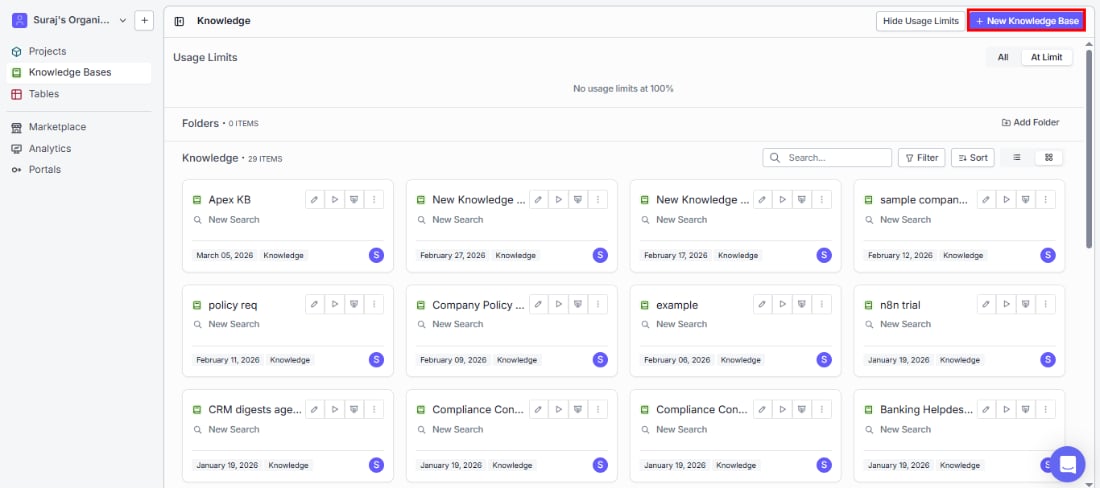
Naming your knowledge base
- Name: Choose a clear, descriptive name so your team can easily find this knowledge base later. It appears in listings, search interfaces, and anywhere else it’s referenced.
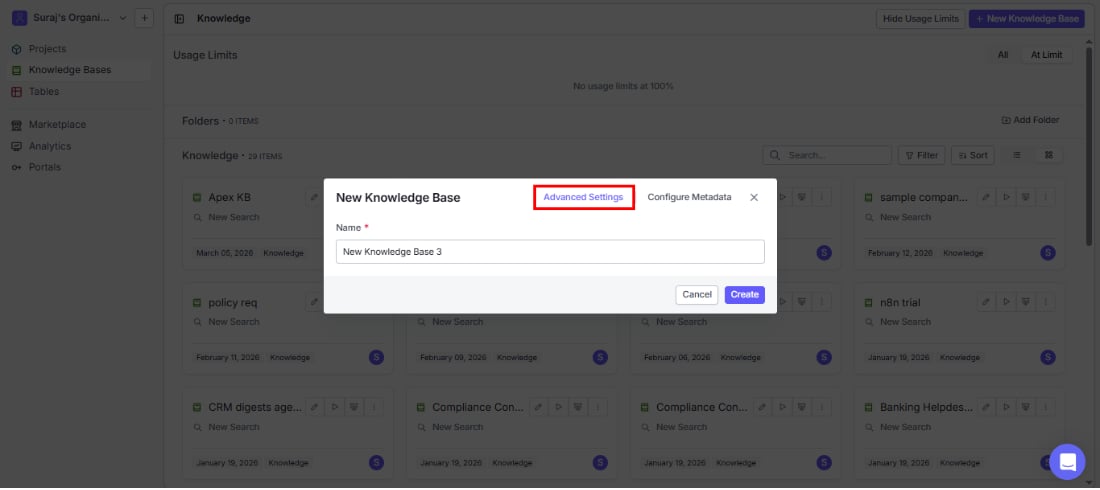
Advanced settings
These settings shape how your documents are processed, chunked, and searched. They’re divided into two groups: permanent settings that are locked after creation (because they affect the underlying data structure), and default settings you can adjust anytime.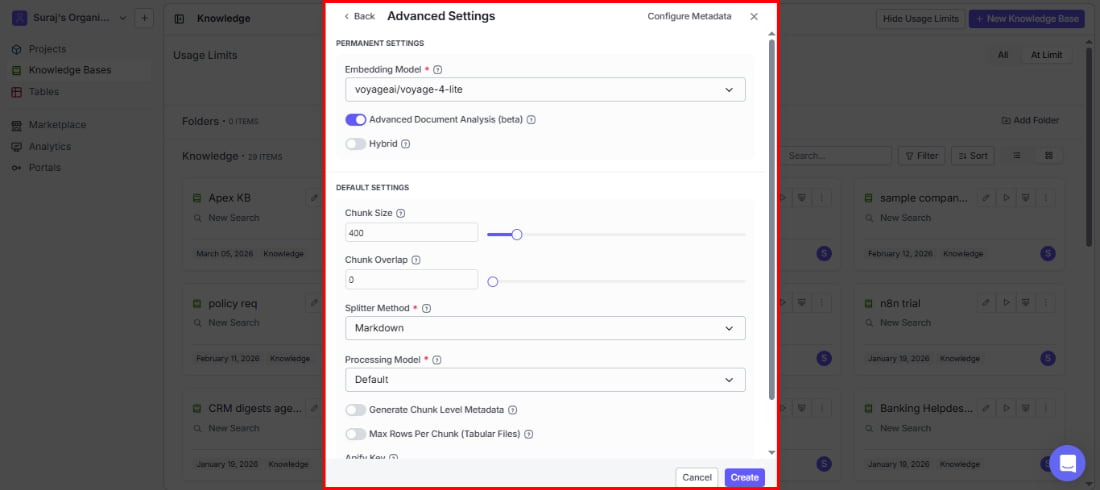
Permanent settings
These are locked once you create the knowledge base, so choose carefully. Embedding model (required) The embedding model determines how well your search understands the meaning behind queries. It converts document chunks into vectors — and since all your data is embedded with this model, changing it later would require re-processing everything. The default is openai/text-embedding-3-small. Models are available from OpenAI, VoyageAI, Cohere, and Google, grouped by provider in the dropdown. Advanced document analysis (beta) Get richer, more accurate search results by enabling enhanced document analysis. This uses advanced techniques to understand document structure — especially helpful for complex documents like PDFs with tables, headers, and mixed layouts. When enabled, VectorShift generates a short summary and a long summary for each indexed item, which improve metadata extraction accuracy and search relevance. Hybrid Help your users find exactly what they’re looking for, even when specific terms matter. Hybrid search combines semantic (meaning-based) search with keyword matching — so searches for product names, error codes, or policy numbers return the right results even when the exact wording matters.Default settings
These apply to all new documents but can be adjusted later — either globally in Settings or per individual document. Start with sensible defaults and fine-tune as you learn what works best for your content. Chunk size Controls how much content goes into each searchable piece (measured in tokens). The default is 400.- Smaller chunks (200–300) → more precise answers for fact-based questions like “What is our refund policy?”
- Larger chunks (500–800) → better for questions that need surrounding context like “Summarize the Q3 report findings”
Code files (Python, JavaScript, TypeScript, Go, Rust, SQL, YAML, Dockerfiles, and 100+ other formats) are automatically split along meaningful boundaries like functions and classes, regardless of the splitter you choose here.
Generate chunk level metadata
Automatically tag each chunk with metadata during indexing so your users can filter search results by specific attributes — helpful for narrowing results by category, date, or document type.
Max rows per chunk (tabular files)
Keep spreadsheet search results focused by limiting how many rows from CSVs or Excel files go into a single chunk. Without this, large spreadsheets can produce oversized chunks that dilute search relevance.
Apify key
If you plan to scrape URLs and want to use your own Apify account instead of VectorShift’s built-in scraping, enter your API key here. This is optional.
Configure metadata
Save hours of manual tagging by letting VectorShift automatically extract structured metadata from every document. Set up fields like category, author, date, or any custom property — and the AI labels each document for you as it’s indexed.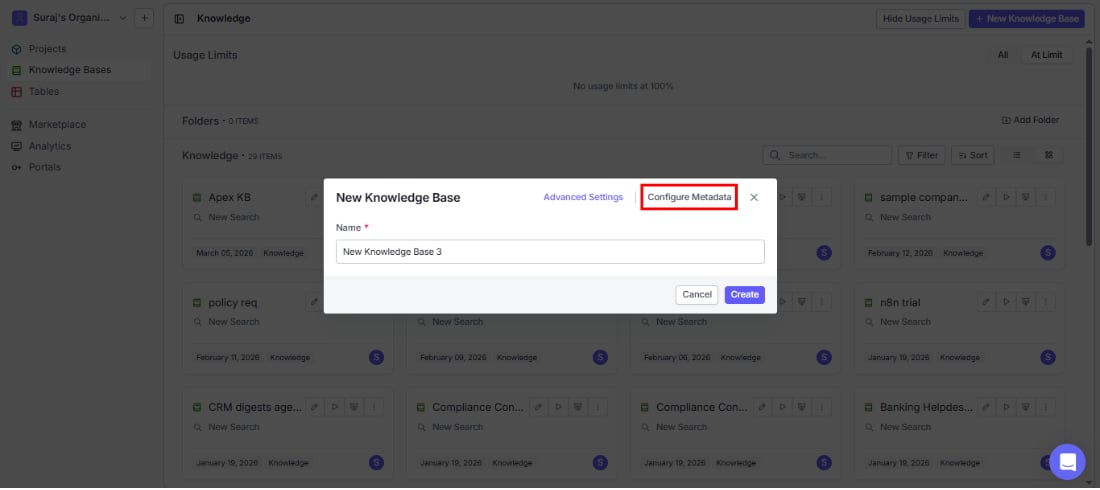
Builder mode
Define your metadata schema visually — no JSON required. Just add fields, pick types, and describe what the AI should extract.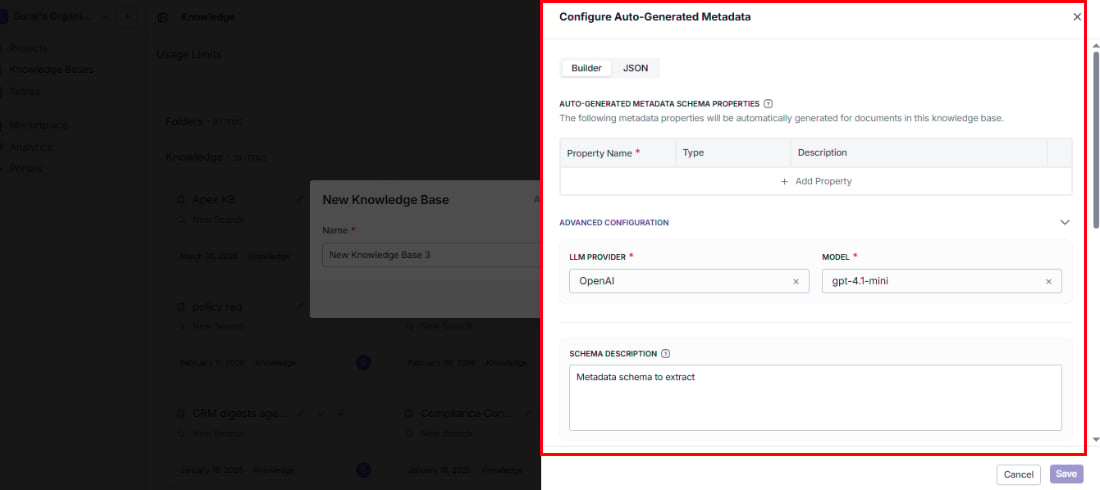
Click + Add Property to add more fields.
Supported property types:
String type options
When you select String as the type, two additional fields appear:
- Pattern: A regex pattern to validate extracted values (e.g.,
^\d{4}-\d{2}-\d{2}$for date strings). - Format: A predefined format constraint. Available formats: DateTime, Date, Time, Duration, Email, Hostname, IPv4, IPv6, UUID.
Advanced configuration
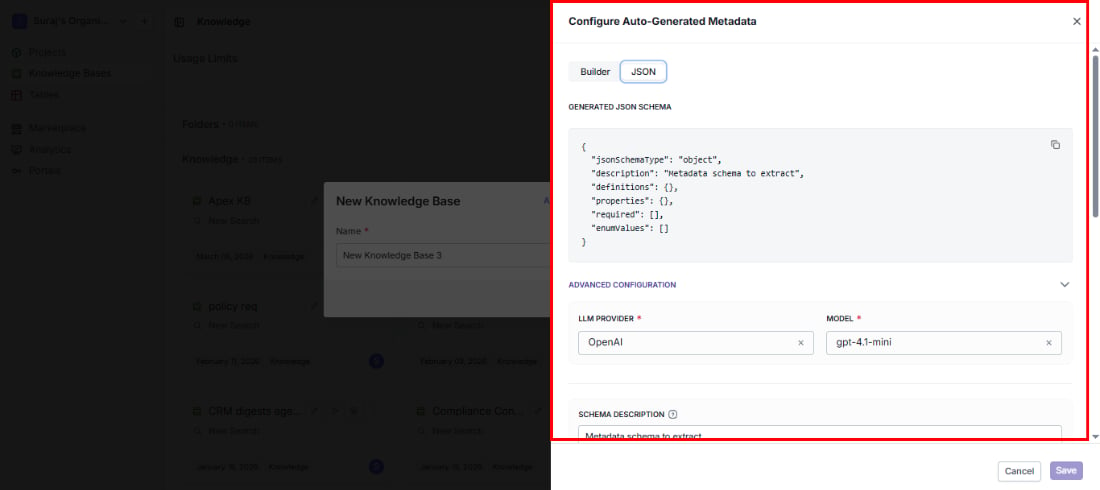
Fine-tune how the AI extracts metadata to get more accurate and consistent results:- LLM provider: Choose the AI provider (e.g., OpenAI).
- Model: Pick the specific model (e.g., gpt-4.1-mini).
- Schema description: Give the AI additional context about your intent — what kinds of documents it will see and what the metadata is for.
- Extraction instructions: Guide the AI’s behavior with specific rules (e.g., “Always extract dates in ISO 8601 format” or “If the author is not explicitly stated, leave the field empty”).
- Query instructions: Tell the search system how to apply metadata filters when users search — this ensures filters work the way your users expect.
Context configuration
Give the AI more surrounding context to improve metadata accuracy — especially useful when a document’s meaning depends on its relationship to other documents.These options require Advanced Document Analysis to be enabled in the knowledge base’s permanent settings.
You can select one or more of these options.
Sibling context
Enable this when related documents in the same folder share context. For example, if a folder contains multiple chapters of a report, the AI can use the other chapters to better understand and tag each one.
Parent context
Enable this when your folder structure carries meaning. For example, documents inside a “Legal” folder can automatically be recognized as legal documents, improving tagging accuracy.
JSON mode