Define the role, list specific responsibilities, describe how to handle common scenarios, and set boundaries on what the Agent should not do. The more context you provide, the more consistently the Agent will behave.
Example instruction:You are a portfolio research assistant for Apex Capital. Your responsibilities:
Answer analyst questions about portfolio holdings using the Query Knowledge Base tool
Find latest market news using the Research Web tool
Always cite your sources and flag when information may be outdated
Do not provide investment advice or make buy/sell recommendations
If you cannot find an answer in the Knowledge Base, say so clearly rather than guessing
Start with fewer tools and add more as needed. An Agent with 3 to 5 well-described tools will typically outperform one with 15 poorly described tools. Each tool you add is another decision the Agent has to make, so keep the toolset focused on what the Agent actually needs.
For a customer support Agent, start with just Query Knowledge Base (for FAQs), Research Web (for product updates), and Code Interpreter (for data lookups). Add more tools only after testing shows the Agent needs them.
Use “Require User Approval” for any tool that modifies external data, such as updating CRM records, sending Slack messages, or writing to files. This gives the user a chance to review and confirm before the action is taken, preventing accidental changes.
Set tools like Airtable > Update Records, Slack > Send Message, and Google Sheets > Write Cell to Require User Approval. Keep read-only tools like Research Web and Query Knowledge Base on Auto Run for a smooth experience.
When building multi-agent setups, keep each sub-agent focused on a single domain. A “Fixed Income Agent” that only handles bond and rate questions will be more reliable than a general “Research Agent” that handles everything.
In your main Agent’s instructions, define clear routing logic:When the user asks about fixed income or bonds, use the Run Agent tool to call the Fixed Income Agent. When the user asks about equities or stock positions, use the Run Agent tool to call the Equities Agent.
Upload your most important documents to the Knowledge Base first and test retrieval in the chat preview before adding more. This lets you verify that the chunk size, overlap, and embedding model are working well for your content before scaling up.
Upload 3–5 representative documents first. Ask the Agent questions you know the answers to and check whether the responses are accurate and well-sourced. If retrieval is off, adjust the settings before adding the full document set.
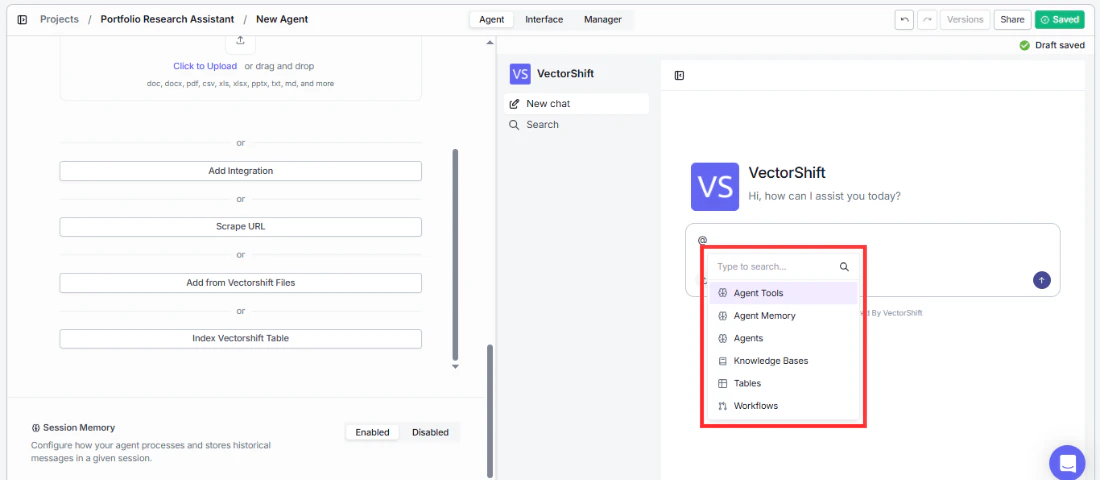
Use @ tagging to debug and reference specific resources
Use the @ tag feature in chat to explicitly reference specific tools, knowledge bases, agents, or other resources. This is useful both for debugging and for directing the Agent to use a specific resource.
Examples of @ tag usage:
Type @Q4 Earnings Report to force the Agent to query that specific Knowledge Base document: “@Q4 Earnings Report What was our revenue growth last quarter?”
Type @Fixed Income Agent to route a question to a specific sub-agent: “@Fixed Income Agent What is the current yield curve for Treasury bonds?”
Type @Code Interpreter to force the Agent to use code for a calculation: “@Code Interpreter Calculate the compound annual growth rate from 100Kto250K over 5 years”
This is especially useful when the Agent picks the wrong tool or Knowledge Base automatically — tagging lets you override its decision and test specific resources in isolation.
Monitor the Manager tab regularly after deploying your Agent. The sessions table lets you review actual conversations, which is the best way to spot issues with instructions, tool usage, or knowledge base gaps that you might not catch during testing.
Look for patterns in conversations where the Agent fails: Does it pick the wrong tool? Does it miss information from the Knowledge Base? Use these patterns to refine your instructions and tool descriptions.
Enable “Show Sources” in the AI Model’s Advanced Settings when your Agent answers questions from a Knowledge Base. This builds user trust by letting them see where the information came from — especially important for compliance, risk, and regulatory use cases where analysts need to verify citations.
With Show Sources enabled, the Agent will display clickable source references alongside its answers, so users can verify the original documents. This is critical for regulated industries where audit trails matter.