
Running a search query
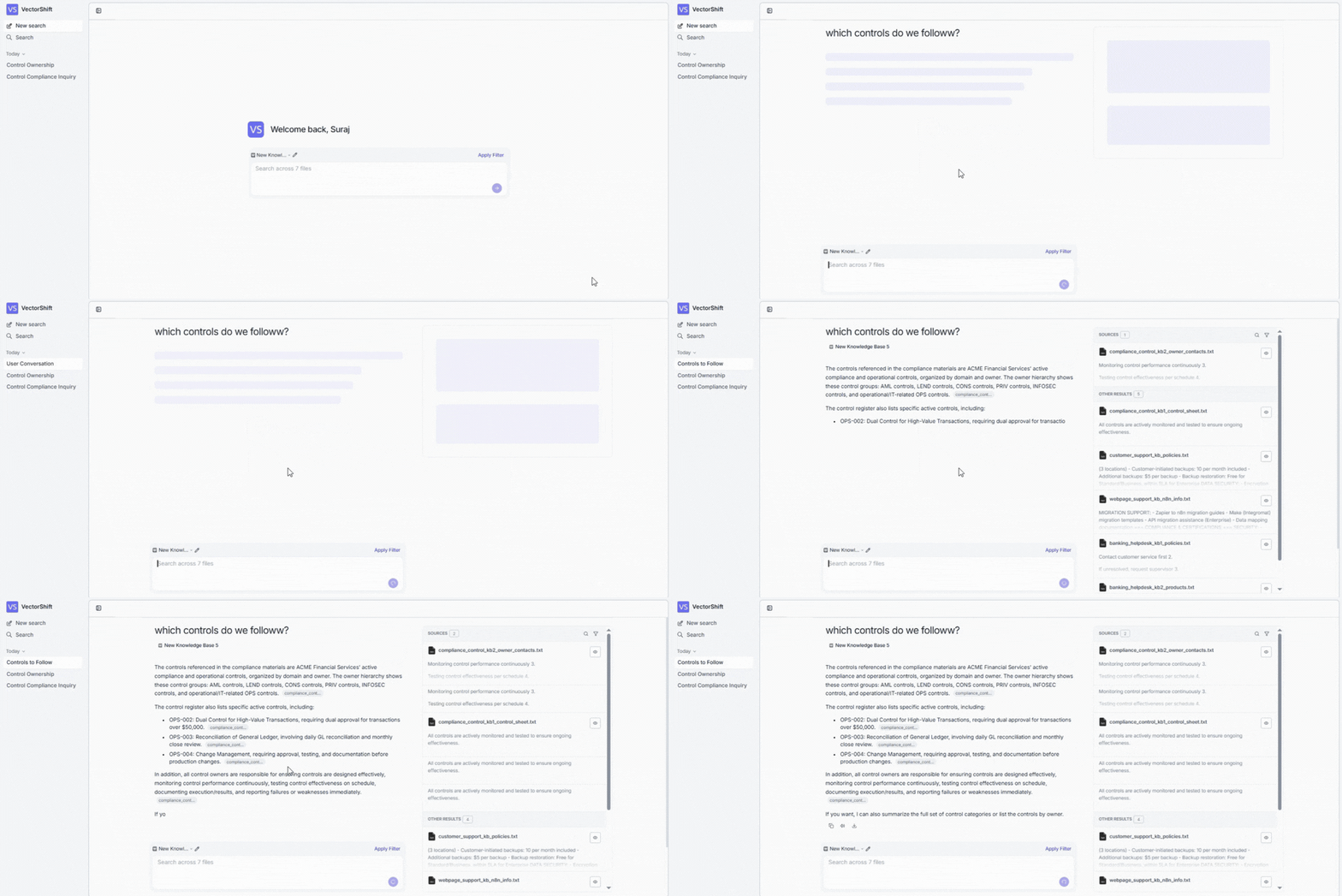
- Switch knowledge bases — click the knowledge base name above the search bar to search a different one.
- Edit the selection — click the pencil icon to change which knowledge base is active.
- Narrow your search — click Apply Filter to focus on specific files and get more targeted results.
Reading search results
Every search returns two things: a clear AI-generated answer and the sources it drew from — so you can trust the answer and verify it when needed. AI-generated overview The main area shows a natural language answer to your query, with inline citations linking back to the source documents. You can see exactly where each piece of information came from — no need to take the AI’s word for it. Sources panel On the right side, verify the answer at a glance:- A Sources badge shows how many documents were used.
- Each source document is listed with relevant snippets, so you can check the AI’s answer against the original content.
- Click the search and filter icons to explore sources further.
Managing search conversations
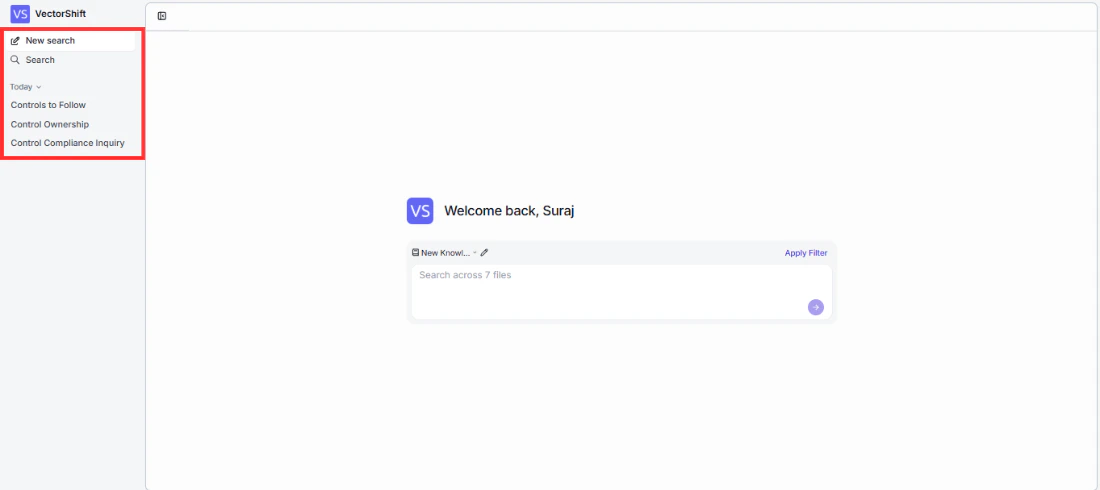
- New search — start a fresh session anytime.
- Search history — past searches appear grouped by date (e.g., “Today”). Click any previous search to revisit its results instantly.
- Search tab — browse your complete search history.