
Give your team access to the knowledge bases they need — with the right level of control. Share with individual users or entire teams and assign roles so everyone has appropriate permissions.

Sharing with team members

Open the Share dialog from either location:
  • Click the Share button in the top-right area of the knowledge base detail page.
  • Click the three-dot menu on any knowledge base in the listing page and select Share.
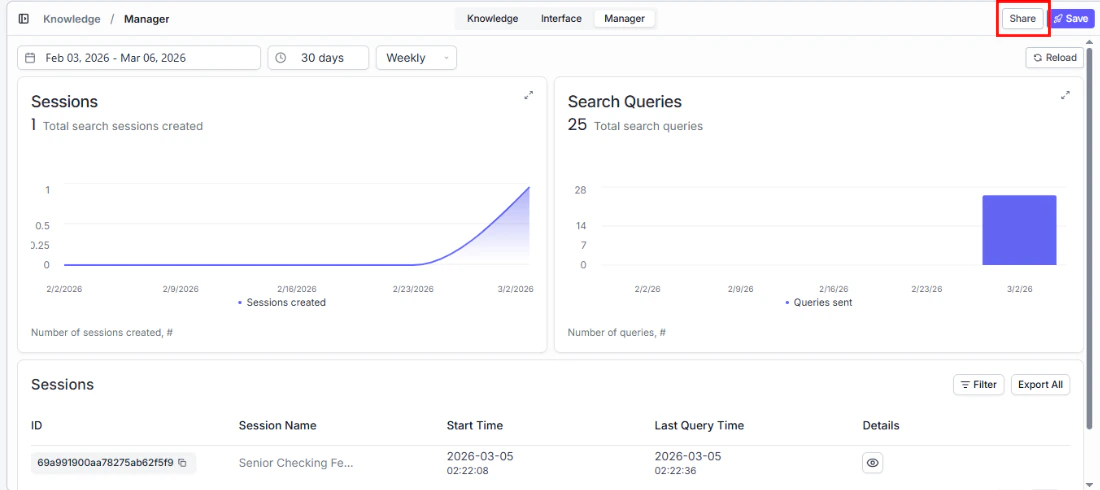
Both open the same dialog. Manager tab with Share button highlighted

Share with

Click the Add Users dropdown to search for and select users or teams in your organization.

Select Role

Assign the right level of access based on what each person needs to do:
RoleWhat they can do
ViewerSearch and browse — ideal for end users who just need answers
EditorFull editing access — add/remove documents, adjust settings, and manage content
AdministratorEverything an Editor can do, plus invite others and manage roles
Click + Add to add the selected users or teams with the chosen role.

Current users

Below the Add button, a list shows everyone who currently has access. Each row displays the user’s name, email, and current role. You can change a user’s role at any time by clicking the role dropdown next to their name.