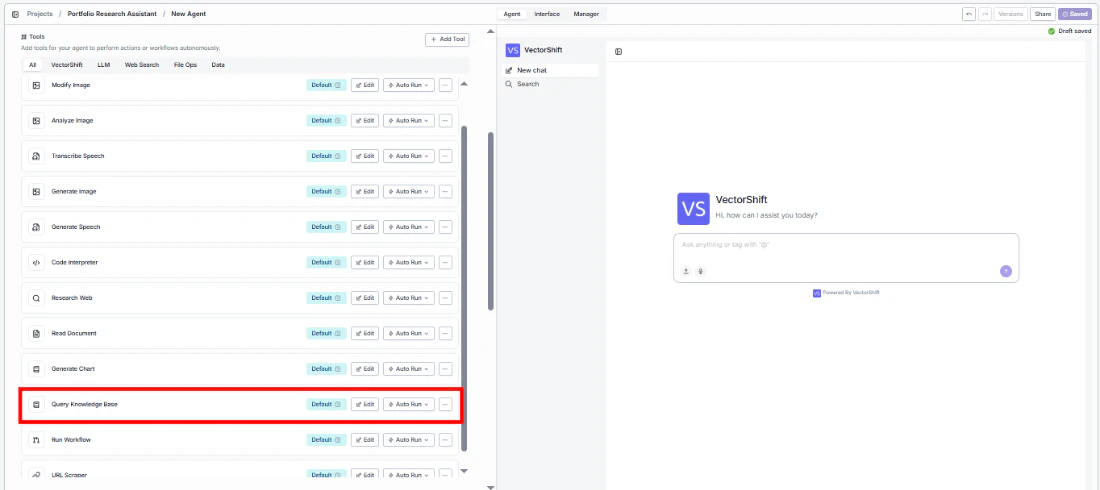
Use this node from the SDK
Add it in Python with
pipeline.add(name="...").knowledge_base(...). See the SDK reference.Key Use Cases
- Answering user questions grounded in your own documents or internal content
- Building RAG workflows that pull relevant context before generating a response
- Giving an agent access to product documentation, policies, or knowledge articles
- Surfacing citations and sources alongside AI-generated responses
- Indexing structured data like tables for retrieval alongside unstructured documents
Data Sources
File Upload Upload files directly to your knowledge base. Supported formats:doc, docx, pdf, csv, xls, xlsx, pptx, txt, md, and more.
Integrations
Sync content from connected external services so your knowledge base stays current without manual updates. Supported integrations include:
- Google Drive
- And more via the Add Integration option
Using the Knowledge Base Reader Node
- Workflows
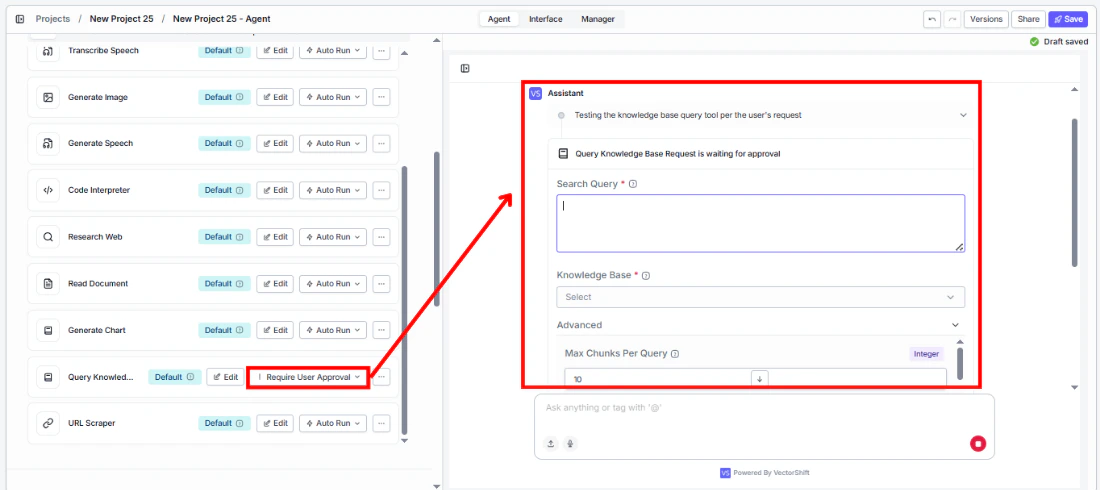
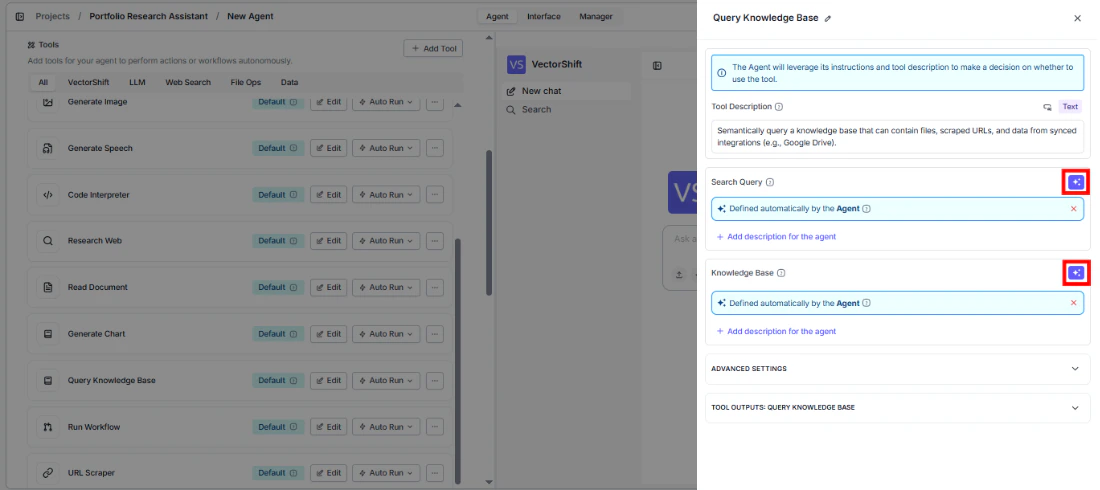
- Agents
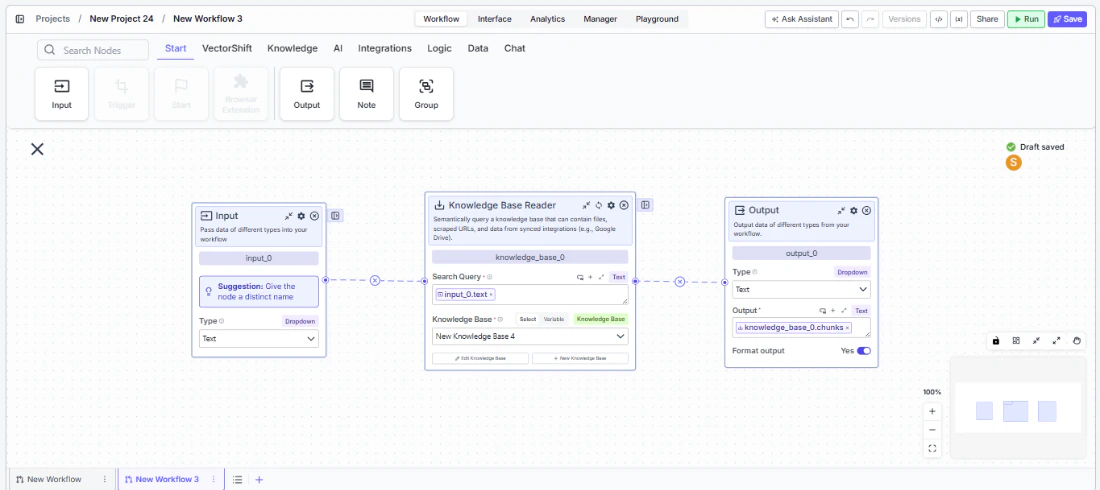
In workflows, the knowledge base is accessed through the Knowledge Base Reader node. Place it on the canvas, point it at a knowledge base, pass it a search query, and it returns the most relevant content for downstream nodes — typically an LLM — to consume.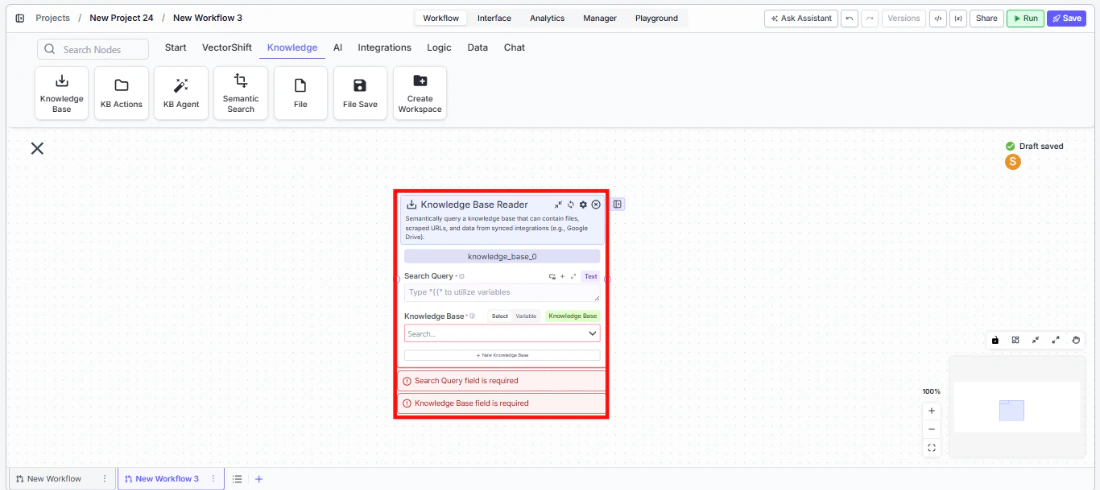
Key Use Cases
- Retrieving relevant document chunks to answer a user’s query in a Q&A workflow
- Feeding retrieved context into an LLM node for RAG
- Searching across files and synced content at a specific step in a workflow
- Using retrieved pages or documents when broader context is needed beyond individual chunks
- Generating a direct answer from retrieved content using Advanced QA mode
How It Works
Step 1: Add the Knowledge Base Reader Node Find the Knowledge Base Reader node under the Knowledge category in the node panel and drag it onto the canvas.knowledge_base_0. Rename it to something descriptive, especially when using multiple knowledge nodes in the same workflow.Step 3: Enter a Search Query
In the Search Query field, enter the query to run against the knowledge base. Use {{ to reference a variable from an upstream node — typically an Input node carrying the user’s question.Step 4: Select or Create a Knowledge Base
Use the Knowledge Base field to pick an existing knowledge base from the dropdown, or click + New Knowledge Base to create one inline. Switch to Variable mode to pass a knowledge base reference dynamically from upstream.chunks, documents, pages, or formatted_text — to the node that will consume the retrieved content.Inputs
Search Query* — The query used to search the knowledge base. Supports variable references via{{.Knowledge Base* — The knowledge base to search. Select from a list, pass as a variable, or create inline.
Outputs
chunks— A list of semantically similar text segments retrieved from the knowledge base. Available when Retrieval Unit is set to Chunks. Best for fine-grained content retrieval.documents— A list of full or partial documents retrieved from the knowledge base. Available when Retrieval Unit is set to Documents. Best when broader document-level context is needed.pages— A list of page-level segments retrieved from the knowledge base. Available when Retrieval Unit is set to Pages. Best for page-aware retrieval over long documents.citation_metadata— A list of source references for the retrieved results, used to surface citations in LLM responses.formatted_text— Retrieved content pre-formatted as a single string ready for direct LLM input. Available when Format Context for LLM is enabled (on by default).response— A generated answer produced from the retrieved content. Available when Do Advanced QA or Set Response Format is enabled. Becomesstream<string>when Stream Response is also enabled.
Node Options
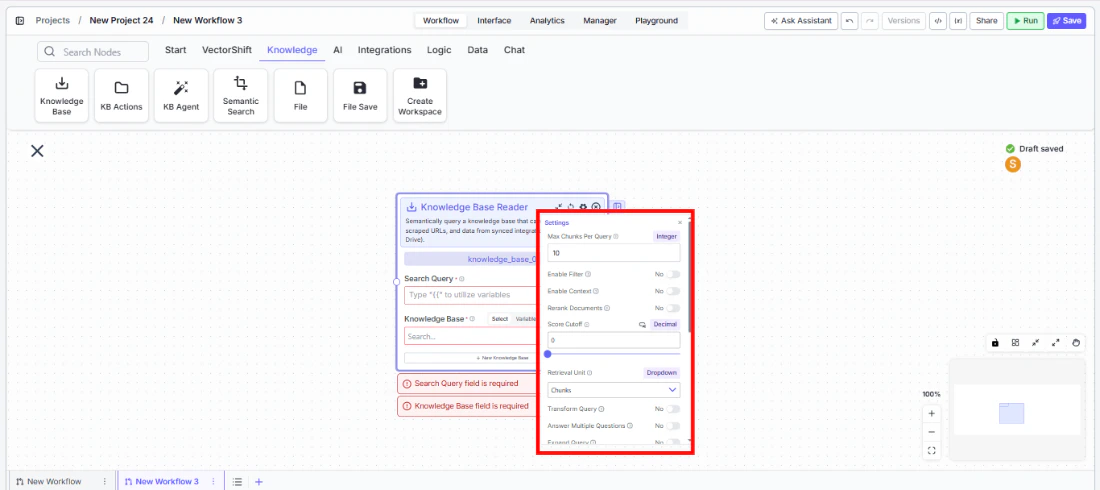
Core SettingsMax Docs Per Query(Integer, default: 10) — Maximum number of results to retrieve per query.Retrieval Unit(Dropdown, default: Chunks) — What unit of content is retrieved. Options:Chunks,Documents,Pages. Each produces a different output key.Score Cutoff(Decimal, default: 0) — Minimum similarity score a result must meet to be returned. A value of 0 returns everything.Format Context for LLM(Toggle, default: Yes) — Formats retrieved content for LLM input.Alpha(Decimal, default: 0.6) — Balance between semantic and keyword search in hybrid retrieval. Higher values weight semantic search more heavily.
Enable Filter(Toggle, default: No) — Enables metadata-based filtering. When enabled, afilterinput field appears.Enable Context(Toggle, default: No) — Passes additional context with the query. When enabled, acontextinput field appears.Rerank Documents(Toggle, default: No) — Reranks results for better relevance. When enabled:Rerank Model— Model used for reranking (default:cohere/rerank-english-v3.0)Num Chunks to Rerank(Integer, default: 10)
Transform Query(Toggle, default: No) — Rewrites the query before retrieval to improve results.Answer Multiple Questions(Toggle, default: No) — Handles compound or multi-part queries in a single pass.Expand Query(Toggle, default: No) — Expands the query to improve recall.Expand Query Terms(Toggle, default: No) — Adds related terms to broaden search coverage.Generate Metadata Filters(Toggle, default: No) — Derives metadata filters from the query automatically.Do Advanced QA (beta)(Toggle, default: No) — Generates a direct answer from retrieved content. When enabled,citation_metadatais populated and aresponseoutput is added. Additional fields:QA Model— Model used to generate the answer (default:gpt-4o-mini)Advanced Search Mode—fastoraccurate(default:accurate)
Set Response Format(Toggle, default: No) — Enables a custom response format with aSystem Promptfield.Stream Response(Toggle, default: No) — Streams the response progressively. Only takes effect when Set Response Format is also enabled; changesresponseoutput tostream<string>.Enable Document DB Filter(Toggle, default: No) — Applies document-level filters during retrieval. When enabled, adocument_db_filterfield appears.Do NL Metadata Query(Toggle, default: No) — Enables natural language querying against document metadata.
Best Practices
- Pass the user’s query dynamically from an Input node rather than hardcoding a search term
- Use
formatted_textfor straightforward RAG workflows; usechunks,documents, orpageswhen you need more control over content assembly - Set
Score Cutoffabove 0 to filter out low-relevance results - Use Enable List Mode (right-click the node) when processing multiple queries in a single run