
Use this node from the SDK
Add it in Python with
pipeline.add(name="...").knowledge_base_sync(...). See the SDK reference.Core Functionality
- Trigger a sync operation on an existing knowledge base
- Re-process all documents in the knowledge base to update embeddings and indexes
- Refresh content from connected integrations (e.g., Google Drive, Confluence, Notion)
- Can be triggered manually or as part of an automated workflow
Tool Inputs
Knowledge Base* — Required · Knowledge Base selector · The knowledge base to sync.
Tool Outputs
This node does not produce outputs. It triggers the sync operation on the selected knowledge base.- Workflows
Overview
In workflows, the Sync Knowledge Base node triggers a sync operation as a workflow step. This is useful for automated workflows that need to ensure a knowledge base is up to date before querying it, or for scheduled workflows that periodically refresh knowledge base content from connected integrations.Use Cases
- Post-load refresh — After loading new documents with a Knowledge Base Loader node, trigger a sync to ensure the new content is fully indexed and searchable.
- Scheduled integration sync — A cron-triggered workflow syncs a knowledge base connected to Google Drive or Confluence on a daily schedule to pick up any document changes.
- Pre-query freshness guarantee — Before running a Knowledge Base Agent query, sync the knowledge base to ensure results reflect the latest document state.
- Multi-knowledge-base refresh — A workflow iterates over multiple knowledge bases and syncs each one as part of a nightly maintenance workflow.
How It Works
- Add the node — On the workflow canvas, open the node panel and navigate to the Knowledge category. Drag Sync Knowledge Base onto the canvas.
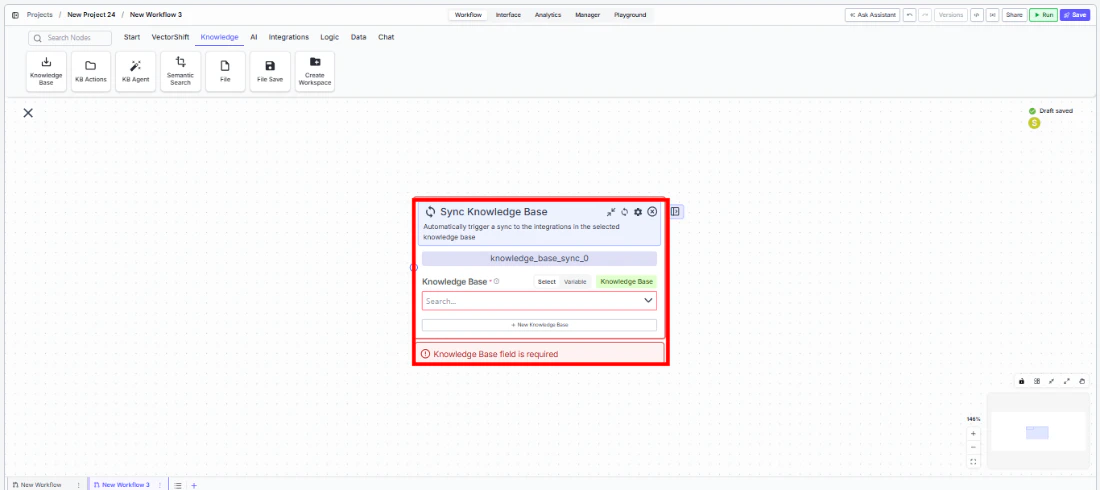
- Select the knowledge base — Use the
Knowledge Baseselector to choose which knowledge base to sync. This field is required. - Position in the workflow — Place the Sync Knowledge Base node after any document loading or modification steps, and before any query or retrieval steps that depend on fresh data.
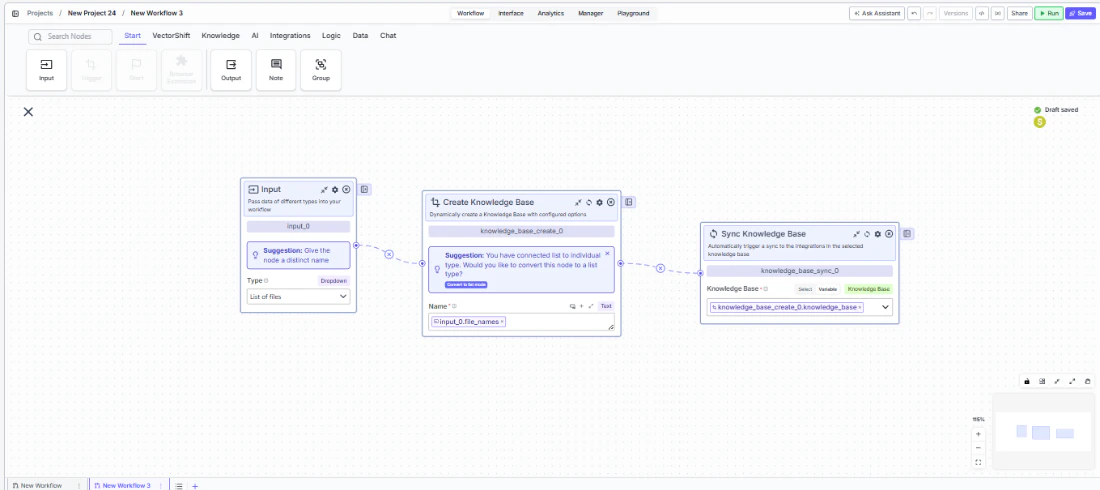
- Run the workflow — Execute the workflow. The node triggers the sync operation on the selected knowledge base.
Settings
Knowledge Base— Knowledge Base selector · Required · The knowledge base to sync.
Best Practices
- Sync after loading — Always place a Sync Knowledge Base node after Knowledge Base Loader nodes to ensure newly loaded documents are fully processed and indexed.
- Use with cron triggers — For knowledge bases connected to external integrations, set up a cron-triggered workflow that runs the sync on a regular schedule (e.g., daily or hourly).
- Allow processing time — Sync operations can take time for large knowledge bases. If downstream nodes depend on the sync being complete, consider adding appropriate dependencies.
- Avoid unnecessary syncs — Only sync when content has changed or when integration sources may have updated. Frequent syncs on unchanged knowledge bases consume processing resources without benefit.
Related Templates
IC Memos Knowledge Base
Centralized searchable repository of investment committee memos for quick reference.
Company Policy Compliance Chatbot
Answers employee questions about internal policies and flags potential compliance issues.
Investor Helpdesk
Handles investor inquiries related to portfolios, statements, and fund performance.
Closing Compliance Agent
Ensures all closing documents meet regulatory and legal requirements before settlement.