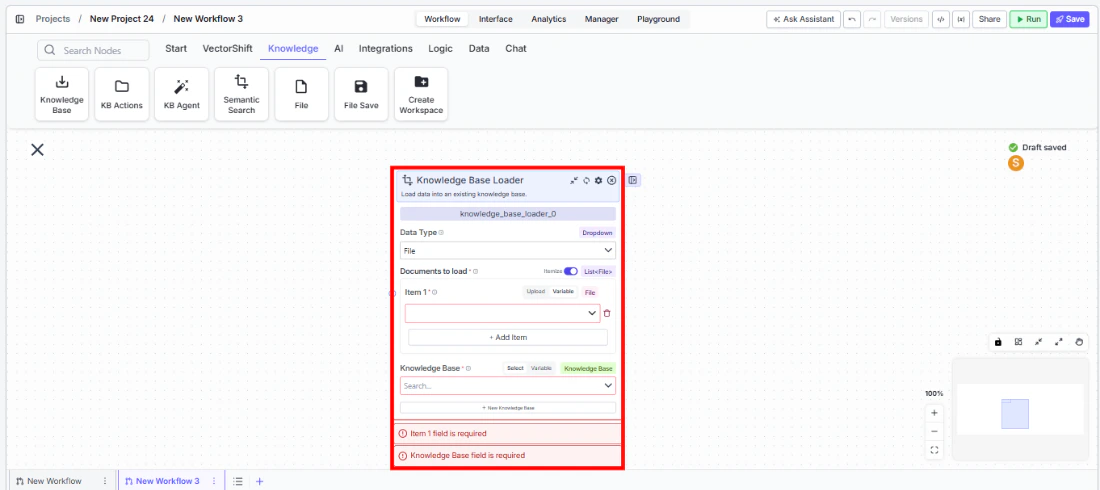
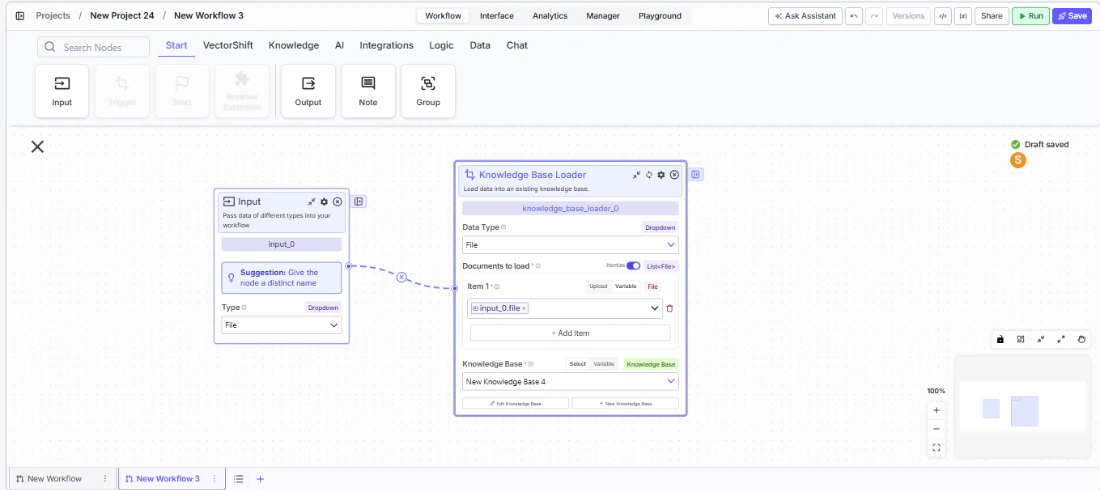
Use this node from the SDK
Add it in Python with
pipeline.add(name="...").knowledge_base_loader(...). See the SDK reference.Core Functionality
- Load files or URLs into an existing knowledge base
- Choose between File and URL document types
- Add multiple items (files or URLs) in a single operation
- Configure automatic rescraping frequency for URL sources (Never, Daily, Weekly, Monthly)
- Works with any existing knowledge base — pair with Create Knowledge Base to build and populate in one workflow
Tool Inputs
Knowledge Base* — Required · Knowledge Base selector · The knowledge base to load data into.Document Type— Dropdown · Default:File· Options:File,URL· The type of document to load.Documents* — Required · File or URL list · The files or URLs to load into the knowledge base. Use the + Add Item button to add multiple items.Rescrape Frequency— Dropdown · Default:Never· Options:Never,Daily,Weekly,Monthly· How often to rescrape URL sources for updated content. Only applicable when Document Type is URL.
Tool Outputs
This node does not produce outputs. It performs a load operation into the selected knowledge base.- Agents
- Workflows
Overview
When added as a tool inside an agent, the Knowledge Base Loader enables the agent to load files or URLs into a knowledge base during a conversation. The agent can accept documents from users and add them to a designated knowledge base, or scrape URLs provided in the conversation.Use Cases
- Client document ingestion — An agent accepts uploaded financial documents from a client and loads them into their dedicated knowledge base for future retrieval.
- Research URL collection — An agent scrapes analyst report URLs shared in conversation and loads them into a research knowledge base with weekly rescraping enabled.
- Policy document updates — A compliance agent loads updated regulatory documents into the compliance knowledge base when new versions are shared.
- Meeting notes archival — An agent loads meeting transcripts and notes into a project knowledge base after each client call.
- Evidence collection — An audit agent loads supporting documents into an audit-specific knowledge base as users provide them during the review process.
How It Works
- Add the tool — In the agent builder, open the tool panel and navigate to the Knowledge category. Select Knowledge Base Loader to add it as a tool.
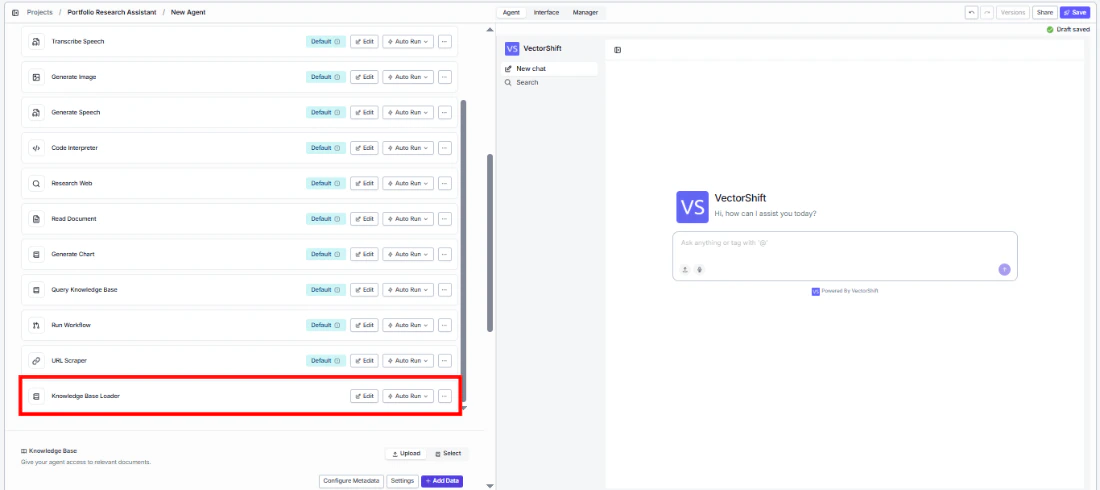
- Select the knowledge base — Use the
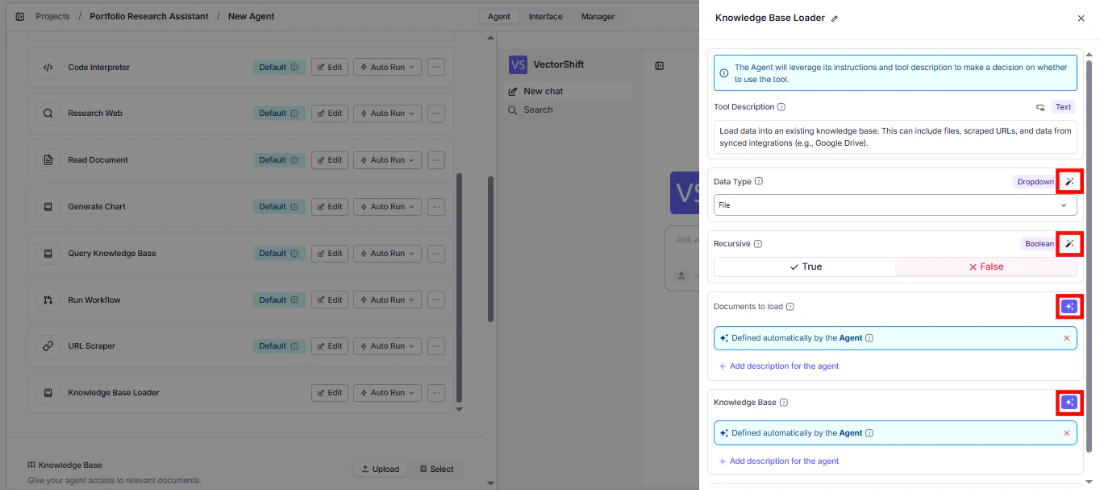
Knowledge Baseselector to choose which knowledge base to load data into. - Configure input fields — Set the
Document Type(File or URL). The document items can be filled by the agent based on files or URLs provided in conversation, or locked to fixed values. Click the sparkle icon to switch fields between dynamic and static mode.
- Write a Tool Description — Describe when the agent should load documents. Example: “Use this tool to load files or URLs into the client’s knowledge base. Accept files uploaded by the user or URLs shared in conversation.”
- Set Auto Run behavior — Choose how the tool executes:
- Auto Run — Loads documents immediately.
- Require User Approval — Pauses for user confirmation before loading.
- Let Agent Decide — The agent determines whether approval is needed.
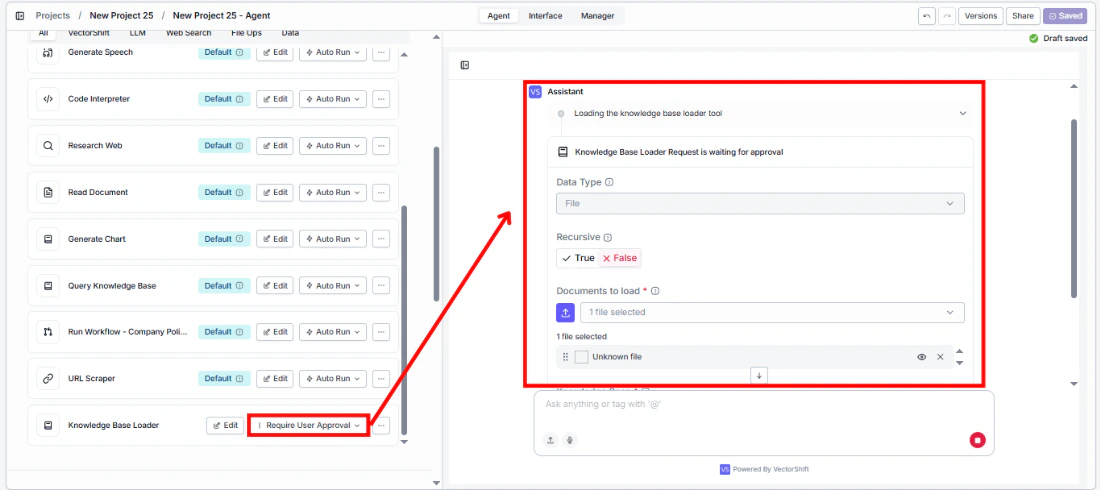
- Test the tool — Upload a file or share a URL in the chat and ask the agent to add it to the knowledge base.
Settings
Knowledge Base— Knowledge Base selector · Default: none · The target knowledge base.Document Type— Dropdown · Default:File· File or URL.Rescrape Frequency— Dropdown · Default:Never· URL rescraping schedule.Tool Description— Text · Default: none · Describes the tool’s purpose to the agent.Auto Run— Dropdown · Default: Auto Run · Controls execution behavior.
Best Practices
- Lock the knowledge base selection — In most cases, set the Knowledge Base field to a fixed value so the agent always loads into the correct knowledge base rather than guessing.
- Use “Require User Approval” for production — Loading documents is a write operation that modifies the knowledge base. Use approval mode to prevent accidental uploads.
- Set rescrape frequency for dynamic URLs — When loading web pages that update regularly (e.g., news sources, market data pages), enable daily or weekly rescraping.
- Pair with Create Knowledge Base — When onboarding new clients, use Create Knowledge Base first, then Knowledge Base Loader to populate it — all within the same agent conversation.
Related Templates
IC Memos Knowledge Base
Centralized searchable repository of investment committee memos for quick reference.
Company Policy Compliance Chatbot
Answers employee questions about internal policies and flags potential compliance issues.
Custom API Chatbot
A configurable chatbot that connects to custom APIs to retrieve and present dynamic data.
Investor Helpdesk
Handles investor inquiries related to portfolios, statements, and fund performance.