Use this node from the SDK
Add it in Python with
pipeline.add(name="...").file_save(...). See the SDK reference.Core Functionality
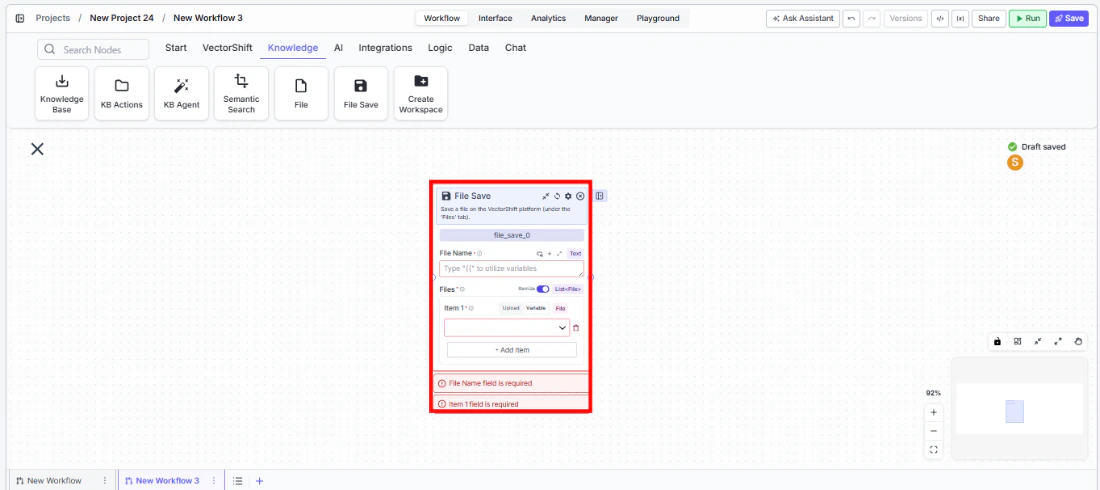
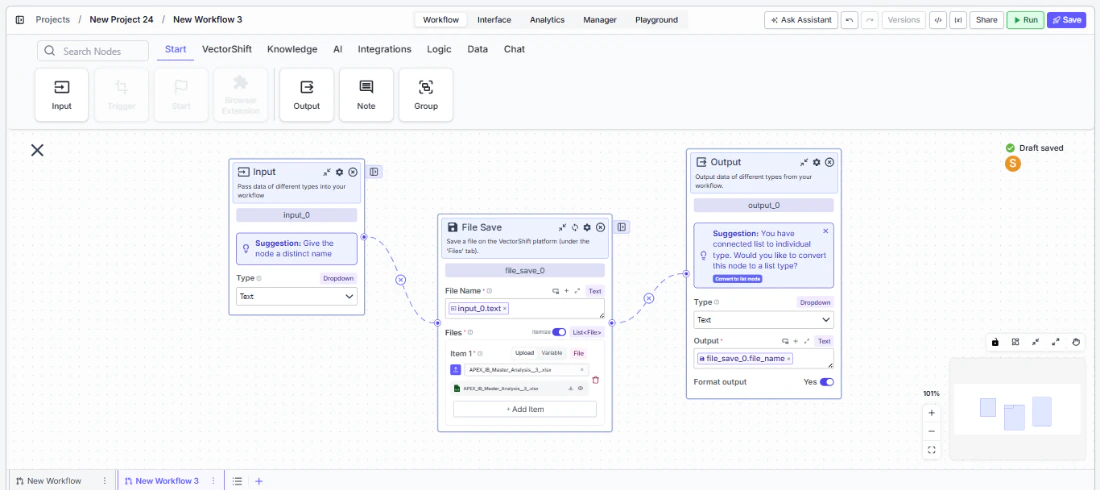
- Save one or more files to the VectorShift platform’s Files tab
- Specify a custom file name for the saved file
- Accept file inputs from any upstream node that outputs files
- Return the saved file name(s) as output for downstream reference
Tool Inputs
File Name* — Required · Text · The name to save the file as on the platform.Files* — Required · List of Files · The file(s) to save.
Tool Outputs
file_name— List of Text · The name(s) of the saved file(s).
- Agents
- Workflows
Overview
When added as a tool inside an agent, File Save allows the agent to persist files to the VectorShift platform during a conversation. The agent can save generated reports, processed documents, or any file output from other tools to the platform’s Files tab, making them available for later access.Use Cases
- Report archival — An agent generates a financial analysis report and saves it to the platform so the user can download it later.
- Document processing output — An agent processes and transforms uploaded documents, then saves the cleaned versions to the platform.
- Export data files — An agent compiles data into a CSV or Excel file and saves it for the user to retrieve.
- Backup conversation artifacts — An agent saves important files produced during a conversation for persistent storage.
How It Works
- Add the tool — In the agent builder, open the tool panel and navigate to the VectorShift category. Select File Save to add it as a tool.
- Configure input fields — The
File NameandFilesfields can be left for the agent to fill dynamically based on conversation context, or locked to fixed values. - Write a Tool Description — Describe when the agent should save files. Example: “Use this tool to save a generated report to the platform. Provide the file and a descriptive name.”
- Set Auto Run behavior — Choose how the tool executes:
- Auto Run — Saves the file immediately.
- Require User Approval — Pauses for user confirmation before saving.
- Let Agent Decide — The agent determines whether approval is needed.
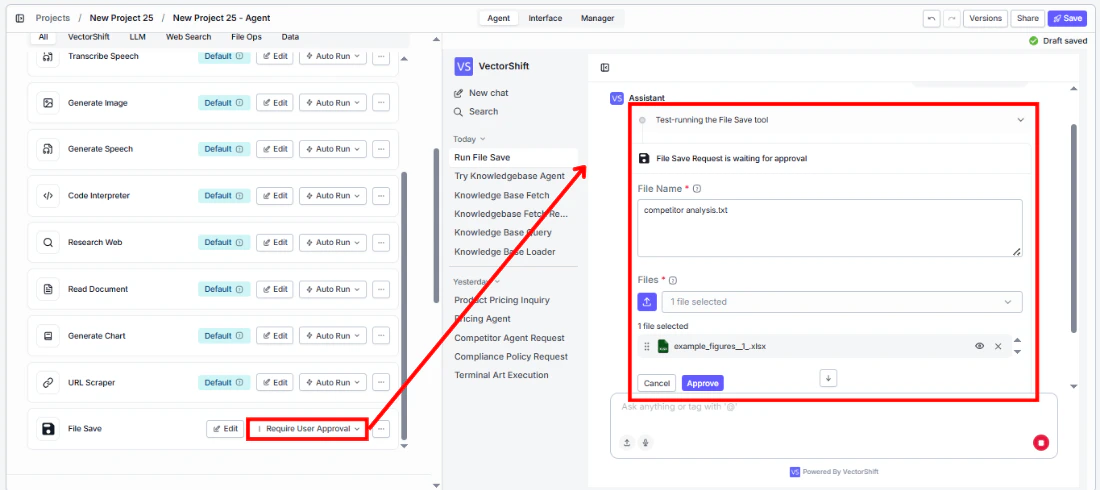
- Test the tool — Generate or upload a file in the chat and ask the agent to save it.
Settings
File Name— Text · Default: none · The name for the saved file.Files— File list · Default: none · The files to save.Tool Description— Text · Default: none · Describes the tool’s purpose to the agent.Auto Run— Dropdown · Default: Auto Run · Controls execution behavior.
Best Practices
- Use descriptive file names — Include dates, client names, or report types in file names so saved files are easy to find later.
- Lock file names for standardized outputs — When the agent always produces the same type of file, lock the name to a consistent naming convention.
- Use approval for important saves — Set to “Require User Approval” to let users verify the file content before it’s persisted to the platform.
Related Templates
Investment Memo Generator
Automatically generates structured investment memos from deal data and research inputs.
Newsletter Writer Agent
Generates professional newsletters from raw content inputs, data, or briefs.
Term Sheet Agent
Generates and reviews term sheets by extracting and validating key deal terms.
Control Checker and Writer Agent
Audits existing controls and drafts new control documentation based on compliance requirements.