Use this node from the SDK
Add it in Python with
pipeline.add(name="...").agent(...). See the SDK reference.Core Functionality
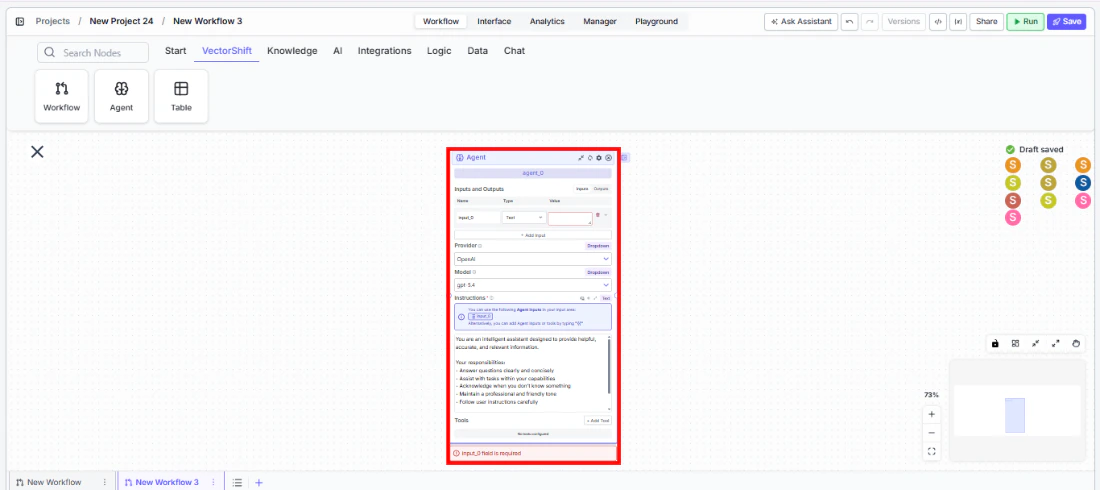
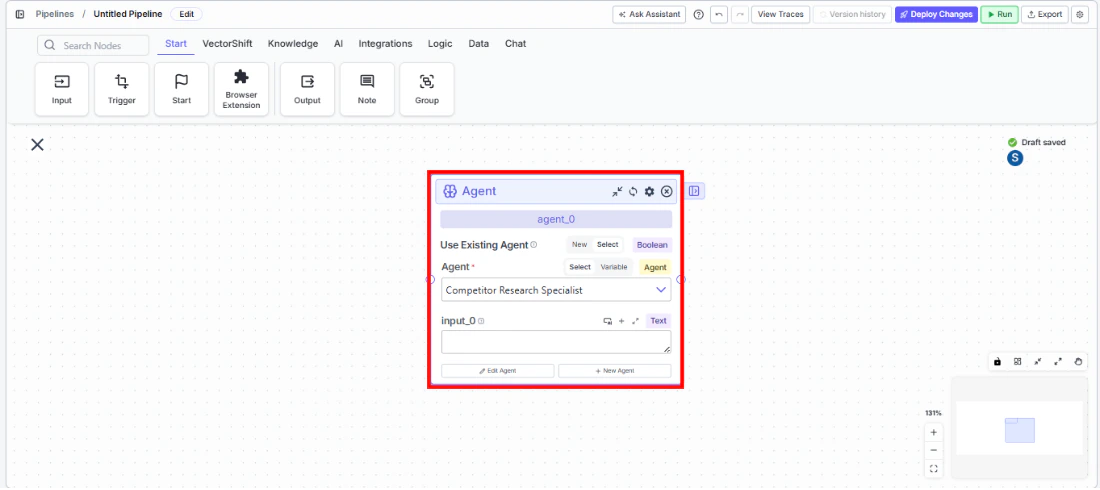
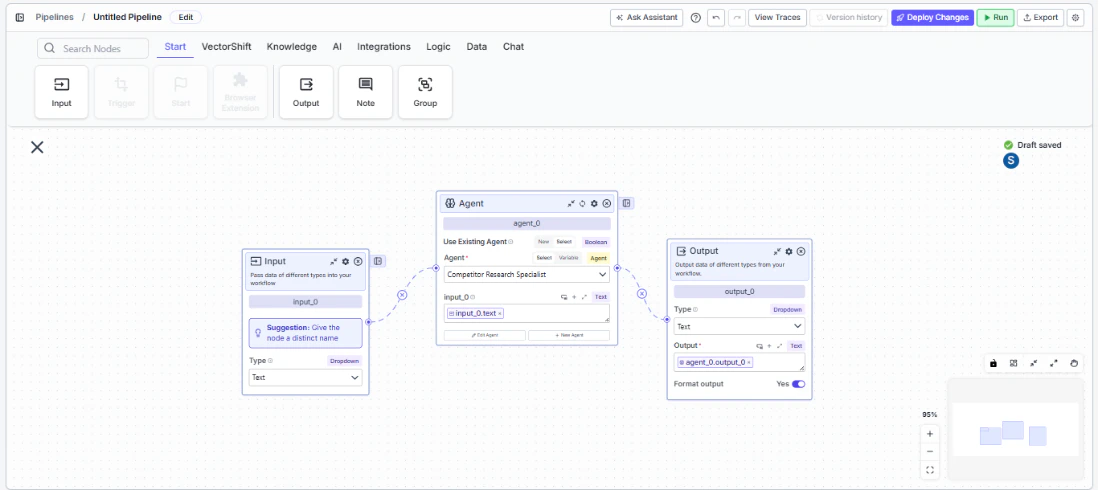
- Run any existing Workflow-type agent as a sub-agent within a workflow or another agent
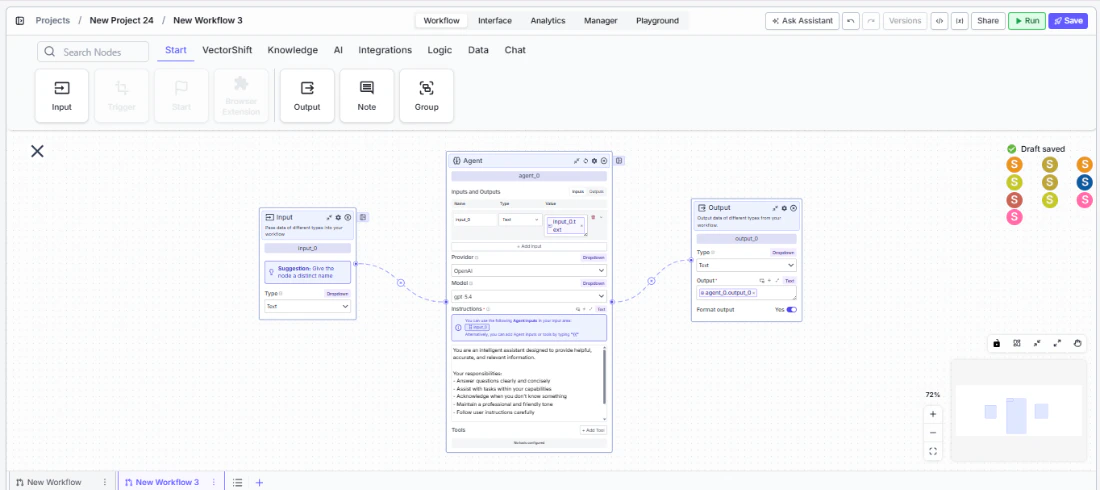
- Dynamically pass inputs to the sub-agent and receive its outputs for downstream use
- Configure the sub-agent inline with custom inputs, outputs, provider, model, and system prompt — or simply reference an already-built agent
- Set up agent dependencies so that one sub-agent can call another in a defined execution order
Tool Inputs
Use Existing Agent— Required · Boolean · Default:false(Workflows),true(Agents) · When enabled, select a pre-built agent to run. When disabled, configure the agent inline directly on the node.Agent* — Required · Agent selector · The agent to execute. Only Workflow-type agents are supported in workflows and as sub-agents; Conversational agents are deployed directly to chat interfaces.Provider— Optional · Dropdown · Default:OpenAI· Select the LLM provider for the agent. Available when configuring inline (Use Existing Agent is off). (Advanced setting)Model— Optional · Dropdown · Default:gpt-4.1· Select the LLM model for the agent. Available when configuring inline. (Advanced setting)Agent Config— Optional · Object · The complete agent configuration including instructions, tools, inputs, and outputs. Available when configuring inline.- Dynamic inputs — When an existing agent is selected, its defined input fields appear automatically on the node for you to connect or fill in.
Tool Outputs
- Dynamic outputs — The outputs defined by the selected agent are exposed as output handles on the node. The names and types mirror whatever was configured on the referenced agent’s output nodes.
- Agents
- Workflows
Overview
When added as a tool inside an agent, the Agent tool allows your primary agent to delegate tasks to a specialized sub-agent during a conversation. The primary agent decides when to invoke the sub-agent based on the conversation context, passes the relevant inputs, and incorporates the sub-agent’s response into its own reply. This is ideal for building multi-agent systems where each agent handles a distinct domain.Use Cases
- Portfolio rebalancing assistant — A primary financial advisor agent delegates detailed asset allocation calculations to a specialized portfolio optimization sub-agent.
- Compliance review workflow — A client-facing agent routes regulatory questions to a compliance-specialist sub-agent trained on the latest SEC guidelines.
- Multi-market research — A head analyst agent dispatches research queries to region-specific sub-agents (e.g., APAC equities, EU fixed income) and synthesizes the results.
- Risk scoring delegation — A loan processing agent calls a credit-risk sub-agent to evaluate borrower profiles and return a risk score before proceeding.
- Earnings call summarizer — An investment research agent invokes a sub-agent that specializes in parsing and summarizing earnings call transcripts.
How It Works
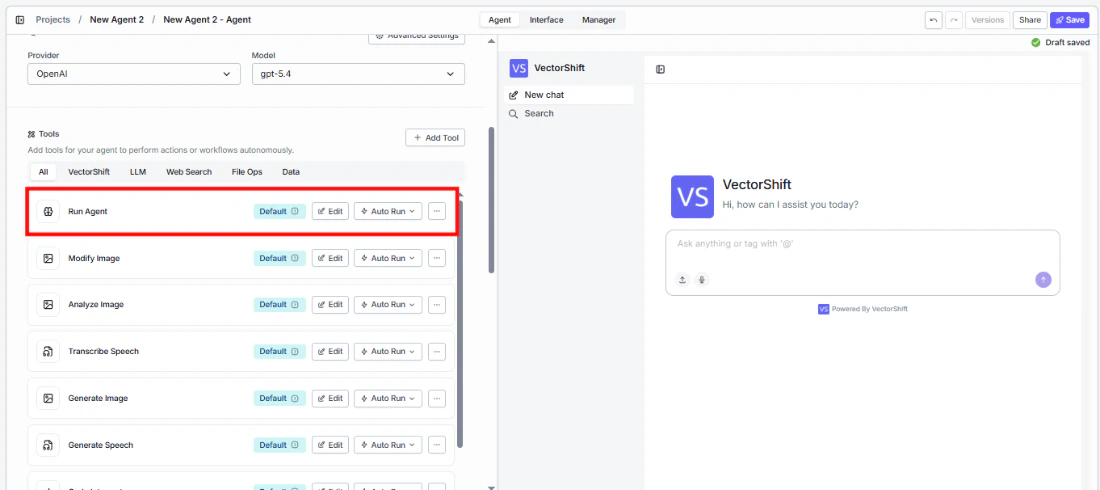
- Add the tool — In the agent builder, open the tool panel and navigate to the VectorShift category. Select Agent to add it as a tool.
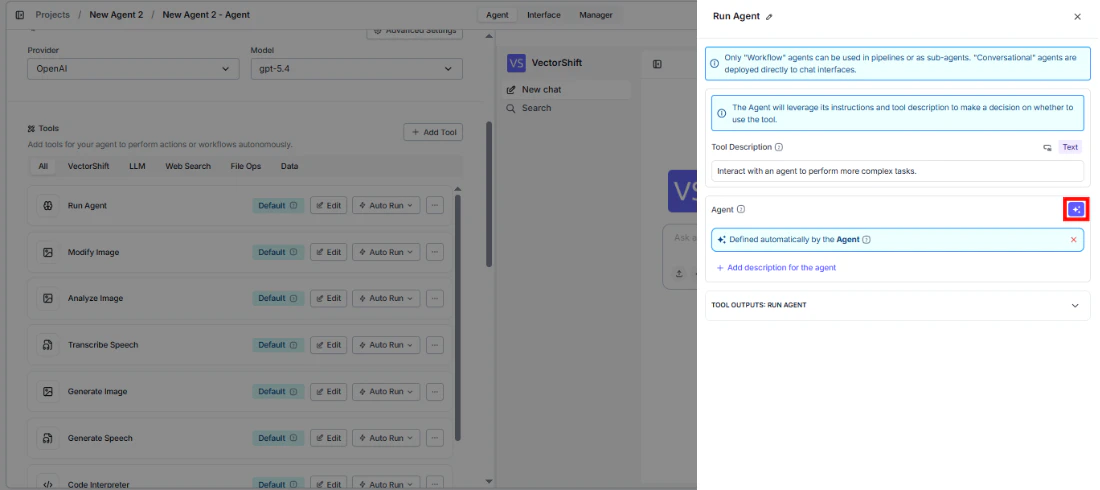
- Select the agent — In the tool configuration, use the
Agentdropdown to choose the existing agent you want to run as a sub-agent. - Configure input fields — Each input defined on the sub-agent appears as a configurable field. You can either leave a field open so the primary agent fills it automatically based on conversation context, or lock it to a fixed value by entering one directly. Click the sparkle icon to switch a field between dynamic (agent-determined) and static (fixed) mode.
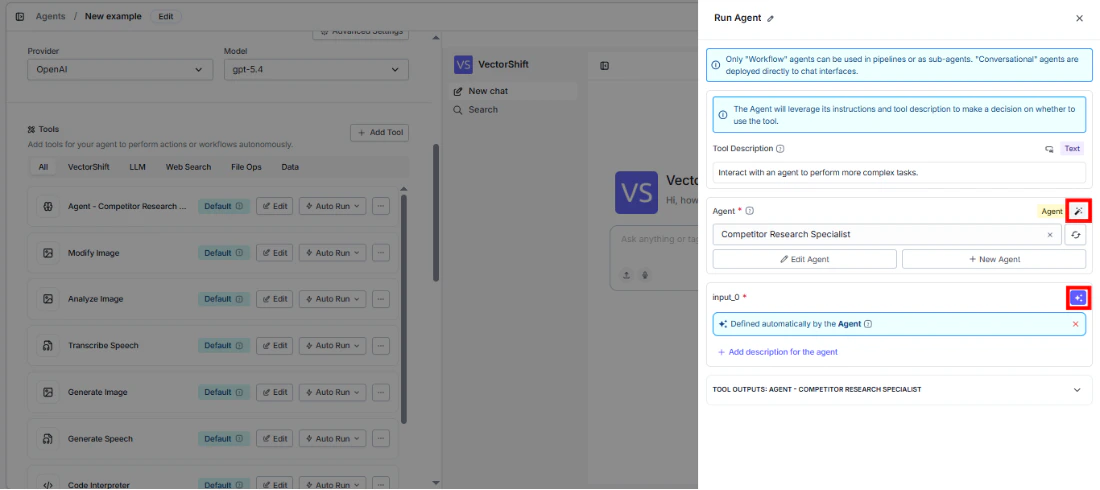
- Write a Tool Description — The Tool Description tells the primary agent what this tool does and when to use it. A good description is specific and action-oriented — for example: “Use this tool to run a portfolio optimization analysis. Provide the client’s risk tolerance and current holdings.” Avoid vague descriptions; the agent relies on this text to decide when to invoke the tool.
- Set Auto Run behavior — Choose how the tool executes:
- Auto Run — The agent invokes the sub-agent immediately without user intervention.
- Require User Approval — The agent pauses and asks the user for confirmation before running the sub-agent.
- Let Agent Decide — The agent determines at runtime whether to ask for approval or run automatically, based on context.
- Test the tool — Use the chat interface to send a message that should trigger the sub-agent. Verify that the primary agent correctly delegates, the sub-agent processes the request, and the response is incorporated into the conversation.
Settings
Agent— Agent selector · Default: none · The sub-agent to execute.Tool Description— Text · Default: none · Describes the tool’s purpose to the primary agent. Drives when and how the agent decides to invoke it.Auto Run— Dropdown · Default: Auto Run · Controls execution behavior (Auto Run, Require User Approval, Let Agent Decide).
Max Turns— Integer · Default: varies · Maximum number of conversation turns the sub-agent can take before returning.Model— Dropdown · Default: inherited from agent · Override the LLM model used by the sub-agent.Temperature— Float · Default: model default · Controls randomness in the sub-agent’s responses.Top P— Float · Default: model default · Nucleus sampling parameter for response generation.Max Output Tokens— Integer · Default: model default · Maximum number of tokens in the sub-agent’s response.Tool Input Behavior— Dropdown · Default: varies · Controls how tool inputs are handled by the sub-agent.
Best Practices
- Keep sub-agents focused — Each sub-agent should handle a single domain (e.g., tax calculations, market data retrieval) rather than being a generalist. This improves accuracy and makes the system easier to debug.
- Write precise tool descriptions — The primary agent uses the description to decide when to call the sub-agent. Include the specific scenarios, required inputs, and expected output format.
- Use fixed values for sensitive parameters — For fields like account IDs or compliance thresholds, lock them to fixed values rather than letting the agent fill them dynamically.
- Set appropriate auto-run policies — Use “Require User Approval” for high-stakes financial actions (e.g., trade execution) and “Auto Run” for read-only operations (e.g., fetching market data).
- Limit max turns — In financial workflows, set a reasonable max turns value to prevent the sub-agent from entering long loops when processing complex queries.
Related Templates
Grant Matching AI Agent
Matches organizations or individuals to relevant grants based on their profile and eligibility criteria.
Contract AI Analyst
Analyzes contracts to extract key terms, flag risks, and summarize obligations.
IC Memo Agent
Drafts and reviews investment committee memos using deal data and internal templates.
Customer Support Chatbot
Handles common customer inquiries and support tickets through conversational AI.