Use this node from the SDK
Add it in Python with
pipeline.add(name="...").knowledge_base_create(...). See the SDK reference.Core Functionality
- Create a new knowledge base on-the-fly with a specified name and configuration
- Configure chunking parameters (size, overlap, splitter method, segmentation method) to control how documents are broken into retrievable segments
- Select the embedding model and file processing model used for the knowledge base
- Optionally enable hybrid mode, document analysis, and advanced parsing options
- Return a knowledge base reference that downstream nodes or tools can use to load documents into
Tool Inputs
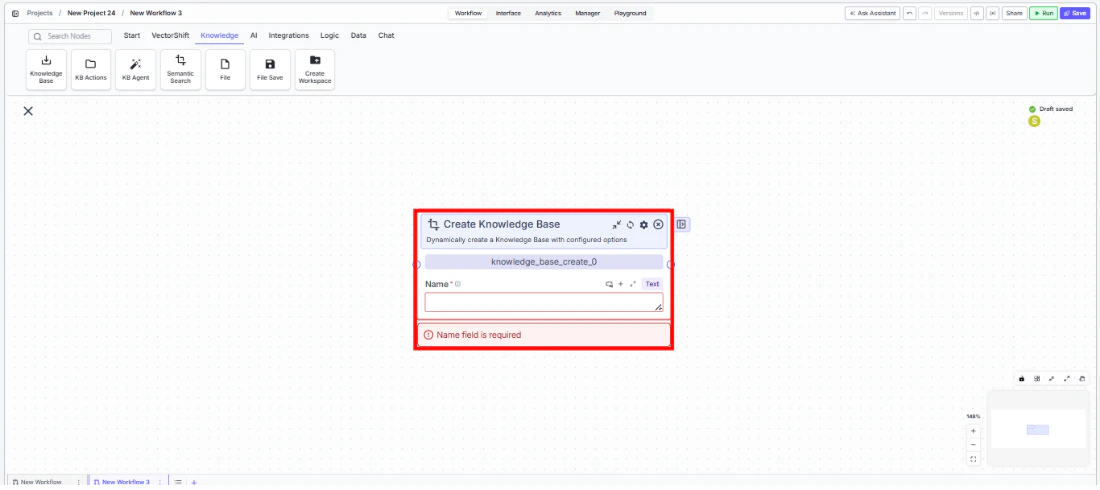
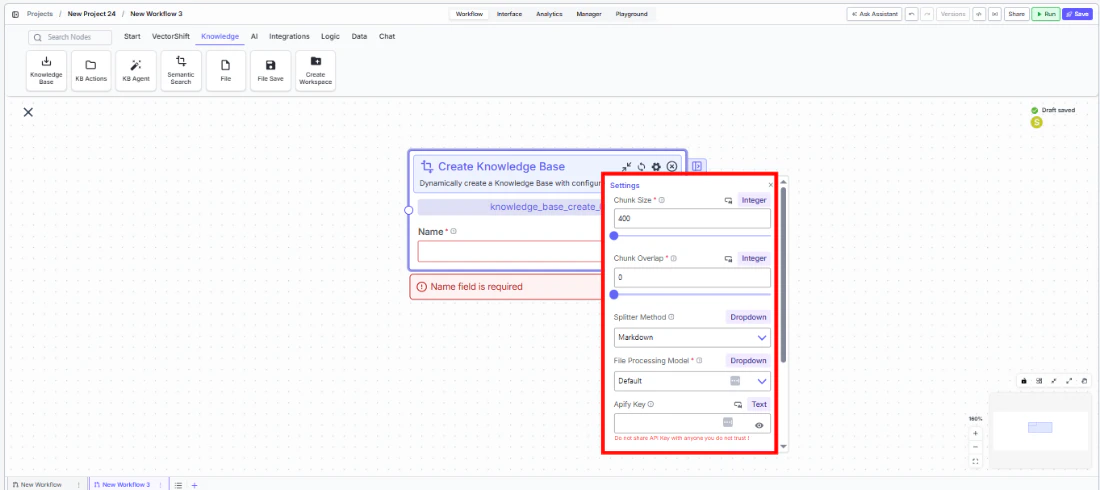
Name* — Required · Text · The name of the knowledge base to create.File Processing Model— Dropdown · Default:default· The file processing implementation used for parsing documents (e.g., Docparser). (Advanced setting)Embedding Model— Dropdown · Default:voyageai/voyage-4-lite· The embedding model used to generate vector representations. Format:provider/model. (Advanced setting)Chunk Size— Integer · Default:400· Min:1, Max:4096· The size of text chunks stored in the knowledge base. (Advanced setting)Chunk Overlap— Integer · Default:0· Min:0, Max:4095· The number of overlapping characters between consecutive chunks. (Advanced setting)Splitter Method— Dropdown · Default:Markdown· Options:Sentence,Markdown,Dynamic· Strategy for grouping segmented text into final chunks. (Advanced setting)Segmentation Method— Dropdown · Default:Words· Options:Words,Sentences,Paragraphs· The method used to break text into units before chunking. Appears when Splitter Method is set toDynamic. (Advanced setting)Analyze Documents— Boolean · Default:false· When enabled, analyzes document contents and enriches them during parsing. (Advanced setting)Hybrid Mode— Boolean · Default:false· Whether to create a hybrid knowledge base that combines vector and keyword search. (Advanced setting)Apify Key— Text · Optional · Apify API key for scraping URLs. (Advanced setting)
Tool Outputs
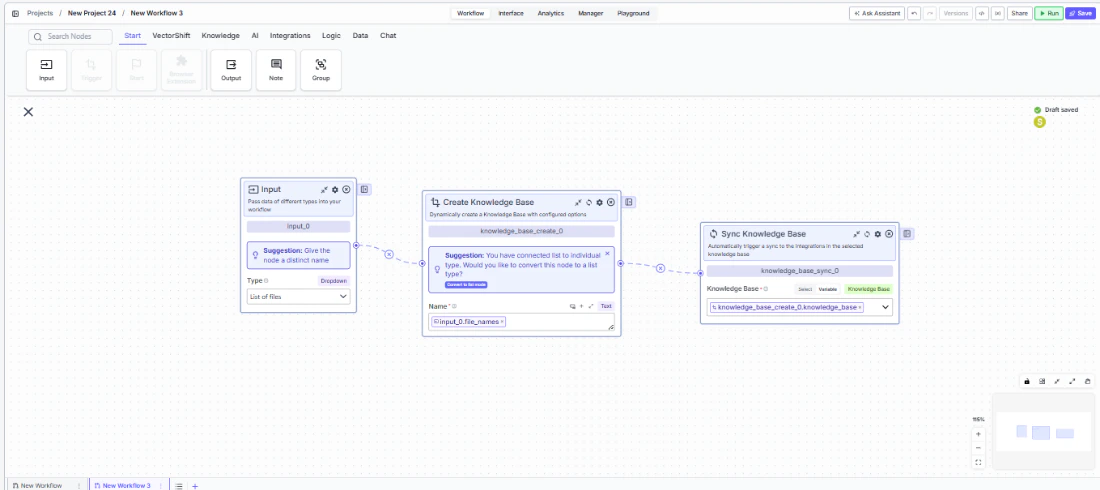
knowledge_base— Knowledge Base · A reference to the newly created knowledge base. Use this output to connect to downstream nodes such as Knowledge Base Loader or Sync Knowledge Base.
- Agents
- Workflows
Overview
When added as a tool inside an agent, Create Knowledge Base allows the agent to provision new knowledge bases during a conversation. The agent can create knowledge bases on demand — for example, when a user requests a new project workspace or when incoming documents need to be organized into a fresh collection.Use Cases
- Client onboarding automation — An agent creates a dedicated knowledge base for each new client, named after the client’s account, ready to receive their compliance documents.
- Dynamic research collections — A research agent spins up a new knowledge base per investment thesis or market sector when a user starts a new analysis project.
- Regulatory document organization — An agent automatically creates separate knowledge bases for different regulatory frameworks (SEC, MiFID II, Basel III) as documents are classified.
- Portfolio-specific knowledge stores — An agent creates a knowledge base per portfolio to store and retrieve relevant analyst reports, earnings transcripts, and market data.
- Audit trail setup — A compliance agent creates timestamped knowledge bases for each audit cycle to maintain clean separation of evidence collections.
How It Works
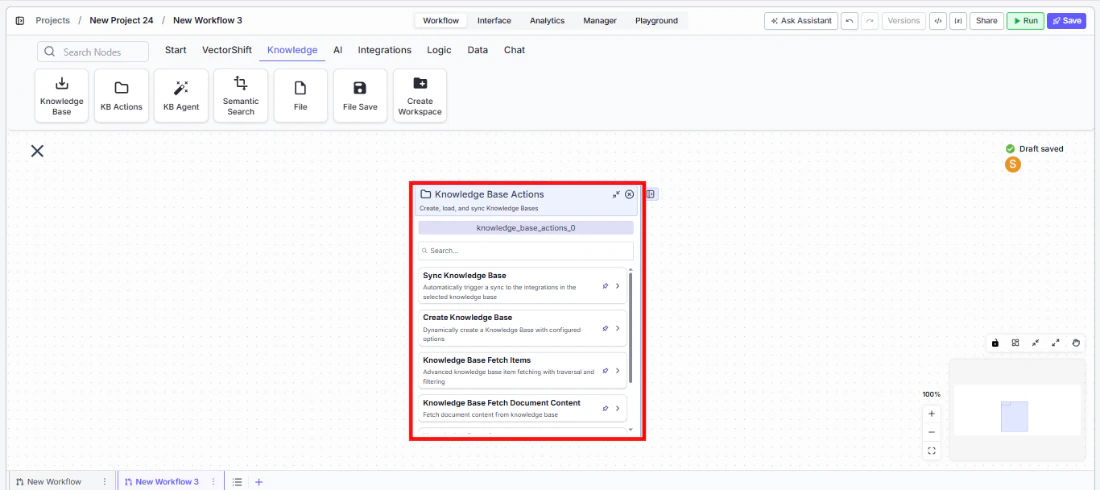
- Add the tool — In the agent builder, open the tool panel and navigate to the Knowledge category. Select Create Knowledge Base to add it as a tool.
- Configure the tool — The primary field is
Knowledge Base Name. You can either leave it open for the agent to fill dynamically based on conversation context, or lock it to a fixed value. Click the sparkle icon to switch fields between dynamic (agent-determined) and static (fixed) mode.
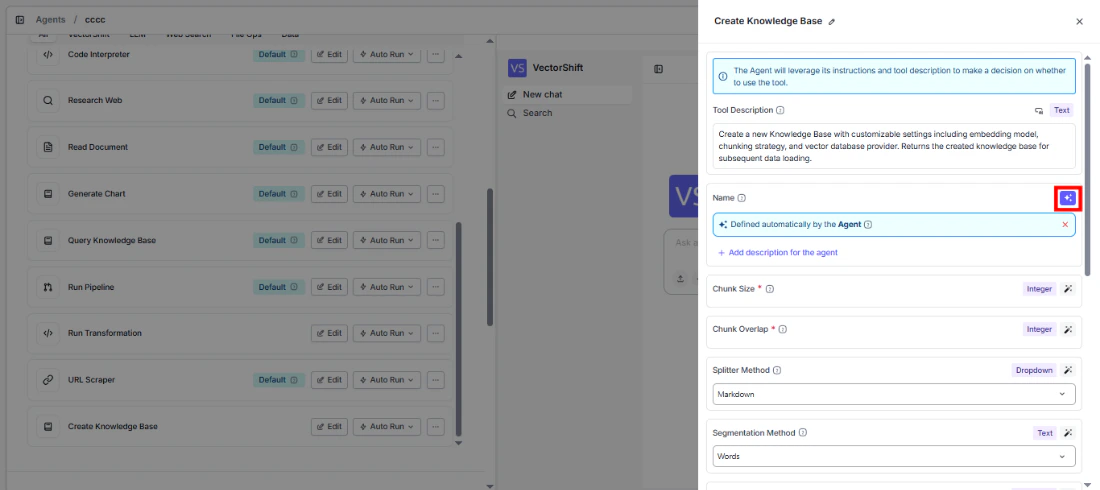
- Configure advanced settings — Optionally adjust
Chunk Size,Chunk Overlap,Splitter Method,File Processing Model,Embedding Model,Analyze Documents, andHybrid Mode. These are typically locked to fixed values since they represent technical configuration rather than conversational parameters. - Write a Tool Description — Describe when and why the agent should create a knowledge base. Example: “Use this tool to create a new knowledge base when the user requests a new project workspace. Name it after the project.”
- Set Auto Run behavior — Choose how the tool executes:
- Auto Run — Creates the knowledge base immediately without confirmation.
- Require User Approval — Pauses for the user to confirm before creating.
- Let Agent Decide — The agent determines whether to ask for approval based on context.
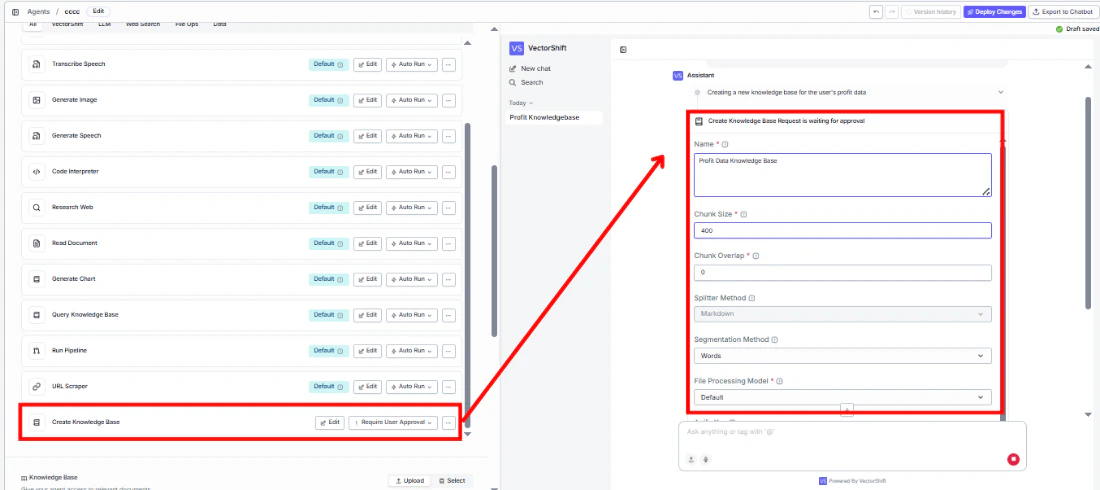
- Test the tool — In the chat interface, ask the agent to create a knowledge base and verify it appears in your knowledge base list.
Settings
Knowledge Base Name— Text · Default: none · The name for the new knowledge base. Can be filled by the agent or locked to a fixed value.Tool Description— Text · Default: none · Describes the tool’s purpose to the agent.Auto Run— Dropdown · Default: Auto Run · Controls execution behavior.
File Processing Model— Dropdown · Default:default· Document parsing implementation.Embedding Model— Dropdown · Default:voyageai/voyage-4-lite· Vector embedding model.Chunk Size— Integer · Default:400· Text chunk size (1–4096).Chunk Overlap— Integer · Default:0· Overlap between chunks (0–4095).Splitter Method— Dropdown · Default:Markdown· Chunking strategy (Sentence, Markdown, Dynamic).Analyze Documents— Boolean · Default:false· Enable document content analysis.Hybrid Mode— Boolean · Default:false· Enable hybrid vector + keyword search.Apify Key— Text · Optional · API key for URL scraping via Apify.
Best Practices
- Use descriptive names — Let the agent generate meaningful names that include client identifiers, dates, or project codes for easy retrieval later.
- Lock chunking parameters — Set
Chunk Size,Chunk Overlap, andSplitter Methodto fixed values appropriate for your document types. Financial documents with tables work well with Markdown splitter. - Require approval for production use — Set Auto Run to “Require User Approval” when creating knowledge bases in production environments to prevent accidental proliferation.
- Pair with Knowledge Base Loader — After creating a knowledge base, chain it with a Knowledge Base Loader tool to immediately populate it with documents.
- Match embedding models to your retrieval workflow — Ensure the embedding model you select here matches what your downstream Semantic Search or Knowledge Base Reader nodes expect.
Related Templates
IC Memos Knowledge Base
Centralized searchable repository of investment committee memos for quick reference.
Custom API Chatbot
A configurable chatbot that connects to custom APIs to retrieve and present dynamic data.
Company Policy Compliance Chatbot
Answers employee questions about internal policies and flags potential compliance issues.
Investor Helpdesk
Handles investor inquiries related to portfolios, statements, and fund performance.