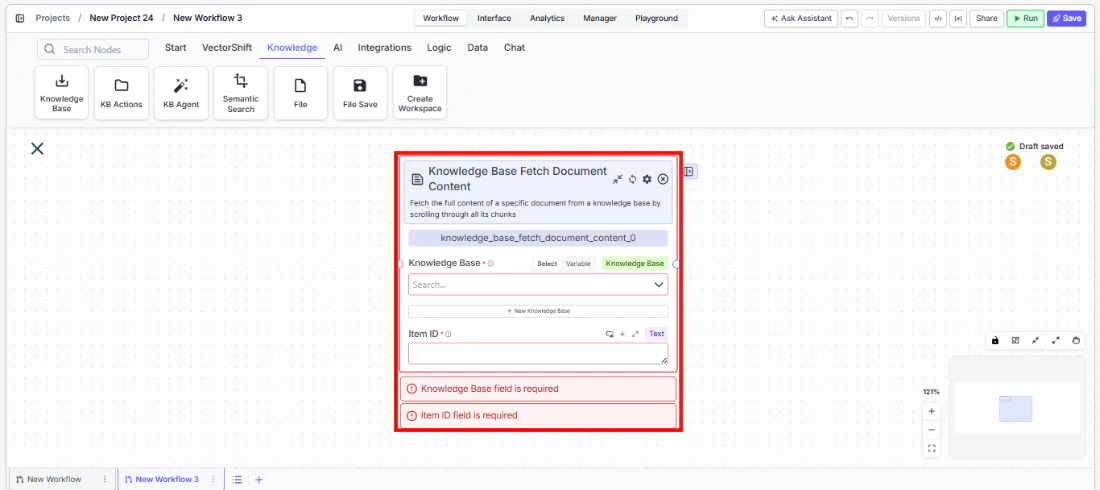
Use this node from the SDK
Add it in Python with
pipeline.add(name="...").knowledge_base_fetch_document_content(...). See the SDK reference.cat command for reading a file. Use it when you need the full text of a known document — for example, retrieving a complete contract for clause-by-clause analysis, or pulling an entire earnings transcript for summarization.
Core Functionality
- Fetch the full content of a specific document from a knowledge base by its item ID
- Reassemble all chunks belonging to the document into a single formatted text output
- Control the maximum number of chunks included to handle very large documents
- Works with any document type stored in the knowledge base (PDFs, text files, web pages, etc.)
Tool Inputs
Knowledge Base* — Required · Knowledge Base selector · The knowledge base containing the document to fetch.Item ID* — Required · Text · The item ID of the document to fetch content from. Typically obtained from a Knowledge Base Fetch Items or Knowledge Base List Items node.Max Chunks— Integer · Default:200· Maximum number of chunks to include in the content. (Advanced setting)
Tool Outputs
document_content— Text · The full document content as formatted text, reassembled from all chunks.
- Agents
- Workflows
Overview
When added as a tool inside an agent, Knowledge Base Fetch Document Content lets the agent retrieve the complete text of a specific document during a conversation. The agent can use this to read full documents when a user asks about a specific file, rather than relying on chunk-based search results that may miss important context.Use Cases
- Full contract review — An agent fetches the complete text of a specific contract from a legal knowledge base when a user asks to review all terms and conditions.
- Earnings transcript analysis — An agent retrieves a full earnings call transcript to answer detailed questions that span multiple sections of the document.
- Regulatory filing retrieval — A compliance agent fetches complete SEC filings when a user needs to review an entire document rather than isolated excerpts.
- Policy document lookup — An HR or compliance agent retrieves full policy documents by ID when users need to understand the complete policy context.
- Report compilation — An agent fetches multiple full documents by their IDs to compile a comprehensive research report from existing materials.
How It Works
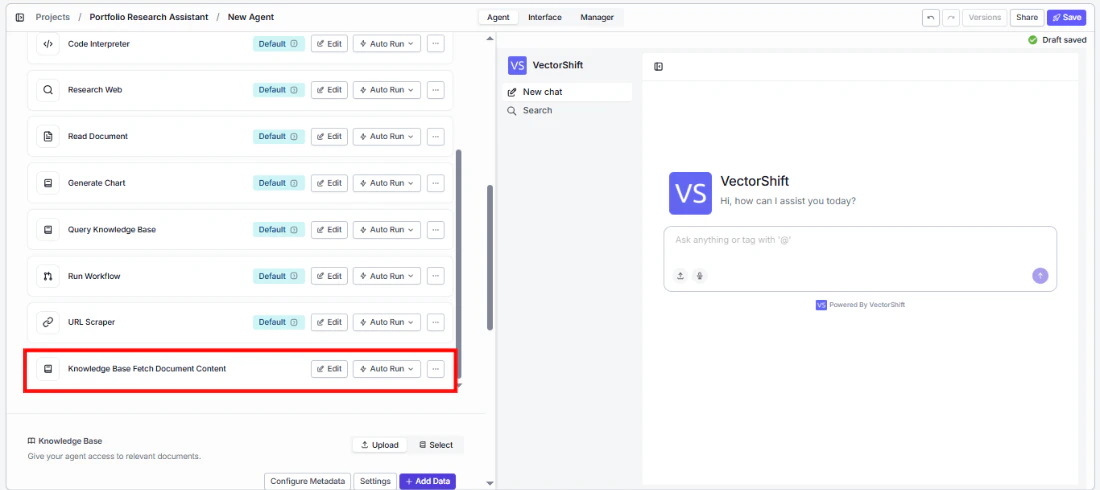
- Add the tool — In the agent builder, open the tool panel and navigate to the Knowledge category. Select Knowledge Base Fetch Document Content to add it as a tool.
- Select the knowledge base — Use the
Knowledge Baseselector to choose which knowledge base contains the documents. - Configure input fields — The
Item IDfield can be left open for the agent to fill dynamically (e.g., after listing items with another tool), or locked to a fixed value for a specific document. Click the sparkle icon to switch fields between dynamic and static mode.
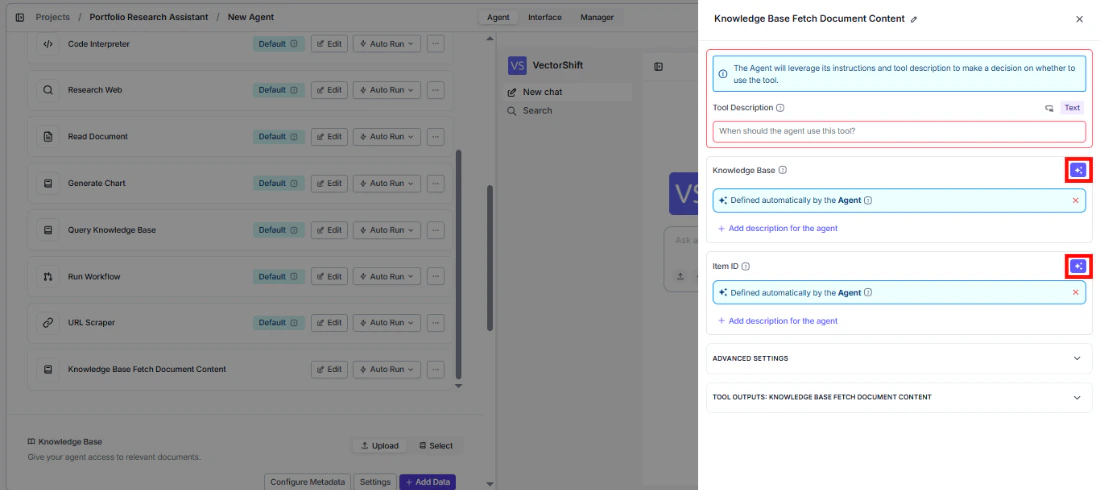
- Write a Tool Description — Describe when the agent should fetch full document content. Example: “Use this tool to read the complete content of a specific document from the knowledge base. Provide the item ID of the document you want to read.”
- Set Auto Run behavior — Choose how the tool executes:
- Auto Run — Fetches the document immediately.
- Require User Approval — Pauses for user confirmation.
- Let Agent Decide — The agent determines whether approval is needed.
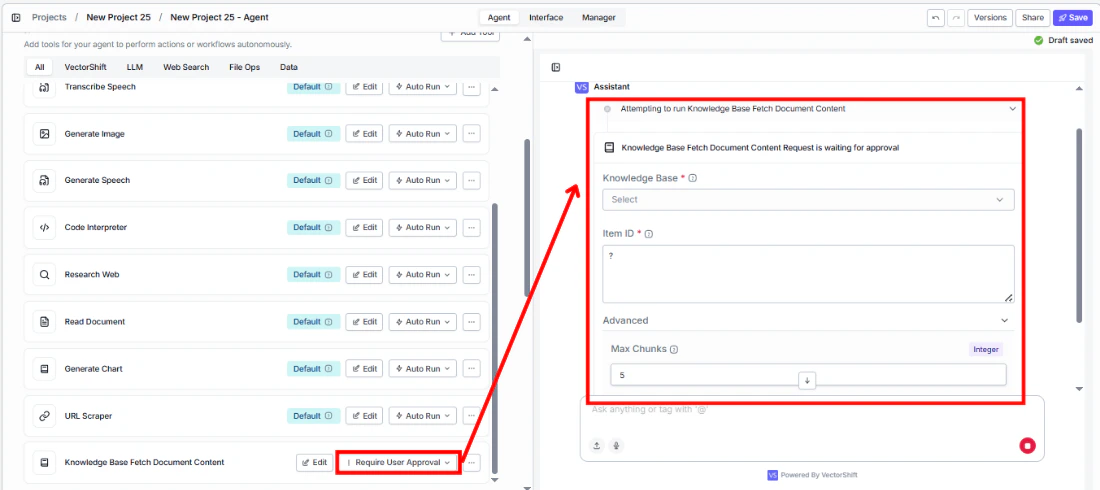
- Test the tool — Ask the agent to retrieve a specific document and verify the full content is returned.
Settings
Knowledge Base— Knowledge Base selector · Default: none · The knowledge base containing the target document.Item ID— Text · Default: none · The ID of the document to fetch.Tool Description— Text · Default: none · Describes the tool’s purpose to the agent.Auto Run— Dropdown · Default: Auto Run · Controls execution behavior.
Max Chunks— Integer · Default:200· Limits the number of chunks included in the output.
Best Practices
- Pair with Knowledge Base Fetch Items — Use the Knowledge Base Fetch Items tool first to let the agent discover available documents and their IDs, then use this tool to read the full content of a specific document.
- Set appropriate max chunks — For very large documents (e.g., annual reports), consider increasing Max Chunks beyond 200 to ensure the full document is returned. For shorter documents, the default is sufficient.
- Use for targeted retrieval — This tool is best when the agent knows which specific document to read. For broad queries across many documents, use Knowledge Base Agent or Semantic Search instead.
- Include item ID guidance in the tool description — Tell the agent how to obtain item IDs (e.g., from a previous Fetch Items call) so it knows the correct workflow.
Related Templates
Contract AI Analyst
Analyzes contracts to extract key terms, flag risks, and summarize obligations.
Document Comparison AI Agent
Side-by-side comparison of documents to highlight differences and track revisions.
Control Checker and Writer Agent
Audits existing controls and drafts new control documentation based on compliance requirements.
Term Sheet Agent
Generates and reviews term sheets by extracting and validating key deal terms.