
Use this node from the SDK
Add it in Python with
pipeline.add(name="...").semantic_search(...). See the SDK reference.Core Functionality
- Generate a temporary vector index from documents at runtime
- Retrieve semantically similar chunks, documents, or pages based on a natural language query
- Choose from a wide range of embedding models (OpenAI, Cohere, Voyage, etc.)
- Optionally rerank results for improved relevancy
- Support advanced search features including query transformation, multi-question extraction, and hybrid search
- Configure chunking strategy, document analysis, and context formatting
Tool Inputs
Embedding Model— Dropdown · Default:OpenAI Text Embedding 3 Small· The model used to generate embeddings. Supports multiple providers including OpenAI, Cohere, Voyage, Google, and others.Search Query* — Required · Text · The natural language query used to search documents for relevant content.Documents for Search* — Required · Text (multiple) · The text to search through. You can connect multiple upstream nodes to this field.Max Docs Per Query— Integer · Default:5· Maximum number of relevant chunks to return.Rerank Documents— Boolean · Default:false· Refine the initial ranking of returned chunks based on relevancy.Retrieval Unit— Dropdown · Default:Chunks· Options:Chunks,Documents,Pages· What to return — individual chunks, full documents with metadata, or complete pages.Splitter Method— Dropdown · Default:Markdown· Options:Sentence,Markdown,Dynamic· Chunking strategy for the temporary index.Segmentation Method— Dropdown · Default:Words· Options:Words,Sentences,Paragraphs· Text segmentation method (visible when Splitter Method is Dynamic).Analyze Documents— Boolean · Default:false· Analyze and enrich document contents when parsing.Hybrid Mode— Boolean · Default:false· Create a hybrid index combining vector and keyword search.Enable Filter— Boolean · Default:false· Filter content returned from the search.Enable Context— Boolean · Default:false· Provide additional context to advanced search and query analysis.Transform Query— Boolean · Default:false· Transform the query for better semantic search.Answer Multiple Questions— Boolean · Default:false· Extract separate questions and retrieve content for each.Expand Query— Boolean · Default:false· Expand the query to improve search.Expand Query Terms— Boolean · Default:false· Expand query terms to improve search.Do Advanced QA— Boolean · Default:false· Use additional LLM calls to analyze each document and improve answer correctness.Format Context for LLM— Boolean · Default:false· Format the retrieved context for LLM consumption.Score Cutoff— Float · Default:0· Minimum similarity score threshold for returned results.Alpha— Float · Default:0.5· The alpha value for hybrid retrieval.
Tool Outputs
chunks— List of Text · Semantically similar chunks retrieved from the documents. Present when Retrieval Unit is Chunks.documents— List of Text · Semantically similar documents with metadata. Present when Retrieval Unit is Documents.response— Text · The response from advanced QA. Present when Do Advanced QA is enabled.formatted_text— Text · Knowledge base outputs formatted for LLM input. Present when Format Context for LLM is enabled.citation_metadata— List of Text · Citation metadata for search outputs. Present when Do Advanced QA is enabled.
- Workflows
Overview
In workflows, the Semantic Search node embeds and searches through documents provided at runtime. Connect upstream text or document nodes to provide the search corpus, and wire a query input to find relevant content. The node creates a temporary vector index, performs the search, and outputs matching chunks or documents for downstream processing.Use Cases
- RAG workflow — A workflow takes a user question as input, loads relevant documents, runs Semantic Search to find the most relevant passages, and passes them to an LLM for answer generation.
- Document comparison — A workflow searches through a set of uploaded contracts to find clauses relevant to a specific topic or keyword.
- Dynamic content retrieval — A workflow receives fresh data (API responses, web scrapes) and performs semantic search without needing to pre-index into a knowledge base.
- Financial document analysis — A workflow searches through earnings transcripts or regulatory filings for passages related to specific financial metrics or risk factors.
- Multi-document Q&A — A workflow ingests multiple uploaded PDFs and uses Semantic Search to find and aggregate answers across all of them.
How It Works
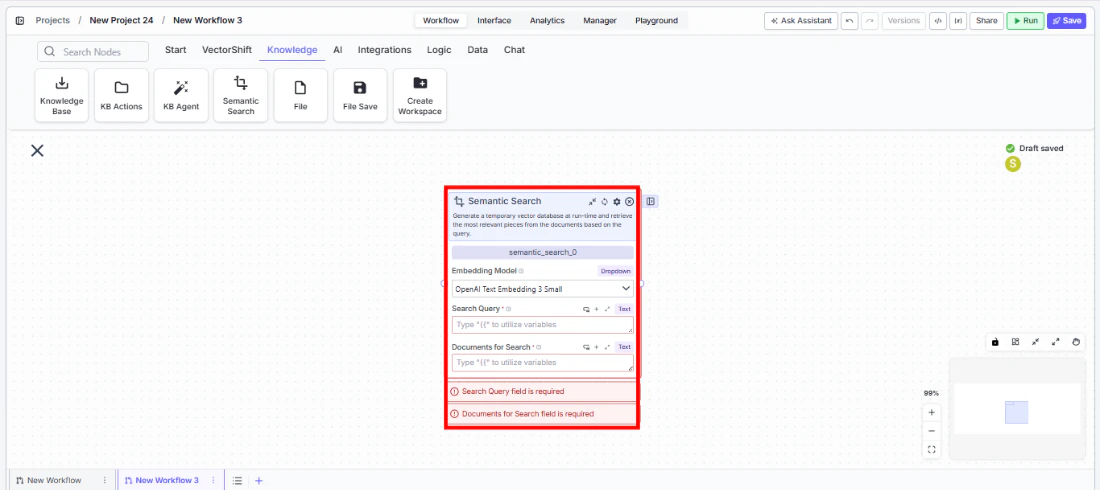
- Add the node — On the workflow canvas, open the node panel and navigate to the Knowledge category. Drag Semantic Search onto the canvas.
- Select the embedding model — Choose an embedding model from the
Embedding Modeldropdown. The default (OpenAI Text Embedding 3 Small) works well for most use cases. - Connect the query — Wire a text input to the
Search Queryfield. This field is required. - Connect the documents — Wire one or more text outputs to the
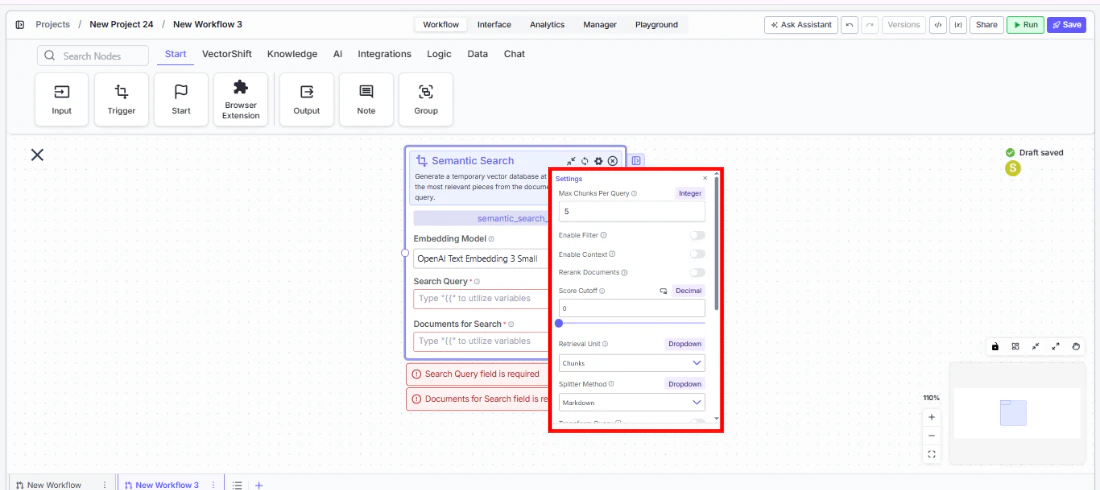
Documents for Searchfield. This field is required. You can connect multiple upstream nodes. - Configure search options — Set
Max Docs Per Query,Retrieval Unit, and optional features likeRerank Documents,Hybrid Mode, orDo Advanced QA.
- Connect outputs — Wire
chunks,documents,response, orformatted_textto downstream nodes.
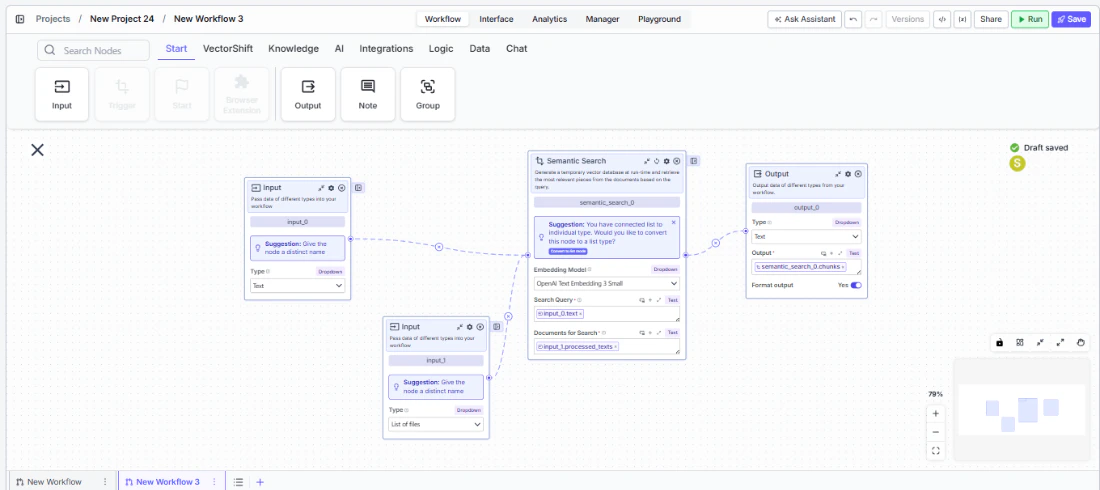
- Run the workflow — Execute the workflow. The node builds a temporary index, searches it, and passes results downstream.
Settings
Embedding Model— Dropdown · Default:OpenAI Text Embedding 3 Small· Vector embedding model.Search Query— Text · Required · The search query.Documents for Search— Text (multiple) · Required · Documents to index and search.Max Docs Per Query— Integer · Default:5· Max results to return.Rerank Documents— Boolean · Default:false· Rerank results for relevancy.Retrieval Unit— Dropdown · Default:Chunks· Return type (Chunks, Documents, Pages).
Splitter Method— Dropdown · Default:Markdown· Chunking strategy.Segmentation Method— Dropdown · Default:Words· Segmentation method (with Dynamic splitter).Analyze Documents— Boolean · Default:false· Enrich documents during parsing.Hybrid Mode— Boolean · Default:false· Vector + keyword hybrid search.Enable Filter— Boolean · Default:false· Filter returned content.Transform Query— Boolean · Default:false· Query transformation.Answer Multiple Questions— Boolean · Default:false· Multi-question extraction.Expand Query/Expand Query Terms— Boolean · Default:false· Query expansion.Do Advanced QA— Boolean · Default:false· LLM-enhanced answer generation.Format Context for LLM— Boolean · Default:false· Format output for LLM input.Score Cutoff— Float · Default:0· Minimum similarity threshold.Alpha— Float · Default:0.5· Hybrid retrieval balance.Enable Context— Boolean · Default:false· Pass additional context to search.
Best Practices
- Choose the right embedding model — For financial documents, models like OpenAI Text Embedding 3 Large or Voyage provide higher accuracy at slightly higher cost. Use smaller models for speed on less critical searches.
- Enable reranking for precision — When accuracy matters more than speed, enable
Rerank Documentsto refine the initial results using a dedicated reranking model. - Use hybrid mode for keyword-heavy content — Financial documents often contain specific identifiers (tickers, CUSIP numbers, regulation names) where keyword matching complements semantic search.
- Set appropriate max docs — Start with 5 and increase if the downstream LLM needs more context. Too many results can overwhelm the LLM’s context window.
- Connect multiple document sources — The Documents for Search input accepts multiple connections, so you can search across documents from different upstream nodes in a single query.
- Use Advanced QA sparingly — Enabling Do Advanced QA adds LLM calls per document, which increases latency and cost. Use it only when answer accuracy is critical.
Related Templates
Document Classification Agent
Automatically categorizes and tags incoming documents based on content and type.
Document Comparison AI Agent
Side-by-side comparison of documents to highlight differences and track revisions.
Spreadsheet Comparison Assistant
Compares two or more spreadsheets to identify discrepancies, changes, and anomalies.
Validation Agent
Validates data and documents against predefined rules, schemas, or compliance standards.