
Use this node from the SDK
Add it in Python with
pipeline.add(name="...").knowledge_base_fetch_items(...). See the SDK reference.ls command for browsing files and folders. Use it to discover what content exists in a knowledge base, navigate folder hierarchies, filter by file type, and retrieve item IDs for downstream processing. For example, you can list all PDF documents in a specific folder, browse the top-level structure of a knowledge base, or recursively discover all items to build a document index.
Core Functionality
- List documents and folders in a knowledge base with pagination support
- Navigate folder hierarchies with configurable traversal depth
- Filter items by type (folders only, documents only, or all) and by file extension
- Control output verbosity from metadata-only to full summaries
- Sort results by specified fields in ascending or descending order
- Return structured item data, statistics, formatted text, and item IDs
Tool Inputs
Knowledge Base* — Required · Knowledge Base selector · The knowledge base to list items from.Root IDs— Text · Default: empty (lists from root) · Filter to list items in a specific folder. Provide folder ID(s) to scope the listing. Acts as the target directory.Max Depth— Integer · Default:0· Maximum depth for descendant traversal.1= current directory only;0= recursive discovery to traverse all descendants until the limit is reached. (Advanced setting)Sort Fields— Text · Default: empty · Comma-separated field names to sort results by. (Advanced setting)Sort Orders— Text · Default: empty · Comma-separated sort directions (ascordesc) corresponding to sort fields. (Advanced setting)Limit— Integer · Default:50· Maximum number of items to return. (Advanced setting)Offset— Integer · Default:0· Number of items to skip for pagination. (Advanced setting)Item Return Type— Text · Default:ALL· Type of items to return:FOLDERS,DOCUMENTS, orALL. (Advanced setting)Filter— Text · Default: empty · JSON filter object for advanced filtering. Supportseqandneqoperators on thefile_extensionfield. Example:{"type": "condition", "field": "file_extension", "operator": "eq", "value": "pdf"}. (Advanced setting)Verbosity— Text · Default:metadata· Output verbosity level:metadata(no summaries),short(short summaries), orlong(short and long summaries). (Advanced setting)
Tool Outputs
kb_items— List of Text · The knowledge base items as structured data.stats— Text · JSON-serialized statistics about the listing results.formatted_text— Text · Human-readable formatted text representation of the items.kb_item_ids— List of Text · The IDs of the returned knowledge base items.
- Agents
- Workflows
Overview
When added as a tool inside an agent, Knowledge Base Fetch Items lets the agent browse and discover the contents of a knowledge base during a conversation. The agent can navigate folder structures, filter by file type, and retrieve document IDs — then use those IDs with other tools like Knowledge Base Fetch Document Content to read specific documents.Use Cases
- Document discovery — An agent lists all documents in a client’s knowledge base to help a user find a specific filing or report by name.
- Folder navigation — An agent browses the folder structure of a regulatory knowledge base, helping users navigate through organized collections of compliance documents.
- File type filtering — An agent lists only PDF documents in a knowledge base when a user asks to review all uploaded reports, filtering out other file types.
- Knowledge base auditing — An agent inventories the contents of a knowledge base to identify missing documents or outdated files for a portfolio review.
- Document indexing — An agent recursively lists all items in a knowledge base with short summaries to build a quick reference index for a user.
How It Works
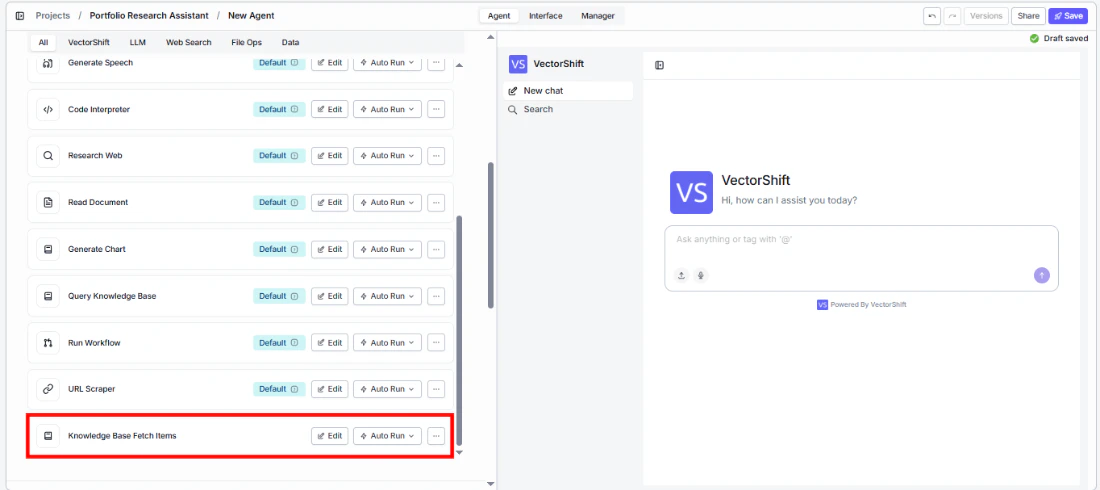
- Add the tool — In the agent builder, open the tool panel and navigate to the Knowledge category. Select Knowledge Base Fetch Items to add it as a tool.
- Select the knowledge base — Use the
Knowledge Baseselector to choose which knowledge base to browse. - Configure input fields — Fields like
Root IDs,Limit,Sort Orders, andFiltercan be left for the agent to fill dynamically based on user requests, or locked to fixed values for constrained browsing. Click the sparkle icon to switch fields between dynamic and static mode.
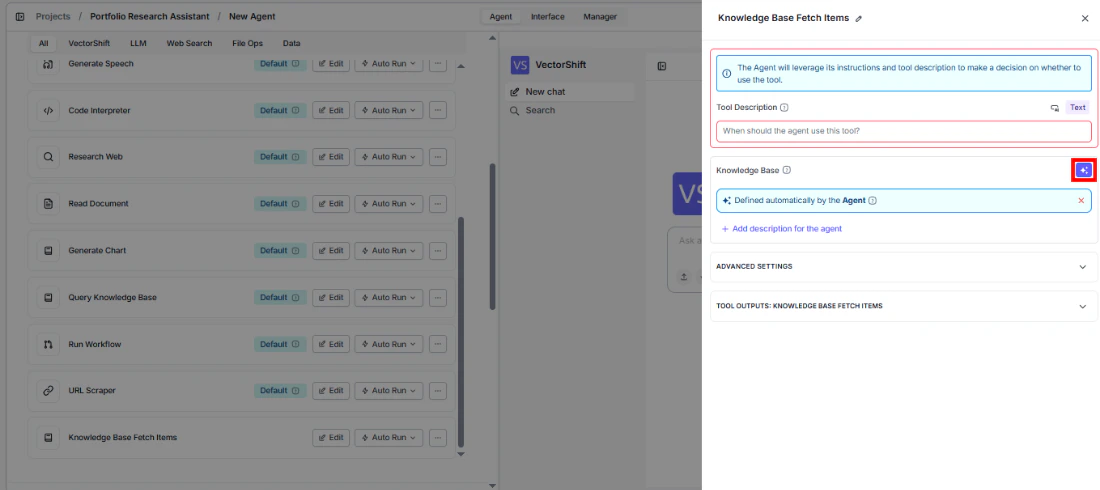
- Write a Tool Description — Describe when the agent should list items. Example: “Use this tool to browse and list documents in the knowledge base. You can filter by folder, file type, and control how many results to return.”
- Set Auto Run behavior — Choose how the tool executes:
- Auto Run — Lists items immediately.
- Require User Approval — Pauses for user confirmation.
- Let Agent Decide — The agent determines whether approval is needed.
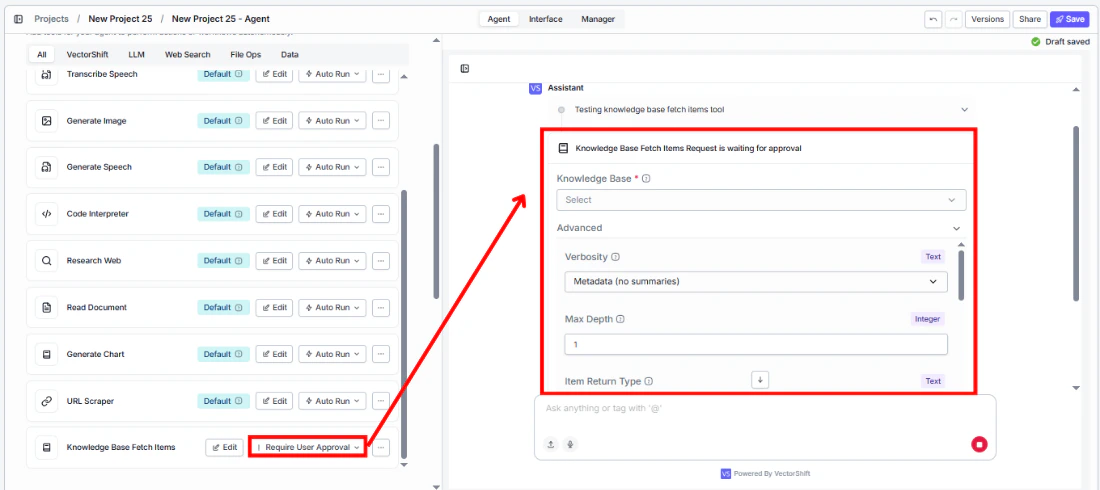
- Test the tool — Ask the agent to show documents in the knowledge base and verify it returns the expected listing.
Settings
Knowledge Base— Knowledge Base selector · Default: none · The knowledge base to browse.Tool Description— Text · Default: none · Describes the tool’s purpose to the agent.Auto Run— Dropdown · Default: Auto Run · Controls execution behavior.
Root IDs— Text · Default: empty · Target folder ID(s) for scoped listing.Max Depth— Integer · Default:0· Traversal depth (0 = recursive, 1 = current level only).Sort Fields— Text · Default: empty · Fields to sort by.Sort Orders— Text · Default: empty · Sort directions (asc/desc).Limit— Integer · Default:50· Max items to return.Offset— Integer · Default:0· Pagination offset.Item Return Type— Text · Default:ALL· Filter by FOLDERS, DOCUMENTS, or ALL.Filter— Text · Default: empty · JSON filter for file extension filtering.Verbosity— Text · Default:metadata· Output detail level (metadata, short, long).
Best Practices
- Use metadata verbosity for browsing — When the agent is just discovering what documents exist, use
metadataverbosity for faster results. Switch toshortorlongwhen the user needs content summaries. - Pair with Fetch Document Content — Use this tool to find document IDs, then chain with Knowledge Base Fetch Document Content to read the full content of specific documents.
- Set reasonable limits — For large knowledge bases, keep the limit manageable (50–100) and use pagination via offset for browsing through results.
- Use filters sparingly — Only apply file extension filters when the user explicitly requests them. The agent should avoid adding filters that were not asked for.
- Scope with Root IDs for large knowledge bases — When a knowledge base has many folders, provide a Root ID to limit browsing to a specific section rather than listing everything.
Related Templates
Document Classification Agent
Automatically categorizes and tags incoming documents based on content and type.
Validation Agent
Validates data and documents against predefined rules, schemas, or compliance standards.
Contract AI Analyst
Analyzes contracts to extract key terms, flag risks, and summarize obligations.
Document Comparison AI Agent
Side-by-side comparison of documents to highlight differences and track revisions.