
Use this node from the SDK
Add it in Python with
pipeline.add(name="...").talk(...). See the SDK reference.Core Functionality
- Sends an image to the user at a defined point in the conversational flow
- Accepts images via upload or from upstream node variables
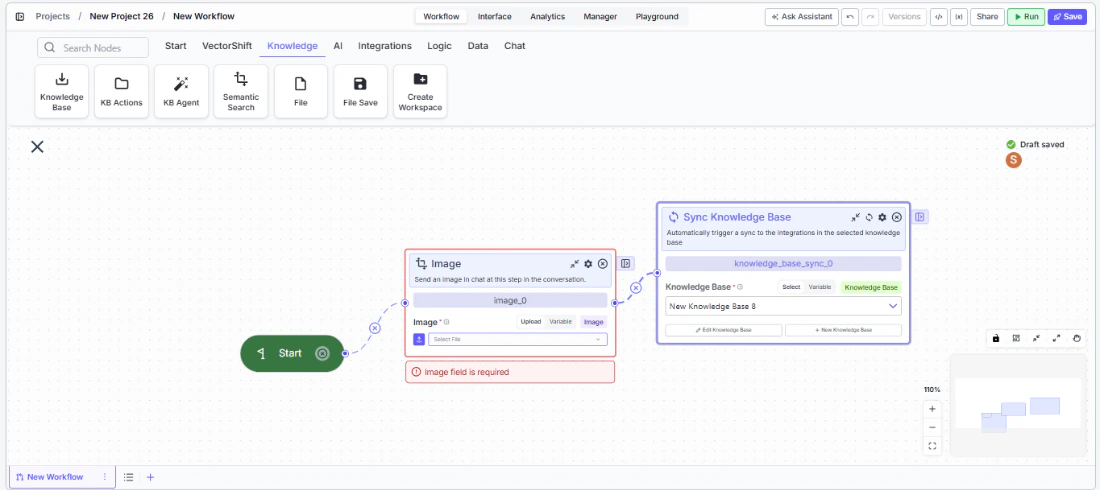
- Requires a Start node on the canvas to function
- Does not produce outputs — it is a display-only node
Tool Inputs
Image* — Image. Required. The image to send. Can be uploaded directly or connected from an upstream node’s image output. Supports Upload and Variable modes.
Tool Outputs
The Image node has no outputs. It is a display-only node that sends visual content to the user.- Workflows
Overview
In workflows, the Image node sits in a conversational workflow and displays an image to the user when the flow reaches it. Use it to present charts, diagrams, screenshots, or any visual content generated or loaded by upstream nodes.Use Cases
- Display a dynamically generated financial chart or graph from an upstream image generation node
- Show a product image in a sales chatbot based on the user’s selection
- Present a screenshot captured by a Browser Extension node for review
- Display a company logo or branding image at the start of a branded chatbot experience
- Show a scanned document or receipt image uploaded by the user back to them for confirmation
How It Works
Step 1: Add a Start Node
The Image node requires a Start node on the canvas.Step 2: Add the Image Node
In the workflow canvas, click the Chat tab, click Talk, then select Image from the variant list.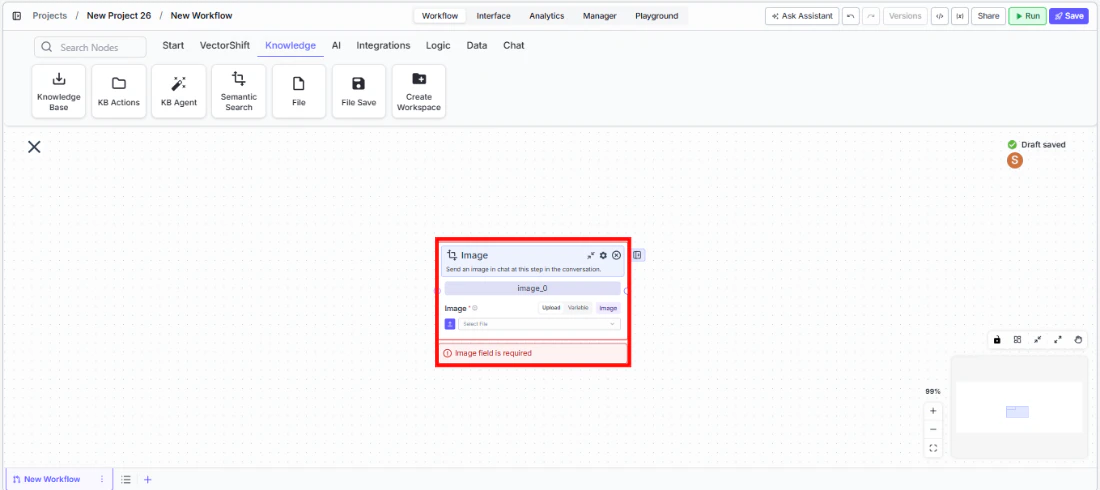
Step 3: Provide the Image
In theImage field, either upload an image directly or switch to Variable mode to connect an upstream node’s image output. This field is required.Step 4: Connect in the Flow
Place the Image node at the appropriate point in the conversation where the image should appear.Settings
Best Practices
- Use Variable mode for dynamic images. Connect upstream nodes (text-to-image, screenshots, file processing) to display context-specific visuals.
- Pair with Message nodes for context. Add a Talk (Message) node before the Image node to explain what the image shows.
- Optimize image size. Large images may slow the chat experience. Use reasonably sized images for the best user experience.
- Use for visual confirmation. Display processed or extracted images back to the user so they can verify the content before proceeding.
Related Templates
Customer Support Chatbot
Handles common customer inquiries and support tickets through conversational AI.
Webpage Customer Support Agent
Provides real-time customer support directly embedded within a website interface.
Banking Helpdesk
Assists banking customers with account inquiries, transactions, and product questions.
Company Policy Compliance Chatbot
Answers employee questions about internal policies and flags potential compliance issues.