
Use this node from the SDK
Add it in Python with
pipeline.add(name="...").read_session_messages(...). See the SDK reference.Core Functionality
- Reads messages from an existing agent session by session ID
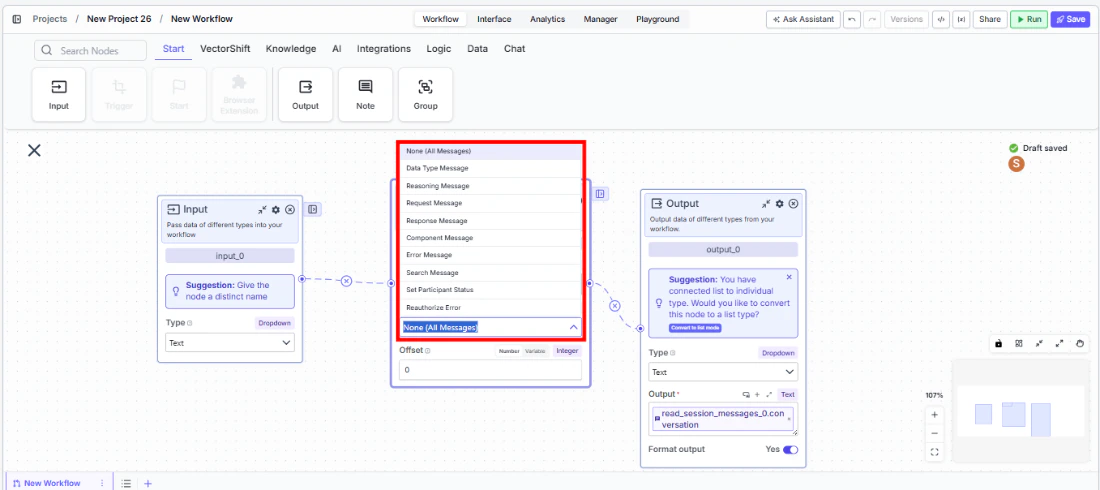
- Filters messages by type: all, data type, reasoning, request, response, component, error, search, status, and reauthorize
- Supports pagination via offset to handle large conversation histories
- Returns structured outputs: raw messages, clean conversation, tool calls, reasoning, and session result
Tool Inputs
Session ID* — Text. Required. The ID of the session to read messages from.Message Filter— Dropdown. Default:None (All Messages). Filter messages by type. Options: None (All Messages), Data Type Message, Reasoning Message, Request Message, Response Message, Component Message, Error Message, Search Message, Set Participant Status, Reauthorize Error.Offset— Integer. Default:0. Number of messages to skip from the beginning. Supports Number and Variable modes.
Tool Outputs
messages— List<Text>. All raw session messages as JSON strings.conversation— List<Text>. Clean conversation messages (text and reasoning only).tool_calls— List<Text>. Tool calls with status and request/response data.reasoning_messages— List<Text>. Reasoning and thinking messages from the agent.result— Text. Overall session result and metadata as JSON.
- Workflows
Overview
In workflows, the Read Session Messages node connects to a session created by the Create Session node (via session ID) and retrieves the conversation contents. It provides multiple output views of the data — raw messages, clean conversation text, tool calls, and reasoning — making it easy to route different aspects of the conversation to different downstream processing nodes.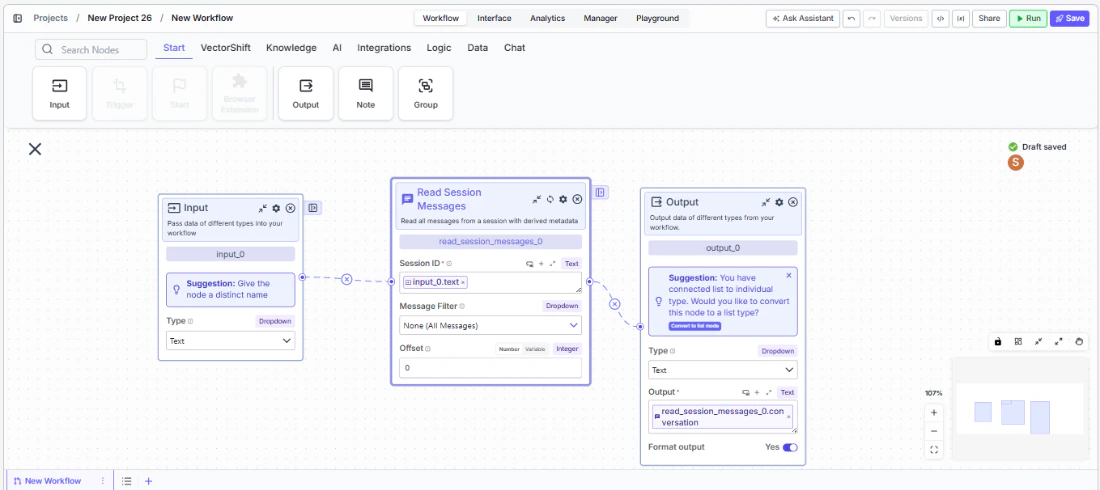
Use Cases
- Read the full conversation from a client onboarding session and generate a summary report using an LLM
- Extract all tool call results from an automated analysis session for logging and audit
- Pull reasoning messages from a compliance review session to verify the agent’s decision-making process
- Read error messages from a failed session to diagnose issues and trigger retry logic
- Retrieve the session result to check whether the agent completed its task successfully
How It Works
Step 1: Add the Read Session Messages Node
In the workflow canvas, click the Chat tab and click Read Messages.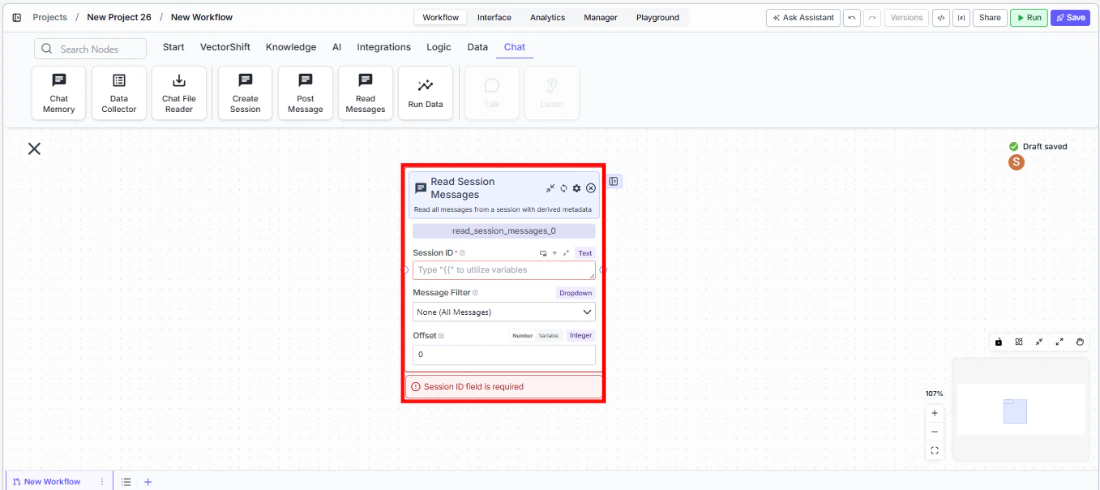
Step 2: Connect the Session ID
Connect theSession ID input from an upstream Create Session or Post Message node’s session ID output.Step 3: Configure Message Filter (Optional)
Use theMessage Filter dropdown to narrow results to a specific message type. Leave as “None (All Messages)” to retrieve everything.Step 4: Set Offset (Optional)
Set theOffset value to skip a number of messages from the beginning. Useful for pagination in long conversations.Step 5: Connect Outputs
Connect the relevant outputs to downstream nodes:conversation for human-readable text, tool_calls for audit logs, reasoning_messages for QA review, or result for session status.Settings
Best Practices
- Use Message Filter for targeted analysis. Instead of processing all messages, filter to the specific type you need (e.g., Error Messages for debugging, Tool Calls for audit).
- Pair with Create Session and Post Message. The typical pattern is: Create Session → Post Message → Read Session Messages to orchestrate and then analyze agent conversations.
- Use Offset for long conversations. In sessions with many messages, use offset to paginate and process in batches.
- Route outputs to specialized processing. Connect
conversationto an LLM for summarization,tool_callsto a logging workflow, andresultto a condition node for branching.
Related Templates
Customer Support Chatbot
Handles common customer inquiries and support tickets through conversational AI.
Banking Helpdesk
Assists banking customers with account inquiries, transactions, and product questions.
CRM Insights Digest Agent
Summarizes and surfaces key CRM data insights for sales and relationship management teams.
Investor Helpdesk
Handles investor inquiries related to portfolios, statements, and fund performance.