
Use this node from the SDK
Add it in Python with
pipeline.add(name="...").create_session(...). See the SDK reference.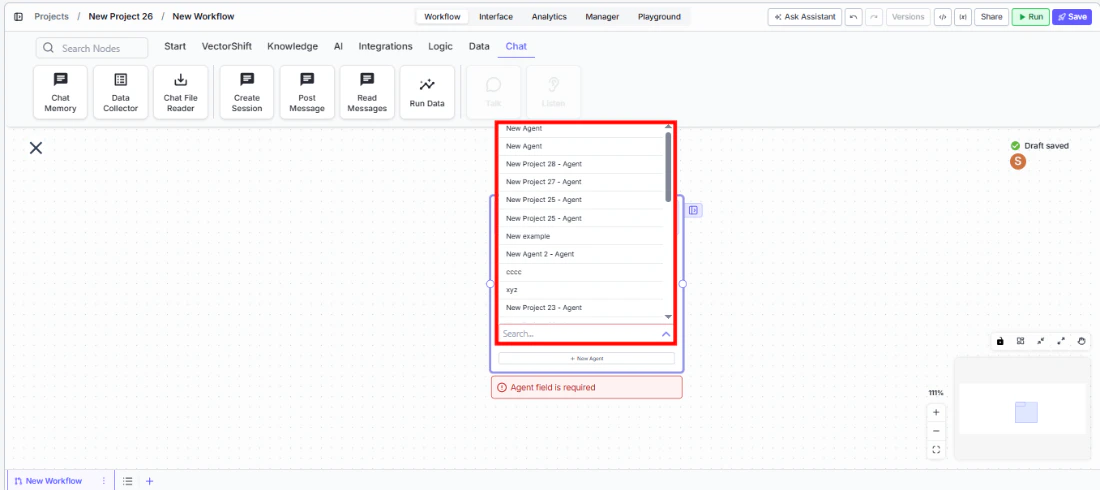
Core Functionality
- Creates a new agent session programmatically from within a workflow
- Links the session to a specific agent selected from your account
- Returns a session ID that downstream nodes (Post Message, Read Messages) can use to interact with the session
- Supports optional session naming for easier identification
Tool Inputs
Session Name— Text. Optional. A human-readable name for the session. Placeholder: “Optional session name”.Agent* — Agent. Required. The agent to use for the session. Select from existing agents in your account via a searchable dropdown, or switch to Variable mode to pass an agent reference dynamically. Includes a + New Agent button to create a new agent inline.
Tool Outputs
session_id— Text. The unique identifier of the created session. Use this to post messages or read messages in downstream nodes.
- Workflows
Overview
In workflows, the Create Session node initializes a new agent conversation that other Chat nodes can interact with. It outputs asession_id that you pass to Post Message and Read Messages nodes to send messages to and receive responses from the agent. This enables workflows that orchestrate multi-turn agent conversations programmatically — useful for automated testing, batch processing, or triggering agent interactions from external events.Use Cases
- Automatically create a client onboarding session when a new CRM record is created, then post introductory questions via Post Message
- Spin up a compliance review session for each new transaction, feed the transaction details, and read the agent’s assessment
- Orchestrate automated QA testing of an agent by creating sessions and posting scripted test messages
- Initialize a financial analysis session from a trigger node when new market data arrives, then read the agent’s insights
- Create named sessions for each department’s weekly reporting workflow so conversations are easy to track and audit
How It Works
Step 1: Add the Create Session Node
In the workflow canvas, click the Chat tab in the node palette and click Create Session. Drag it onto the canvas.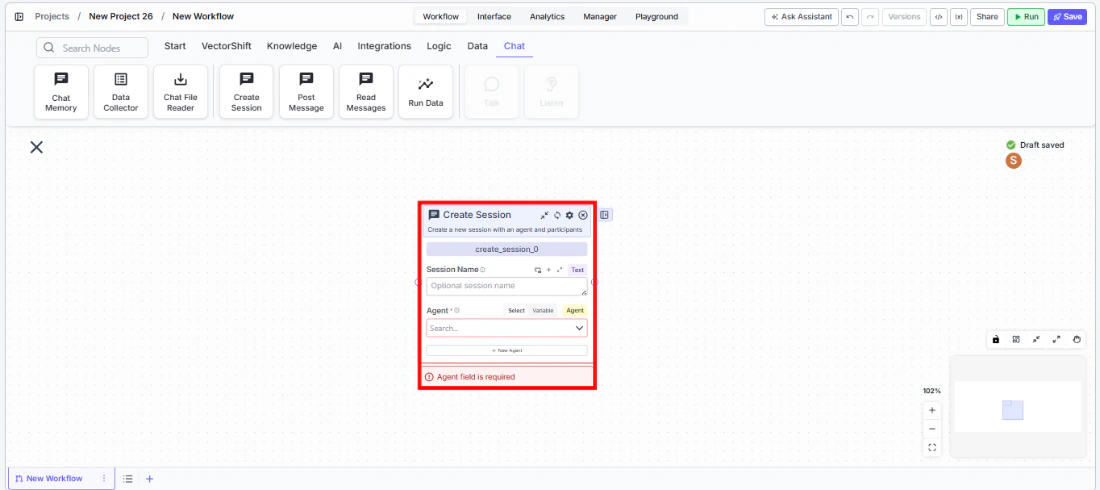
Step 2: Select an Agent
In theAgent field, use the searchable dropdown to select an existing agent from your account. This field is required — the node shows a validation error (“Agent field is required”) if left empty.You can toggle between Select mode (pick from a dropdown) and Variable mode (pass an agent reference from an upstream node). The + New Agent button lets you create a new agent directly from within the node.Step 3: Set a Session Name (Optional)
Enter a name in theSession Name field to give the session a human-readable label. This is optional but helpful for tracking sessions in logs or dashboards.Step 4: Connect Downstream Nodes
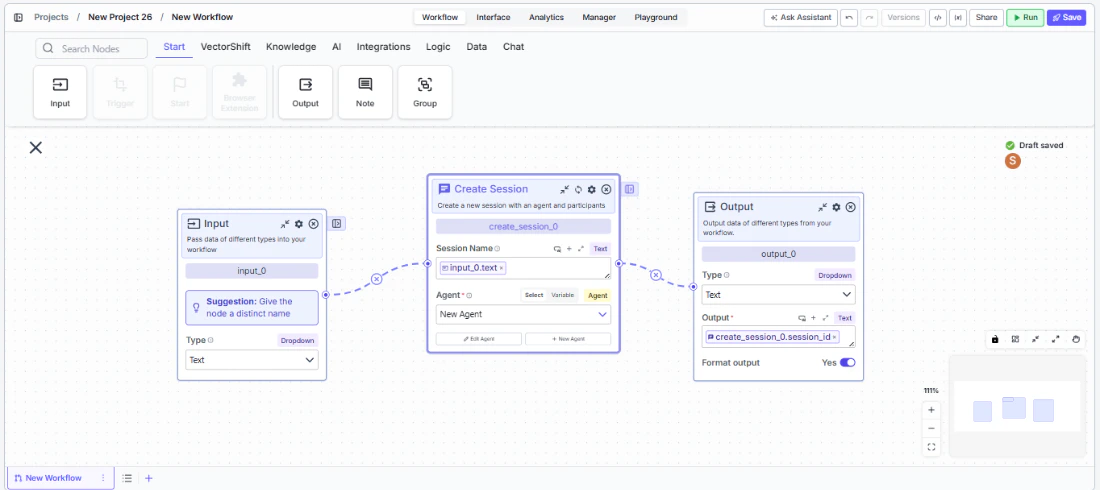
session_id output to downstream Post Message or Read Messages nodes. These nodes use the session ID to interact with the newly created agent session.Step 5: Test the Workflow
Click Run to test. The node creates a session and outputs the session ID. Verify that downstream nodes can successfully post to and read from the session.Settings
Best Practices
- Name sessions descriptively. Use session names that include context (e.g., client name, date, workflow type) so sessions are easy to find and audit later.
- Pair with Post Message and Read Messages. Create Session alone only initializes the conversation — use Post Message to send input and Read Messages to retrieve the agent’s responses.
- Use Variable mode for dynamic agent selection. When building workflows that route to different agents based on conditions (e.g., different departments), switch the Agent field to Variable mode and connect it to upstream logic.
- Add dependencies for execution ordering. If the session must be created after another node completes (e.g., after fetching client data), use the Dependencies advanced setting to enforce the correct order.
- Store session IDs for follow-up workflows. If you need to continue a conversation later (e.g., in a subsequent workflow run), save the session ID output to a database or variable for reuse.
Related Templates
Customer Support Chatbot
Handles common customer inquiries and support tickets through conversational AI.
Banking Helpdesk
Assists banking customers with account inquiries, transactions, and product questions.
Investor Helpdesk
Handles investor inquiries related to portfolios, statements, and fund performance.
Company Policy Compliance Chatbot
Answers employee questions about internal policies and flags potential compliance issues.