
Use this node from the SDK
Add it in Python with
pipeline.add(name="...").chat_memory(...). See the SDK reference.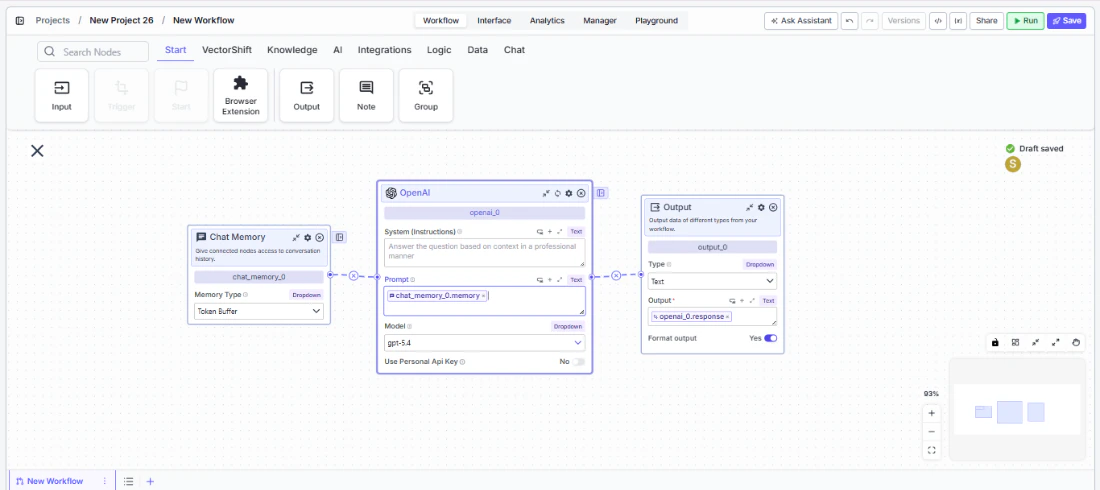
Core Functionality
- Stores and retrieves conversation history from deployed chatbot sessions
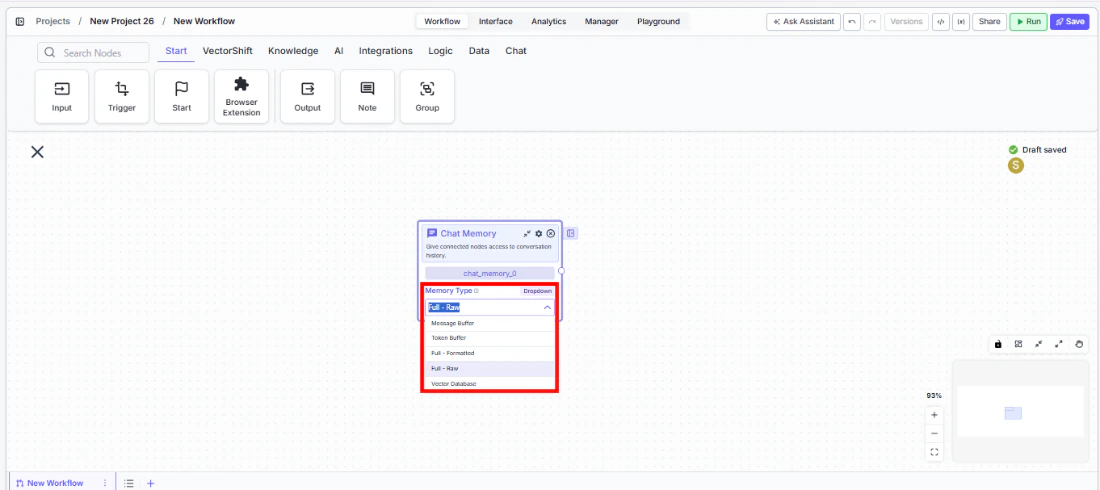
- Supports multiple memory strategies: Token Buffer, Message Buffer, Full - Formatted, Full - Raw, and Vector Database
- Outputs formatted conversation history as text that LLM nodes can consume as context
- Configurable memory window to control how much history is retained
Tool Inputs
Memory Type— Dropdown. Default:Token Buffer. The strategy used to store and retrieve conversation history. Options:Message Buffer— Returns a set number of previous consecutive messagesToken Buffer— Returns previous consecutive messages up to a token limitFull - Formatted— Returns all previous chat history as formatted textFull - Raw— Returns all previous chat history as a structured list with type and message fieldsVector Database— Stores all messages in a vector database and returns the most similar messages based on the current user message
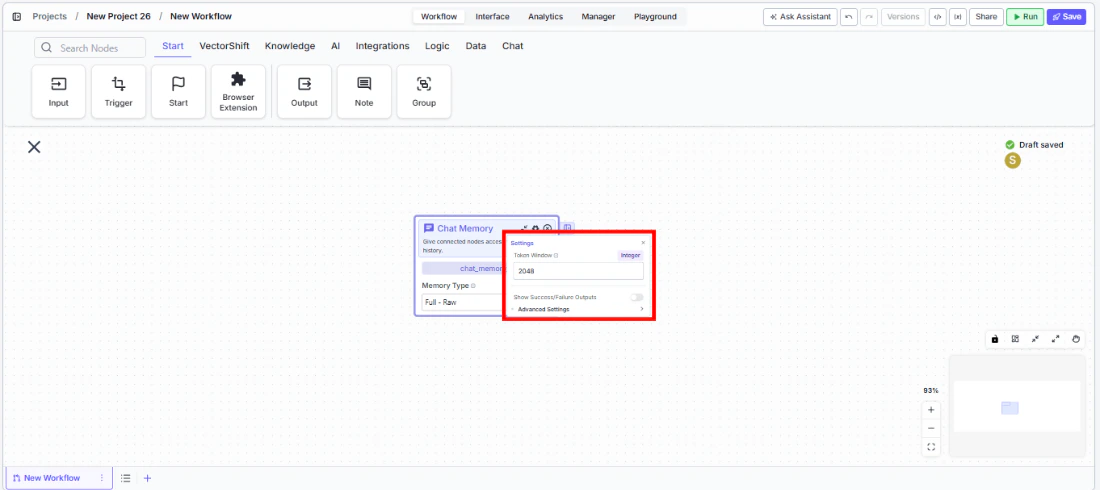
Token Window— Integer. The memory window size. Default varies by memory type:2048for Token Buffer,10for Message Buffer,20for Vector Database. Not shown for Full - Formatted or Full - Raw.
Tool Outputs
memory— Text. The conversation history in the format of the selected memory type.
- Workflows
Overview
In workflows, the Chat Memory node connects to an LLM node to provide conversation context. When deployed as a chatbot, the node captures each exchange and feeds the relevant history back to the LLM on every turn — so the model can reference previous messages, follow up on earlier topics, and maintain a coherent conversation. The memory type you choose controls how history is formatted and how much is retained.Use Cases
- Build a financial advisor chatbot that remembers earlier questions about portfolio allocations and references them in follow-up answers
- Create a customer support bot that tracks the full issue progression across multiple messages without losing context
- Power an onboarding assistant that guides users through a multi-step process and recalls answers from earlier steps
- Enable a research chatbot that builds on prior analysis, referencing data points mentioned in previous turns
- Implement a compliance Q&A bot that remembers which regulations have already been discussed to avoid repetition
How It Works
Step 1: Add the Chat Memory Node
In the workflow canvas, click the Chat tab in the node palette and click Chat Memory. Drag it onto the canvas.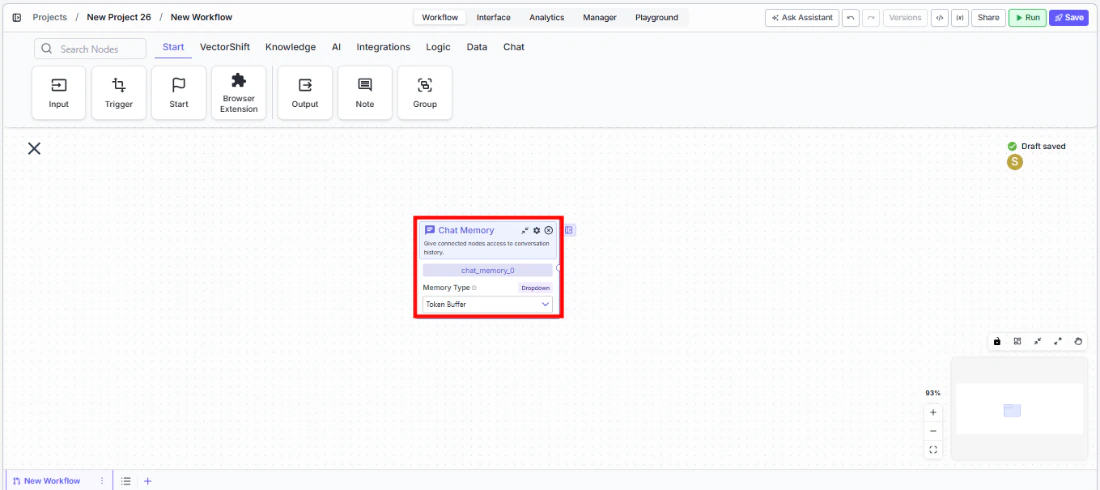
Step 2: Select a Memory Type
Use theMemory Type dropdown on the node to choose how conversation history is stored and retrieved:- Token Buffer (default) — Best for most use cases. Keeps as many recent messages as fit within the token window.
- Message Buffer — Returns a fixed number of recent messages. Use when you want a predictable history length.
- Full - Formatted — Returns the entire conversation history. Use for short conversations where you want full context.
- Full - Raw — Returns history as a structured list. Use when downstream processing needs raw message objects.
- Vector Database — Returns semantically similar messages instead of recent ones. Use for long conversations where only relevant context matters.
Step 3: Configure the Memory Window
Click the settings icon to open the Settings panel. AdjustToken Window based on your memory type:- For Token Buffer: set the maximum number of tokens (default: 2048). The node returns messages from most recent backward until adding another would exceed this limit.
- For Message Buffer: set the number of messages to keep (default: 10).
- For Vector Database: set the number of similar messages to retrieve (default: 20).
- Full - Formatted and Full - Raw do not use a memory window — they return everything.
Step 4: Connect to an LLM Node
Connect thememory output to the LLM node’s System or Chat History input. The LLM receives the formatted conversation history and uses it as context for generating responses.Step 5: Deploy and Test
Deploy the workflow as a chatbot. Send multiple messages and verify that the LLM’s responses reflect awareness of previous turns.Settings
Best Practices
- Use Token Buffer for most chatbots. It automatically manages context size and prevents exceeding LLM token limits — ideal for financial advisor or support bots with unpredictable conversation lengths.
- Match Token Window to your LLM’s context budget. If your LLM has a 4096-token context and you need room for the system prompt and current message, set the memory window to 2048 or less.
- Use Vector Database for long-running sessions. In conversations that may span dozens of turns (e.g., ongoing compliance reviews), Vector Database retrieves only the most relevant prior messages instead of recent ones.
- Use Full - Raw when you need structured parsing. If downstream nodes need to process individual messages (e.g., counting user questions or extracting specific turns), Full - Raw provides a parseable list format.
- Avoid Full modes for long conversations. Full - Formatted and Full - Raw return the entire history. For conversations that may grow long, this can exceed LLM context limits — use Token Buffer or Message Buffer instead.
Related Templates
Customer Support Chatbot
Handles common customer inquiries and support tickets through conversational AI.
Banking Helpdesk
Assists banking customers with account inquiries, transactions, and product questions.
Investor Helpdesk
Handles investor inquiries related to portfolios, statements, and fund performance.
Company Policy Compliance Chatbot
Answers employee questions about internal policies and flags potential compliance issues.