
Use this node from the SDK
Add it in Python with
pipeline.add(name="...").listen(...). See the SDK reference.response output and passed to downstream nodes. Use it to build multi-step conversational flows — for example, asking a follow-up question after presenting information, collecting free-text feedback, or pausing for user confirmation before proceeding with an action.
Core Functionality
- Pauses the conversational workflow at the current step and waits for the user to respond in the chat
- Captures the user’s typed message and stores it in the
responseoutput variable - Resumes the workflow and passes the captured response to downstream nodes
- Works with the Start node and other conversational nodes (Talk, Button) to build multi-step chat flows
Tool Inputs
This node has no configurable input fields. It simply pauses and waits for user input.Tool Outputs
response— Text. The user’s message captured at this step in the conversation.
- Workflows
Overview
In workflows, the Capture node acts as a pause point in a conversational workflow. When the flow reaches this node, the chatbot waits for the user to type a message. Once the user responds, the workflow resumes and theresponse output carries the user’s text to the next node — typically an LLM for processing, a condition node for branching, or another conversational node. Use it between Talk nodes to create back-and-forth dialogue.Use Cases
- Pause after presenting a financial summary and capture the user’s follow-up question for an LLM to answer
- Collect free-text feedback after completing a support interaction and route it to a sentiment analysis node
- Ask the user to confirm a transaction (“Please type CONFIRM to proceed”) and validate their response with a condition node
- Gather additional context after an initial classification — e.g., “Can you describe the issue in more detail?”
- Build a multi-turn interview flow where each Capture node collects one answer before moving to the next question
How It Works
Step 1: Add a Start Node
The Capture node requires a Start node on the canvas. If no Start node is present, a dialog appears: “To use this node, drag a start node onto the canvas.” Add a Start node from the Start tab first.Step 2: Add the Capture Node
In the workflow canvas, click the Chat tab in the node palette, click Listen, then select Capture from the variant list. Drag it onto the canvas.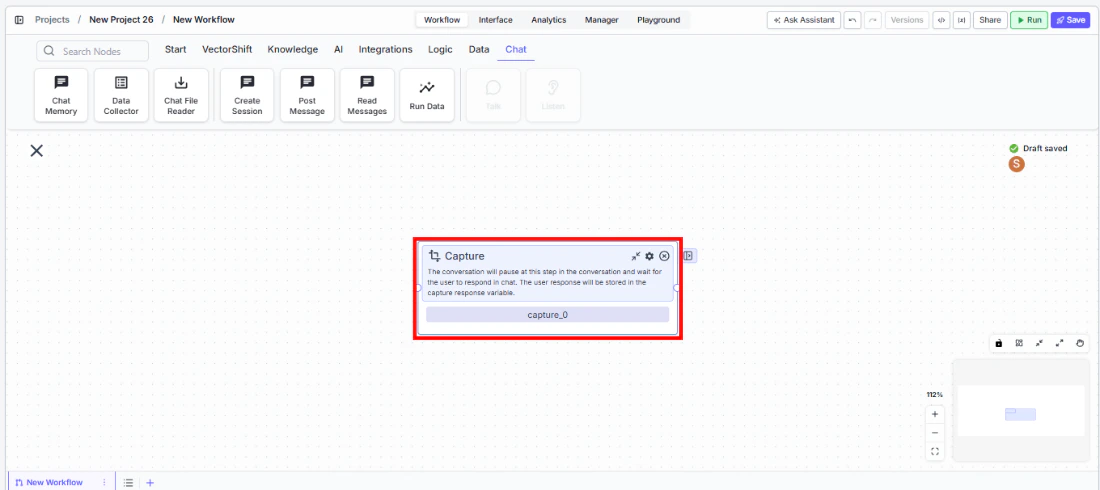
Step 3: Connect Upstream Nodes
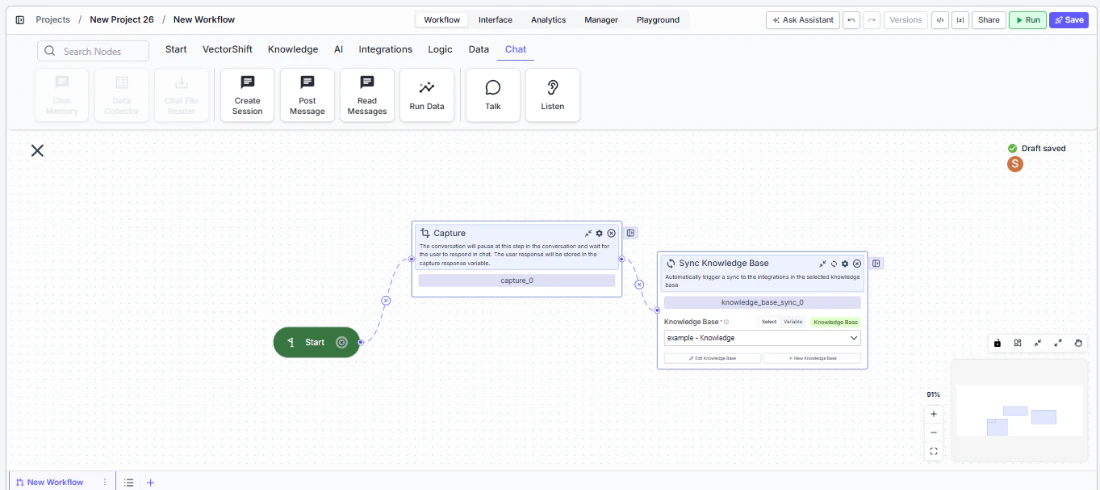
Step 4: Connect the Response Output
Connect theresponse output to the downstream node that should process the user’s message — for example, an LLM node, a condition node, or another Talk node.Step 5: Test the Flow
Deploy the workflow as a chatbot. Verify that the conversation pauses at the Capture step and resumes correctly once the user sends a message.Settings
Best Practices
- Always precede Capture with a Talk node. Users need context for what to type. Place a Talk (Message) node before the Capture to ask a clear question or provide instructions.
- Use descriptive node names. Rename the Capture node to describe what it collects (e.g., “Capture Feedback”, “Capture Confirmation”) so the workflow is easy to follow.
- Validate captured input when needed. If the user’s response must meet specific criteria (e.g., a date format, a confirmation keyword), connect the
responseoutput to a condition node before proceeding. - Chain multiple Talk-Capture pairs. For multi-step data collection, alternate Talk (Message) and Capture nodes to create a structured back-and-forth conversation.
- Consider using Button instead for constrained choices. If you need the user to pick from a fixed set of options rather than typing freely, use the Button variant of Listen instead.
Related Templates
Customer Support Chatbot
Handles common customer inquiries and support tickets through conversational AI.
Banking Helpdesk
Assists banking customers with account inquiries, transactions, and product questions.
KYC Agent
Verifies customer identities and performs Know Your Customer checks for onboarding compliance.
Company Policy Compliance Chatbot
Answers employee questions about internal policies and flags potential compliance issues.