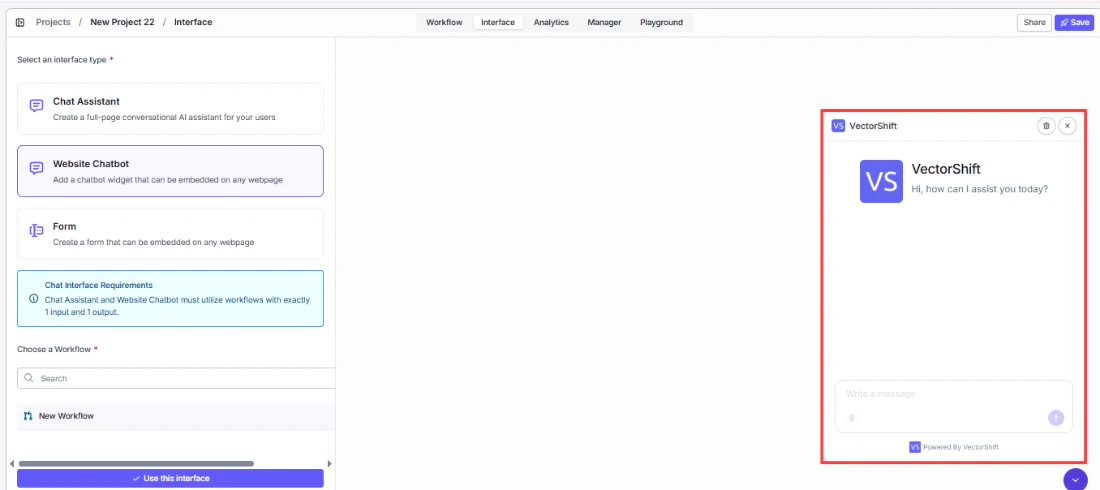
Understand the two display templates and when to use each one
When you create a chatbot, you choose one of two display templates: Chat Assistant or Website Chatbot. The template controls how the chatbot appears to your users. Both templates connect to the same Agent or workflow and support the same features for customization, prompts, and analytics. The difference is purely in the visual layout and how users access the chatbot.
Choose Chat Assistant when you want to give users a dedicated, full-screen chat experience. This works well for internal teams, knowledge portals, and any situation where the chatbot is the primary interface the user interacts with.Choose Website Chatbot when you want to add chat functionality to an existing website without disrupting the page layout. The chatbot appears as a small launcher button in the corner of the screen and expands into a chat window when clicked.You can change the template at any time from the chatbot builder by opening the settings and selecting a different interface type.
Switching between templates resets all deployment options (colors, messages, launcher settings) to the new template’s defaults. Save any custom settings you want to preserve before switching.