
Use this node from the SDK
Add it in Python with
pipeline.add(name="...").condition(...). See the SDK reference.Core Functionality
- Evaluates one or more conditions per path using configurable operators
- Supports multiple paths — each path can have its own set of conditions
- Conditions within a path can be combined with logical AND
- Includes a default/fallback path for inputs that don’t match any condition
- Does not produce data outputs — downstream nodes reference previous nodes’ output fields directly
Tool Inputs
Input* — The data source to evaluate. Select from a dropdown of available upstream node outputs. Required.Key— The specific key or field within the input to evaluate. Text. Use this when the input is structured data (e.g., JSON) and you need to check a specific property.Operator* — The comparison operator to apply. Required. Dropdown with the following options:Check contains— Input contains the specified valueCheck does not contain— Input does not contain the specified valueCheck does not equal— Input does not equal the specified valueCheck does not begin— Input does not begin with the specified valueCheck does not end with— Input does not end with the specified valueCheck is less than or equal— Input is less than or equal to the valueCheck is less than— Input is less than the valueis True— Input evaluates to trueis False— Input evaluates to falseis Empty— Input is empty or nullis not Empty— Input is not emptyList does not contain— A list input does not contain the specified valueList contains list— A list input contains all items in the specified list
Value— The value to compare against. Text. Not required for unary operators (is True,is False,is Empty,is not Empty).
Tool Outputs
The Condition node does not produce data outputs. It evaluates which path to execute based on the conditions. To access data in downstream nodes, reference the output fields of nodes that ran before the Condition node.- Workflows
Overview
In workflows, the Condition node sits between upstream data-producing nodes and multiple downstream branches. It evaluates each path’s conditions in order and activates the first matching path. If no path matches, the default path executes. Use it to implement if/else logic — for example, routing approved transactions to one branch and flagged transactions to another.Use Cases
- Route transactions above a threshold to a review workflow and below to auto-approval
- Filter incoming documents by type (invoice vs. receipt vs. statement) for different extraction workflows
- Check whether an API response contains an error field and branch to error handling
- Validate that required fields are not empty before proceeding with data processing
- Branch based on customer tier (premium vs. standard) to apply different pricing logic
- Direct flagged compliance records to manual review and clean records to automated processing
How It Works
Step 1: Add the Condition Node
In the workflow canvas, click the Logic tab in the node palette and click Condition. Drag it onto the canvas.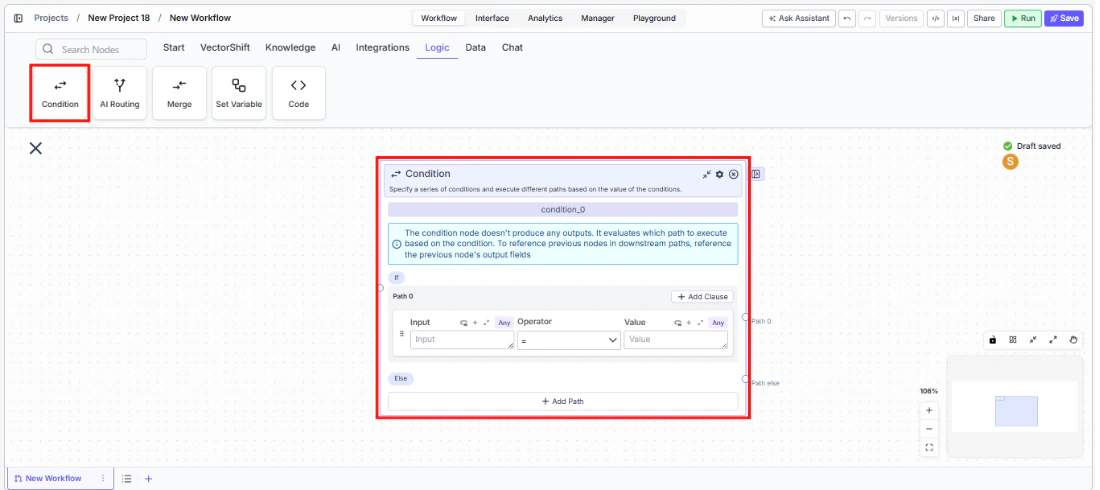
Step 2: Configure Path 0
Path 0 is the first condition path. Each row in a path defines one condition:- Select an Input from the dropdown — this connects to an upstream node’s output.
- Optionally enter a Key if the input is structured data and you want to check a specific field.
- Choose an Operator from the dropdown (e.g.,
Check contains,is Empty,Check is less than). - Enter a Value to compare against (not needed for unary operators like
is Trueoris Empty).
Step 3: Configure Additional Paths
Path 1 serves as the default/fallback path (marked with + Not / Default). It activates when no other path’s conditions are met. You can also add conditions to Path 1 to make it conditional rather than a catch-all.Click + Add Path at the bottom to add more paths (Path 2, Path 3, etc.). Each additional path gets its own set of condition rows.Step 4: Select Operators
Click the Operator dropdown to see all available comparison operators. The full list includes string checks (contains, begins, ends), numeric comparisons (less than, less than or equal), boolean checks (is True, is False), emptiness checks (is Empty, is not Empty), and list operations (List does not contain, List contains list).Step 5: Connect Downstream Nodes
Each path creates a separate output handle on the right side of the node. Connect each handle to the downstream nodes that should execute for that path. Downstream nodes reference the output fields of nodes that ran before the Condition node.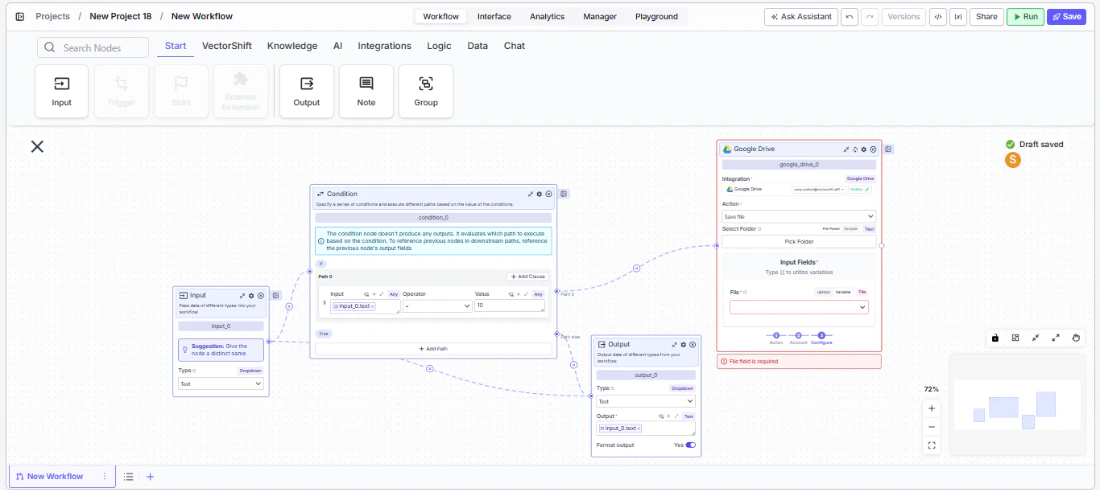
Step 6: Run the Workflow
Click Run at the bottom of the node to test. The Condition node evaluates each path’s conditions in order and activates the first match.Settings
Best Practices
- Use Path 1 as a catch-all. Keep the default path (Path 1 / Not / Default) as a fallback for any inputs that don’t match your defined conditions. This prevents data from silently dropping out of the workflow.
- Order paths by priority. The Condition node evaluates paths in order and activates the first match. Put your most specific conditions in Path 0 and broader conditions in later paths.
- Combine conditions with And for precision. Use multiple conditions within a single path to create precise filters — for example, “amount is greater than 10000 AND status equals pending.”
- Use is Empty / is not Empty for validation. Before processing, check that required fields are not empty. This prevents downstream errors from missing data.
- Keep condition counts manageable. If you need many conditions, consider chaining multiple Condition nodes or using AI Routing for intent-based classification instead of manual rules.
Related Templates
CapEx Classification AI Agent
Classifies capital expenditure items against accounting standards and internal policies.
Document Classification Agent
Automatically categorizes and tags incoming documents based on content and type.
Application Risk Agent
Assesses risk levels in incoming applications using scoring models and policy rules.
Refund/Expense Approval AI Agent
Reviews and routes refund or expense requests based on policy rules and approval thresholds.