
Use this node from the SDK
Add it in Python with
pipeline.add(name="...").merge(...). See the SDK reference.Core Functionality
- Selects the first non-empty input value from multiple input fields
- Designed to recombine paths created by Condition or AI Routing nodes
- Supports configurable input/output types (Text, Integer, Decimal, File, JSON, and more)
- Allows adding or removing input fields dynamically
- Outputs a single value of the configured type (not a list)
Tool Inputs
Function— The merge strategy. Set toPick Firstto select the first non-empty input. Dropdown.Type— The expected data type of the input and output fields. Dropdown with options:Text,List of Text,Integer,Any,Decimal,Boolean,File,Audio,Image,JSON,Timestamp,Path,List of Files,Knowledge Base. Default:Text.Input 1— The first input value. Connect from an upstream node or enter directly. Type matches the selectedType.Input 2— The second input value. Same as above.- Additional inputs can be added with + Add Field.
Tool Outputs
output— A single value of the configured type. Contains the first non-empty input value, evaluated in order from Input 1 to Input N.
- Workflows
Overview
In workflows, the Merge node in Pick First mode sits downstream of branching nodes (Condition, AI Routing) to funnel their outputs back into a single path. It checks each input field in order and passes through the first one that has a value. This is the standard pattern for recombining conditional branches where only one branch executes at a time — the active branch produces a result, inactive branches are empty, and Pick First selects the one that ran.Use Cases
- Funnel the result from whichever Condition branch executed back into a single downstream path
- Select the first successful API response when multiple provider endpoints are tried in parallel
- Pick the output of the matching document type extractor after AI Routing classifies the document
- Merge results from cascading fallback logic — try the primary path, fall back to secondary
- Recombine outputs from locale-specific processing branches into a single result
How It Works
Step 1: Add the Merge Node
In the workflow canvas, click the Logic tab in the node palette and click Merge. Drag it onto the canvas.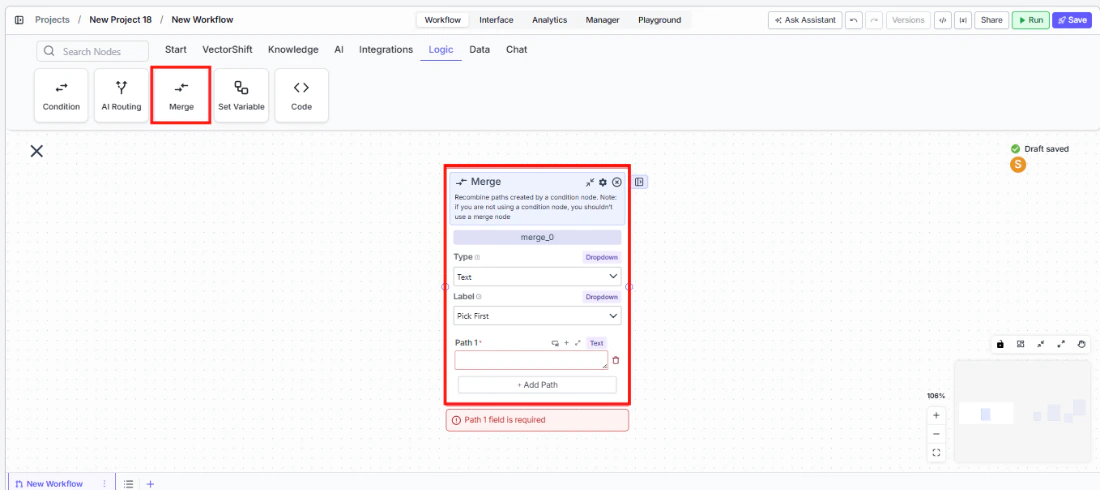
Step 2: Set the Function to Pick First
In the Merge node, set the Function dropdown to Pick First. This configures the node to select the first non-empty input.Step 3: Configure the Type
Select the expected data type from the Type dropdown. This determines what kind of data the input fields accept and what the output contains. The type should match what your upstream branches produce.Step 4: Connect Input Fields
The node starts with two input fields (Input 1 and Input 2). Connect each to the output of a different branch — typically from a Condition or AI Routing node. Input 1 has the highest priority; if it has a value, it is selected regardless of other inputs.Click + Add Field to add more input fields. Click the red − button to remove one.Step 5: Connect the Output
Theoutput handle on the right side of the node produces the single selected value. Connect it to downstream nodes for further processing.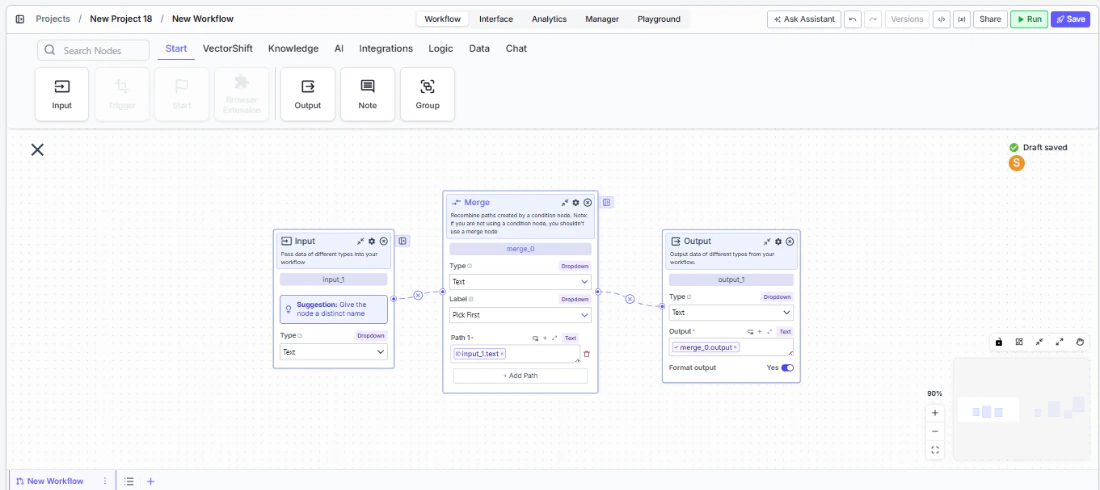
Step 6: Test the Workflow
Click Run to test. The Merge node evaluates inputs in order and outputs the first non-empty value.Settings
Best Practices
- Use after Condition nodes for single-branch results. Pick First is the standard pattern when a Condition node routes to exactly one branch and you need to continue with a single output downstream.
- Order inputs by priority. Input 1 is evaluated first. If multiple branches could produce a value, connect the highest-priority branch to Input 1.
- Match the Type to your upstream outputs. Set the
Typedropdown to match the data type your branches produce. A mismatch can cause unexpected behavior. - Pair with Join All when needed. If some workflows need all branch results (not just the first), use a second Merge node in Join All mode for those cases.
- Use for fallback patterns. Connect a primary data source to Input 1 and a fallback to Input 2. If the primary fails (produces no output), Pick First automatically selects the fallback.
Related Templates
Spreadsheet Comparison Assistant
Compares two or more spreadsheets to identify discrepancies, changes, and anomalies.
Document Comparison AI Agent
Side-by-side comparison of documents to highlight differences and track revisions.
Validation Agent
Validates data and documents against predefined rules, schemas, or compliance standards.
Financial Statement Reconciliation Assistant
Reconciles financial statements by identifying mismatches and resolving discrepancies.