Use this node from the SDK
Add it in Python with
pipeline.add(name="...").code_execution(...). See the SDK reference.Core Functionality
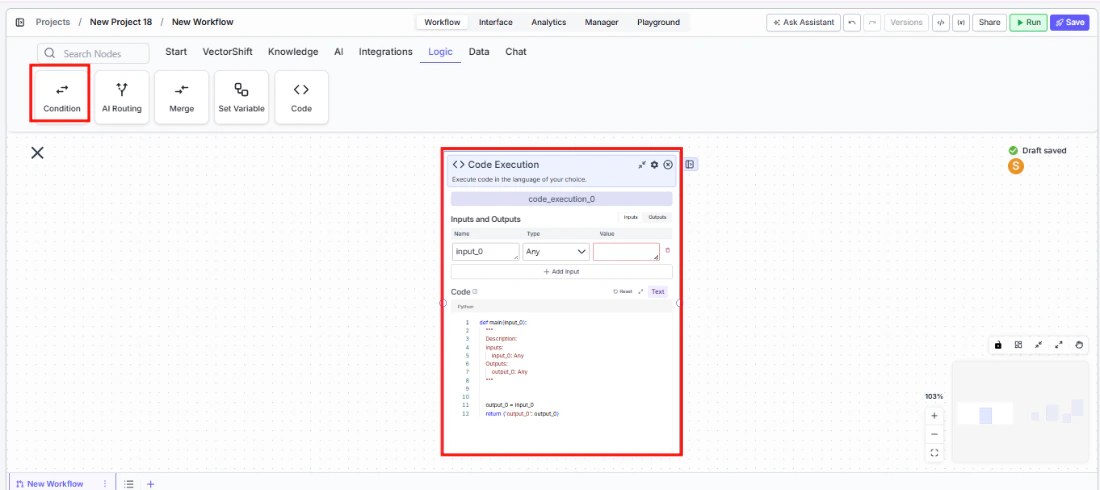
- Executes custom Python or JavaScript code within a workflow
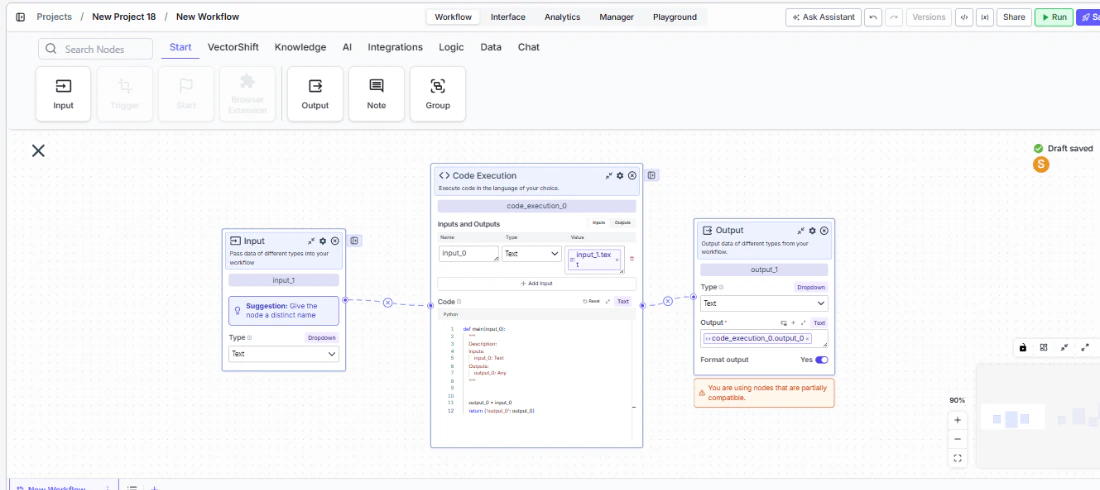
- Supports user-defined inputs and outputs with configurable names and types
- Includes a built-in code editor with boilerplate templates for each language
- Available input/output types include Text, File, Image, and more
- Works in both Workflows as a canvas node and Agents as the Code tool
Tool Inputs
Input Name— A user-defined input parameter. You can add multiple inputs by clicking + Add. Each input has a configurable name (e.g.,input_1) and a type selected from a dropdown (e.g.,Text,File,Image).Code* — The Python or JavaScript code to execute. Required. The code editor is pre-populated with boilerplate that shows how to access inputs and set the output variable.Language— Toggle betweenPythonandJavaScript. The code editor template updates to match the selected language.
Tool Outputs
Output Name— A user-defined output parameter. You can add multiple outputs by clicking + Add. Each output has a configurable name (e.g.,output_1) and a type selected from a dropdown (e.g.,Text,File,Image). The code must assign a value to each defined output variable.
- Agents
- Workflows
Overview
In agents, the Code tool lets the agent execute custom Python or JavaScript code during a conversation. You define the inputs, outputs, and code logic — the agent then invokes this tool when appropriate, passing in values from conversation context. Use it when you need the agent to perform calculations, data transformations, or any custom logic that goes beyond what built-in tools offer.Use Cases
- Calculate compound interest or amortization schedules from user-provided loan parameters
- Parse and transform raw JSON API responses into human-readable financial summaries
- Run custom validation logic on portfolio allocation percentages before proceeding
- Convert between currencies or units using custom formulas with live rates
- Generate formatted reports by processing structured data from upstream tools
- Compute weighted averages or custom scoring across multiple data points
How It Works
Step 1: Add the Code Tool
From the agent editor, click + Add Tool. Select the Logic category and click + Add next to Code.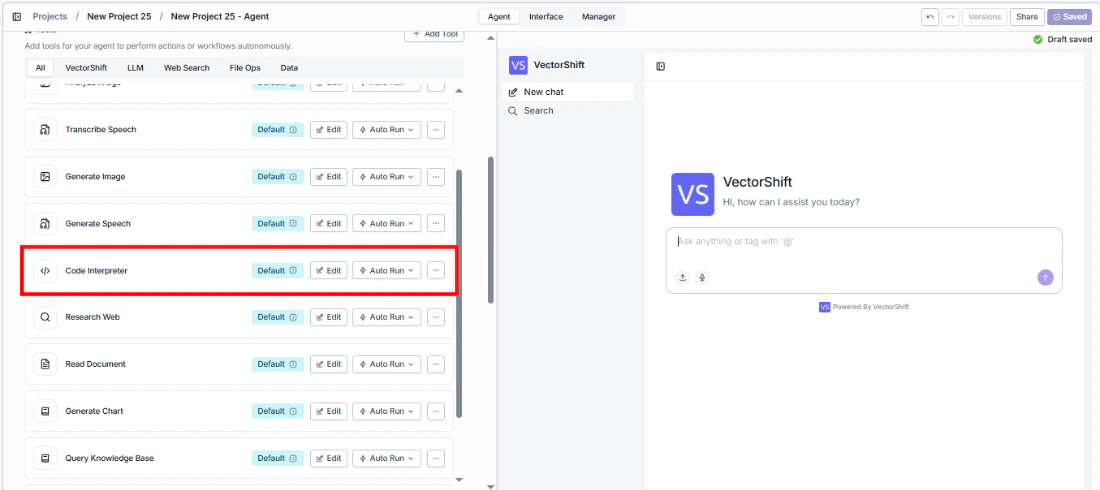
Step 2: Open the Tool Configuration
Click Edit on the Code tool in the tool list to open its configuration panel.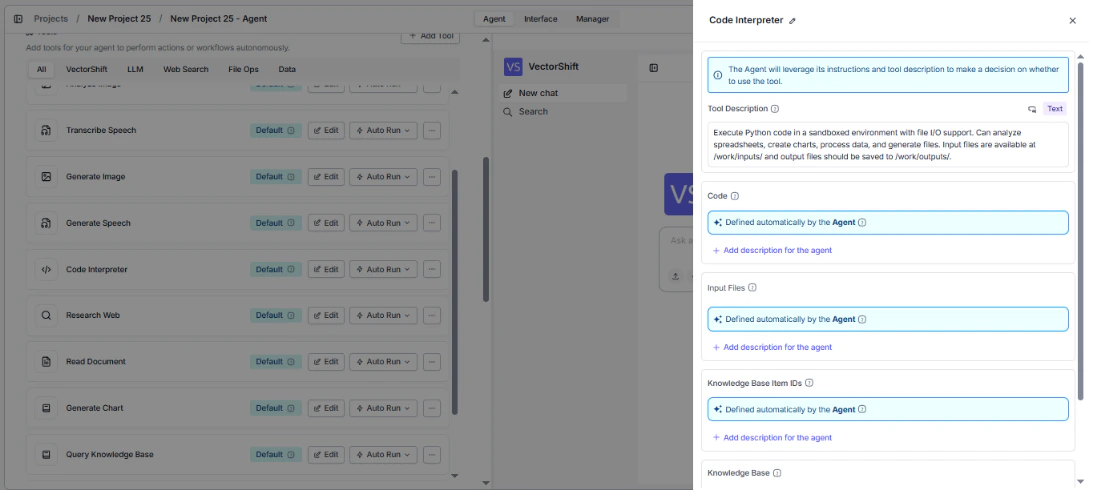
Step 3: Select the Language
Choose between Python and JavaScript using the language toggle at the top of the configuration panel. The code editor template updates automatically.Step 4: Define Inputs
Add input parameters that your code will receive. For each input:- Set the Input Name (e.g.,
input_1,principal,rate). - Select the Input Type from the dropdown (e.g.,
Text). - Click + Add Input to add additional inputs.
Step 5: Write Your Code
Write your logic in the code editor. The default template shows how to access inputs as variables and how to assign values to the output variable:Python:Step 6: Define Outputs
Add output parameters that your code will return. For each output:- Set the Output Name (e.g.,
output_1,result). - Select the Output Type from the dropdown (e.g.,
Text). - Click + Add Output to add additional outputs.
Step 7: Write a Tool Description
The Tool Description tells the agent when and how to use this tool. Customize it with specifics — for example: “Use this tool to calculate compound interest. The user will provide the principal, rate, and number of periods.”Step 8: Set Auto Run Behavior
Click the Auto Run dropdown to control execution:- Auto Run — The agent runs the code automatically without asking for confirmation.
- Require User Approval — The agent pauses and asks the user before running the code.
- Let Agent Decide — The agent uses its judgment to decide whether to confirm first.
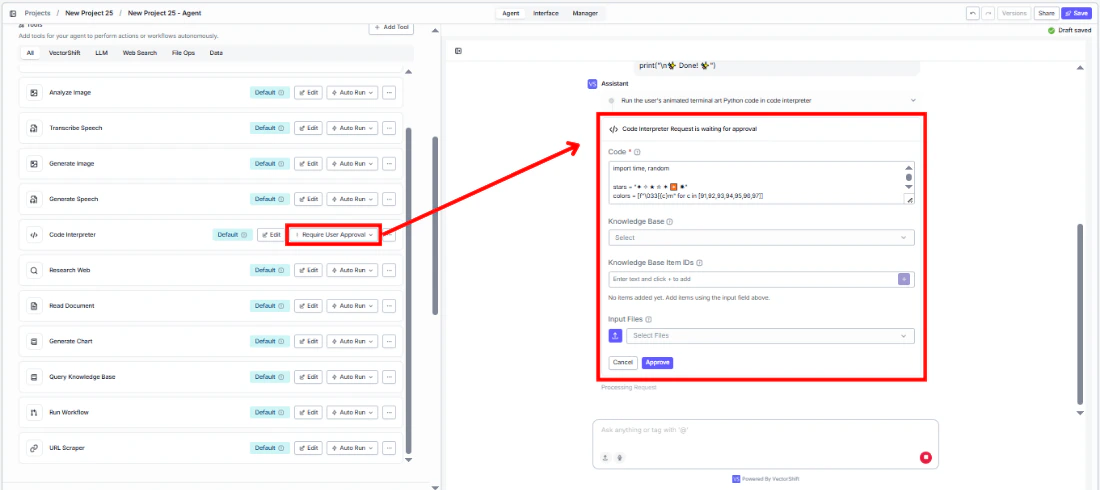
Step 9: Test the Tool
In the agent chat panel, ask the agent to perform a calculation or transformation. The agent invokes the Code tool and returns the result. A Code Interpreter panel appears in the sidebar showing the executed code and its output.Settings
Best Practices
- Name inputs descriptively. Use meaningful names like
principal,rate,periodsinstead ofinput_1,input_2— this helps the agent understand what values to pass. - Write a detailed tool description. Explain what the code does, what inputs it expects, and what it returns. This guides the agent to invoke it correctly.
- Require user approval for irreversible operations. If the code modifies data or calls external services, set Auto Run to Require User Approval so users can review before execution.
- Keep code focused. Write code that does one thing well. For complex multi-step logic, use multiple Code tools chained together.
- Handle edge cases in the code. Add input validation and error handling within your code to avoid silent failures.
Related Templates
Snowflake Analytics Agent
Queries and interprets Snowflake data warehouse data to deliver actionable business insights.
Earnings Call Insight and Sentiment Analyzer
Analyzes earnings call transcripts for sentiment, key themes, and forward-looking signals.
FX Arbitrage Research Agent
Identifies and analyzes foreign exchange arbitrage opportunities across markets and instruments.
Capital Account Statements Agent
Processes and validates capital account statements for accuracy and investor reporting.