Use this node from the SDK
Add it in Python with
pipeline.add(name="...").pipeline(...). See the SDK reference.Core Functionality
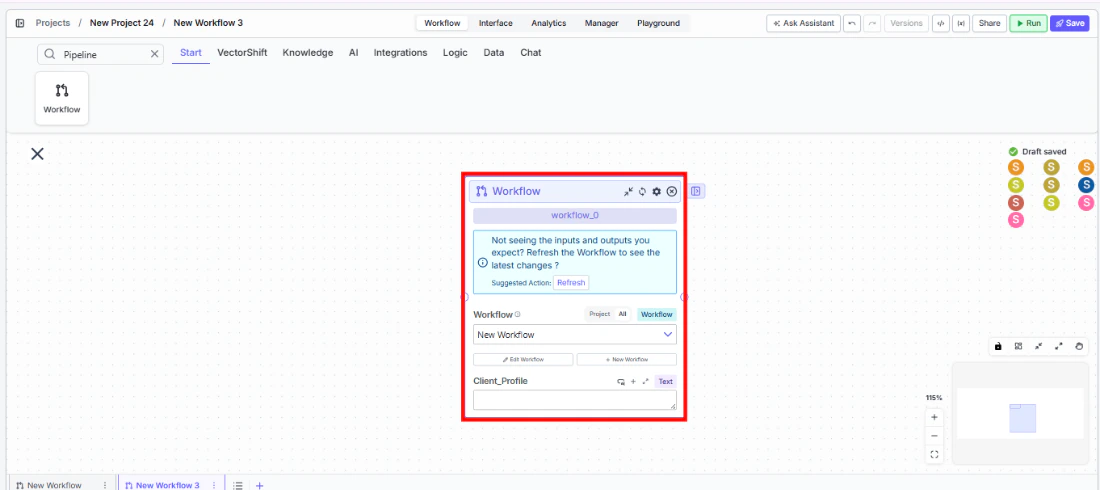
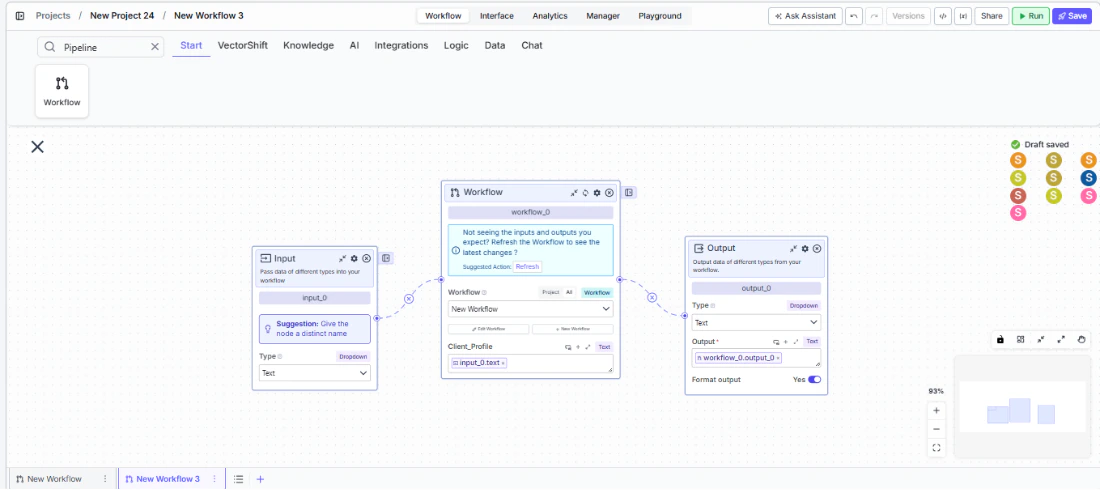
- Run any deployed workflow as a sub-step within another workflow or as a tool in an agent
- Automatically inherit the selected workflow’s inputs and outputs as node handles
- Create new workflows directly from the node configuration
- Pass data into the sub-workflow’s inputs and receive its outputs for downstream use
Tool Inputs
Workflow* — Required · Workflow selector · The deployed workflow to run. Once selected, the node dynamically generates input fields matching the sub-workflow’s input nodes.- Dynamic inputs — One input per input node defined in the selected workflow. Names and types match the sub-workflow’s input configuration.
Tool Outputs
- Dynamic outputs — One output per output node defined in the selected workflow. Names and types match the sub-workflow’s output configuration.
The Workflow node uses the most recent deployed version of your sub-workflow. If you don’t see the inputs and outputs you expect, make sure the sub-workflow has been deployed.
- Agents
- Workflows
Overview
When added as a tool inside an agent, the Workflow node (labeled “Run Workflow”) lets the agent trigger an existing workflow during a conversation. The agent passes inputs to the workflow, waits for execution, and incorporates the workflow’s outputs into its response. This is ideal for giving agents access to pre-built, deterministic processing workflows — such as running a calculation, generating a report, or executing a multi-step data transformation.Use Cases
- On-demand report generation — An agent triggers a report-building workflow when a user requests a financial summary, passing the date range and account as inputs.
- Data processing on request — An agent runs a CSV processing workflow when a user uploads a file, returning the cleaned and formatted results.
- Calculation workflows — An agent invokes a risk calculation workflow with portfolio parameters and returns the computed metrics to the user.
- Document generation — An agent triggers a document assembly workflow to produce contracts, proposals, or compliance reports from user-provided data.
- Integration orchestration — An agent runs a workflow that coordinates multiple API calls (e.g., fetching market data, running calculations, updating a CRM) as a single operation.
How It Works
- Add the tool — In the agent builder, open the tool panel and navigate to the VectorShift category. Select Workflow to add it as a tool.
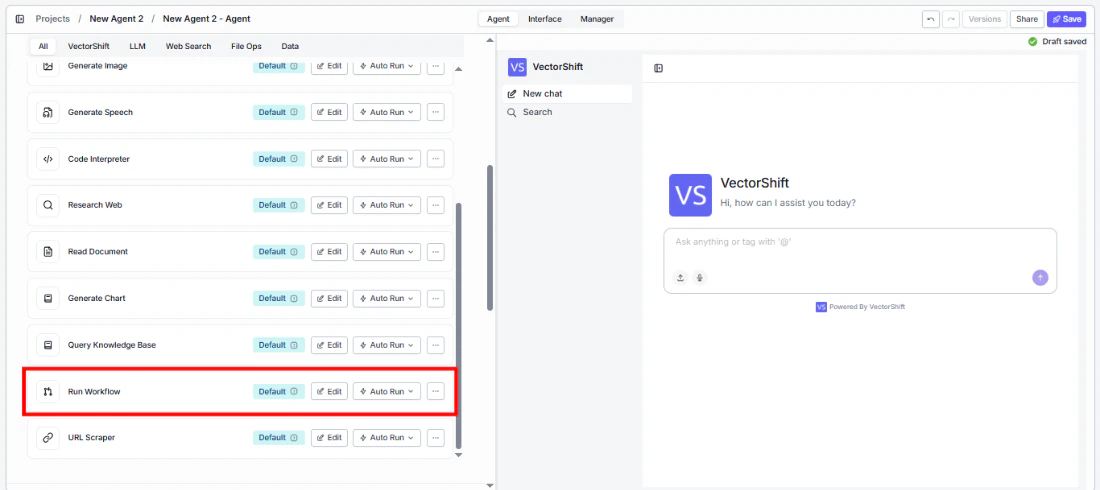
- Select the workflow — Use the
Workflowselector to choose the deployed workflow to run. Its inputs automatically appear as configurable fields. - Configure input fields — Each input from the selected workflow appears as a field. You can leave fields open for the agent to fill dynamically based on conversation context, or lock them to fixed values. Click the sparkle icon to switch a field between dynamic (agent-determined) and static (fixed) mode.
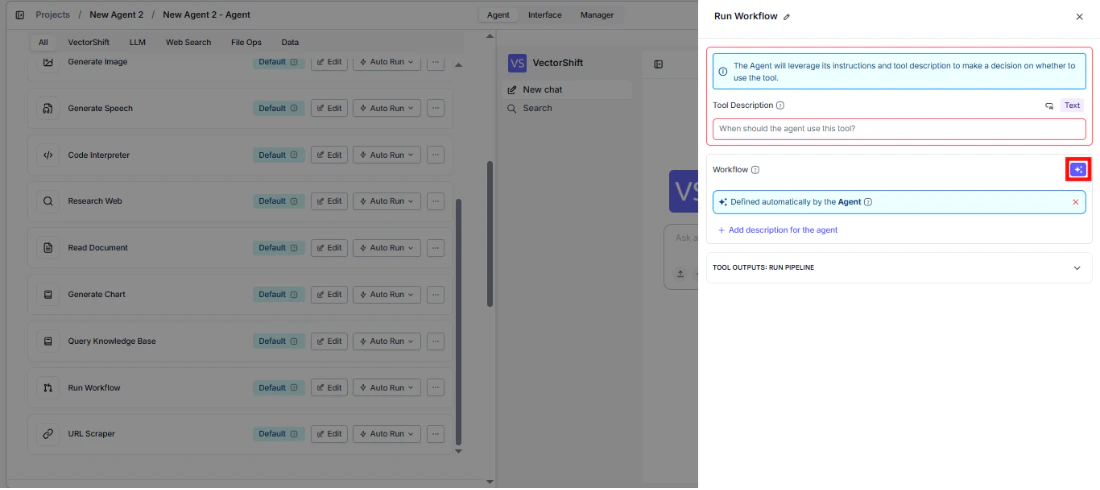
- Write a Tool Description — Describe when and why the agent should run this workflow. Example: “Use this tool to generate a portfolio performance report. Provide the client name and reporting period.”
- Set Auto Run behavior — Choose how the tool executes:
- Auto Run — Runs the workflow immediately.
- Require User Approval — Pauses for user confirmation before running.
- Let Agent Decide — The agent determines whether approval is needed.
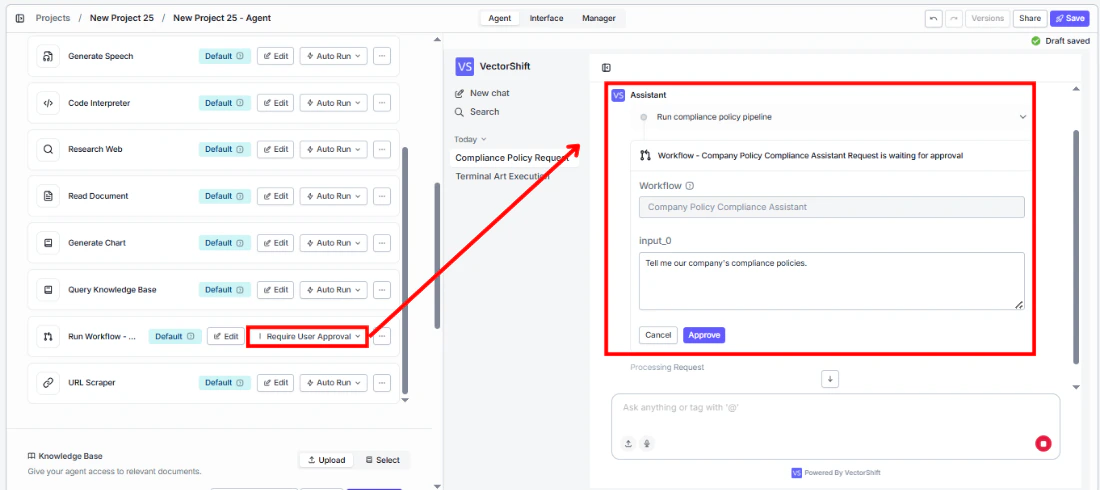
- Test the tool — In the chat interface, trigger a request that should invoke the workflow and verify the results are returned correctly.
Settings
Workflow— Workflow selector · Default: none · The deployed workflow to run.- Dynamic input fields — Generated from the selected workflow’s input nodes.
Tool Description— Text · Default: none · Describes the tool’s purpose to the agent.Auto Run— Dropdown · Default: Auto Run · Controls execution behavior.
Best Practices
- Deploy before using — The Workflow node runs the most recently deployed version of the sub-workflow. Always deploy your workflow after making changes to ensure the agent uses the latest version.
- Write clear tool descriptions — Include what the workflow does, what inputs it needs, and what outputs to expect. The agent uses this to decide when to invoke it.
- Lock configuration inputs — For inputs that should not vary (e.g., API keys, model settings, output formats), lock them to fixed values and only leave user-facing parameters open.
- Use approval for side-effect workflows — If the workflow performs write operations (sending emails, updating databases, creating records), set Auto Run to “Require User Approval”.
- Create dedicated workflows for agent use — Design sub-workflows with clean, well-named inputs and outputs that make sense as agent tool parameters.
Related Templates
Investment Memo Generator
Automatically generates structured investment memos from deal data and research inputs.
Spreadsheet Comparison Assistant
Compares two or more spreadsheets to identify discrepancies, changes, and anomalies.
Closing Package Review Agent
Reviews closing packages for completeness, accuracy, and compliance before deal finalization.
Validation Agent
Validates data and documents against predefined rules, schemas, or compliance standards.