
Zoom + VectorShift Integration Guide
Introduction
The Zoom + VectorShift integration enables teams to automate meeting creation, updates, retrieval, and deletion using AI-driven pipelines. VectorShift acts as an orchestration and automation layer on top of Zoom, allowing meetings to be created and managed based on complex logic, signals, and data from across your technology stack, including calendars, CRMs, AI models, and business systems. This integration uses Zoom OAuth 2.0 for secure authentication.No API keys are required.
How It Works
VectorShift connects to Zoom using OAuth 2.0. Once authorized, VectorShift pipelines can:- Create, update, and delete Zoom meetings
- Retrieve meeting details
- List meetings for a user
- Fetch user metadata
- Issued by Zoom
- Securely stored and encrypted by VectorShift
- Automatically refreshed
- Never exposed to users
Requirements
- An active Zoom account
- An active VectorShift account
- Zoom user role with permission to create and manage meetings
Authentication
OAuth 2.0
VectorShift uses Zoom OAuth 2.0 for secure, token-based authentication.- No API keys or secrets are created, stored, or managed by users
- Users authorize VectorShift via Zoom’s OAuth consent screen
- Tokens are securely managed and automatically refreshed
OAuth Scopes
The Zoom integration requests the following granular scopes:
All of these scopes are used to support the various actions provided by the Zoom node in VectorShift.
Action-to-Scope Mapping
In VectorShift
-
Head over to https://app.vectorshift.ai/ and sign up for a free trial or log in to your existing account
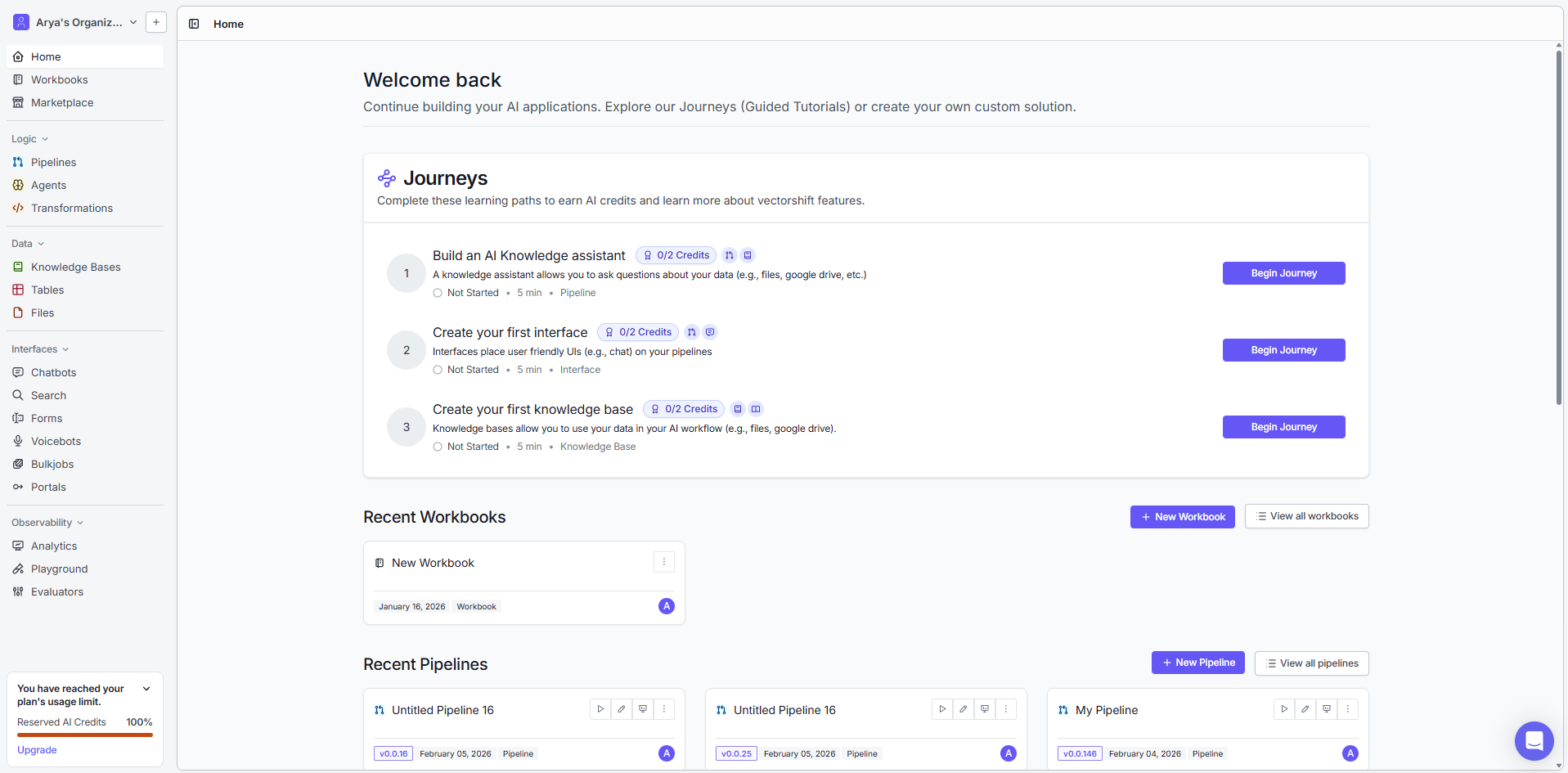
-
Navigate to Pipelines from the sidebar
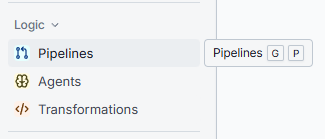
-
Click New Pipeline (top right) on the Pipelines page
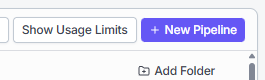
-
Click Create Pipeline to open a blank canvas
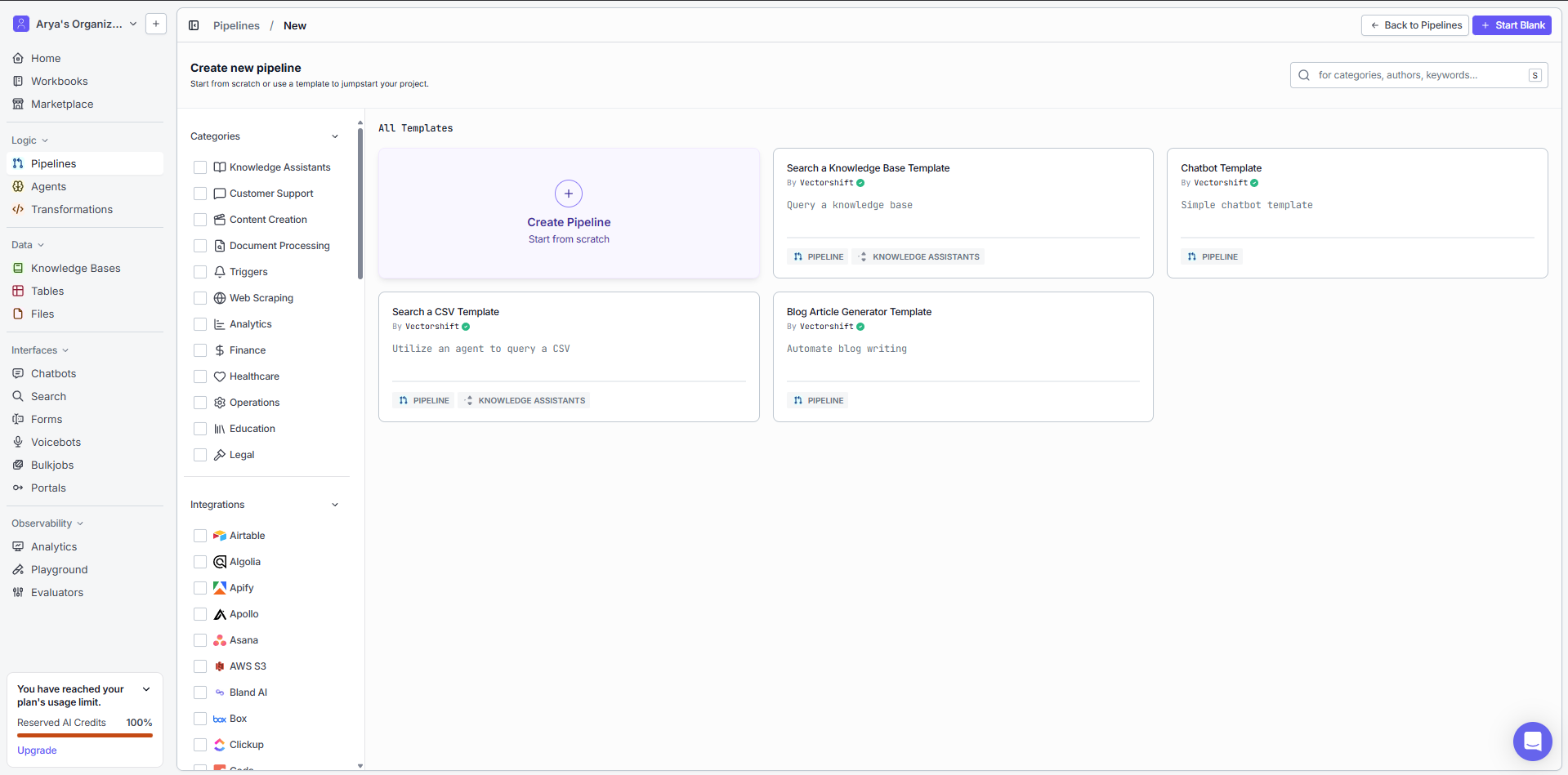
-
A blank canvas will appear where you can build your pipeline
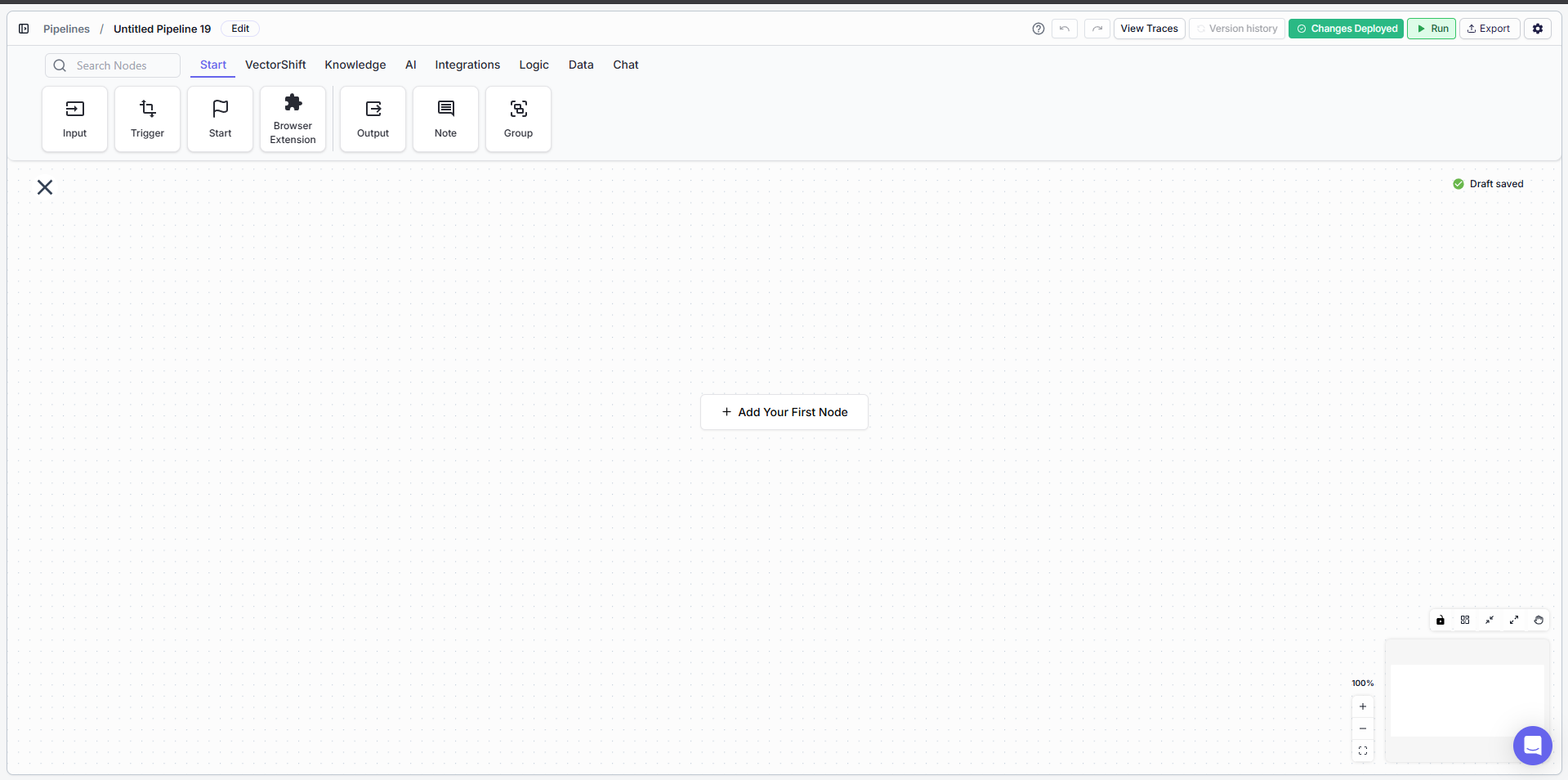
-
Search for Zoom in the search bar (top left) and click on it to add the Zoom node
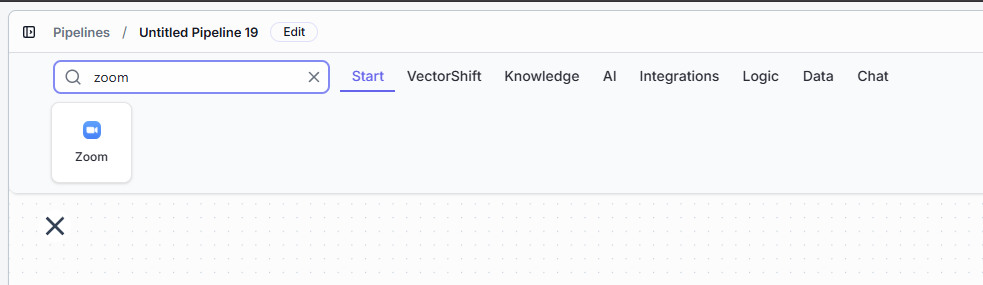
-
The Zoom node will appear on your canvas. Click on the Zoom node and choose an action (e.g., Create Meeting, Get Meeting, etc.)
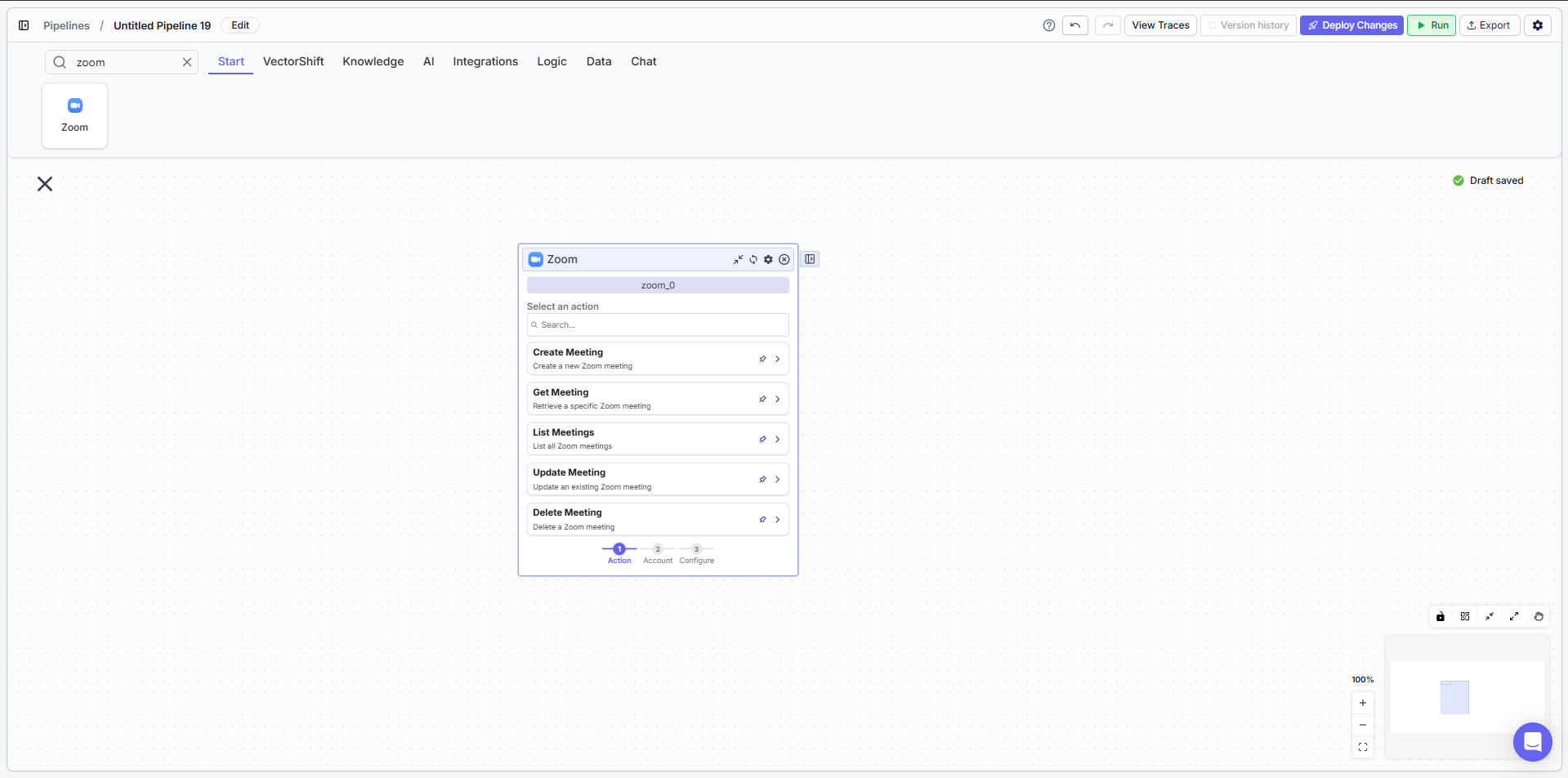
-
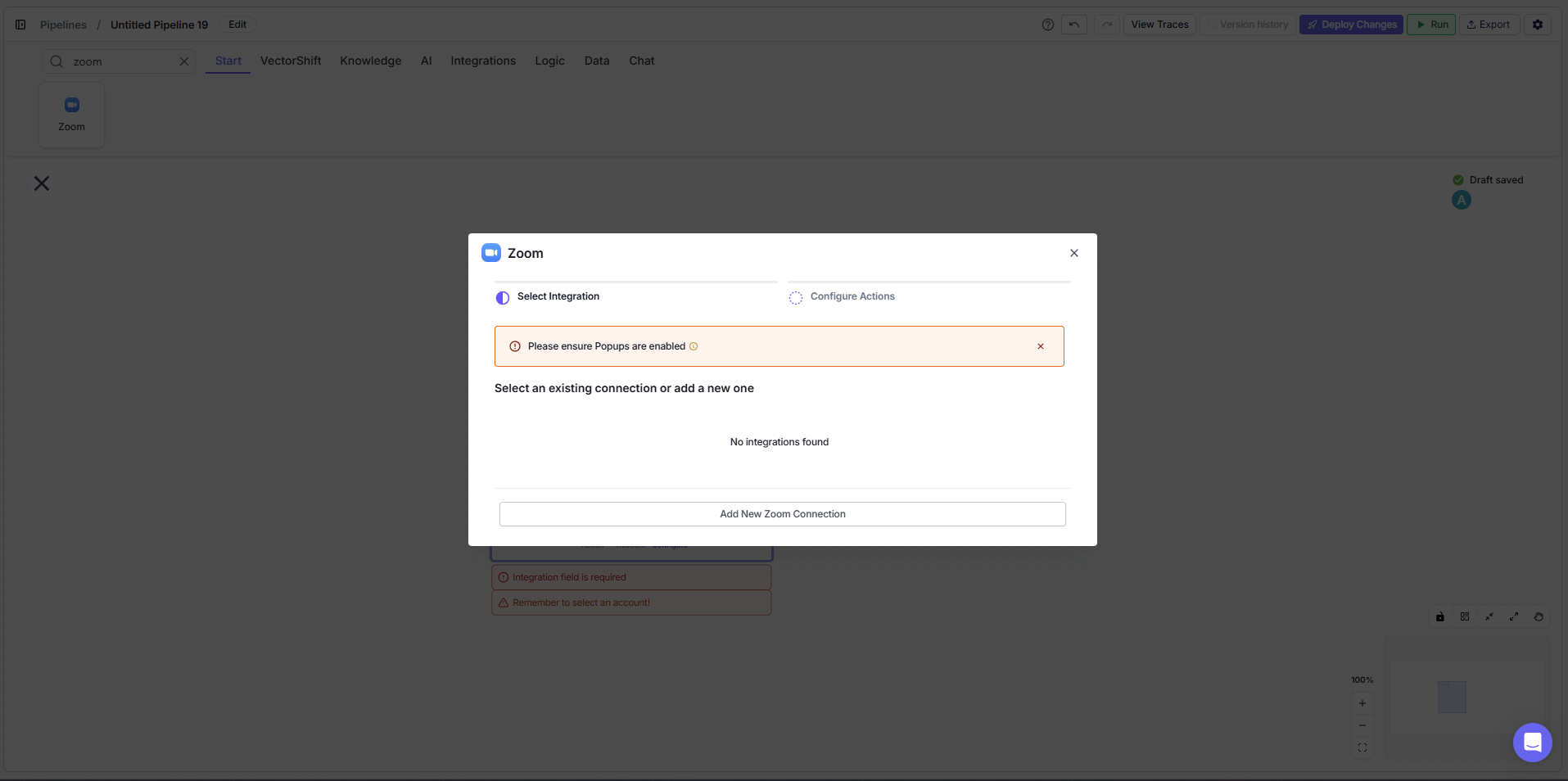
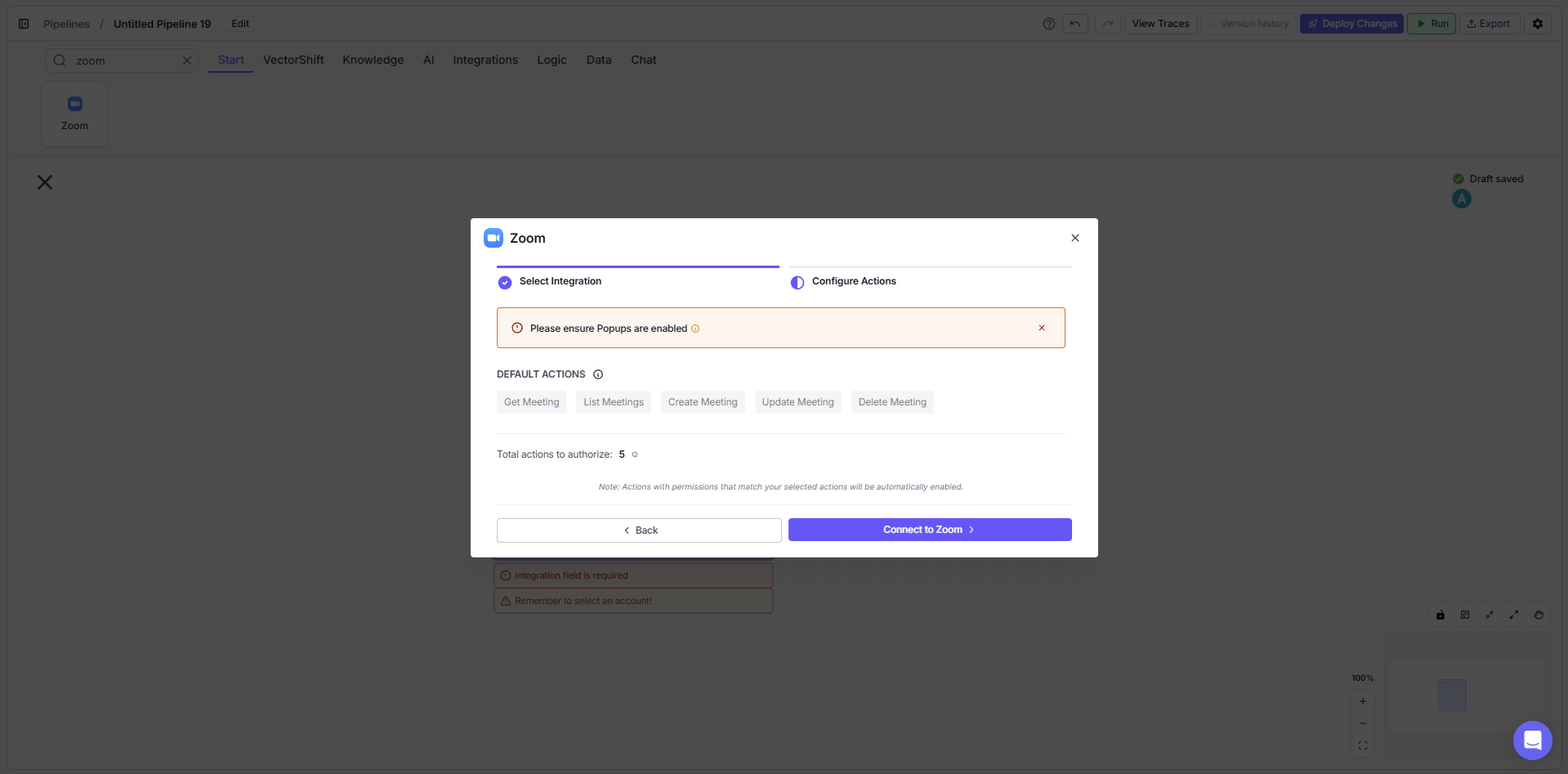
Connect your Zoom account by clicking Sign in with Zoom, then Add new Zoom connection, and finally Connect to Zoom
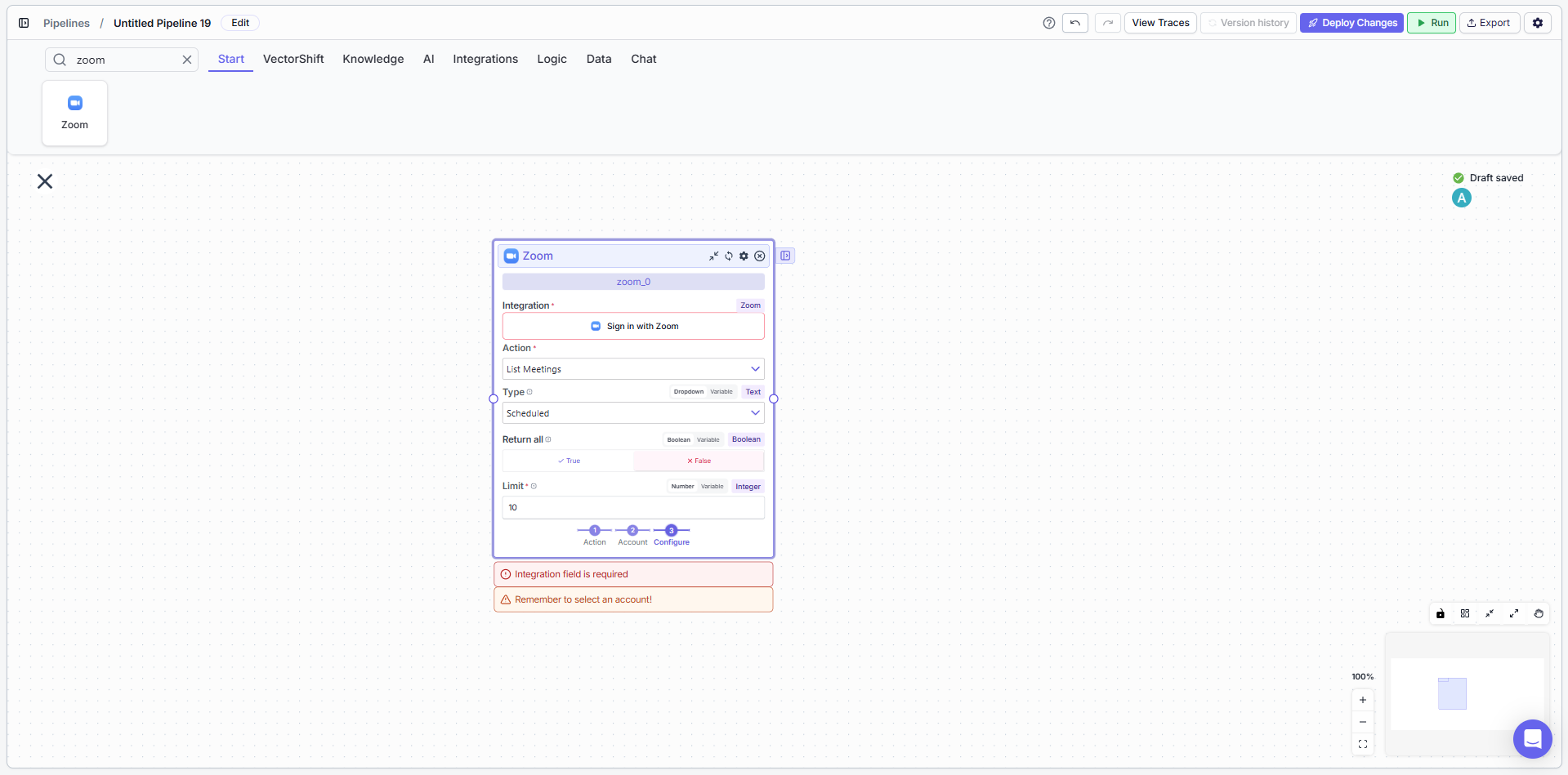
-
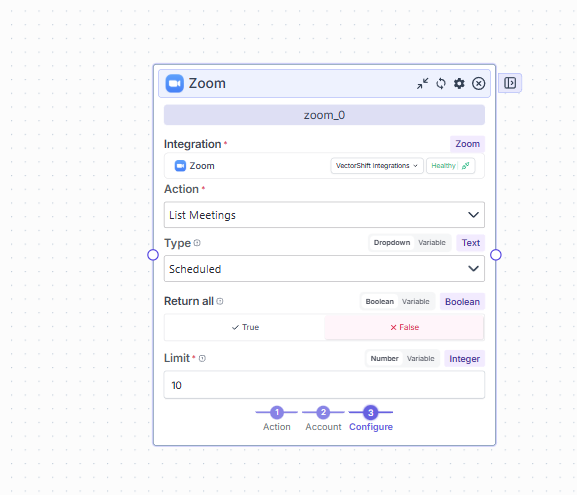
Once you click Allow, the node will perform a health check to verify the integration is active
-
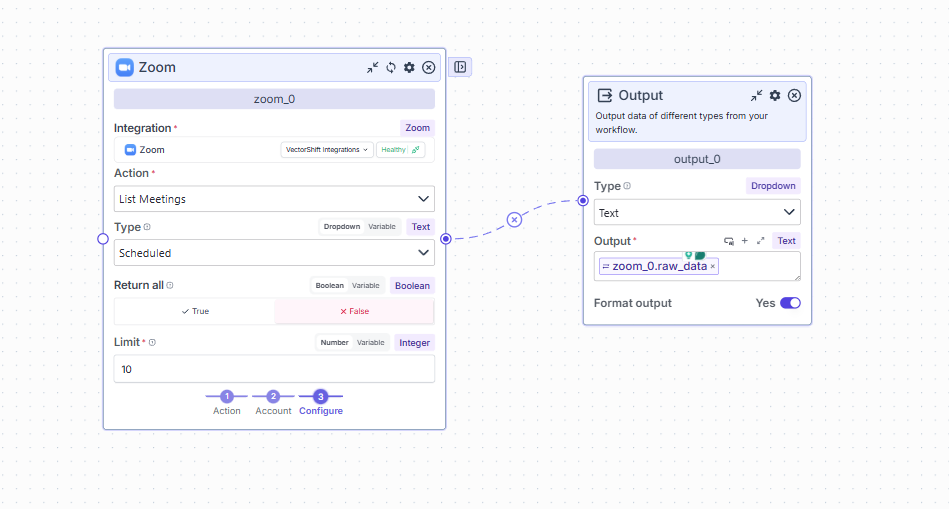
Drag an Output node from the search bar and connect it to the Zoom node
-
Click Run (top right) to execute the pipeline and view the outputs
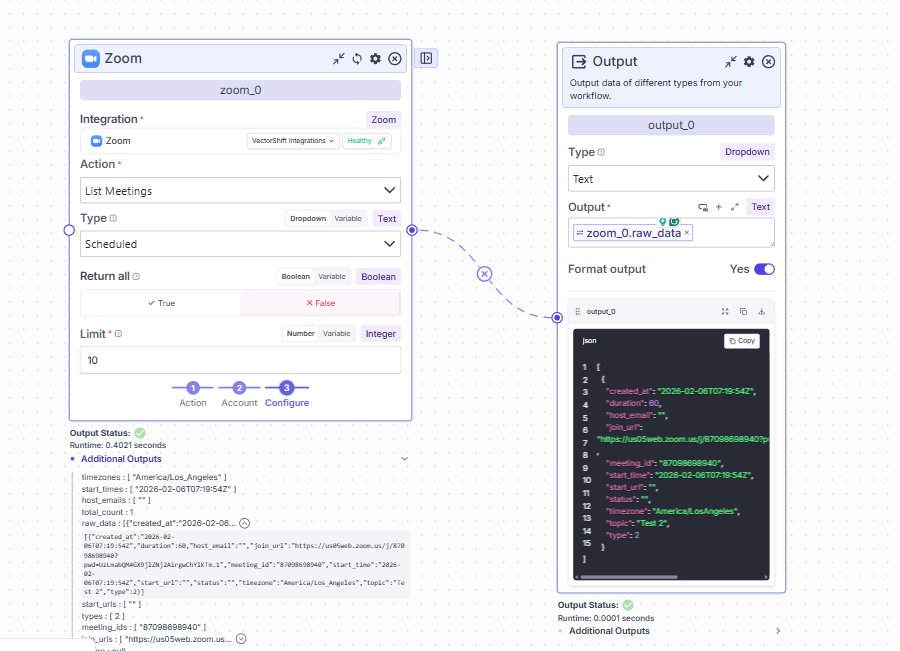
Configure a Zoom Workflow
- Open the Pipeline Builder
- Drag the Zoom node onto the canvas
- Select the connected Zoom account
- Choose an action, such as:
- Create Meeting
- Get Meeting
- Update Meeting
- List Meetings
- Delete Meeting
- Provide required inputs (e.g., Meeting Topic, Duration, Start Time)
- Connect upstream logic, data sources, or AI nodes
- Save and activate the pipeline
Available Actions
Create Meeting
Create a new Zoom meeting with specified details such as topic, start time, duration, and settings.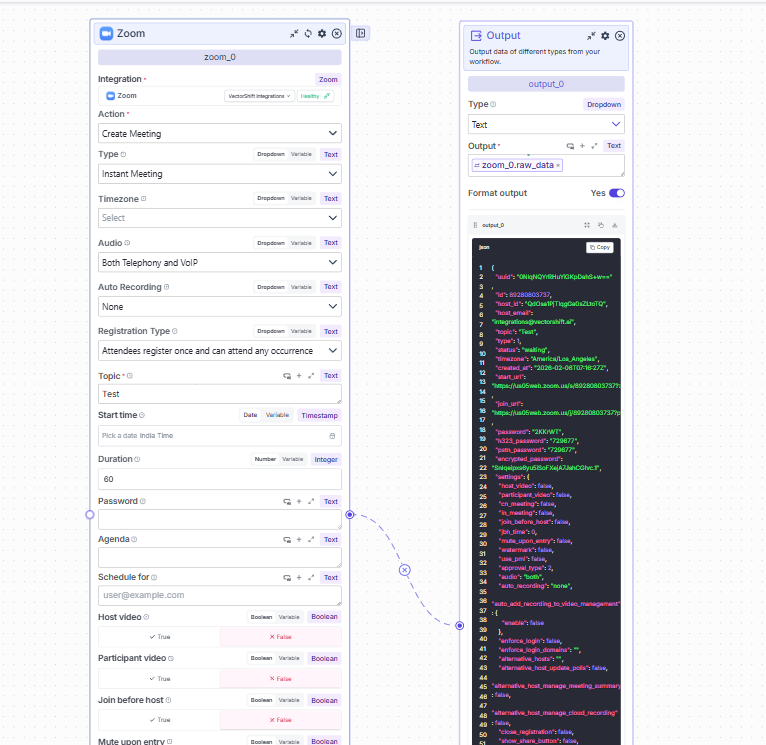
Get Meeting
Retrieve detailed information about a specific Zoom meeting by its Meeting ID.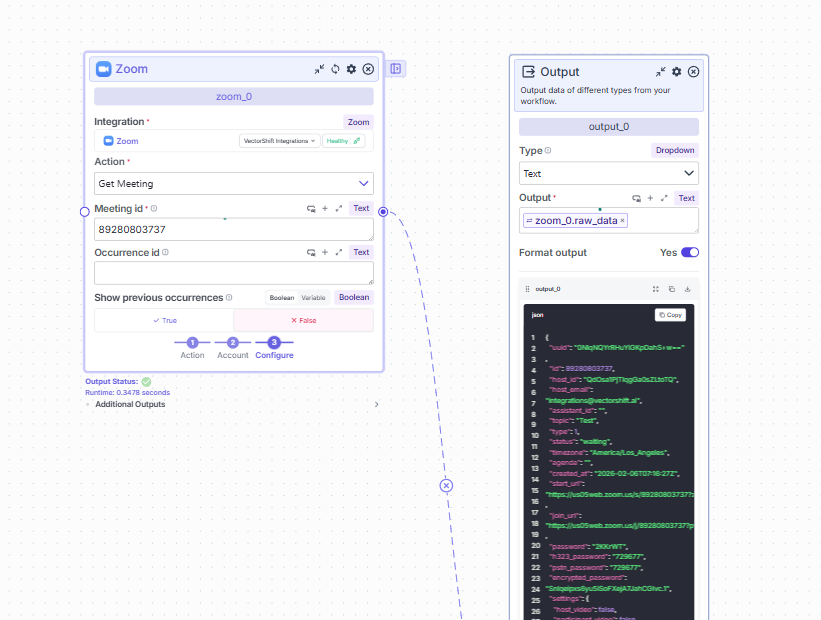
Update Meeting
Modify an existing meeting’s details, including topic, time, duration, and other settings.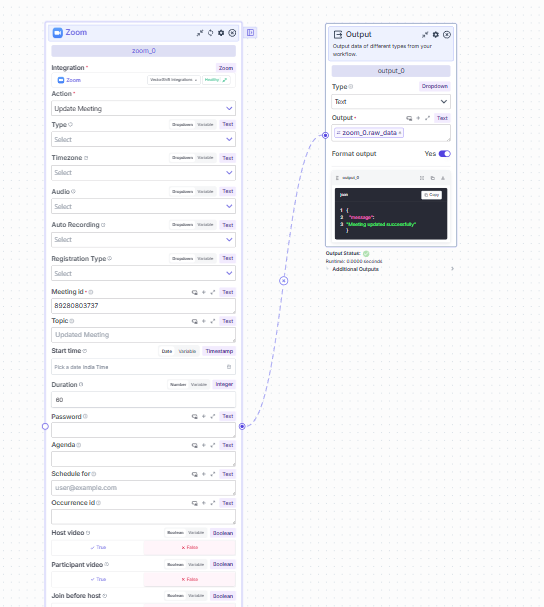
List Meetings
Fetch a list of meetings for a user, useful for reporting and dashboards.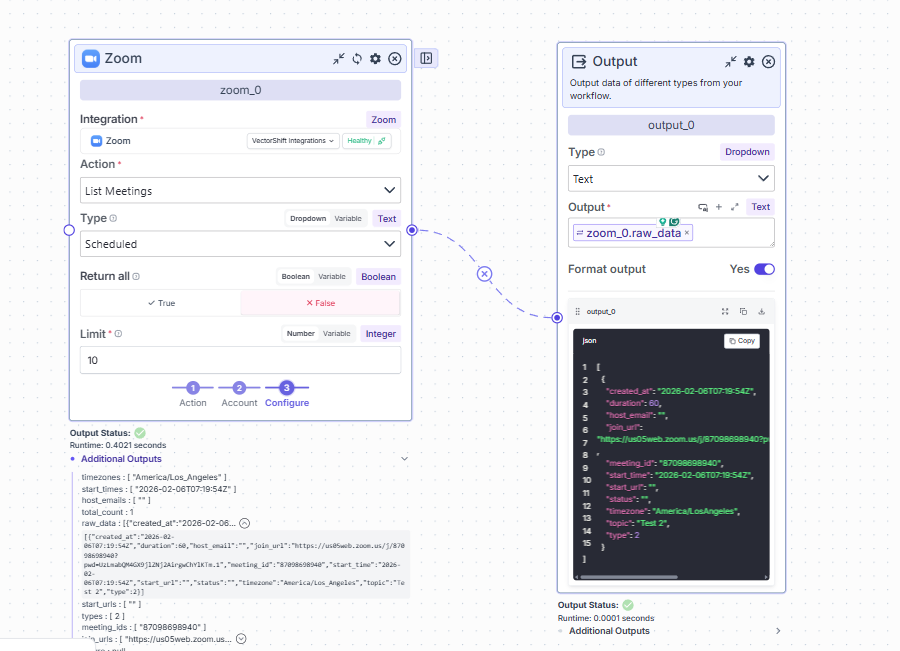
Delete Meeting
Remove a meeting that is no longer needed.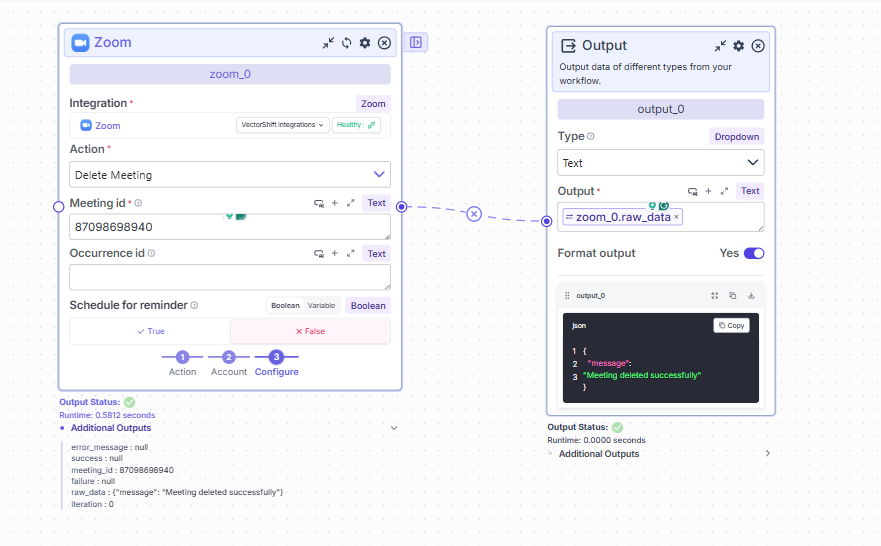
Troubleshooting
Common Issues
Re-authorization
If the integration appears Unhealthy or disconnected:- Click Reconnect Integration in VectorShift
- You will be redirected to Zoom’s OAuth consent screen
- Approve permissions again
- The integration will be restored
Uninstall
Remove from VectorShift
-
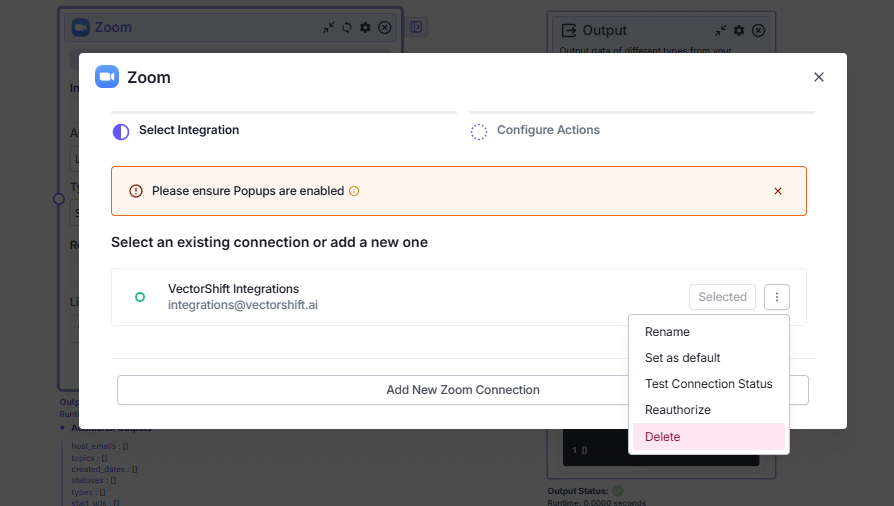
Go to Integrations and click on Zoom

-
Select the integration you want to remove and click Delete
Support
For setup help, testing access, or integration assistance:- Email: support@vectorshift.ai
- Documentation: https://docs.vectorshift.ai