
Publish a project step by step
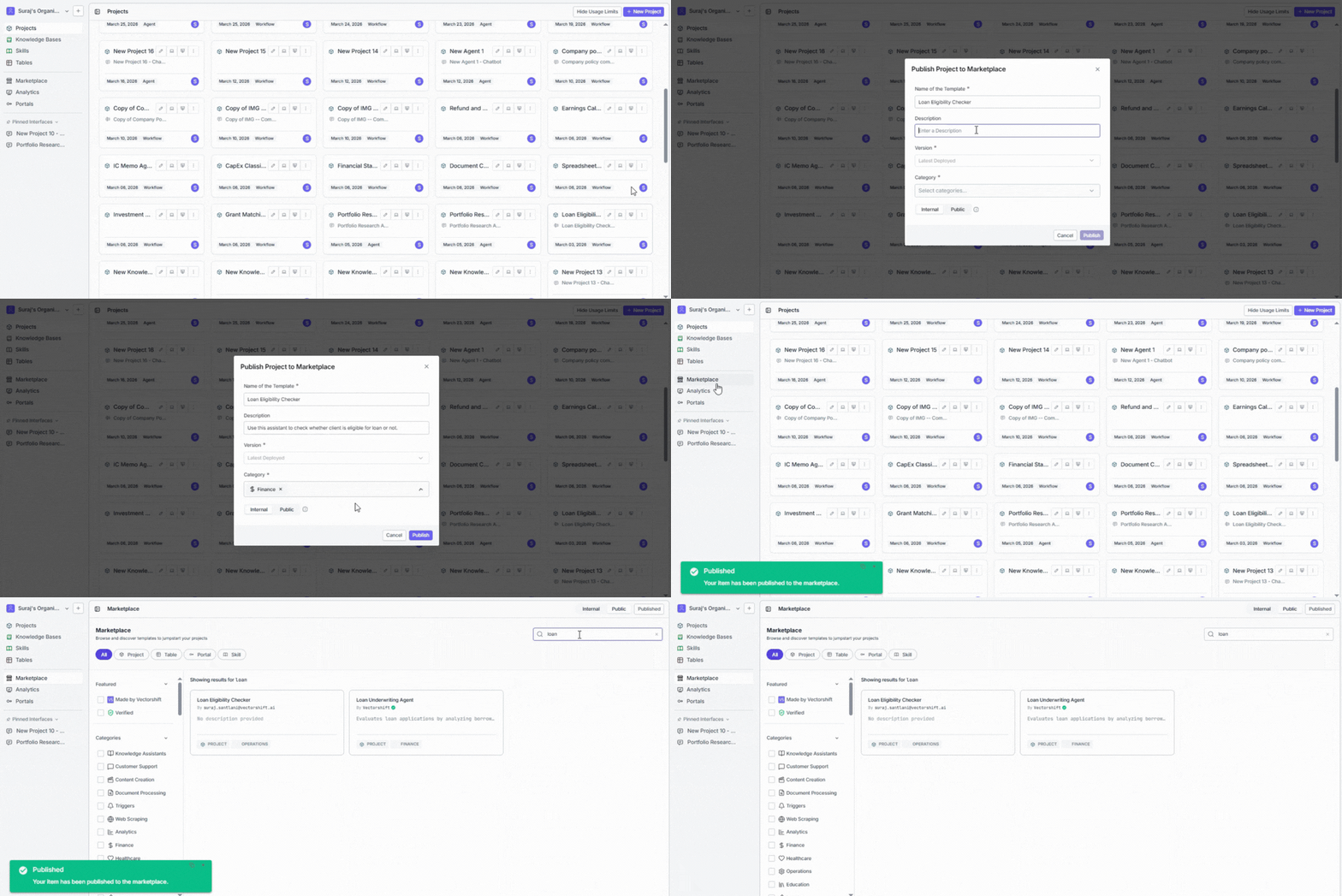
- Go to the Projects page by clicking Projects in the left sidebar. You will see a list of all your projects.
- Find the project you want to share and open its context menu (right-click or click the menu icon on the project card). Select Publish to Marketplace. This opens the publish dialog.
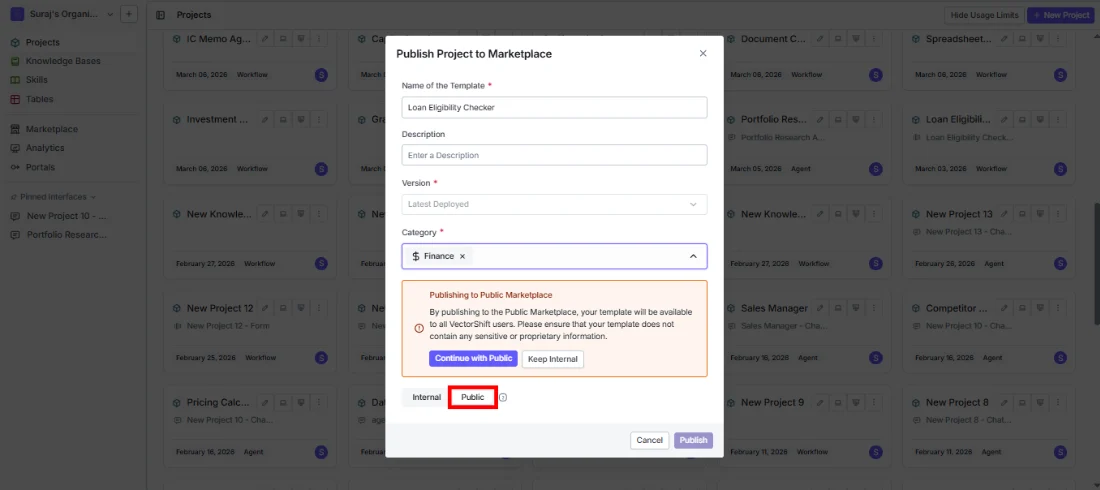
- In the Name of the Template field, enter the name you want others to see when browsing the Marketplace. This defaults to your project name, but you can change it to something clearer. For example, instead of “New Project 5,” use a name like “Loan Eligibility Checker” that tells people exactly what it does. This field is required.
- In the Description field, write a short summary of what the template does, what problem it solves, and what kind of input it expects. This is optional but strongly recommended because it is the first thing people read when deciding whether to import your template.
-
Open the Category dropdown and select one or more categories that describe your template’s purpose. You can type in the search box inside the dropdown to quickly find the right option. At least one category is required. The available categories are:
- Knowledge Assistants
- Customer Support
- Content Creation
- Document Processing
- Triggers
- Web Scraping
- Analytics
- Finance
- Healthcare
- Operations
- Education
- Legal
-
Under Visibility, choose who should be able to see and import your template:
- Select Internal to share the template only with members of your organization. It will appear under the Organization Published tab in the Marketplace.
- Select Public to make the template available to all VectorShift users. It will appear under the Marketplace tab.
-
If you selected Public: A confirmation message appears warning you that the template will be visible to all VectorShift users. Read the message and choose:
- Continue with Public to go ahead and publish publicly.
- Keep Internal if you change your mind and want to limit visibility to your organization.
- Click Publish at the bottom of the dialog. Your template is now live in the Marketplace and others can start importing it immediately.
Manage your published templates
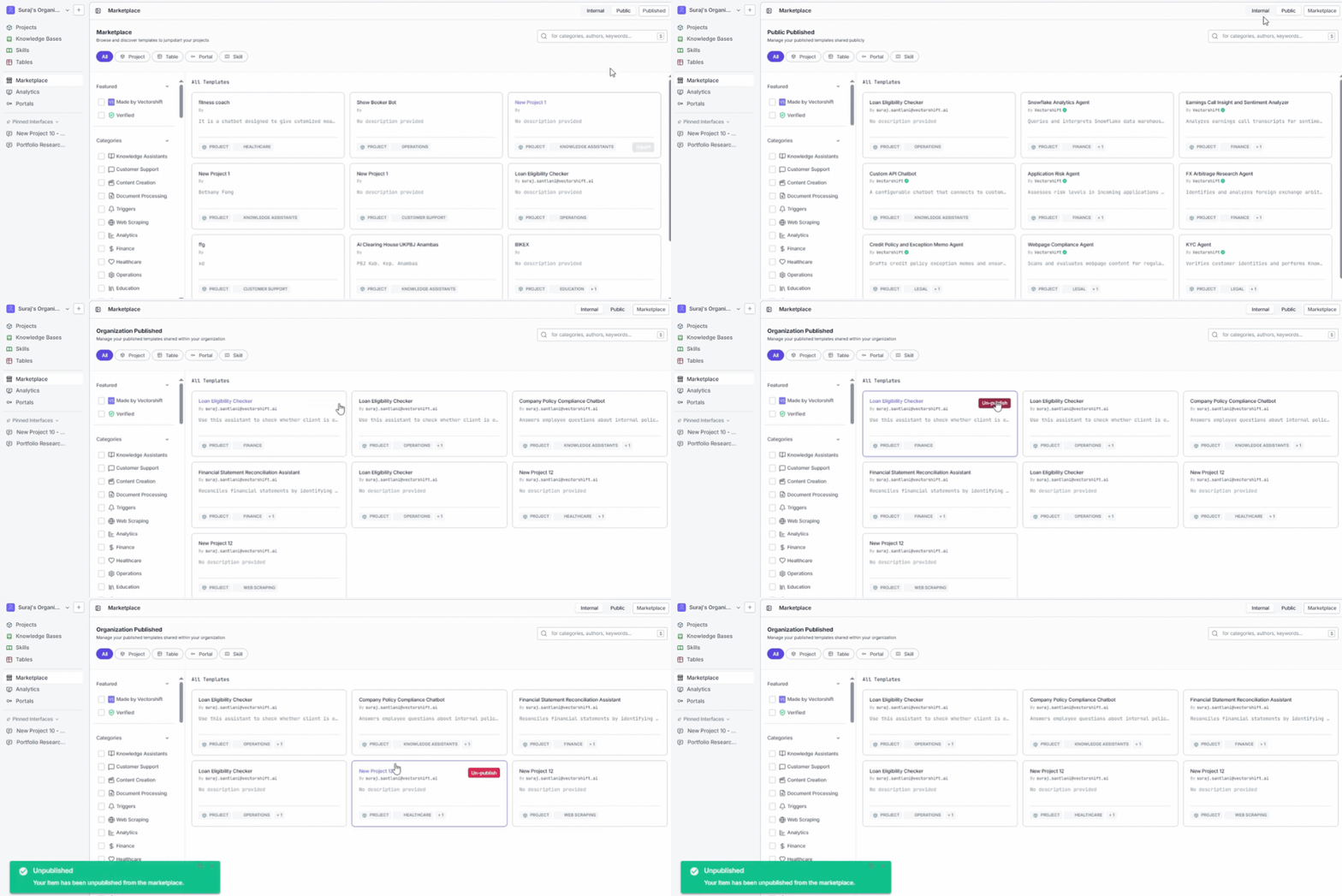
After publishing, you can view and manage everything you have shared from the Published section of the Marketplace page.View what you have published
Click Marketplaces in the left sidebar, then open the Published tab. This shows all templates you (or your organization members) have published. You can filter by category or object type to find a specific one.Remove a template from the Marketplace
If a template is outdated, has been replaced, or was published by mistake, you can unpublish it:- Open the Published tab in the Marketplace.
- Find the template you want to remove and click the unpublish action on its card.
- A confirmation dialog asks you to confirm. Once you confirm, the template is removed from the Marketplace and others can no longer import it.
Unpublishing a template removes it from the Marketplace, but it does not affect copies that others have already imported. Their imported projects continue to work independently.
Use cases
- Save your team from duplicate work - Publish a well-tested workflow internally so other teams can reuse it instead of spending days building the same thing.
- Standardize how your organization works - Share approved templates for common tasks like document processing or data extraction so every team follows the same proven approach.
- Give back to the community - Publish a template publicly to help other VectorShift users who are trying to solve a problem you have already figured out.
- Get new hires productive faster - Publish starter templates internally so new team members can import working examples, explore how they are built, and learn by doing.
- Enable cross-department collaboration - Publish an analytics workflow that sales, marketing, and operations can each import and customize with their own data sources.
Related pages
Browse the Marketplace
See what your published templates look like from a browser’s perspective
Ready-to-use templates
Browse all available pre-built templates by category
Workflows
Build and refine the workflows you want to share
Chatbots
Create chatbot projects worth sharing with your team