
customer_message and an output variable called support_response.
Step 1. Open the Chatbots page
Click Chatbots in the left sidebar to open the Chatbots page. This is where all your chatbots live. You will see a list of any chatbots you have already created, along with a New button in the top-right corner.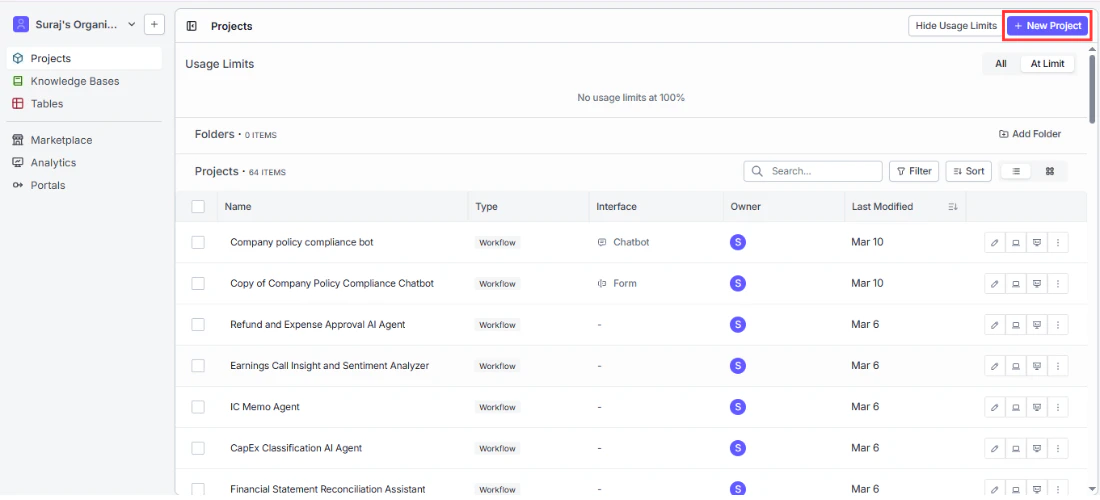
Step 2. Name your chatbot
Click New to open the creation dialog. In the Chatbot Name field, enter a name that clearly identifies what this chatbot does. For our example, typeOrder Support.
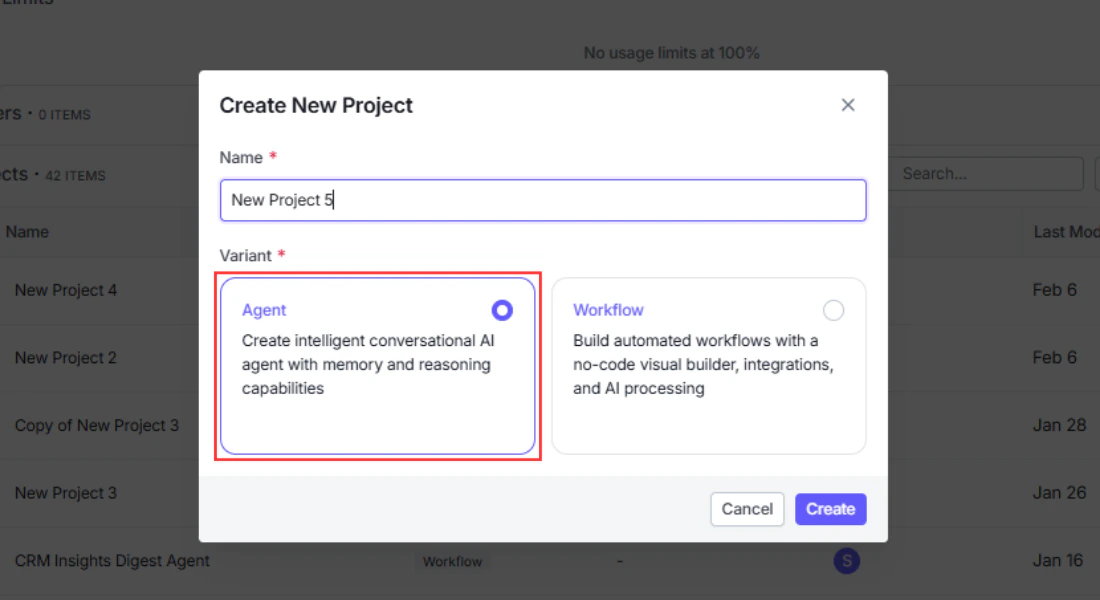
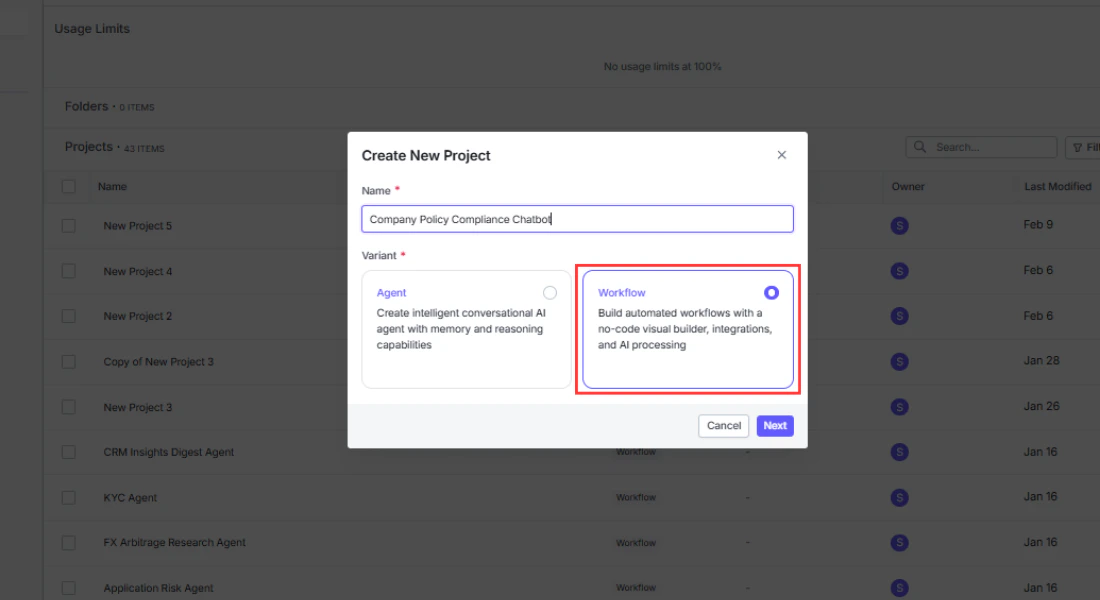
Step 3. Select an Agent or workflow and map inputs and outputs
In the Select Workflow dropdown, choose the Agent or workflow that will power this chatbot. For our example, select the customer support workflow you built earlier. Once you select a source, two additional fields appear:- Input determines which variable receives the user’s chat message. Select
customer_message. Every time a user types something in the chat, their text is sent to this variable. - Output determines which variable returns the chatbot’s reply. Select
support_response. Whatever value this variable produces at the end of the run becomes the message the user sees.
Step 4. Create the chatbot
Click Create Chatbot. VectorShift validates your settings and creates the chatbot. It now appears in your chatbot list, and the chatbot builder opens automatically.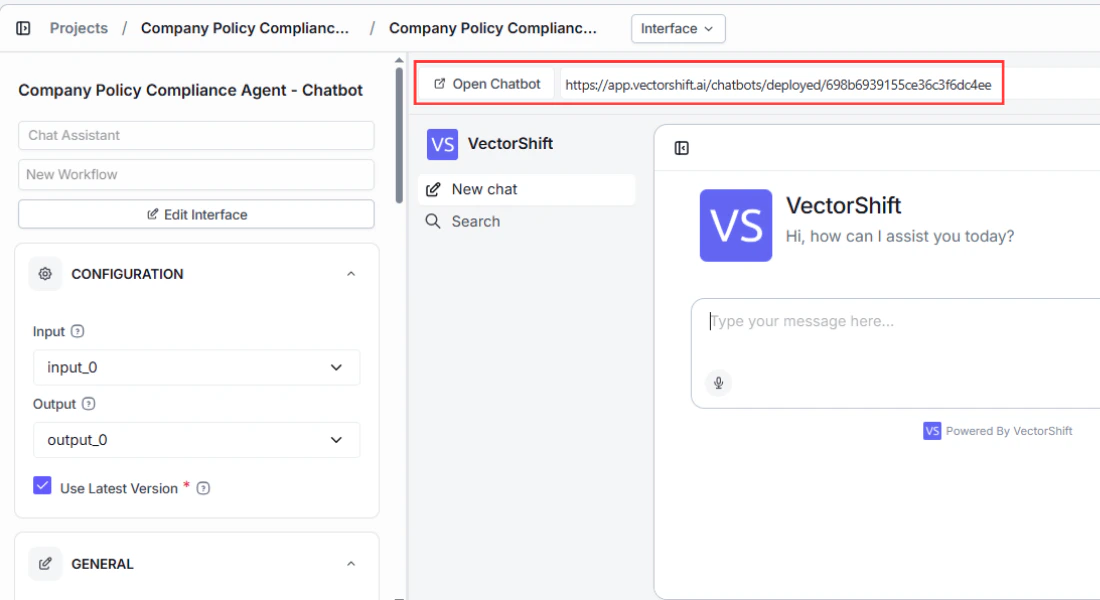
Step 5. Run your chatbot
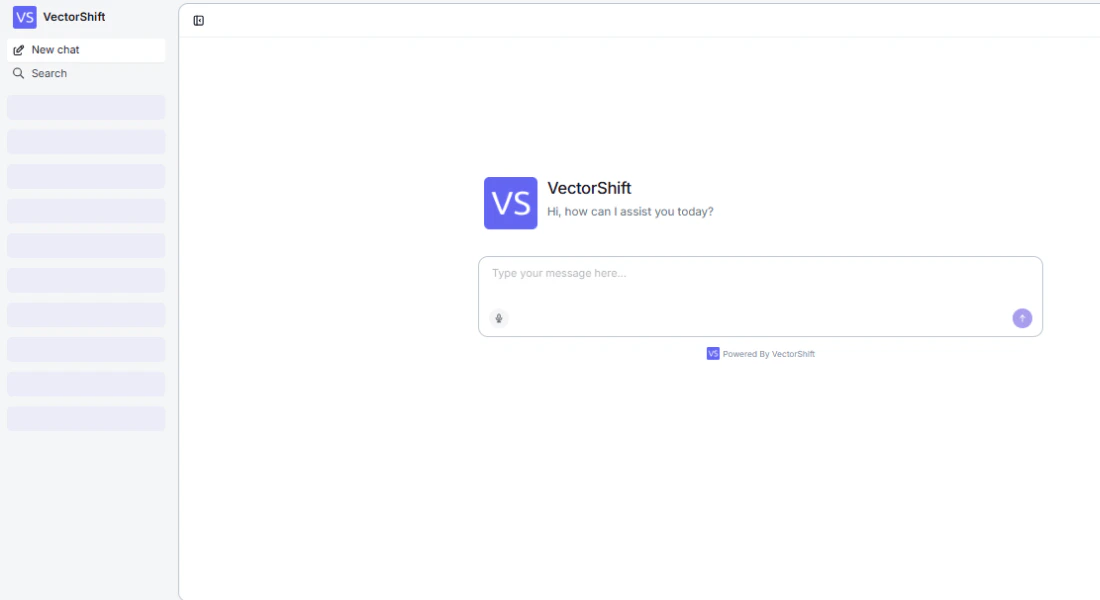
You can test your chatbot immediately from the builder. Click the Run button (or navigate to the chatbot in your list and click Run) to open the chat interface. Type a message and press Enter. Your Agent or workflow runs with the message as input, and the response appears in the chat. You can start multiple conversations and switch between them using the conversation list on the left side of the chat window.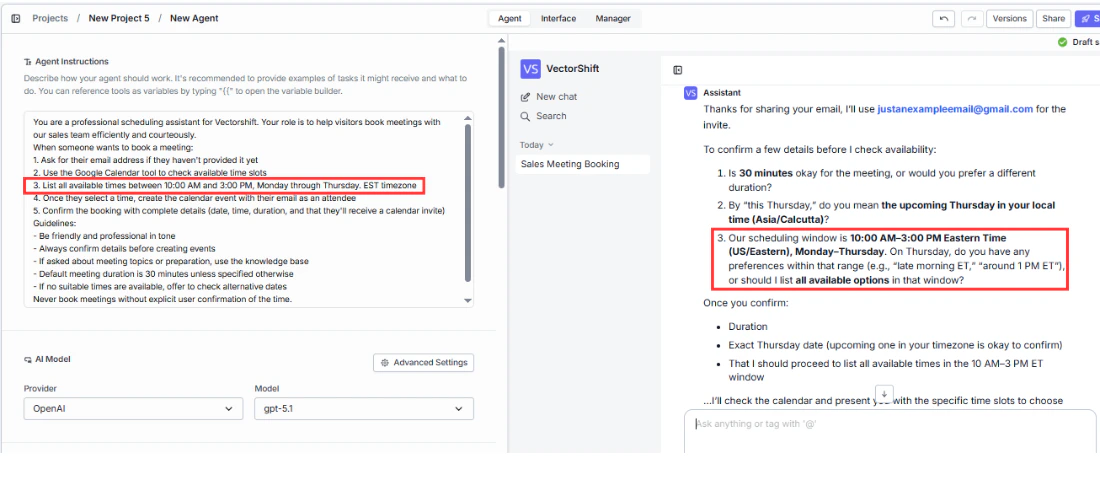
Voice input
You can also use your voice to send messages. Click the microphone button in the message input area, speak your question, and click send. VectorShift transcribes your audio using Whisper and sends the transcribed text as your message.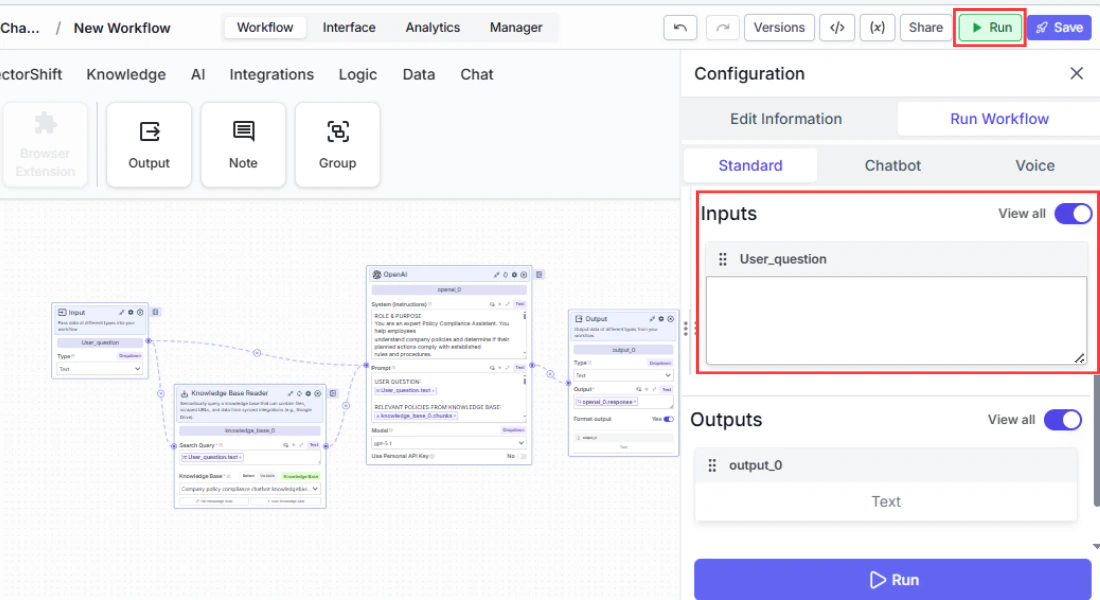
Next steps
Your chatbot is running, but it still uses VectorShift’s default branding and colors. Head to Customizing your chatbot to make it look and feel like your product, or jump to Sharing and deploying to put it in front of your users.Customizing your chatbot
Brand colors, welcome messages, avatars, and more
Sharing and deploying
Share via link, embed on a website, or connect to Slack, WhatsApp, and SMS