> ## Documentation Index
> Fetch the complete documentation index at: https://docs.vectorshift.ai/llms.txt
> Use this file to discover all available pages before exploring further.
# Workspace
> How to enable and configure personal workspaces for portal users
A workspace gives each portal user their own personal environment — a place to upload documents, build a personal knowledge base, run interfaces against their own data, and organize findings in tables. A credit analyst can upload loan documents and query them through the interfaces you configured. A researcher can build a personal knowledge base from papers and run analysis across them. The workspace makes this possible, all without leaving the portal.
 ## Enabling the workspace
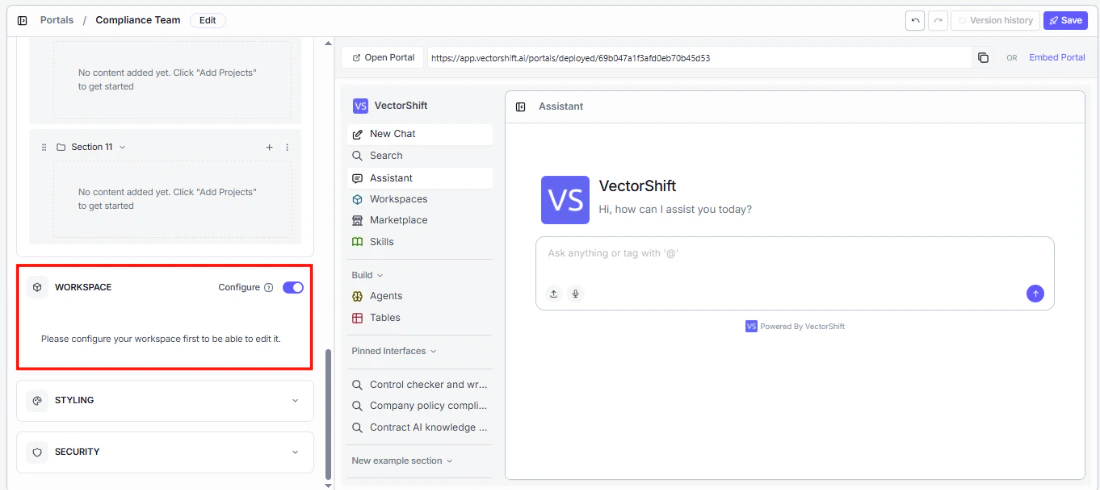 Workspace is off by default. To enable it, open the portal editor and turn on the **Workspace** toggle. Then click **Configure** to set it up.
 ## Configuring the knowledge base
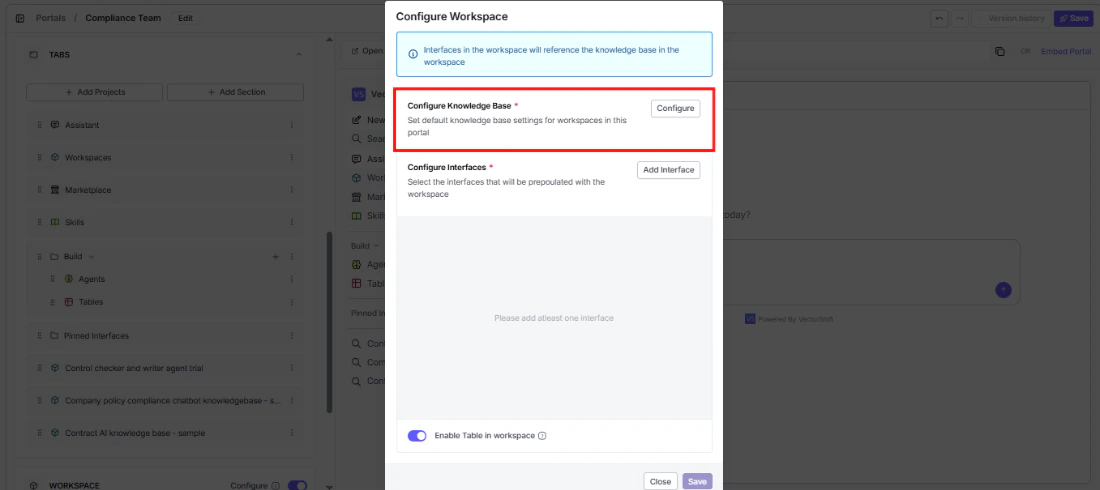
The knowledge base is the foundation of each user's workspace. Click **Configure** to set it up.
## Configuring the knowledge base
The knowledge base is the foundation of each user's workspace. Click **Configure** to set it up.
 ### Permanent settings
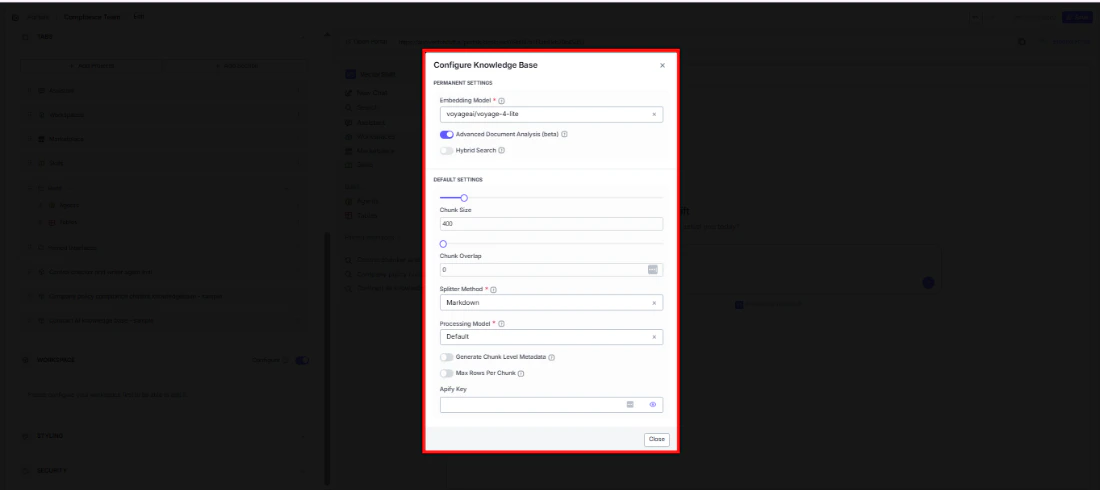
These are locked after the workspace is created — choose carefully:
* **Embedding Model (required):** How documents are converted into searchable vectors. Defaults to `voyageai/voyage-4-lite`.
* **Advanced Document Analysis (beta):** Enable deeper parsing for complex file types like scanned PDFs or mixed-format documents.
* **Hybrid Search:** Combine vector and keyword search for more accurate retrieval.
### Default settings
Users can adjust these later:
* **Chunk Size:** How large each document chunk is when ingested. Defaults to 400.
* **Chunk Overlap:** How much consecutive chunks overlap, to preserve context across chunk boundaries. Defaults to 0.
* **Splitter Method (required):** How documents are split into chunks. Defaults to Markdown.
* **Processing Model (required):** The model used during document processing. Defaults to Default.
* **Generate Chunk Level Metadata:** Automatically generate metadata for each chunk during ingestion.
* **Max Rows Per Chunk:** Set a limit on rows per chunk when processing tabular data.
* **Apify Key:** Enter your Apify API key if you want to enable web scraping integrations.
## Configuring interfaces
Choose which interfaces will be ready to use in each user's workspace from day one.
### Permanent settings
These are locked after the workspace is created — choose carefully:
* **Embedding Model (required):** How documents are converted into searchable vectors. Defaults to `voyageai/voyage-4-lite`.
* **Advanced Document Analysis (beta):** Enable deeper parsing for complex file types like scanned PDFs or mixed-format documents.
* **Hybrid Search:** Combine vector and keyword search for more accurate retrieval.
### Default settings
Users can adjust these later:
* **Chunk Size:** How large each document chunk is when ingested. Defaults to 400.
* **Chunk Overlap:** How much consecutive chunks overlap, to preserve context across chunk boundaries. Defaults to 0.
* **Splitter Method (required):** How documents are split into chunks. Defaults to Markdown.
* **Processing Model (required):** The model used during document processing. Defaults to Default.
* **Generate Chunk Level Metadata:** Automatically generate metadata for each chunk during ingestion.
* **Max Rows Per Chunk:** Set a limit on rows per chunk when processing tabular data.
* **Apify Key:** Enter your Apify API key if you want to enable web scraping integrations.
## Configuring interfaces
Choose which interfaces will be ready to use in each user's workspace from day one.
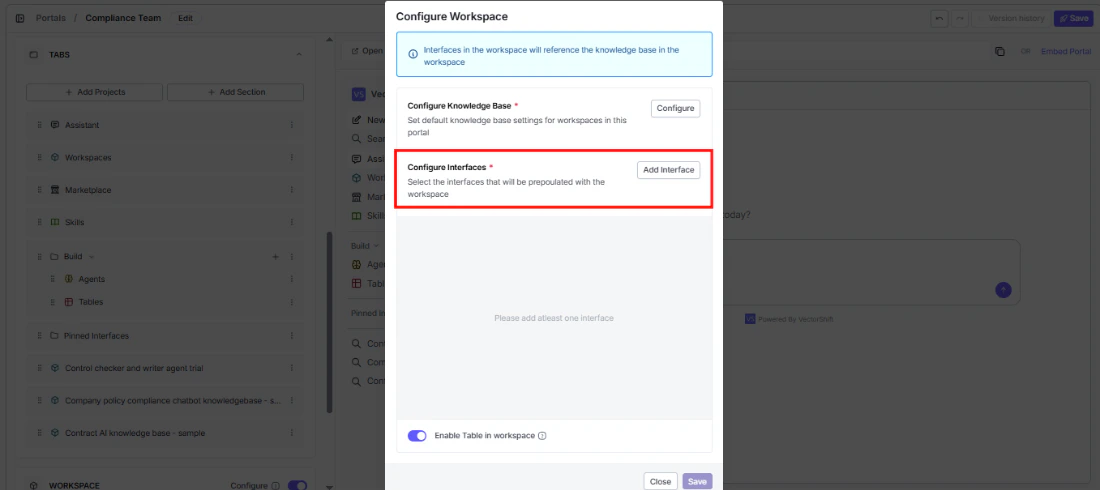 Click **Add Interface** to browse and select the interfaces you want to prepopulate.
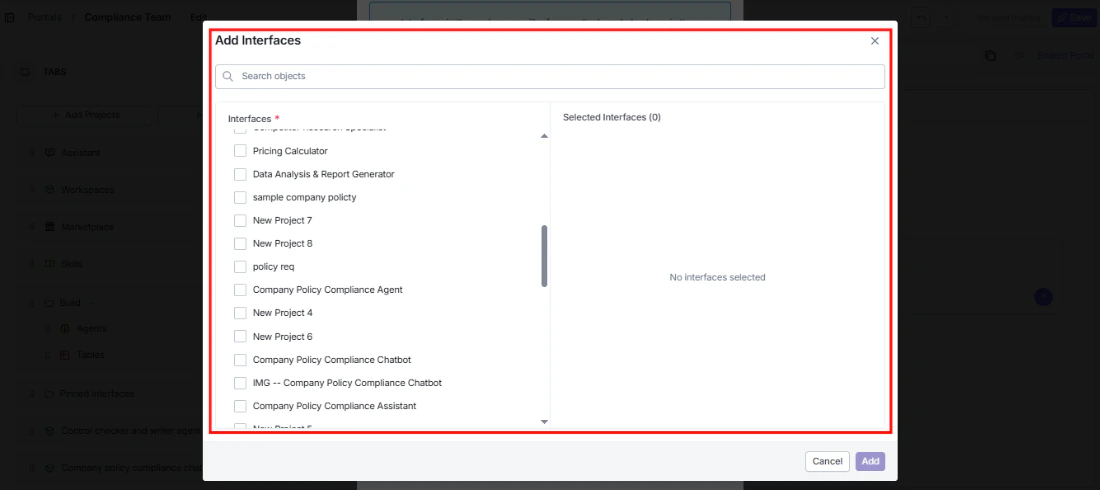 These interfaces will automatically query the user's personal knowledge base — not the shared organization one.
This means each user's results come from their own uploaded documents, keeping data isolated between users.
## Table templates
Give users a starting structure for their tables instead of making them build from scratch. Click **Add Template** to include one of your existing tables as a template.
## Enable table in workspace
Turn this on to give each user a personal table in their workspace — useful when users need to collect, organize, or analyze data alongside their knowledge base.
## What the workspace looks like inside
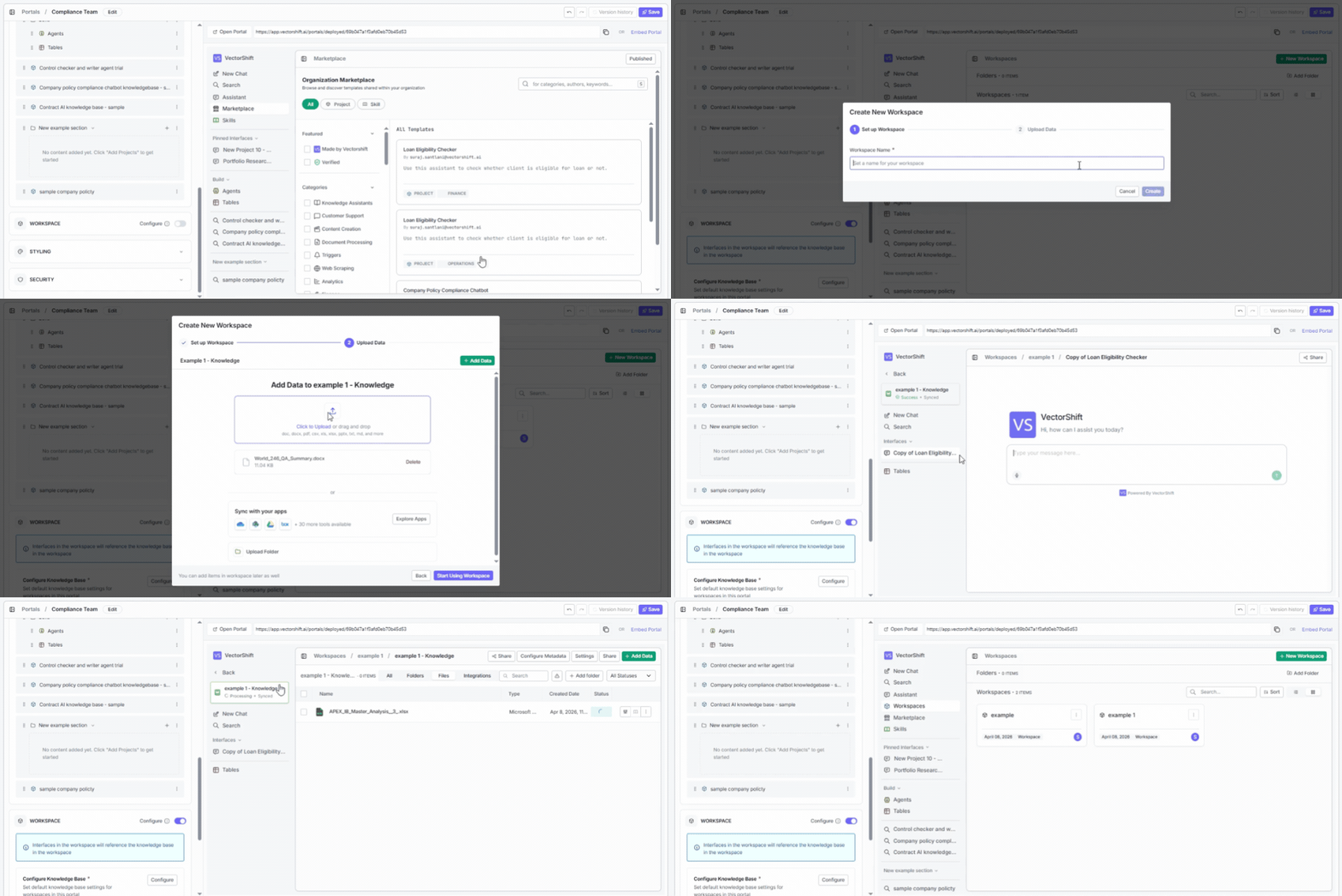
Once a user creates their workspace, they get their own knowledge base, preconfigured interfaces, and tables — all in one place.
These interfaces will automatically query the user's personal knowledge base — not the shared organization one.
This means each user's results come from their own uploaded documents, keeping data isolated between users.
## Table templates
Give users a starting structure for their tables instead of making them build from scratch. Click **Add Template** to include one of your existing tables as a template.
## Enable table in workspace
Turn this on to give each user a personal table in their workspace — useful when users need to collect, organize, or analyze data alongside their knowledge base.
## What the workspace looks like inside
Once a user creates their workspace, they get their own knowledge base, preconfigured interfaces, and tables — all in one place.
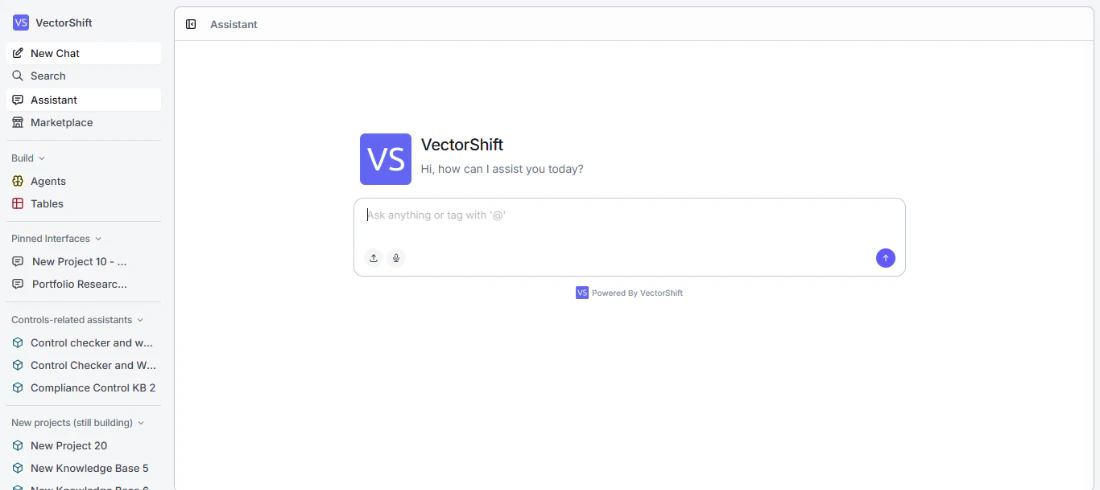 Workspaces keep data isolated between users. Each person's uploaded documents, tables, and query results are private to their own workspace.