> ## Documentation Index
> Fetch the complete documentation index at: https://docs.vectorshift.ai/llms.txt
> Use this file to discover all available pages before exploring further.
# Merge Node
> Merge multiple paths into a single flow
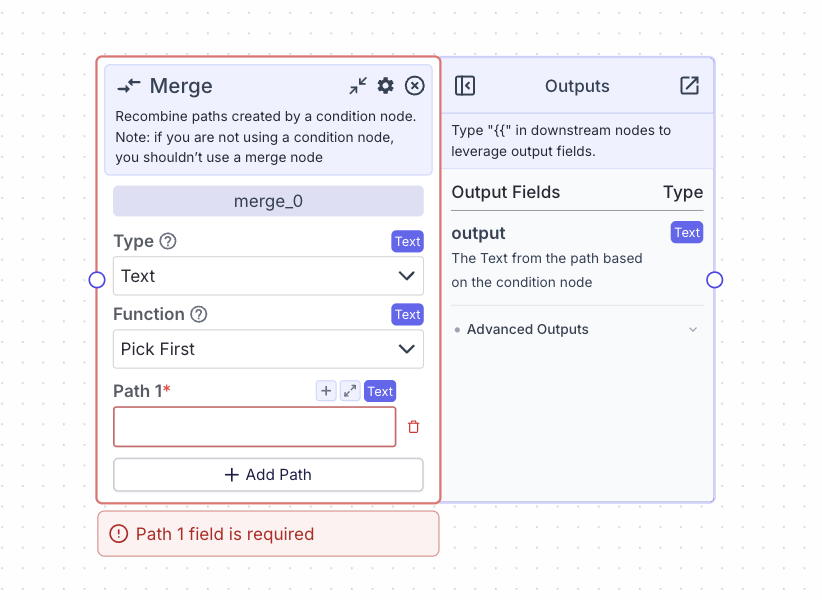 The merge node allows you to combine different execution paths from your pipeline into a single flow.
Use a merge node when you want to consolidate multiple branches (typically coming from a condition node) back into a unified pipeline flow.
## Node Inputs
1. Function: The strategy for merging multiple inputs
* Type: `Dropdown`
* Options:
* Pick First: Takes the first (by time) valid input from connected paths
* Join All: Combines all inputs into a list
2. Paths: The different input paths to be merged.
* Type: `List`, where `T` is the type selected in the Type dropdown
* Each field represents a potential incoming path
* You can dynamically add or remove input paths using the "Add Path" button
## Node Parameters
1. Type: The data type for inputs and outputs
* Type: `Dropdown`
* Available options correspond to standard data types (Text, Number, etc.)
## Node Outputs
**If Function is "Pick First"**
1. Output: The merged result
* Type: `T`
* Example usage: `{{merge_0.output}}`
**If Function is "Join All"**
1. Output: The merged result
* Type: `List`
* Example usage: `{{merge_0.output}}`
## Considerations
* The merge node is typically used in conjunction with the condition node to combine different execution paths.
* When using "Pick First", the output will be a single value of the selected type as it’ll pick the first available incoming value.
* When using "Join All", the output will be a list of values of the selected type as it’ll join all incoming values.
* All input paths must match the selected type in the Type dropdown.
* Empty or skipped paths are handled gracefully by the node.
## Example: Written
The below example shows a pipeline that processes customer data differently based on their status using a condition node, then merges the results:
1. Condition node checks customer status:
* Path 0: VIP customer processing
* Path 1: New customer processing
* Path else: Regular customer processing
2. Merge node combines the processing results:
* Type: `Text`
* Function: Join All
* Fields:
* Path 1: `{{vip_processing.output}}`
* Path 2: `{{new_customer_processing.output}}`
* Path else: `{{regular_customer_processing.output}}`
The merge node collects all processing results into a single list that can be used by downstream nodes.
## Example: Visual
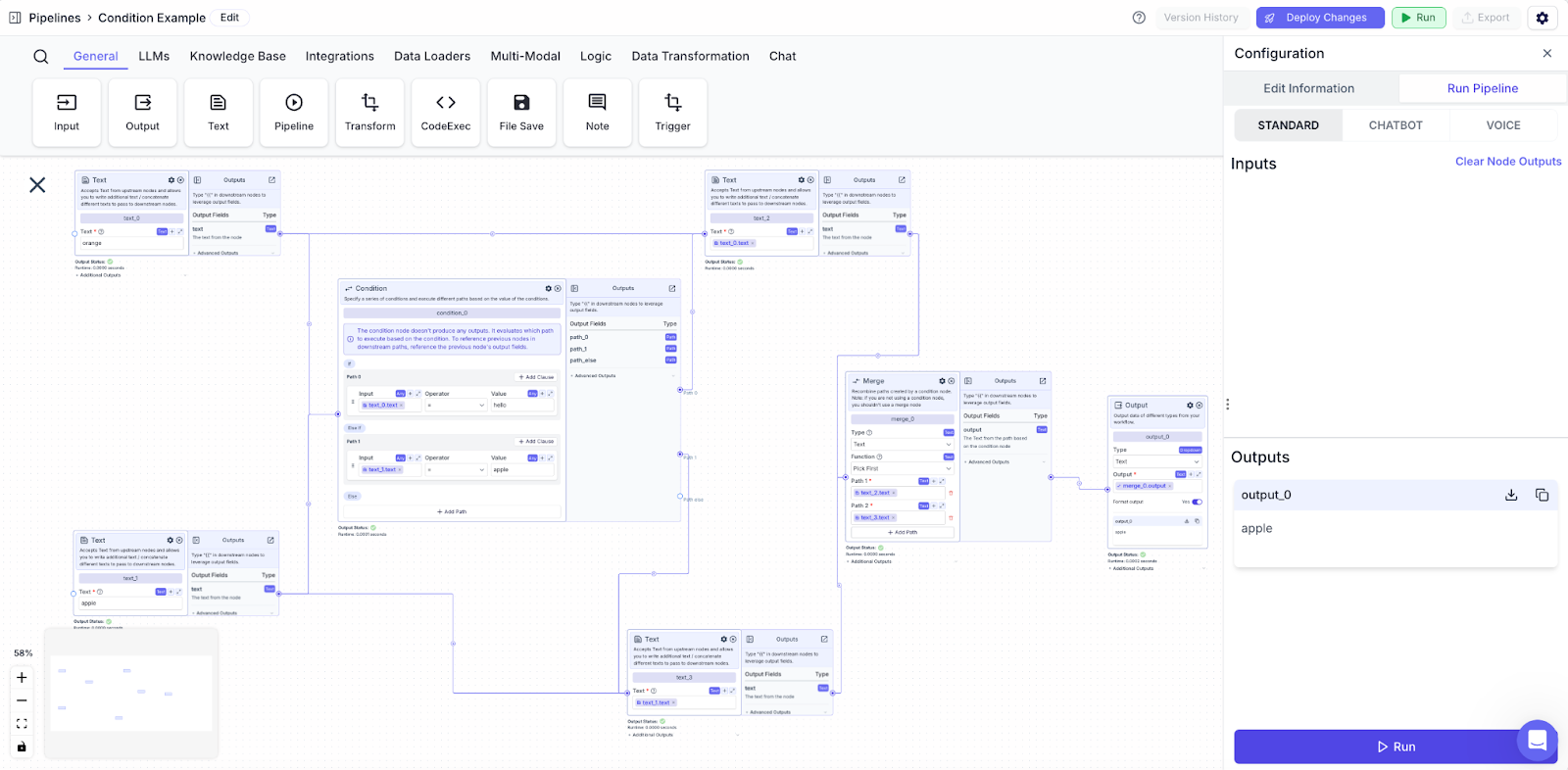
In the below example, we have a condition node with two paths.
1. If `text_0 = hello`, then path 0 will execute (which is false; `text_0 = orange`)
2. If `text_1 = apple`, then path 1 will execute (which is true)
3. Path 1 executes, and we merge both paths together before displaying the output. Path 1 is a text node that prints out `text_1` (“apple”). Hence, the output is apple.
The merge node allows you to combine different execution paths from your pipeline into a single flow.
Use a merge node when you want to consolidate multiple branches (typically coming from a condition node) back into a unified pipeline flow.
## Node Inputs
1. Function: The strategy for merging multiple inputs
* Type: `Dropdown`
* Options:
* Pick First: Takes the first (by time) valid input from connected paths
* Join All: Combines all inputs into a list
2. Paths: The different input paths to be merged.
* Type: `List`, where `T` is the type selected in the Type dropdown
* Each field represents a potential incoming path
* You can dynamically add or remove input paths using the "Add Path" button
## Node Parameters
1. Type: The data type for inputs and outputs
* Type: `Dropdown`
* Available options correspond to standard data types (Text, Number, etc.)
## Node Outputs
**If Function is "Pick First"**
1. Output: The merged result
* Type: `T`
* Example usage: `{{merge_0.output}}`
**If Function is "Join All"**
1. Output: The merged result
* Type: `List`
* Example usage: `{{merge_0.output}}`
## Considerations
* The merge node is typically used in conjunction with the condition node to combine different execution paths.
* When using "Pick First", the output will be a single value of the selected type as it’ll pick the first available incoming value.
* When using "Join All", the output will be a list of values of the selected type as it’ll join all incoming values.
* All input paths must match the selected type in the Type dropdown.
* Empty or skipped paths are handled gracefully by the node.
## Example: Written
The below example shows a pipeline that processes customer data differently based on their status using a condition node, then merges the results:
1. Condition node checks customer status:
* Path 0: VIP customer processing
* Path 1: New customer processing
* Path else: Regular customer processing
2. Merge node combines the processing results:
* Type: `Text`
* Function: Join All
* Fields:
* Path 1: `{{vip_processing.output}}`
* Path 2: `{{new_customer_processing.output}}`
* Path else: `{{regular_customer_processing.output}}`
The merge node collects all processing results into a single list that can be used by downstream nodes.
## Example: Visual
In the below example, we have a condition node with two paths.
1. If `text_0 = hello`, then path 0 will execute (which is false; `text_0 = orange`)
2. If `text_1 = apple`, then path 1 will execute (which is true)
3. Path 1 executes, and we merge both paths together before displaying the output. Path 1 is a text node that prints out `text_1` (“apple”). Hence, the output is apple.