> ## Documentation Index
> Fetch the complete documentation index at: https://docs.vectorshift.ai/llms.txt
> Use this file to discover all available pages before exploring further.
# Knowledge Base Reader Node
> Query a Knowledge Base to receive relevant data
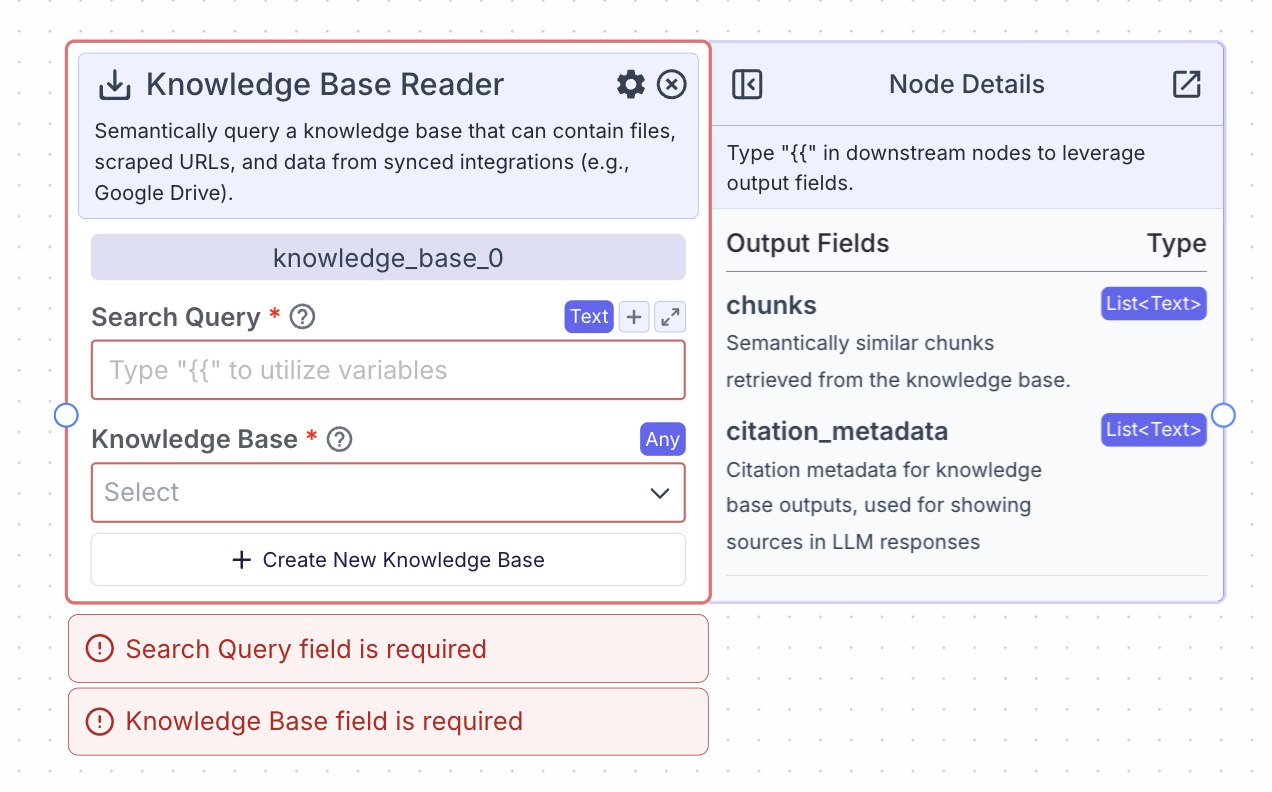 The knowledge base reader queries a permanent knowledge base containing your files, scraped URLs, and / or synced integrations (e.g., Google Drive).
Knowledge bases are important because they are able to retrieve the most relevant pieces of data based on a query.
The most relevant data can then be passed to an LLM so that the LLM generates responses that are relevant to the data.
## Node Inputs
1. Search Query: The query that will be used to search the knowledge bases for relevant pieces.
* Type: `Text`
## Node Parameters
On the face of the node:
1. Knowledge Base: Select the knowledge base you would like to query.
* Type: `KnowledgeBase`
In the gear:
1. Max chunks per query: the maximum number of pieces of data to be returned per query
2. Enable Filter: enable the ability to write a metadata filter
3. Enable Context: enable a text field to provide additional context for the search query
4. Re-rank documents: Performs an additional reranking step to reorder the documents by relevance to the query
5. Score Cutoff: The minimum relevancy score (between 0 and 1) that each piece of data will have semantically to the query
6. Retrieval Unit: Return the most relevant chunks (text content) or Documents (will return document metadata)
7. Transform Query: Transform the query for better results
8. Answer Multiple Questions: Extract separate questions from the query and retrieve content separately for each question to improve search performance
9. Expand Query: Expand query to improve semantic search
10. Do Advanced QA: Use additional LLM calls to analyze each document to improve answer correctness
11. Show Immediate Steps: Display the process the knowledge base is conducting at a given time in the chatUI
12. Format Context for an LLM: Do an additional LLM call to format output
## Node Outputs
**If Retrieval Unit is set to Chunks**
1. Chunks: Semantically similar chunks retrieved from the knowledge base
* Type: `List`
* Example usage: `{{knowledge_base_0.chunks}}`
**If Retrieval Unit is set to Documents**
1. Documents: Metadata for semantically similar documents retrieved from the knowledge base
* Type: `List`
* Example usage: `{{knowledge_base_0.documents}}`
**If "Do Advanced QA" is enabled**
1. Response: A direct answer to the query
* Type: `Text`
* Example usage: `{{knowledge_base_0.response}}`
## Considerations
* Use a Knowledge Base Reader node when you want to query previously loaded data that has already been loaded. Use a Semantic Search node when your pipeline loads new data at run time for querying.
* If the knowledge base is not returning relevant information to a query, try increasing the number of max chunks per query in the gear of the knowledge base.
* For debugging purposes, you may attach an output node to the knowledge base to view the chunks that are returned for the query.
## Example
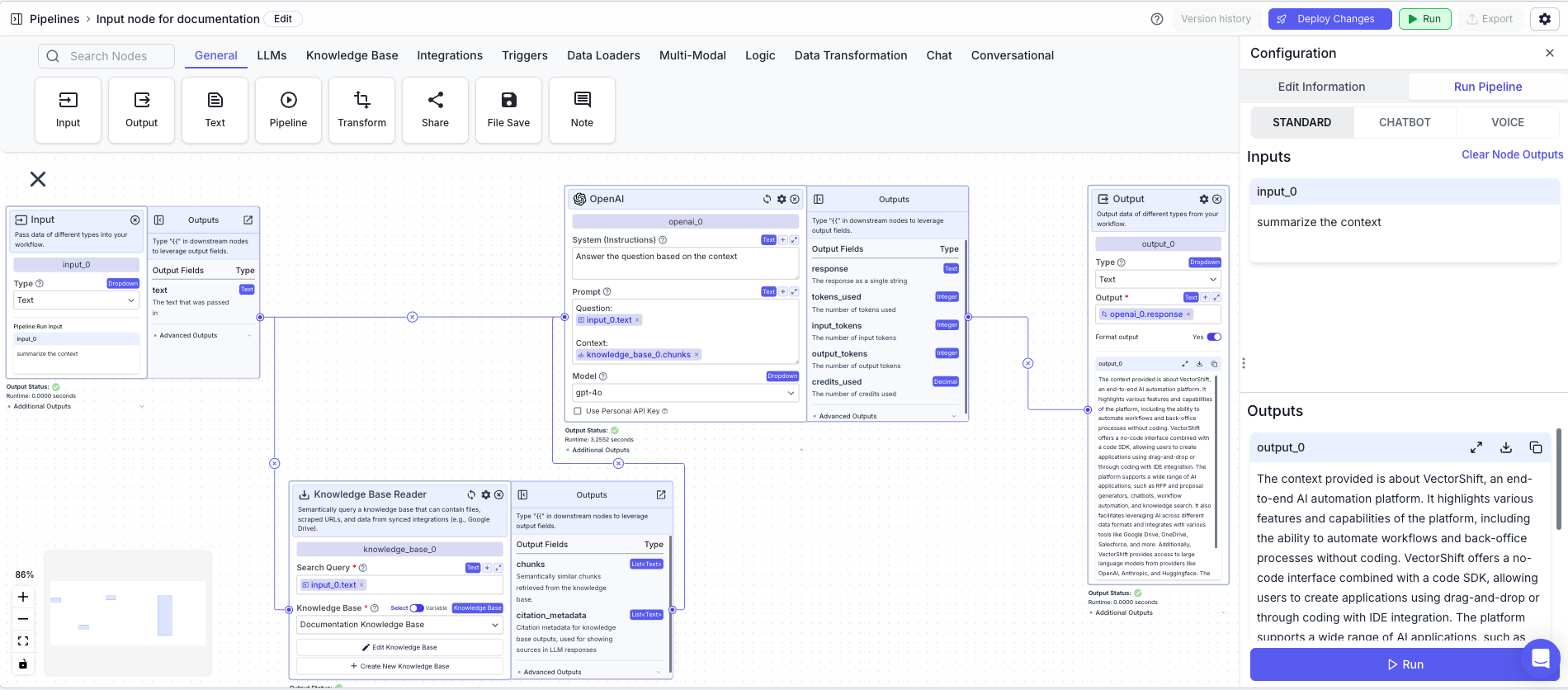
The below example is a pipeline for chatting with a knowledge base. The knowledge base reader node provides context to the LLM node.
1. Input Node: Represents the user message
2. Knowledge Base Reader Node: Queries the knowledge base semantically
* Search Query: `{{input_0.text}}`
3. LLM Node: Responds to the user question
* System (Instructions): `Answer the question based on the context.`
* Prompt: `Question: {{input_0.text}} Context: {{knowledge_base_1.chunks}}`
4. Output Node: Displays the response
* Output: `{{openai_0.response}}`
The knowledge base reader queries a permanent knowledge base containing your files, scraped URLs, and / or synced integrations (e.g., Google Drive).
Knowledge bases are important because they are able to retrieve the most relevant pieces of data based on a query.
The most relevant data can then be passed to an LLM so that the LLM generates responses that are relevant to the data.
## Node Inputs
1. Search Query: The query that will be used to search the knowledge bases for relevant pieces.
* Type: `Text`
## Node Parameters
On the face of the node:
1. Knowledge Base: Select the knowledge base you would like to query.
* Type: `KnowledgeBase`
In the gear:
1. Max chunks per query: the maximum number of pieces of data to be returned per query
2. Enable Filter: enable the ability to write a metadata filter
3. Enable Context: enable a text field to provide additional context for the search query
4. Re-rank documents: Performs an additional reranking step to reorder the documents by relevance to the query
5. Score Cutoff: The minimum relevancy score (between 0 and 1) that each piece of data will have semantically to the query
6. Retrieval Unit: Return the most relevant chunks (text content) or Documents (will return document metadata)
7. Transform Query: Transform the query for better results
8. Answer Multiple Questions: Extract separate questions from the query and retrieve content separately for each question to improve search performance
9. Expand Query: Expand query to improve semantic search
10. Do Advanced QA: Use additional LLM calls to analyze each document to improve answer correctness
11. Show Immediate Steps: Display the process the knowledge base is conducting at a given time in the chatUI
12. Format Context for an LLM: Do an additional LLM call to format output
## Node Outputs
**If Retrieval Unit is set to Chunks**
1. Chunks: Semantically similar chunks retrieved from the knowledge base
* Type: `List`
* Example usage: `{{knowledge_base_0.chunks}}`
**If Retrieval Unit is set to Documents**
1. Documents: Metadata for semantically similar documents retrieved from the knowledge base
* Type: `List`
* Example usage: `{{knowledge_base_0.documents}}`
**If "Do Advanced QA" is enabled**
1. Response: A direct answer to the query
* Type: `Text`
* Example usage: `{{knowledge_base_0.response}}`
## Considerations
* Use a Knowledge Base Reader node when you want to query previously loaded data that has already been loaded. Use a Semantic Search node when your pipeline loads new data at run time for querying.
* If the knowledge base is not returning relevant information to a query, try increasing the number of max chunks per query in the gear of the knowledge base.
* For debugging purposes, you may attach an output node to the knowledge base to view the chunks that are returned for the query.
## Example
The below example is a pipeline for chatting with a knowledge base. The knowledge base reader node provides context to the LLM node.
1. Input Node: Represents the user message
2. Knowledge Base Reader Node: Queries the knowledge base semantically
* Search Query: `{{input_0.text}}`
3. LLM Node: Responds to the user question
* System (Instructions): `Answer the question based on the context.`
* Prompt: `Question: {{input_0.text}} Context: {{knowledge_base_1.chunks}}`
4. Output Node: Displays the response
* Output: `{{openai_0.response}}`