> ## Documentation Index
> Fetch the complete documentation index at: https://docs.vectorshift.ai/llms.txt
> Use this file to discover all available pages before exploring further.
# Create Knowledge Base Node
> Create a new Knowledge Base with configurable settings
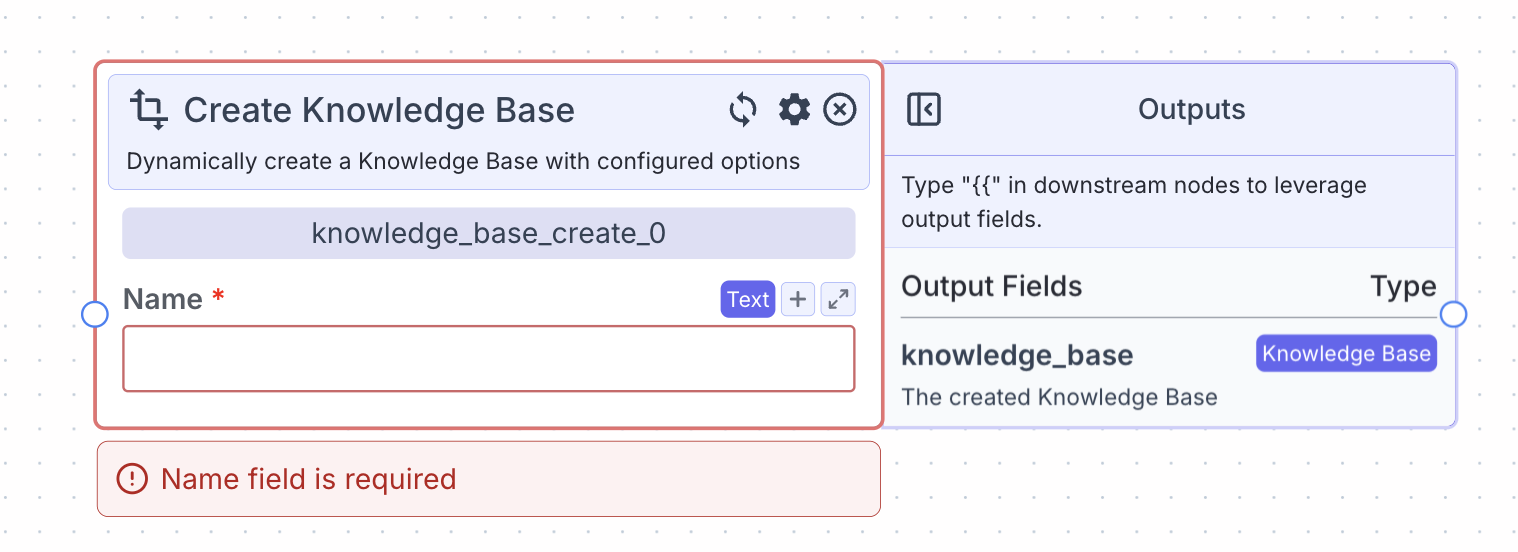 This node create a new Knowledge Base with configured options.
## Node Inputs
1. Name: Name of the Knowledge Base
* Type: `Text`
## Node Parameters
In the gear:
1. Chunk Size: The size of chunks you want for your Knowledge Base. The value ranges from 400 to 4096. The default value is 400.
2. Chunk Overlap: The chunk overlap is the number of tokens overlapping between chunks. This is defaulted to 0 tokens. Increase the chunk overlap if you are concerned that chunking eliminates essential data (e.g. if a chunk cuts in the middle of a word). The value ranges from 0 to 4095.
3. File Processing Model: The model that you want to use to process files. The models available are: Default (Basic OCR), Llama Parse and Textract.
* Use default if your files contain primarily text.
* If your files contain complex tables, images, diagrams, etc., use Llama Parse or Textract (Note: additional costs will be charged).
4. Apify Key: Enter your Apify API key to integrate Apify services for web scraping or data extraction.
* Do not share API key with someone you do not trust.
5. Embedding Model: This is used to embed the data into the knowledge/vector database. It defaults to "text-embedding-3-small," the state-of-the-art model today in terms of performance and speed. Alternatively, you can choose "embed-multilingual-v3.0" for multi-language documents. The available models are voyageai/voyage-3-large, openai/text-embedding-3-large, openai/text-embedding-ada-002, openai/text-embedding-3-small, cohere/embed-english-v3.0, cohere/embed-multilingual-v3.0, cohere/embed-english-light-v3.0, cohere/embed-multilingual-light-v3.0, cohere/embed-english-v2.0, cohere/embed-english-light-v2.0, and cohere/embed-multilingual-v2.0.
6. Hybrid: You can make your Knowledge Base Hybrid.
7. Analyze Documents: You can turn this on if you want to analyze your documents in the Knowledge Base.
## Node Outputs
1. Knowledge Base: The newly created Knowledge Base.
* Type: `KnowledgeBase`
* Example usage: `{{knowledge_base_create_0.knowledge_base}}`
## Example
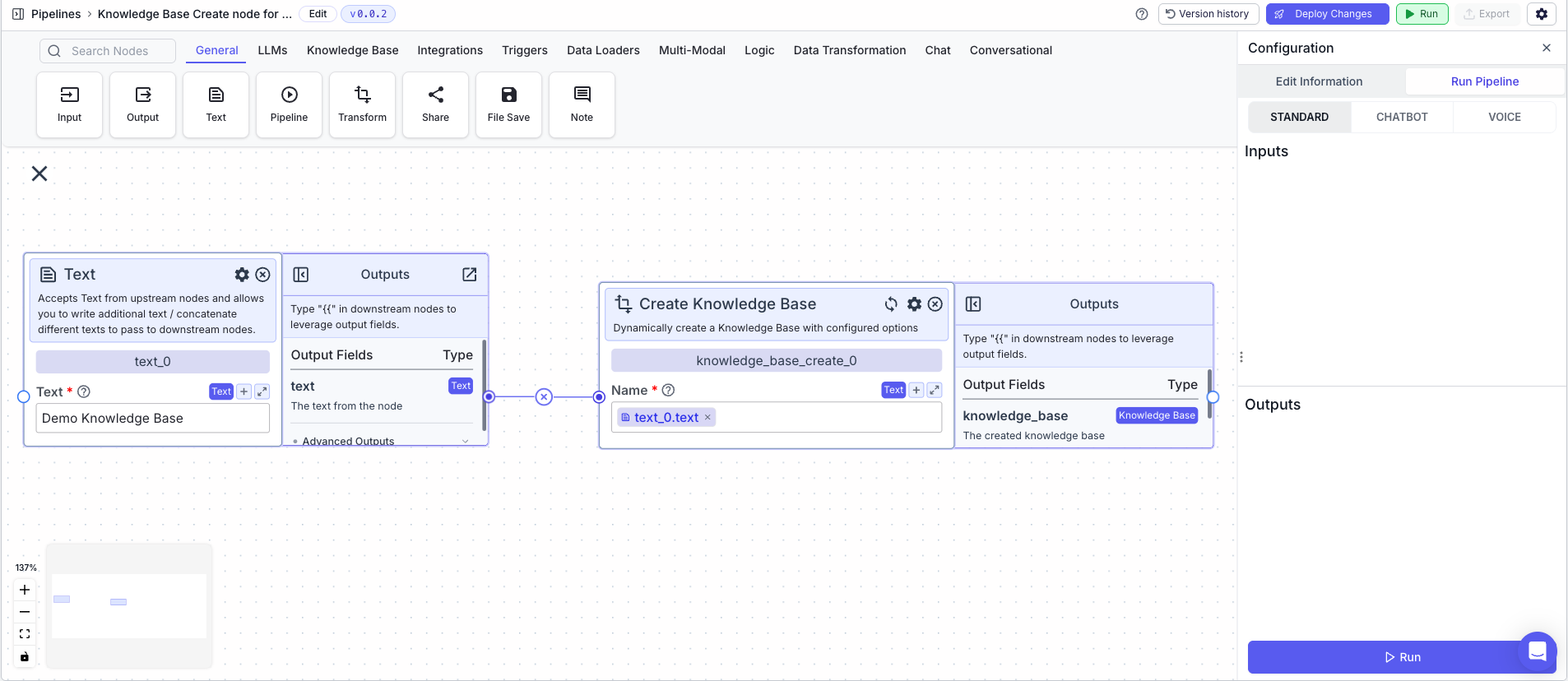
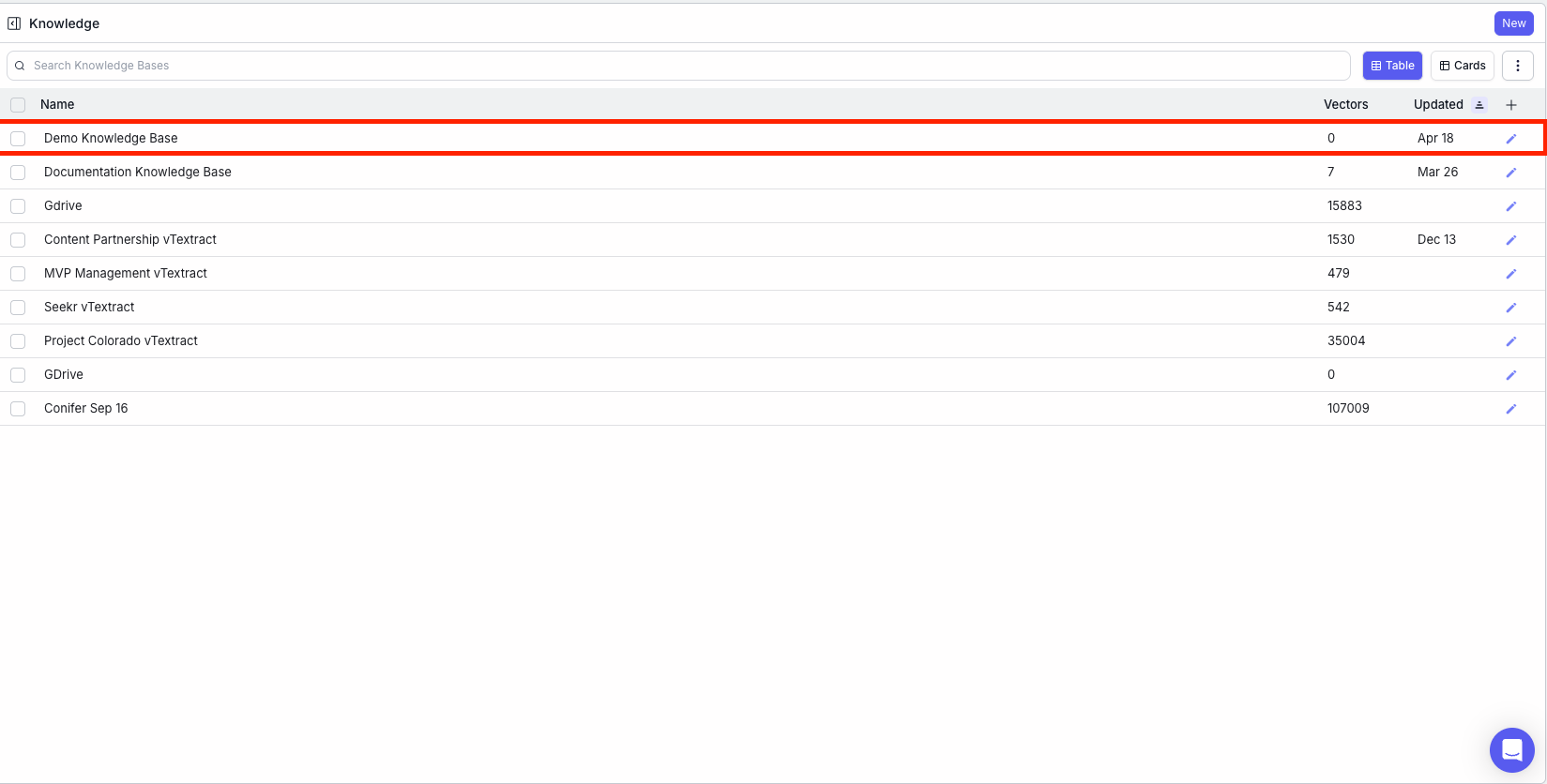
The below example is a pipeline that creates a new Knowledge Base with the name: `Demo Knowledge Base`
1. Text Node: Represents the name of the Knowledge Base
2. Knowledge Base Create Node: Creates a new Knowledge Base
* Name: `{{text_0.text}}`
This node create a new Knowledge Base with configured options.
## Node Inputs
1. Name: Name of the Knowledge Base
* Type: `Text`
## Node Parameters
In the gear:
1. Chunk Size: The size of chunks you want for your Knowledge Base. The value ranges from 400 to 4096. The default value is 400.
2. Chunk Overlap: The chunk overlap is the number of tokens overlapping between chunks. This is defaulted to 0 tokens. Increase the chunk overlap if you are concerned that chunking eliminates essential data (e.g. if a chunk cuts in the middle of a word). The value ranges from 0 to 4095.
3. File Processing Model: The model that you want to use to process files. The models available are: Default (Basic OCR), Llama Parse and Textract.
* Use default if your files contain primarily text.
* If your files contain complex tables, images, diagrams, etc., use Llama Parse or Textract (Note: additional costs will be charged).
4. Apify Key: Enter your Apify API key to integrate Apify services for web scraping or data extraction.
* Do not share API key with someone you do not trust.
5. Embedding Model: This is used to embed the data into the knowledge/vector database. It defaults to "text-embedding-3-small," the state-of-the-art model today in terms of performance and speed. Alternatively, you can choose "embed-multilingual-v3.0" for multi-language documents. The available models are voyageai/voyage-3-large, openai/text-embedding-3-large, openai/text-embedding-ada-002, openai/text-embedding-3-small, cohere/embed-english-v3.0, cohere/embed-multilingual-v3.0, cohere/embed-english-light-v3.0, cohere/embed-multilingual-light-v3.0, cohere/embed-english-v2.0, cohere/embed-english-light-v2.0, and cohere/embed-multilingual-v2.0.
6. Hybrid: You can make your Knowledge Base Hybrid.
7. Analyze Documents: You can turn this on if you want to analyze your documents in the Knowledge Base.
## Node Outputs
1. Knowledge Base: The newly created Knowledge Base.
* Type: `KnowledgeBase`
* Example usage: `{{knowledge_base_create_0.knowledge_base}}`
## Example
The below example is a pipeline that creates a new Knowledge Base with the name: `Demo Knowledge Base`
1. Text Node: Represents the name of the Knowledge Base
2. Knowledge Base Create Node: Creates a new Knowledge Base
* Name: `{{text_0.text}}`