> ## Documentation Index
> Fetch the complete documentation index at: https://docs.vectorshift.ai/llms.txt
> Use this file to discover all available pages before exploring further.
# PagerDuty Node
> Automate incident management with PagerDuty integration
# PagerDuty + VectorShift Integration Guide
## Introduction
The **PagerDuty + VectorShift integration** enables teams to automate incident creation, updates, enrichment, and analysis using AI-driven pipelines.
VectorShift acts as an orchestration and automation layer on top of PagerDuty, allowing incidents to be created and managed based on complex logic, signals, and data from across your technology stack, including monitoring tools, databases, AI models, and business systems.
This integration uses **PagerDuty Classic User OAuth 2.0** for secure authentication.\
**No API keys are required.**
***
## How It Works
VectorShift connects to PagerDuty using **OAuth 2.0 (Classic User OAuth)**.
Once authorized, VectorShift pipelines can:
* Create, update, acknowledge, and resolve PagerDuty incidents
* Add and retrieve incident notes
* Retrieve incident activity logs
* Fetch user metadata for routing and automation
* Enrich incidents using AI and external systems
OAuth access tokens are:
* Issued by PagerDuty
* Securely stored and encrypted by VectorShift
* Automatically refreshed
* Never exposed to users
***
## Requirements
* An active PagerDuty account
* An active VectorShift account
* PagerDuty user role: **Admin**, **Manager**, or **Responder**
* At least one active PagerDuty Service (required to create incidents)
***
## Authentication
### OAuth 2.0 (Classic User OAuth)
VectorShift uses **PagerDuty Classic User OAuth**, which is required for publicly listed PagerDuty integrations.
* No API keys or secrets are created, stored, or managed by users
***
## OAuth Scopes
PagerDuty Classic OAuth uses a simplified permission model.
| Scope | Access | Purpose |
| ------- | -------------------------------------- | ---------------------------------------------------------------------------------------------------- |
| `write` | Read & Write (All PagerDuty Resources) | Allows VectorShift to manage incidents, notes, logs, and user data required for automation workflows |
### Why Read & Write Access Is Required
The integration performs active incident management, including:
* Creating incidents
* Updating incident status (acknowledge / resolve)
* Adding incident notes
* Retrieving activity logs
* Fetching user details for assignment and routing
PagerDuty Classic OAuth does not support granular per-resource scopes; therefore, the `write` scope is required for all supported operations.
***
## Action-to-Scope Mapping
All supported actions operate under the **Classic OAuth `write` scope**.
| Action | PagerDuty Resource | Scope Used | Purpose |
| -------------------- | ------------------ | ---------- | ---------------------------------------------------- |
| Get Incident | Incidents | write | Retrieve detailed incident information |
| List Incidents | Incidents | write | Fetch incidents for reporting and dashboards |
| Create Incident | Incidents | write | Create new incidents from automated workflows |
| Update Incident | Incidents | write | Acknowledge, resolve, or modify incidents |
| Create Incident Note | Incidents / Notes | write | Add investigation details or AI-generated summaries |
| List Incident Notes | Incidents / Notes | write | Retrieve incident notes for timeline analysis |
| Get Log Entry | Log Entries | write | Fetch detailed activity records |
| List Log Entries | Log Entries | write | Retrieve incident and account activity logs |
| Get User | Users | write | Retrieve user information for assignment and routing |
> Although Classic OAuth provides broad access, VectorShift enforces logical least-privilege usage at the application level and only performs the actions listed above.
***
## In PagerDuty
Integrating with a PagerDuty service directly is useful if you don’t need complex routing logic inside VectorShift. You can still use service-level event rules in PagerDuty for severity adjustment or alert suppression.
### Add VectorShift to an Existing Service
1. From **Services**, select **Service Directory**
2. Click the service name
3. Select the **Integrations** tab
4. Click **Add an integration**
5. Choose **VectorShift**
6. Click **Add** to save
### Create a New Service
1. Follow PagerDuty’s documentation for creating a service
2. When prompted for **Integration Type**, select **VectorShift**
3. Save the service and open the **Integrations** tab
> No API key is generated. Authorization occurs via OAuth during the VectorShift connection flow.
***
## In VectorShift
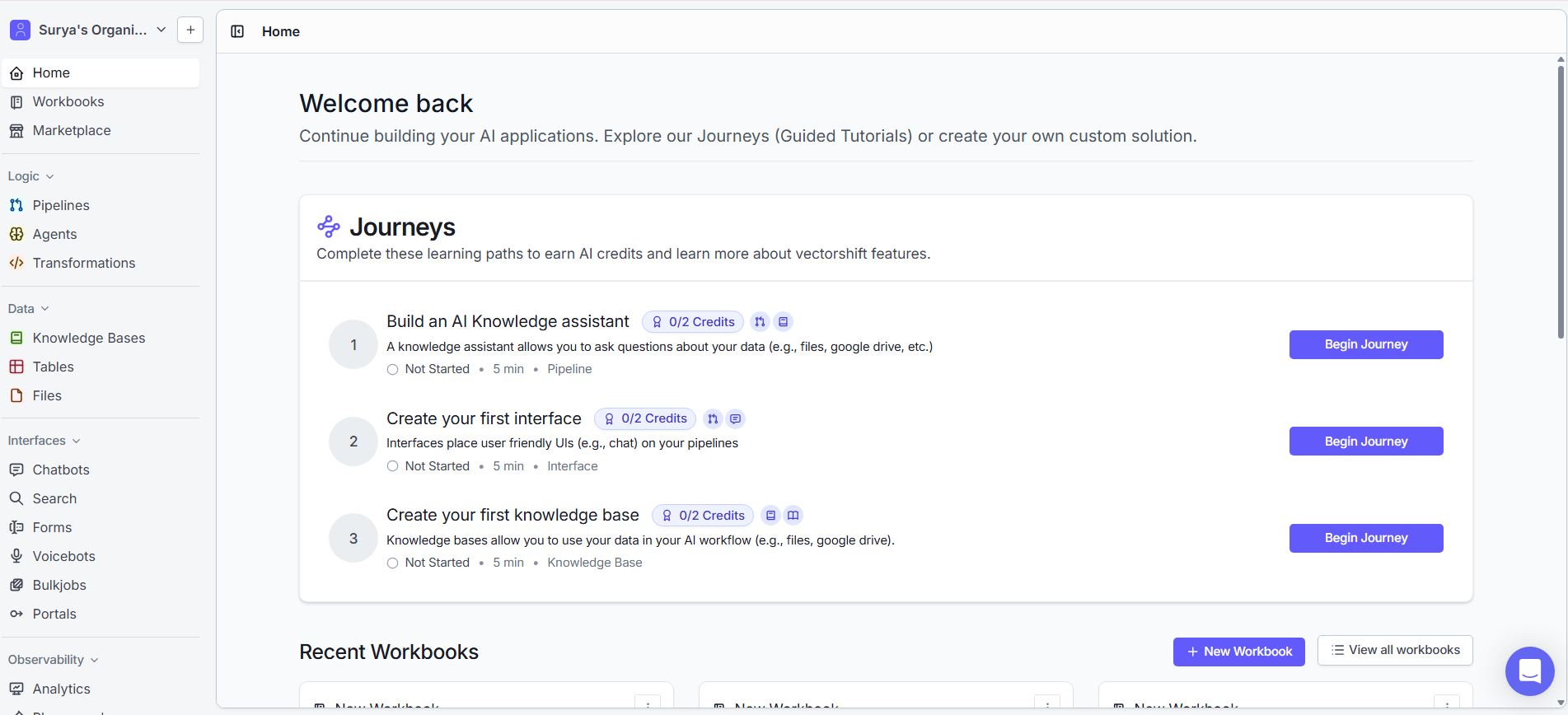
1. Log in to your VectorShift account
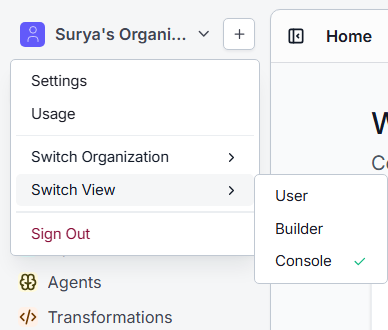
 2. Navigate to your organization and select **Console** from **Switch View**
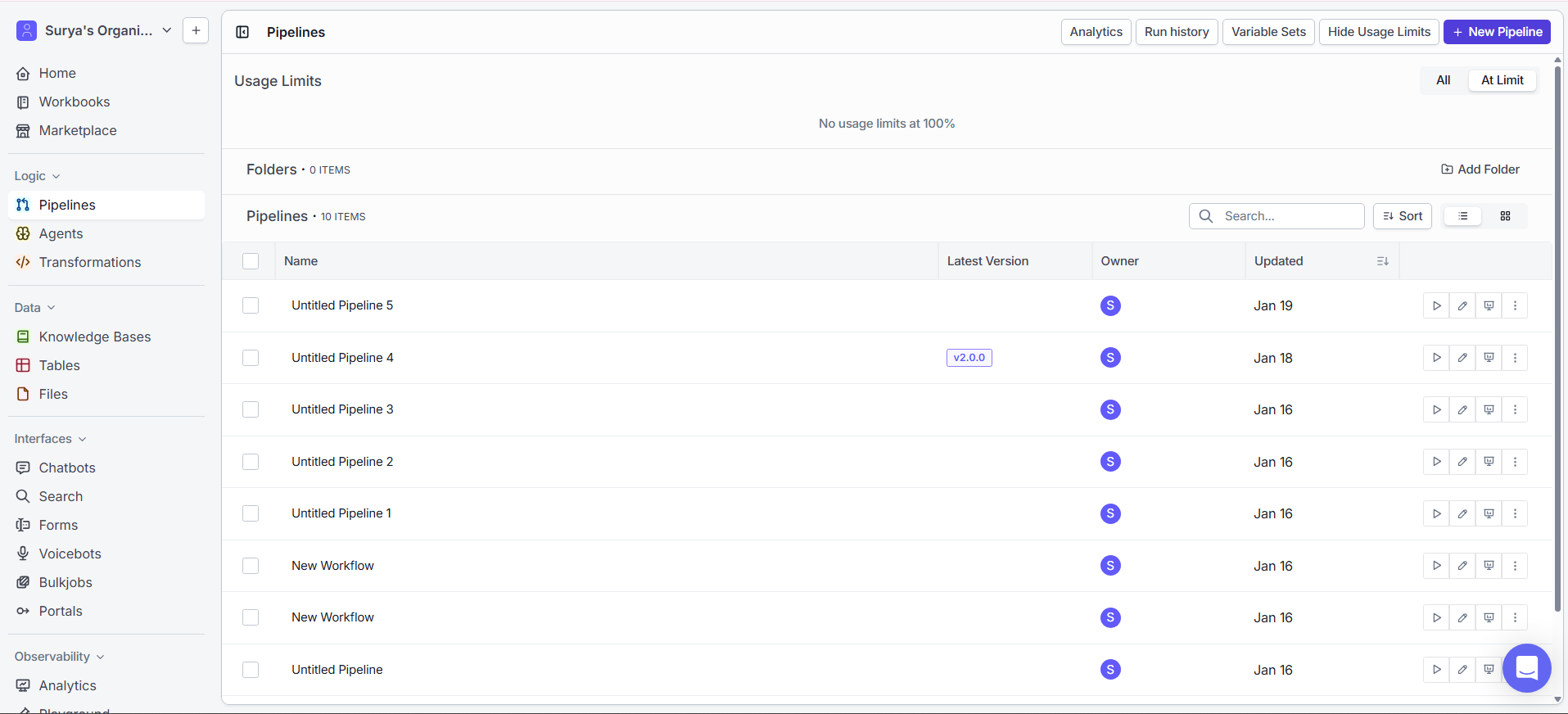
 3. Go to **Pipelines** and create a new pipeline
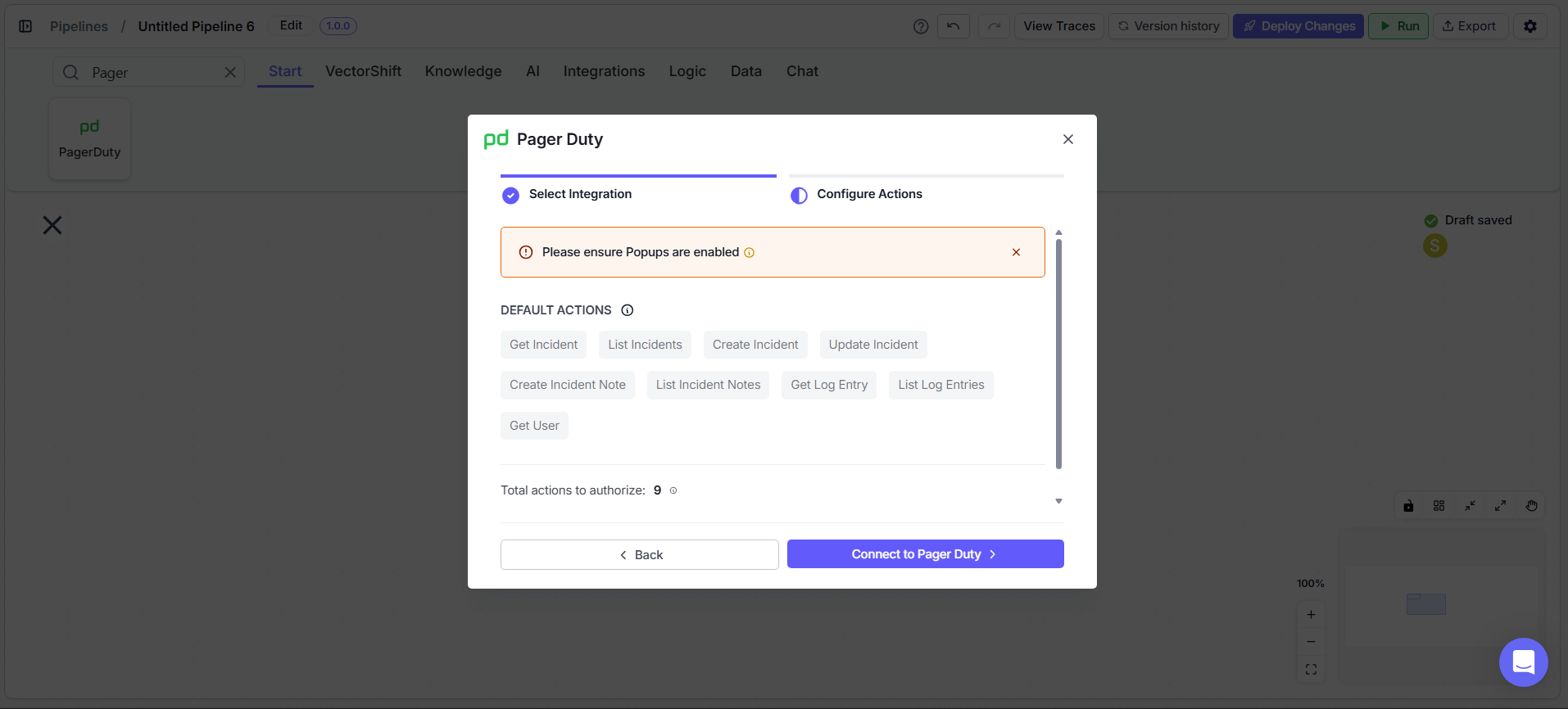
 4. Search for **PagerDuty** and add it as a node
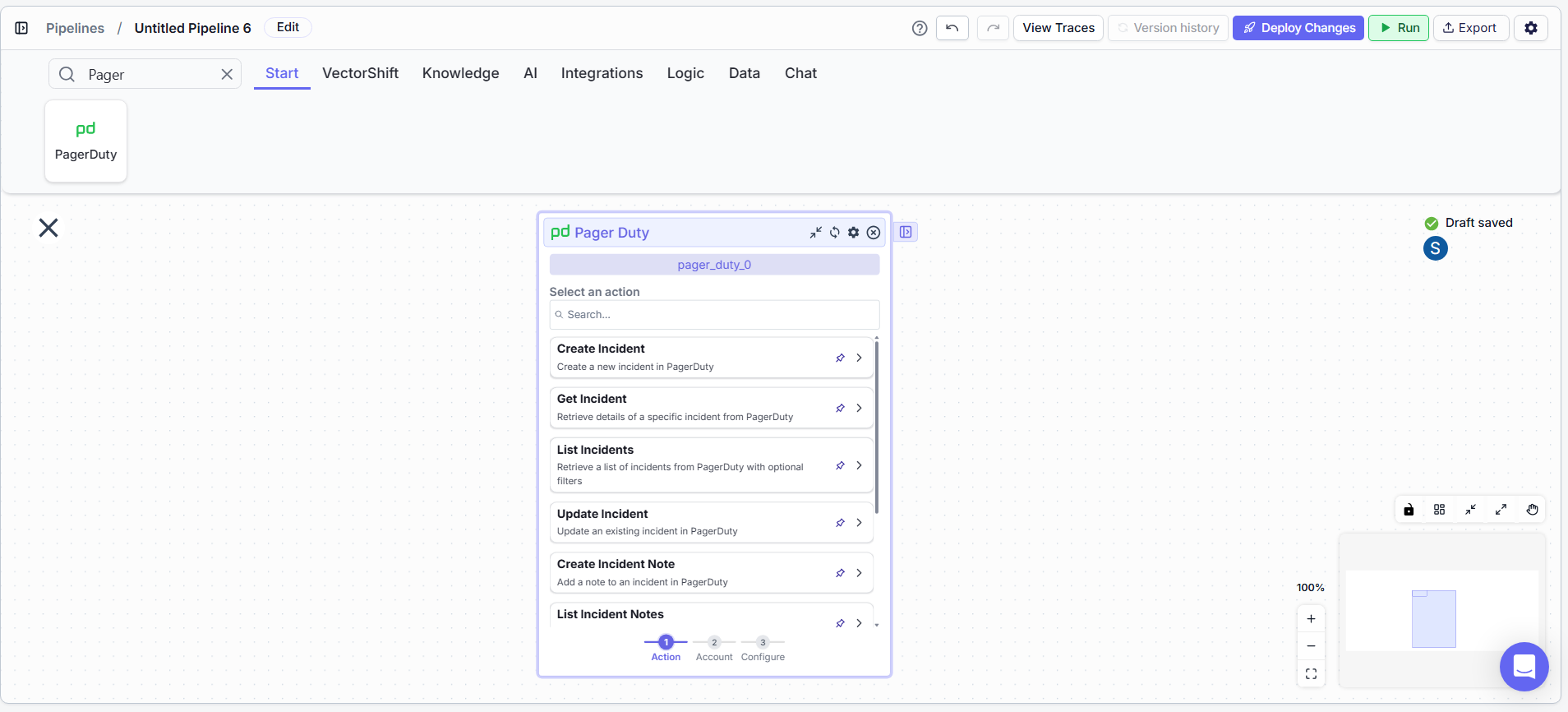 5. Select an action (e.g., **Create Incident**)\
You will be redirected to PagerDuty's OAuth consent screen
5. Select an action (e.g., **Create Incident**)\
You will be redirected to PagerDuty's OAuth consent screen
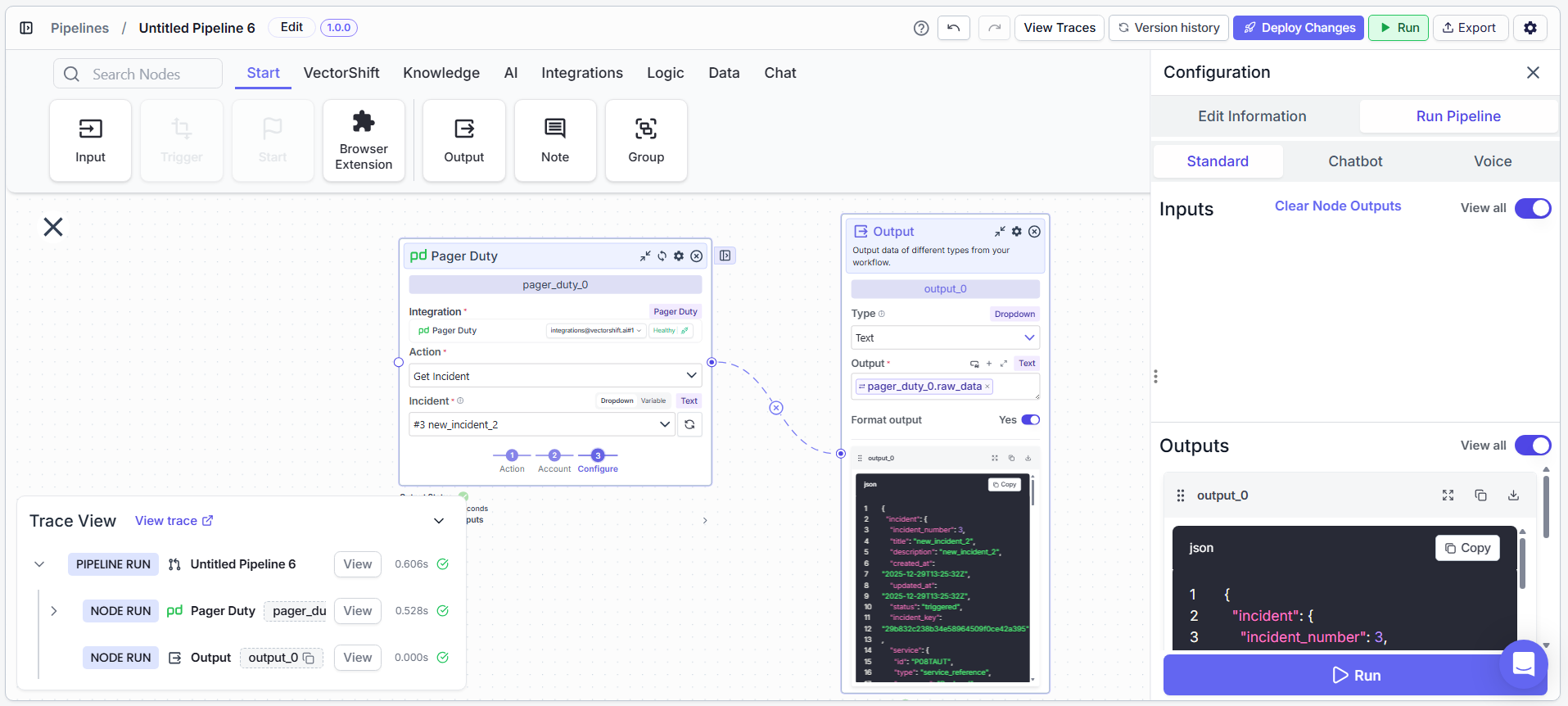
 6. Add an **Output** node, connect it, select the required output fields, and run the pipeline
 ***
## Configure a PagerDuty Workflow
1. Open the **Pipeline Builder**
2. Drag the **PagerDuty** node onto the canvas
3. Select the connected PagerDuty account
4. Choose an action, such as:
* Create Incident
* Update Incident
* List Incidents
5. Provide required inputs (e.g., Incident Title, Service ID)
6. Connect upstream logic, data sources, or AI nodes
7. Save and activate the pipeline
***
## Troubleshooting
### Common Issues
| Issue | Solution |
| --------------------------- | ------------------------------------------------------ |
| Integration Connection Lost | Re-authorize the integration by clicking **Reconnect** |
| File not found | Verify the file key is correct and you have access |
| Permission denied | Ensure required scopes were granted |
| Rate limit exceeded | Wait briefly and retry (handled automatically) |
| Node not found | Verify the node ID exists and uses format `X:Y` |
### Re-authorization
If the integration appears **Unhealthy** or disconnected:
1. Click **Reconnect Integration** in VectorShift
2. You will be redirected to PagerDuty
3. Approve permissions again
4. The integration will be restored
***
## Uninstall
### Remove from VectorShift
1. Go to **Integrations → PagerDuty**
2. Click **Disconnect**
***
## Support
For setup help, testing access, or integration assistance:
* **Email:** [support@vectorshift.ai](mailto:support@vectorshift.ai)
* **Documentation:** [https://docs.vectorshift.ai](https://docs.vectorshift.ai)
***
## Configure a PagerDuty Workflow
1. Open the **Pipeline Builder**
2. Drag the **PagerDuty** node onto the canvas
3. Select the connected PagerDuty account
4. Choose an action, such as:
* Create Incident
* Update Incident
* List Incidents
5. Provide required inputs (e.g., Incident Title, Service ID)
6. Connect upstream logic, data sources, or AI nodes
7. Save and activate the pipeline
***
## Troubleshooting
### Common Issues
| Issue | Solution |
| --------------------------- | ------------------------------------------------------ |
| Integration Connection Lost | Re-authorize the integration by clicking **Reconnect** |
| File not found | Verify the file key is correct and you have access |
| Permission denied | Ensure required scopes were granted |
| Rate limit exceeded | Wait briefly and retry (handled automatically) |
| Node not found | Verify the node ID exists and uses format `X:Y` |
### Re-authorization
If the integration appears **Unhealthy** or disconnected:
1. Click **Reconnect Integration** in VectorShift
2. You will be redirected to PagerDuty
3. Approve permissions again
4. The integration will be restored
***
## Uninstall
### Remove from VectorShift
1. Go to **Integrations → PagerDuty**
2. Click **Disconnect**
***
## Support
For setup help, testing access, or integration assistance:
* **Email:** [support@vectorshift.ai](mailto:support@vectorshift.ai)
* **Documentation:** [https://docs.vectorshift.ai](https://docs.vectorshift.ai)