> ## Documentation Index
> Fetch the complete documentation index at: https://docs.vectorshift.ai/llms.txt
> Use this file to discover all available pages before exploring further.
# Text Formatter Node
> Format text based on a specified formatter
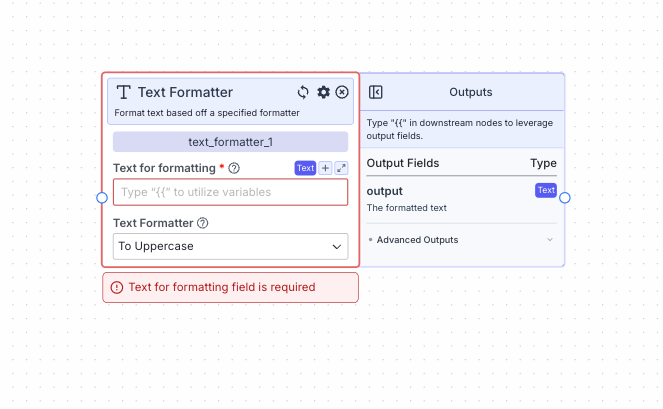 This node allows you to format text based on a specified formatter.
## Node Inputs
1. Text for formatting: The text for formatting
* Type: `Text`
## Node Parameters
On the face of the node:
1. Text Formatter: The type of formatter for formatting text. The available options are To Uppercase, To Lowercase, To Propercase, Trim Spaces and Truncate. The default option is To Uppercase.
* Type: `Dropdown`
## Node Outputs
1. Output: The formatted text
* Type: `Text`
* Example usage: `{{text_formatter_0.output}}`
## Example
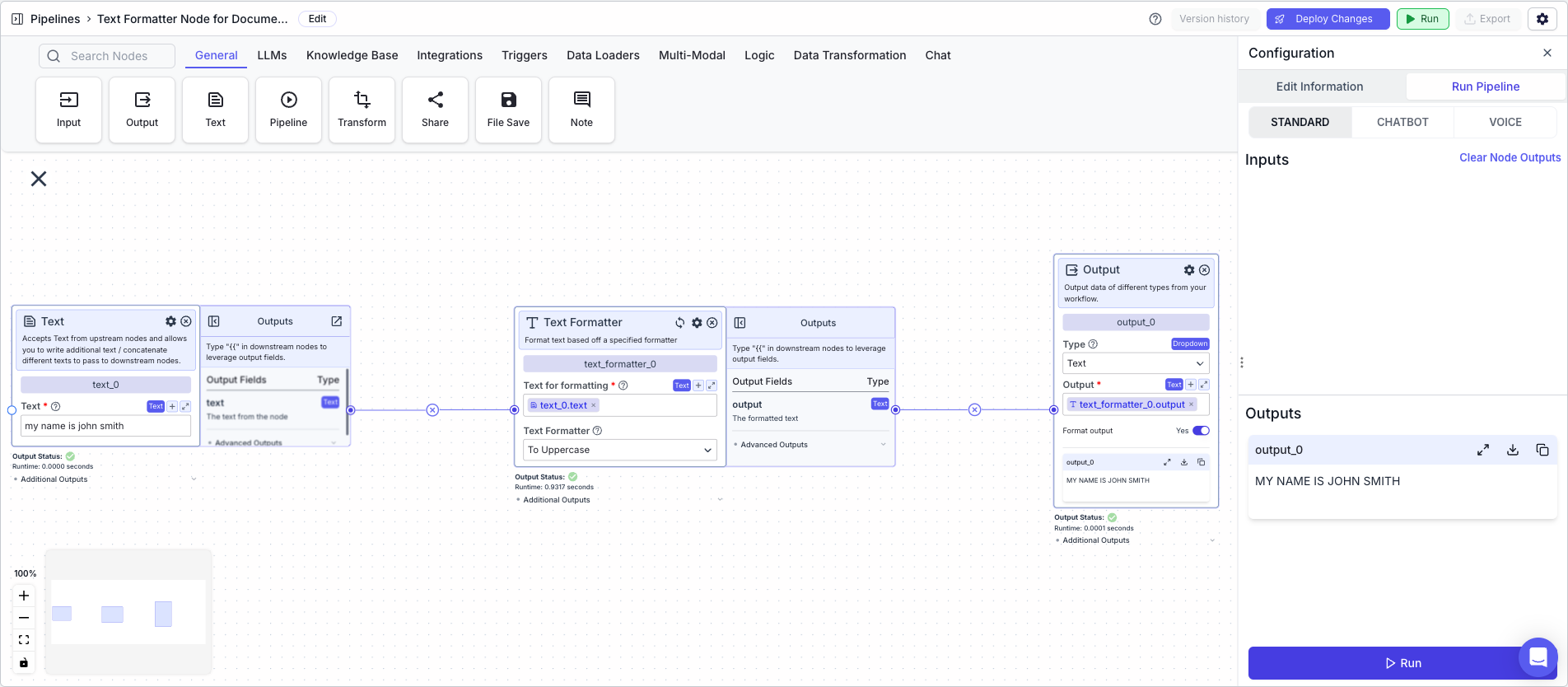
The below example shows a pipeline that takes in a text and formats it to uppercase.
1. Text Node: Contains the text "my name is john smith"
2. Text Formatter Node: Formats the text to uppercase
* Text for formatting: `{{text_0.text}}`
* Text Formatter: `To Uppercase`
3. Output: display the formatted text
* Output: `{{text_formatter_0.output}}`
This node allows you to format text based on a specified formatter.
## Node Inputs
1. Text for formatting: The text for formatting
* Type: `Text`
## Node Parameters
On the face of the node:
1. Text Formatter: The type of formatter for formatting text. The available options are To Uppercase, To Lowercase, To Propercase, Trim Spaces and Truncate. The default option is To Uppercase.
* Type: `Dropdown`
## Node Outputs
1. Output: The formatted text
* Type: `Text`
* Example usage: `{{text_formatter_0.output}}`
## Example
The below example shows a pipeline that takes in a text and formats it to uppercase.
1. Text Node: Contains the text "my name is john smith"
2. Text Formatter Node: Formats the text to uppercase
* Text for formatting: `{{text_0.text}}`
* Text Formatter: `To Uppercase`
3. Output: display the formatted text
* Output: `{{text_formatter_0.output}}`