> ## Documentation Index
> Fetch the complete documentation index at: https://docs.vectorshift.ai/llms.txt
> Use this file to discover all available pages before exploring further.
# Rename File Node
> Rename a file
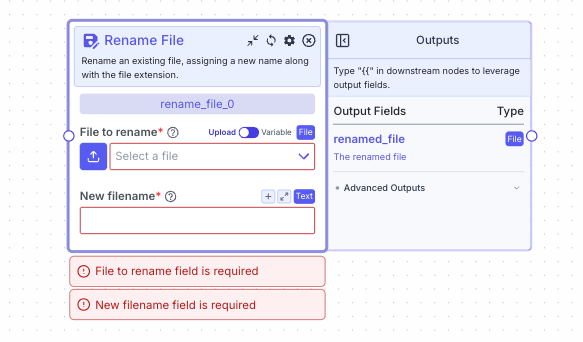 Rename an existing file, assigning a new name along with the file extension (ensure to include file extension).
## Node Inputs
1. File to rename: The file to rename.
* Type: `File`
2. New filename: The new name of the file, including its extension (e.g., file.txt, file.pdf, file.csv).
* Type: `Text`
For providing the file, you have two options:
1. If toggle is on Upload: Upload a file by clicking the upload button
2. If toggle is on Variable: Reference files from other nodes.
## Node Outputs
1. Renamed File: The renamed file
* Type: `File`
* Example usage: `{{rename_file_0.renamed_file}}`
## Example
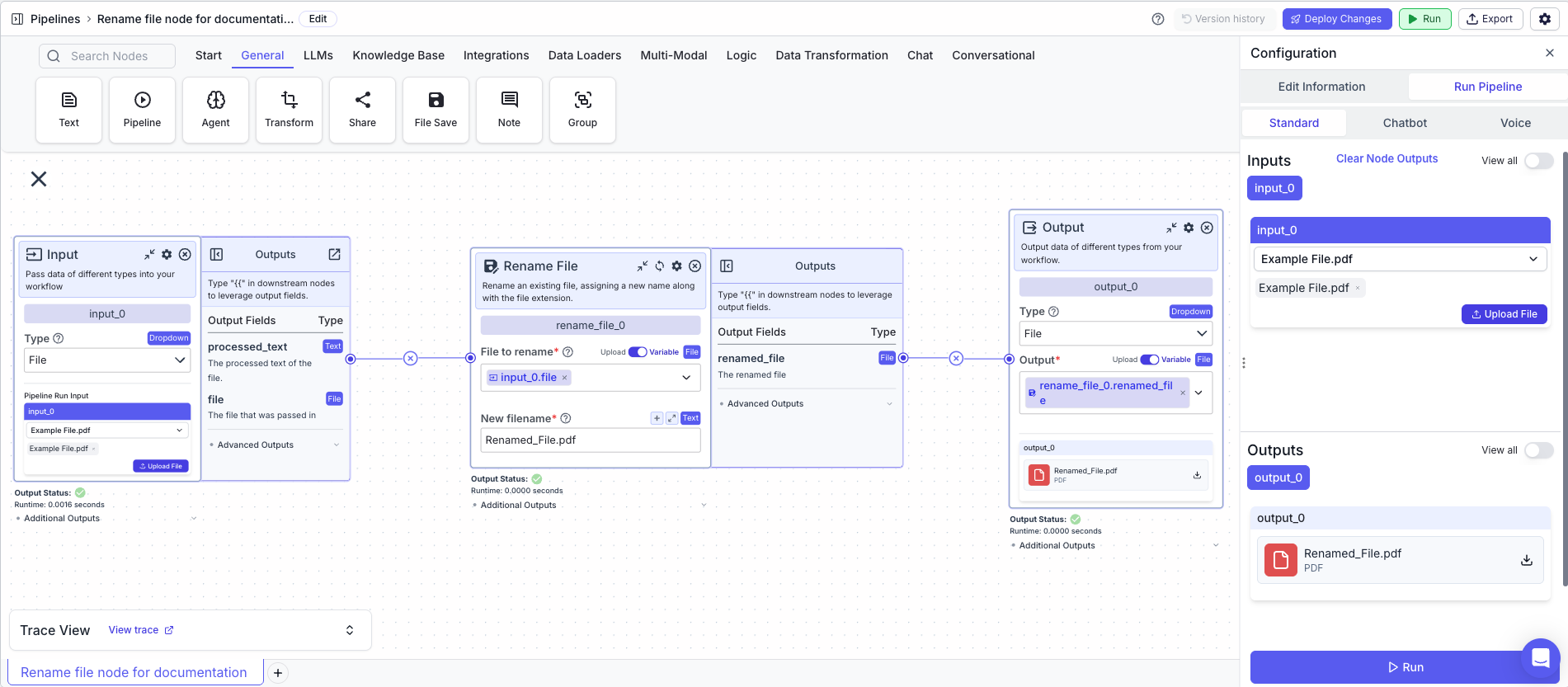
The below example shows a pipeline that takes a pdf file and renames it to: `Renamed_File.pdf`.
1. Input Node: Contains the file you want to rename.
* Type: `File`
2. Rename File Node: Renames the file to a new name.
* File to rename: `{{input_0.file}}`
* New filename: `Renamed_File.pdf`
3. Output: The renamed file
* Output: `{{rename_file_0.renamed_file}}`
Rename an existing file, assigning a new name along with the file extension (ensure to include file extension).
## Node Inputs
1. File to rename: The file to rename.
* Type: `File`
2. New filename: The new name of the file, including its extension (e.g., file.txt, file.pdf, file.csv).
* Type: `Text`
For providing the file, you have two options:
1. If toggle is on Upload: Upload a file by clicking the upload button
2. If toggle is on Variable: Reference files from other nodes.
## Node Outputs
1. Renamed File: The renamed file
* Type: `File`
* Example usage: `{{rename_file_0.renamed_file}}`
## Example
The below example shows a pipeline that takes a pdf file and renames it to: `Renamed_File.pdf`.
1. Input Node: Contains the file you want to rename.
* Type: `File`
2. Rename File Node: Renames the file to a new name.
* File to rename: `{{input_0.file}}`
* New filename: `Renamed_File.pdf`
3. Output: The renamed file
* Output: `{{rename_file_0.renamed_file}}`