> ## Documentation Index
> Fetch the complete documentation index at: https://docs.vectorshift.ai/llms.txt
> Use this file to discover all available pages before exploring further.
# Extract to CSV Node
> Extract data from a file and save it as a CSV file
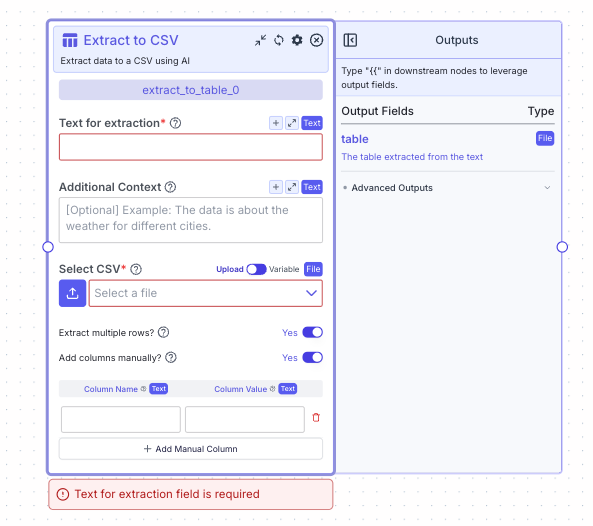 Extract data to a CSV using AI.
## Node Inputs
1. Text for extraction: Text to extract table from
* Type: `Text`
2. Additional Context: Provide any additional context that may help the AI model extract the data.
* Type: `Text`
3. Select CSV: Your file should contain headers in the first row.
* Type: `File`
For providing the CSV file, you have two options:
1. If toggle is on Upload: Upload a file by clicking the upload button
2. If toggle is on Variable: Reference files from other nodes.
If `Add columns manually` is selected:
1. Column Name: The name of the column.
* Type: `Text`
2. Column Value: The value of the column.
* Type: `Text`
## Node Parameters
On the face of the node:
1. Extract multiple rows: Choose the mode of extraction. If checked, it will extract multiple rows of data. If unchecked, it will extract a single row.
* Type: `Toggle`
2. Add columns manually: Add data points for some columns manually instead of having them extracted by the AI model.
* Type: `Toggle`
In the gear:
1. Provider: The model provider.
* Type: `Dropdown`
2. Model: The specific model for extracting the table
* Type: `Dropdown`
## Node Outputs
1. Table: The table extracted from the text.
* Type: `File`
* Example usage: `{{extract_to_table_0.table}}`
## Example
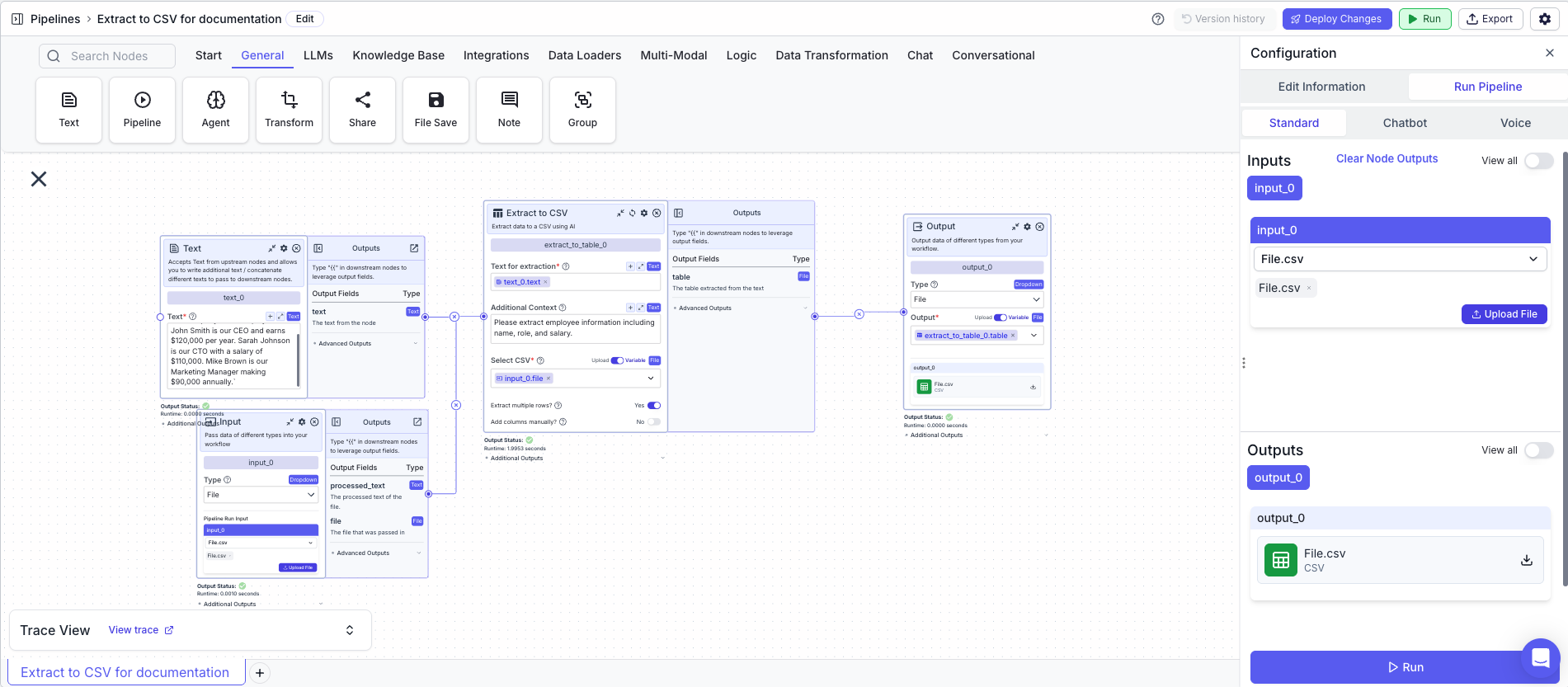
The below example shows a pipeline that extracts employee information from text and saves it as a CSV file.
1. Text Node: Contains the text with employee information.
* Text: `Our company has 3 employees. John Smith is our CEO and earns $120,000 per year. Sarah Johnson is our CTO with a salary of $110,000. Mike Brown is our Marketing Manager making $90,000 annually.`
2. Input Node: Contains the CSV file.
* Type: `File`
3. Extract to CSV Node: Extracts the data and saves it as CSV.
* Text for extraction: `{{text_0.text}}`
* Additional Context: `Please extract employee information including name, role, and salary.`
* Select CSV: `{{input_0.file}}`
* Extract multiple rows: `True`
* Add columns manually: `False`
4. Output: The extracted CSV file
* Output: `{{extract_to_csv_0.table}}`
Extract data to a CSV using AI.
## Node Inputs
1. Text for extraction: Text to extract table from
* Type: `Text`
2. Additional Context: Provide any additional context that may help the AI model extract the data.
* Type: `Text`
3. Select CSV: Your file should contain headers in the first row.
* Type: `File`
For providing the CSV file, you have two options:
1. If toggle is on Upload: Upload a file by clicking the upload button
2. If toggle is on Variable: Reference files from other nodes.
If `Add columns manually` is selected:
1. Column Name: The name of the column.
* Type: `Text`
2. Column Value: The value of the column.
* Type: `Text`
## Node Parameters
On the face of the node:
1. Extract multiple rows: Choose the mode of extraction. If checked, it will extract multiple rows of data. If unchecked, it will extract a single row.
* Type: `Toggle`
2. Add columns manually: Add data points for some columns manually instead of having them extracted by the AI model.
* Type: `Toggle`
In the gear:
1. Provider: The model provider.
* Type: `Dropdown`
2. Model: The specific model for extracting the table
* Type: `Dropdown`
## Node Outputs
1. Table: The table extracted from the text.
* Type: `File`
* Example usage: `{{extract_to_table_0.table}}`
## Example
The below example shows a pipeline that extracts employee information from text and saves it as a CSV file.
1. Text Node: Contains the text with employee information.
* Text: `Our company has 3 employees. John Smith is our CEO and earns $120,000 per year. Sarah Johnson is our CTO with a salary of $110,000. Mike Brown is our Marketing Manager making $90,000 annually.`
2. Input Node: Contains the CSV file.
* Type: `File`
3. Extract to CSV Node: Extracts the data and saves it as CSV.
* Text for extraction: `{{text_0.text}}`
* Additional Context: `Please extract employee information including name, role, and salary.`
* Select CSV: `{{input_0.file}}`
* Extract multiple rows: `True`
* Add columns manually: `False`
4. Output: The extracted CSV file
* Output: `{{extract_to_csv_0.table}}`