> ## Documentation Index
> Fetch the complete documentation index at: https://docs.vectorshift.ai/llms.txt
> Use this file to discover all available pages before exploring further.
# Managing Documents
> Keep your knowledge base healthy — track indexing status, organize content, and fine-tune how individual documents are processed
Once your data is indexed, the Knowledge tab becomes your control center. See at a glance which documents are searchable, which are still processing, and which need attention — then organize, reindex, or remove content to keep your search results accurate.
## Document list
The document list is organized with filter tabs across the top and a table below.
### Filter tabs
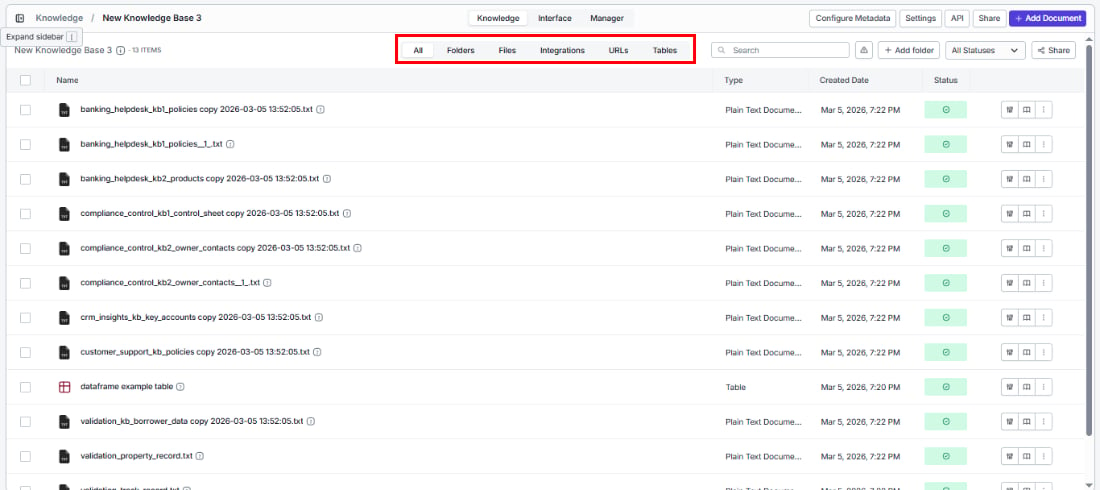 Quickly find what you're looking for by filtering documents by source:
| Tab | What you'll see |
| ------------ | ----------------------------------------------------------- |
| All | Every document regardless of source |
| Folders | Documents organized into folders within this knowledge base |
| Files | Documents added via file upload |
| Integrations | Documents synced from connected apps |
| URLs | Documents added via URL scraping |
| Tables | Documents indexed from VectorShift tables |
### Columns
| Column | What it shows |
| ------------ | ------------------------------------------------------------------- |
| Name | The document name (auto-generated from the file name and timestamp) |
| Type | The file type (e.g., Plain Text Document) |
| Created Date | When the document was added |
| Status | Current processing status |
### Status values
Know exactly where each document stands in the indexing process:
| Status | What it means |
| ---------- | -------------------------------------------------------------------------------- |
| Success | Ready to search — fully processed and indexed |
| Processing | In progress — being chunked, embedded, and indexed (shown as a spinner) |
| Failed | Something went wrong — click Retry to try again |
| Warning | Partial issues — shown for folders when one or more items inside failed to index |
You can filter the list to show only documents with a specific status by clicking the **All Statuses** dropdown above the table.
### Alert banners
In certain situations, the document list displays informational alert banners:
* **"Parent folder already selected to Sync"**: A parent folder is already queued for syncing. To customize indexing settings for individual items inside, remove the parent folder sync first.
* **"Items cannot be deleted individually"**: Documents inside a recursive URL folder can only be removed by deleting the entire folder.
### Other list controls
Quickly find what you're looking for by filtering documents by source:
| Tab | What you'll see |
| ------------ | ----------------------------------------------------------- |
| All | Every document regardless of source |
| Folders | Documents organized into folders within this knowledge base |
| Files | Documents added via file upload |
| Integrations | Documents synced from connected apps |
| URLs | Documents added via URL scraping |
| Tables | Documents indexed from VectorShift tables |
### Columns
| Column | What it shows |
| ------------ | ------------------------------------------------------------------- |
| Name | The document name (auto-generated from the file name and timestamp) |
| Type | The file type (e.g., Plain Text Document) |
| Created Date | When the document was added |
| Status | Current processing status |
### Status values
Know exactly where each document stands in the indexing process:
| Status | What it means |
| ---------- | -------------------------------------------------------------------------------- |
| Success | Ready to search — fully processed and indexed |
| Processing | In progress — being chunked, embedded, and indexed (shown as a spinner) |
| Failed | Something went wrong — click Retry to try again |
| Warning | Partial issues — shown for folders when one or more items inside failed to index |
You can filter the list to show only documents with a specific status by clicking the **All Statuses** dropdown above the table.
### Alert banners
In certain situations, the document list displays informational alert banners:
* **"Parent folder already selected to Sync"**: A parent folder is already queued for syncing. To customize indexing settings for individual items inside, remove the parent folder sync first.
* **"Items cannot be deleted individually"**: Documents inside a recursive URL folder can only be removed by deleting the entire folder.
### Other list controls
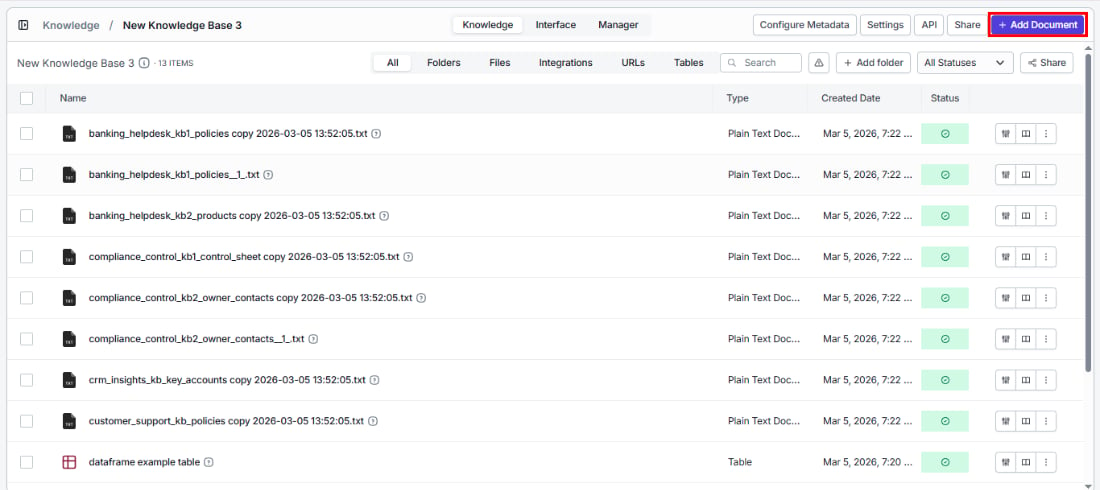 * **Search**: Find a document by name using the search bar.
* **+ Add folder**: Create a folder within the knowledge base to organize your documents. Folder names must be at least 3 characters long and can only contain letters, numbers, and underscores.
* **Share**: Share documents with other users.
* **+ Add Document**: Add more content directly — opens a dropdown with all available indexing options (upload files, add integration, scrape URL, etc.).
## Bulk actions
* **Search**: Find a document by name using the search bar.
* **+ Add folder**: Create a folder within the knowledge base to organize your documents. Folder names must be at least 3 characters long and can only contain letters, numbers, and underscores.
* **Share**: Share documents with other users.
* **+ Add Document**: Add more content directly — opens a dropdown with all available indexing options (upload files, add integration, scrape URL, etc.).
## Bulk actions
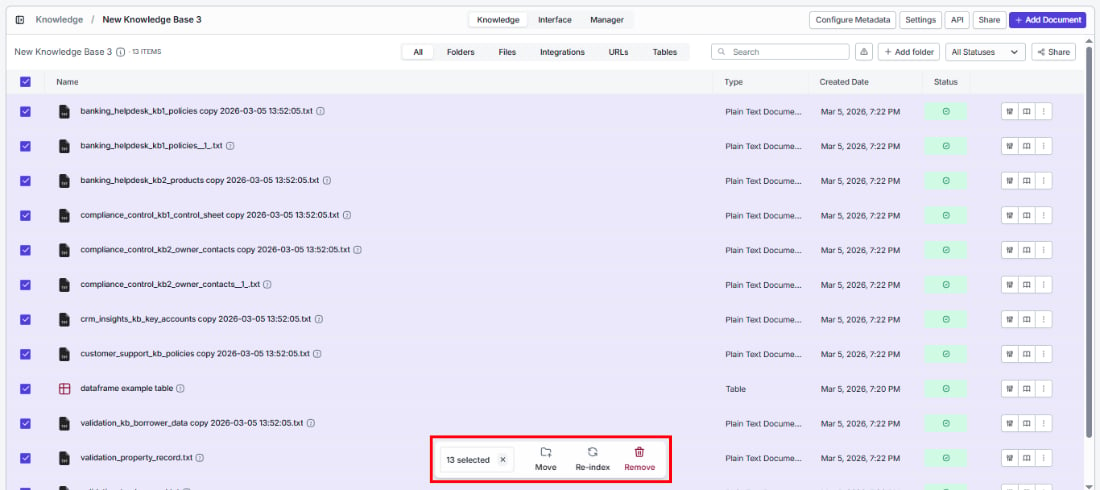 Save time by acting on multiple documents at once. Select documents using the checkboxes, then use the bulk action buttons:
| Action | What it does |
| ------- | ---------------------------------------------------------------------- |
| Reindex | Re-processes all selected documents with the current indexing settings |
| Move | Moves all selected documents to a folder within the knowledge base |
| Delete | Permanently removes all selected documents |
Click **Clear Selection** to deselect all documents.
## Actions on individual documents
Each document row has action icons on the right side and a three-dot menu.
Save time by acting on multiple documents at once. Select documents using the checkboxes, then use the bulk action buttons:
| Action | What it does |
| ------- | ---------------------------------------------------------------------- |
| Reindex | Re-processes all selected documents with the current indexing settings |
| Move | Moves all selected documents to a folder within the knowledge base |
| Delete | Permanently removes all selected documents |
Click **Clear Selection** to deselect all documents.
## Actions on individual documents
Each document row has action icons on the right side and a three-dot menu.
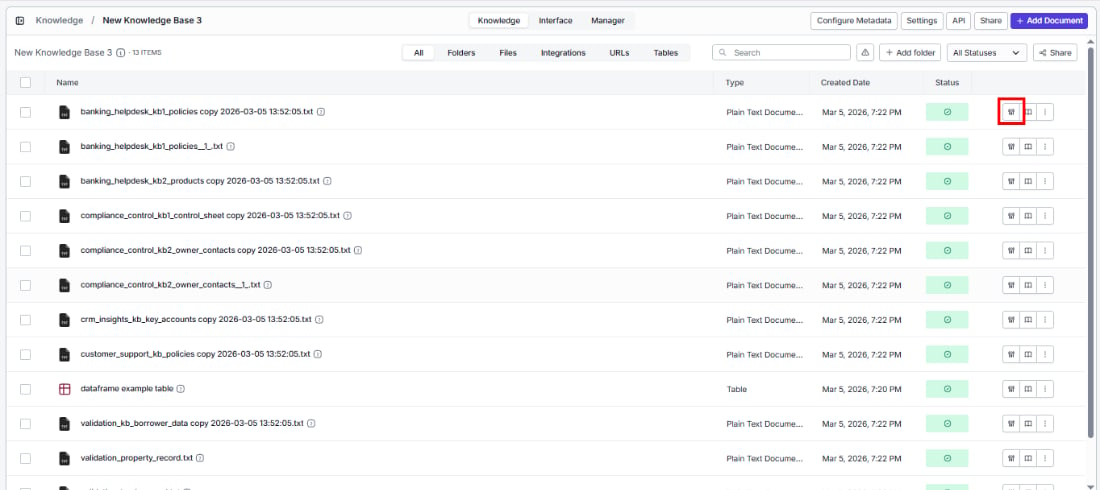 ### Configure item indexing
Need different processing for a specific document? Click the settings icon (first icon) to override the knowledge base defaults and reindex with custom settings — without affecting any other documents.
### Configure item indexing
Need different processing for a specific document? Click the settings icon (first icon) to override the knowledge base defaults and reindex with custom settings — without affecting any other documents.
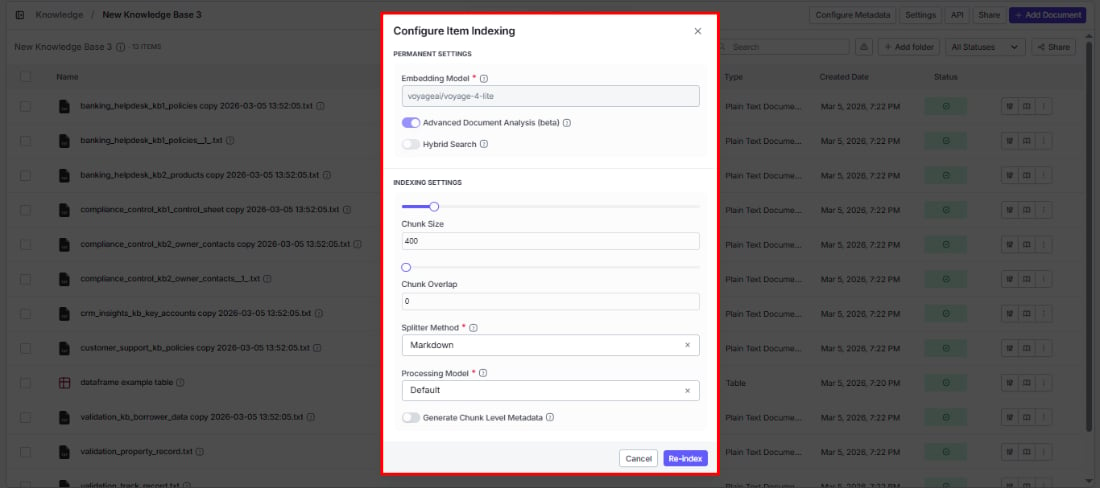 The dialog has two sections:
**Permanent settings**
These reflect the knowledge base-level settings. Some can be toggled per document:
1. **Embedding model**: Shows the model selected during knowledge base creation (read-only).
2. **Advanced document analysis (beta)**: Toggle on or off for this document.
3. **Hybrid search**: Toggle on or off for this document.
**Indexing settings**
Customize these for this specific document to improve its search results:
1. **Chunk size**: Adjust the slider or enter a value. Overrides the knowledge base default for this document only.
2. **Chunk overlap**: Adjust the slider or enter a value. Must be less than the chunk size.
3. **Splitter method**: Choose Sentence, Markdown, or Dynamic.
4. **Processing model**: Choose the processing model for this document.
Click **Re-index** to reprocess the document with the new settings, or **Cancel** to discard.
This is especially useful when one file type needs different handling — for example, a scanned PDF that needs Mistral OCR while your other docs work fine with the Default model.
### Item preview
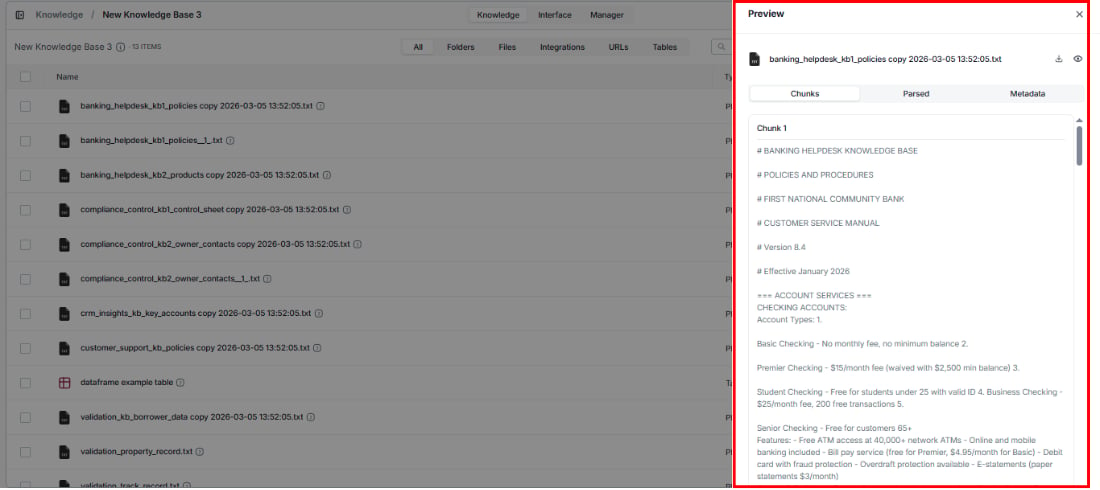
Verify how VectorShift processed your document — inspect chunks, parsed content, and metadata to make sure everything looks right. Open the preview by:
* Clicking the **preview icon** (second icon) on the document row
* Clicking directly on the **document name** in the list
Both open the same preview drawer with three tabs:
The dialog has two sections:
**Permanent settings**
These reflect the knowledge base-level settings. Some can be toggled per document:
1. **Embedding model**: Shows the model selected during knowledge base creation (read-only).
2. **Advanced document analysis (beta)**: Toggle on or off for this document.
3. **Hybrid search**: Toggle on or off for this document.
**Indexing settings**
Customize these for this specific document to improve its search results:
1. **Chunk size**: Adjust the slider or enter a value. Overrides the knowledge base default for this document only.
2. **Chunk overlap**: Adjust the slider or enter a value. Must be less than the chunk size.
3. **Splitter method**: Choose Sentence, Markdown, or Dynamic.
4. **Processing model**: Choose the processing model for this document.
Click **Re-index** to reprocess the document with the new settings, or **Cancel** to discard.
This is especially useful when one file type needs different handling — for example, a scanned PDF that needs Mistral OCR while your other docs work fine with the Default model.
### Item preview
Verify how VectorShift processed your document — inspect chunks, parsed content, and metadata to make sure everything looks right. Open the preview by:
* Clicking the **preview icon** (second icon) on the document row
* Clicking directly on the **document name** in the list
Both open the same preview drawer with three tabs:
 | Tab | How it helps |
| -------- | ---------------------------------------------------------------------------------------------------------- |
| Chunks | See how your content was divided — useful for diagnosing why search results may be too broad or too narrow |
| Parsed | View the extracted text as the processing model sees it — verify nothing was missed or misread |
| Metadata | Check the document's metadata, including any auto-generated fields — confirm tags are accurate |
For documents with a **Failed** status, the preview icon is replaced with a **Retry** button. Click it to retry indexing.
### Three-dot menu
| Tab | How it helps |
| -------- | ---------------------------------------------------------------------------------------------------------- |
| Chunks | See how your content was divided — useful for diagnosing why search results may be too broad or too narrow |
| Parsed | View the extracted text as the processing model sees it — verify nothing was missed or misread |
| Metadata | Check the document's metadata, including any auto-generated fields — confirm tags are accurate |
For documents with a **Failed** status, the preview icon is replaced with a **Retry** button. Click it to retry indexing.
### Three-dot menu
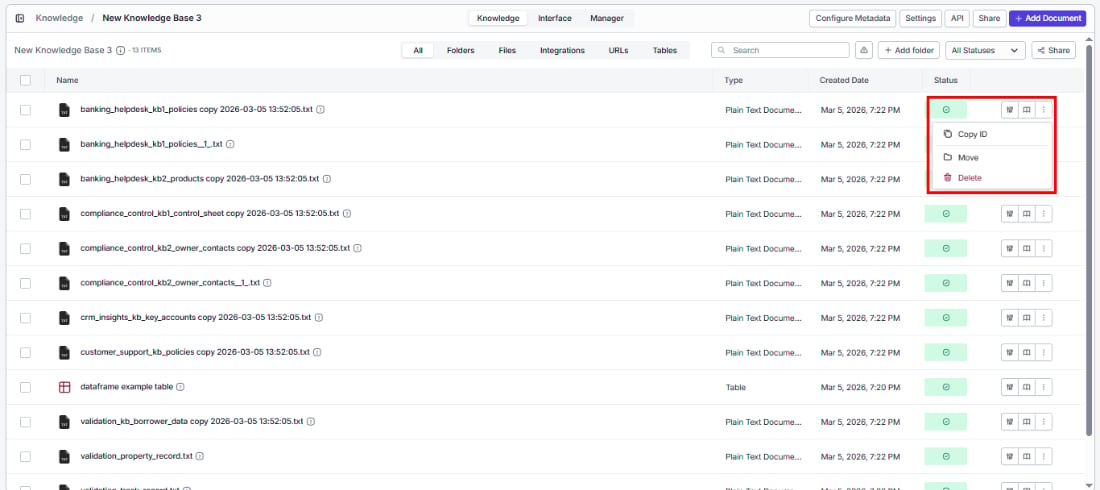 Click the three-dot icon (last icon) to access additional options:
| Option | What you can do |
| ------- | --------------------------------------------------------------------------------------------------------- |
| Copy ID | Copy the document's unique identifier to your clipboard — useful for API calls or pipeline configurations |
| Move | Organize by moving the document to a folder within this knowledge base |
| Delete | Permanently remove the document from the knowledge base |
Click the three-dot icon (last icon) to access additional options:
| Option | What you can do |
| ------- | --------------------------------------------------------------------------------------------------------- |
| Copy ID | Copy the document's unique identifier to your clipboard — useful for API calls or pipeline configurations |
| Move | Organize by moving the document to a folder within this knowledge base |
| Delete | Permanently remove the document from the knowledge base |