> ## Documentation Index
> Fetch the complete documentation index at: https://docs.vectorshift.ai/llms.txt
> Use this file to discover all available pages before exploring further.
# Embed on a website
> Add a collapsible chat widget to any website using a script tag or iFrame
Embedding your chatbot places a collapsible chat widget directly on your website. Visitors see a launcher button in the corner of the page, click it, and start chatting without leaving your site. VectorShift provides two embed methods: a script tag (preferred) and an iFrame fallback.
## Prerequisites
Your chatbot must be deployed before the embed code will work. Open the chatbot builder, go to the **Export** tab, and toggle **Deployment Enabled** to on. See [Share via link](/platform/interfaces/chatbots/export-link) for details.
## Two embed methods
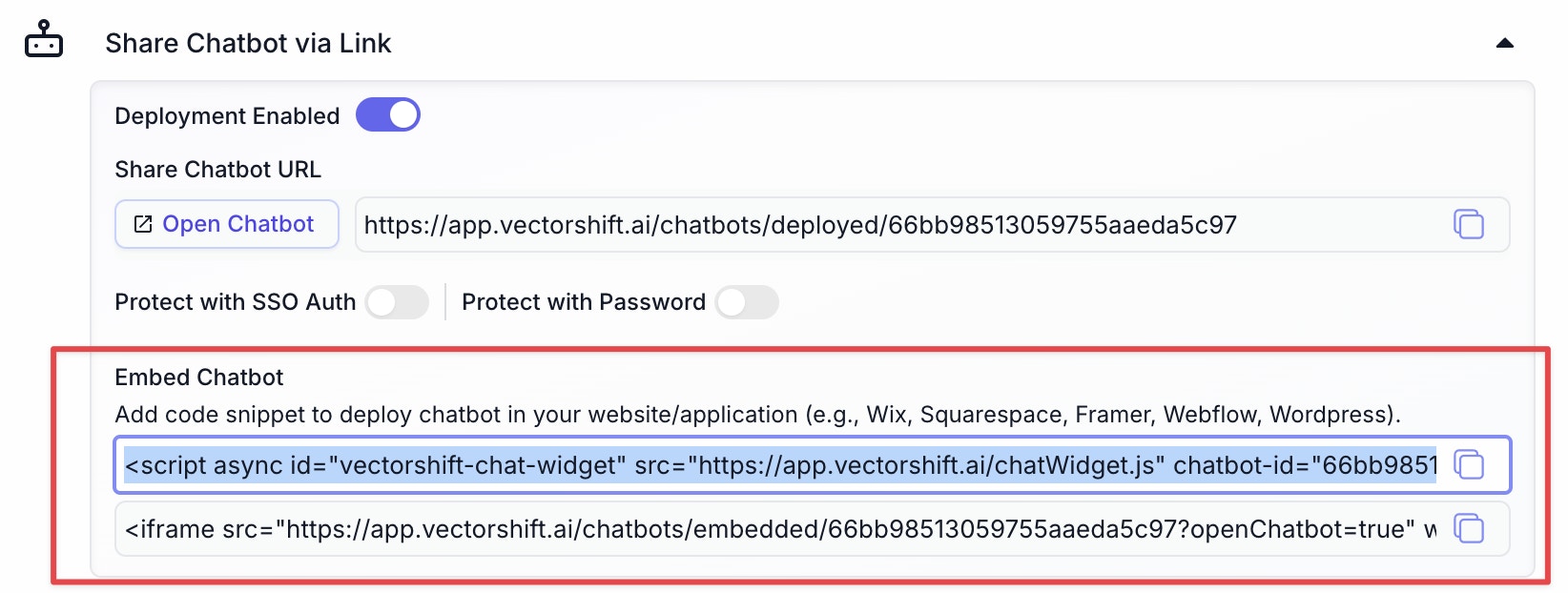
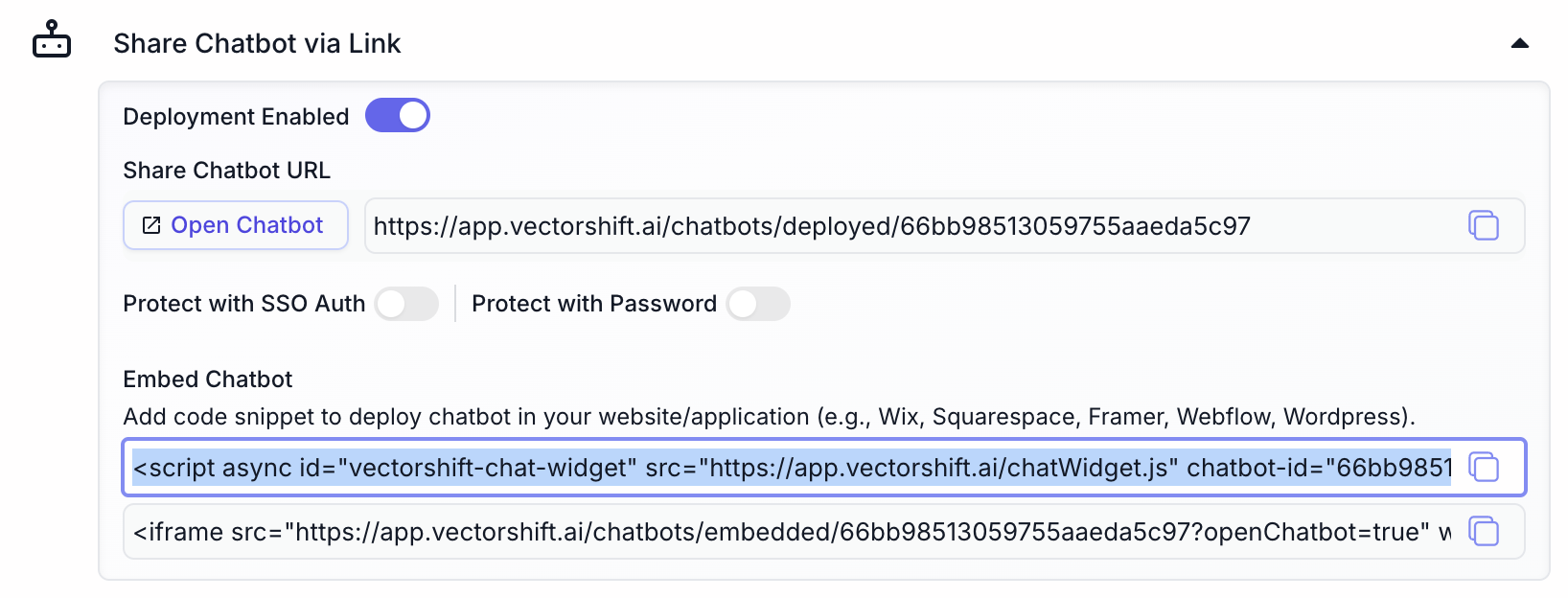
In the **Export** tab of the chatbot builder, you will find two code snippets:
### Script tag (preferred)
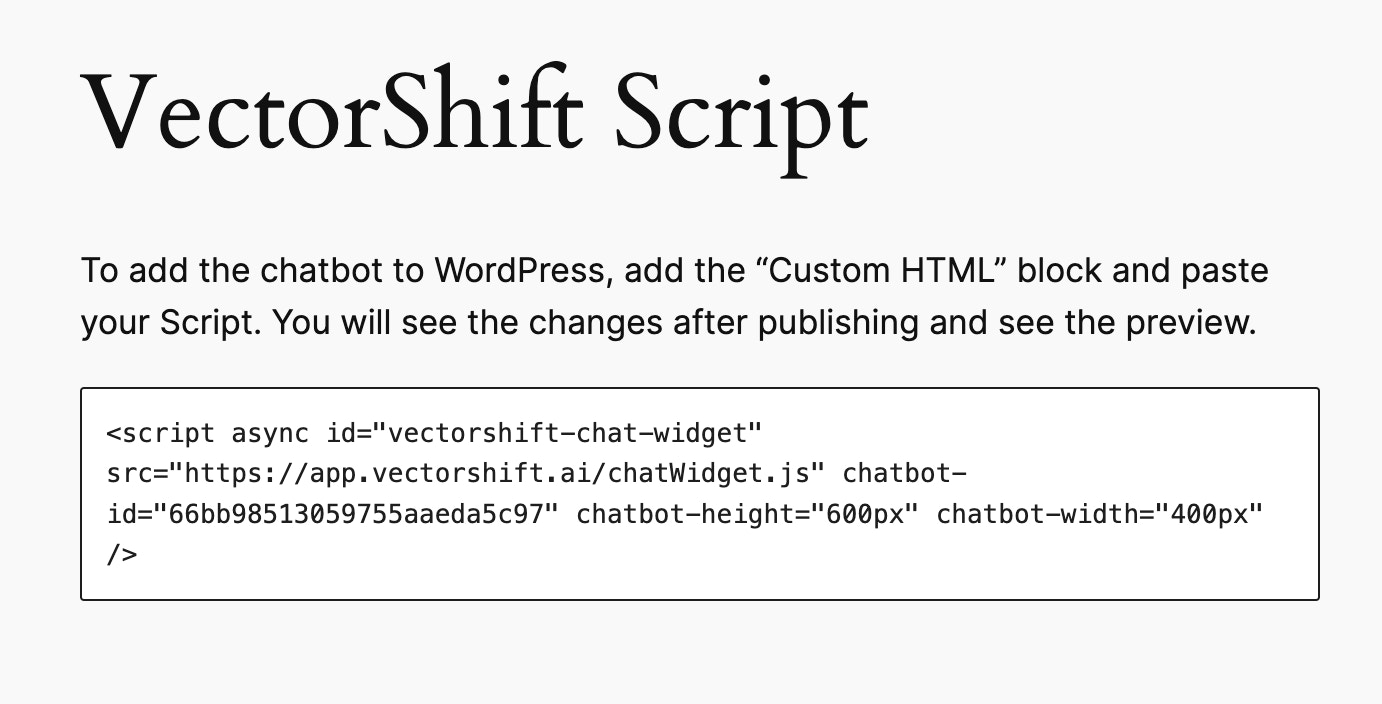
The script tag creates a collapsible chat widget that floats in the corner of the page. Users can open and close it without it blocking your website content. The snippet includes your chatbot ID and optional width/height attributes.
```html theme={"languages":{}}
```
### iFrame fallback
The iFrame method works with any website builder, including platforms like the Wix free plan that restrict external scripts. The iFrame renders the chatbot inline on the page rather than as a floating widget.
```html theme={"languages":{}}
```
The `allow="clipboard-read; clipboard-write; microphone"` attribute is required for clipboard operations and voice input to work inside the iFrame. Do not remove it.
## WordPress
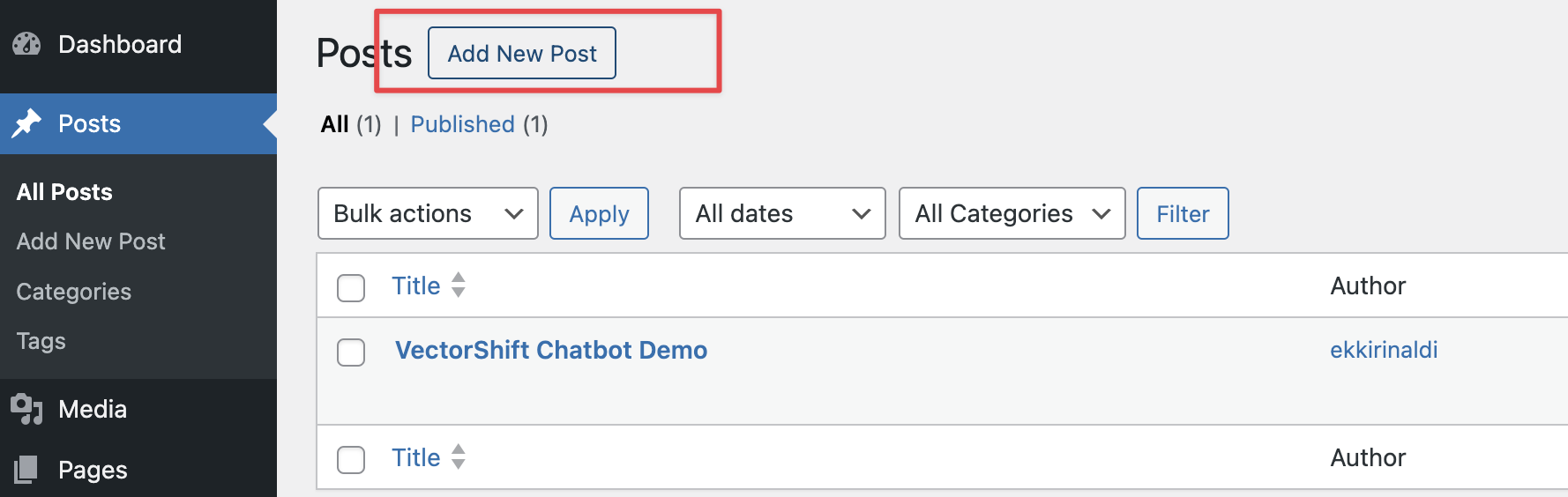
### Step 1. Open your WordPress Admin and create a post (or page)
Navigate to your WordPress dashboard and create a new post or open an existing one where you want the chatbot to appear.
 ### Step 2. Add a Custom HTML block
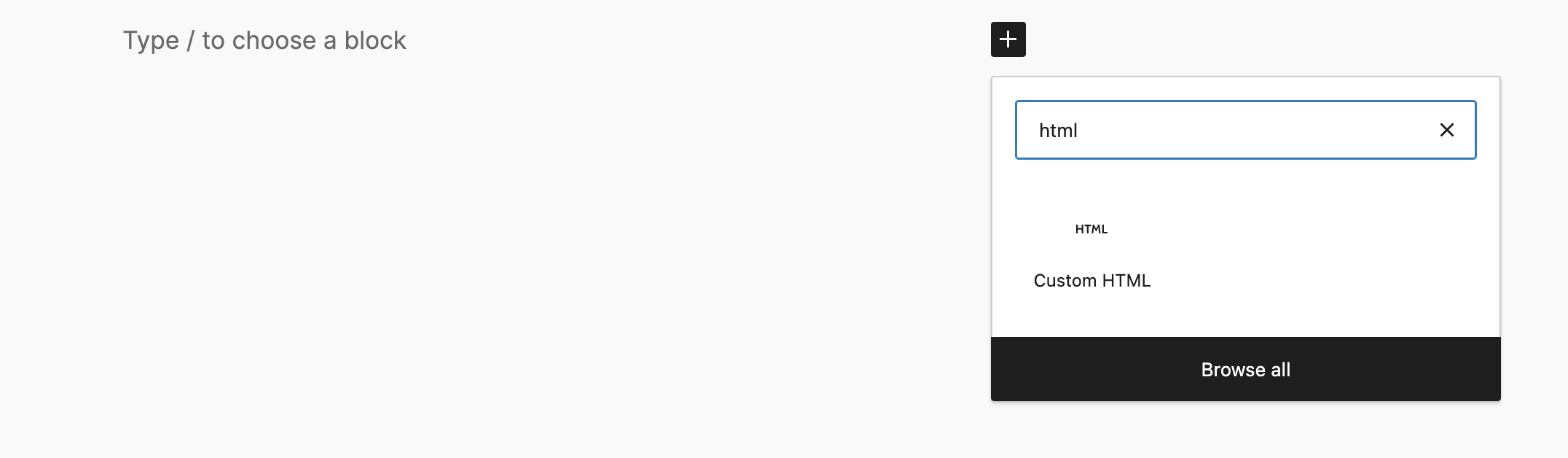
In the block editor, click the **+** button and search for **Custom HTML**. Add the block to your post.
### Step 2. Add a Custom HTML block
In the block editor, click the **+** button and search for **Custom HTML**. Add the block to your post.
 ### Step 3. Copy the script embed code from VectorShift
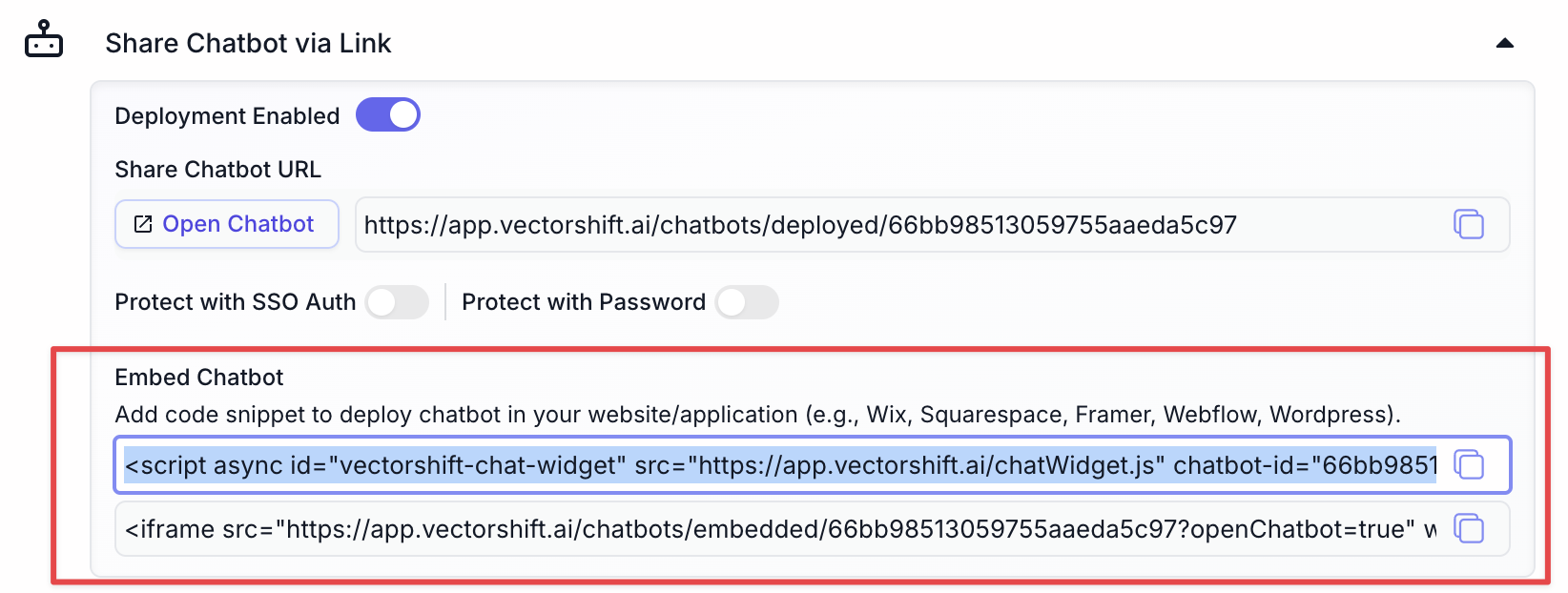
In the chatbot builder's Export tab, copy the first embed snippet (the script tag). This creates a collapsible widget that will not block your website content.
Some websites do not allow scripts. If the script does not work on your website, copy the iFrame snippet in the second row instead.
### Step 3. Copy the script embed code from VectorShift
In the chatbot builder's Export tab, copy the first embed snippet (the script tag). This creates a collapsible widget that will not block your website content.
Some websites do not allow scripts. If the script does not work on your website, copy the iFrame snippet in the second row instead.
 ### Step 4. Paste the code into the Custom HTML block
 ### Step 5. Publish and test
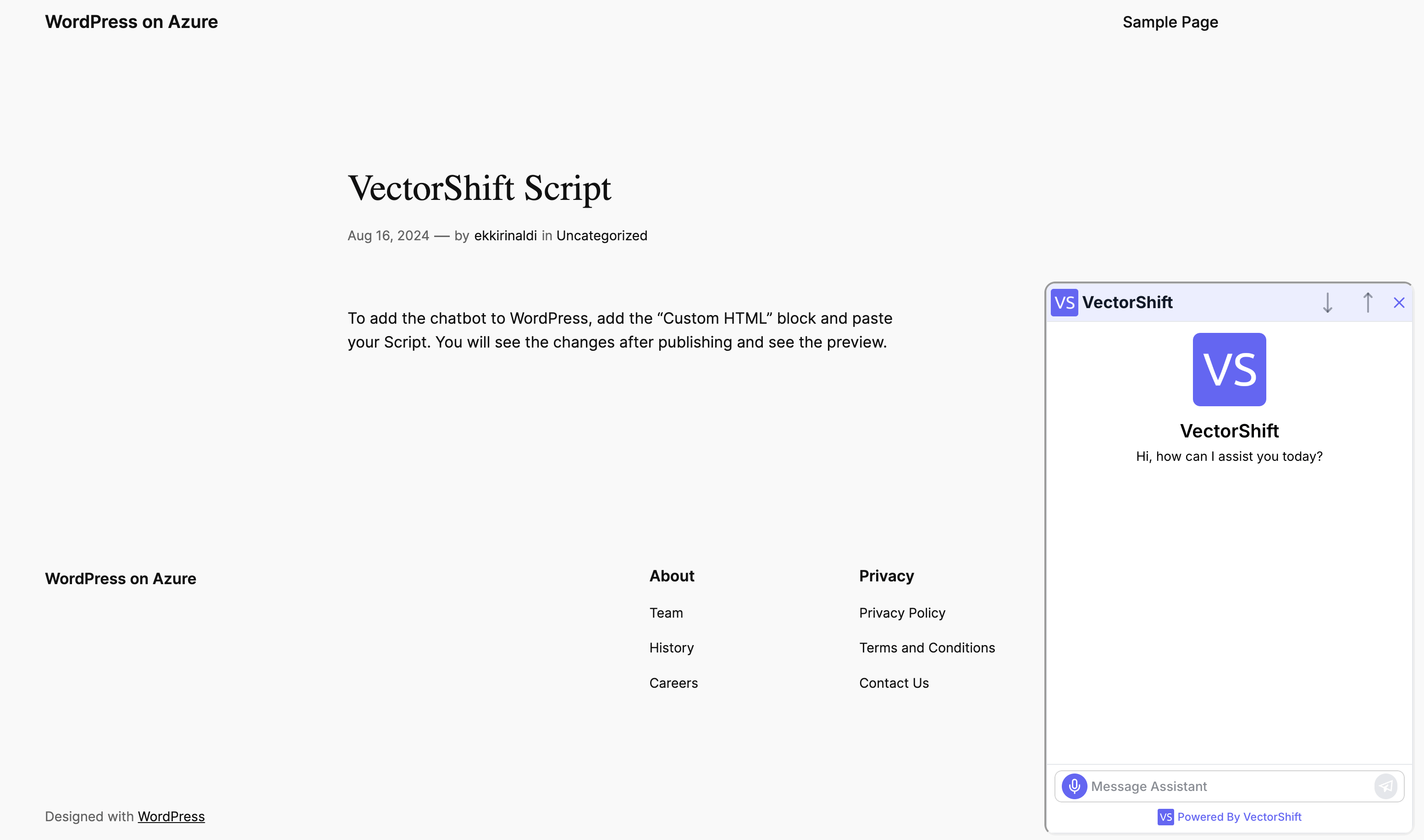
Publish the post and view it in your browser. You should see the chatbot launcher in the corner of the page.
### Step 5. Publish and test
Publish the post and view it in your browser. You should see the chatbot launcher in the corner of the page.
 ### Step 6. Embed in the site footer (optional)
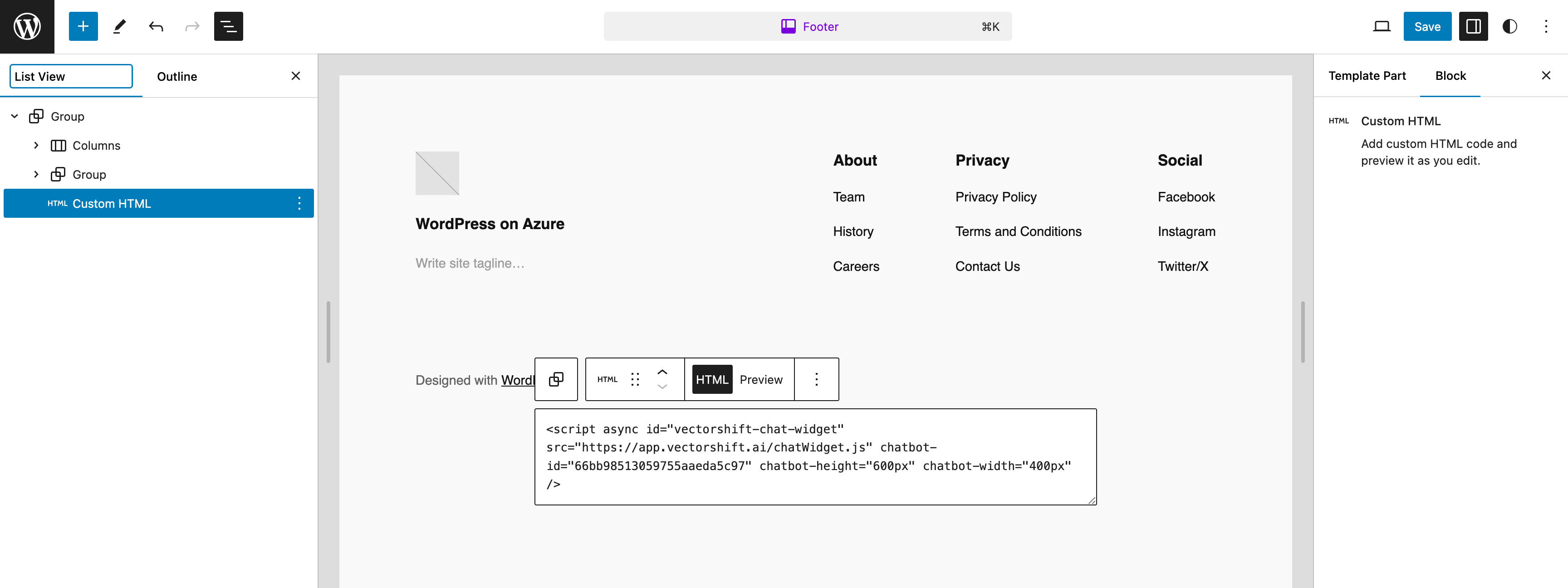
To make the chatbot available on every page of your website, paste the script tag into your theme's footer widget or footer HTML section instead of a single post.
### Step 6. Embed in the site footer (optional)
To make the chatbot available on every page of your website, paste the script tag into your theme's footer widget or footer HTML section instead of a single post.
 ## Wix
### Step 1. Open the Wix Editor
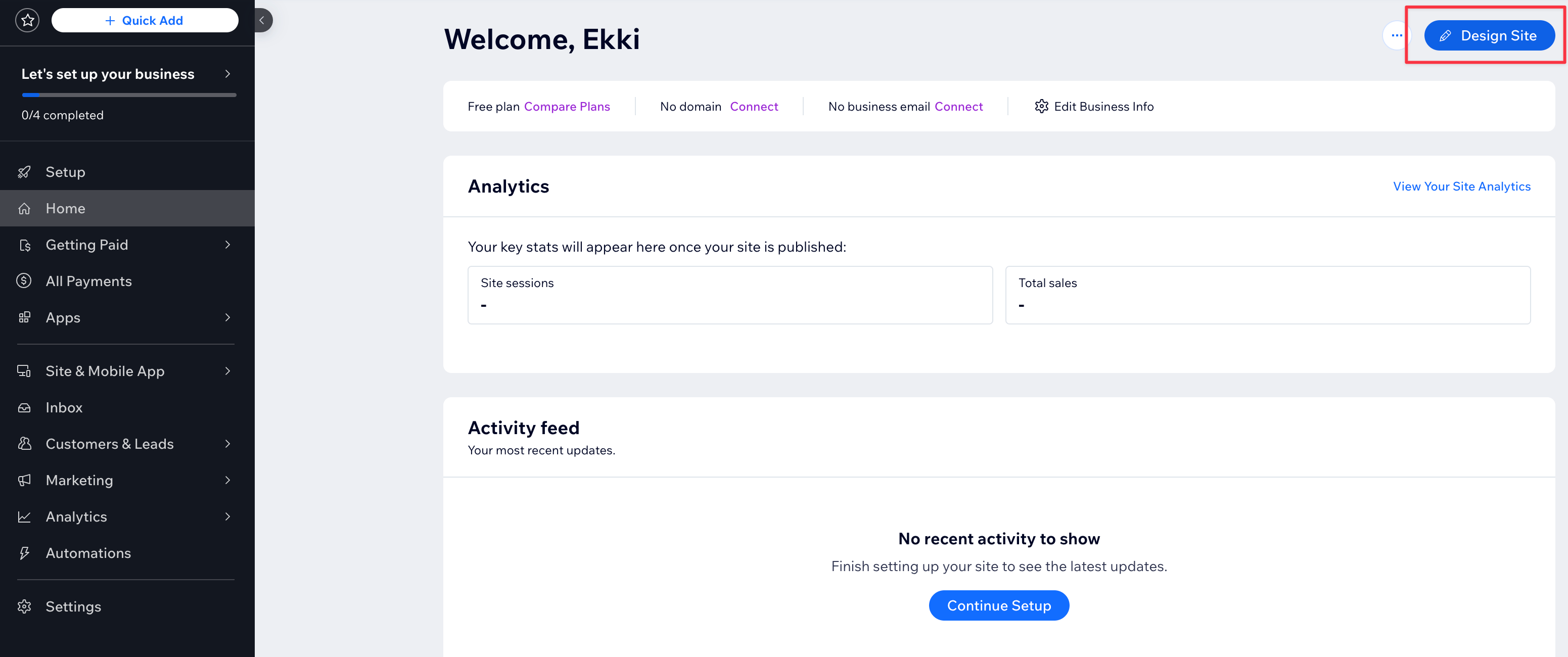
Log into your Wix account and click **Edit Site** to open the drag-and-drop editor.
## Wix
### Step 1. Open the Wix Editor
Log into your Wix account and click **Edit Site** to open the drag-and-drop editor.
 ### Step 2. Add an Embed HTML element
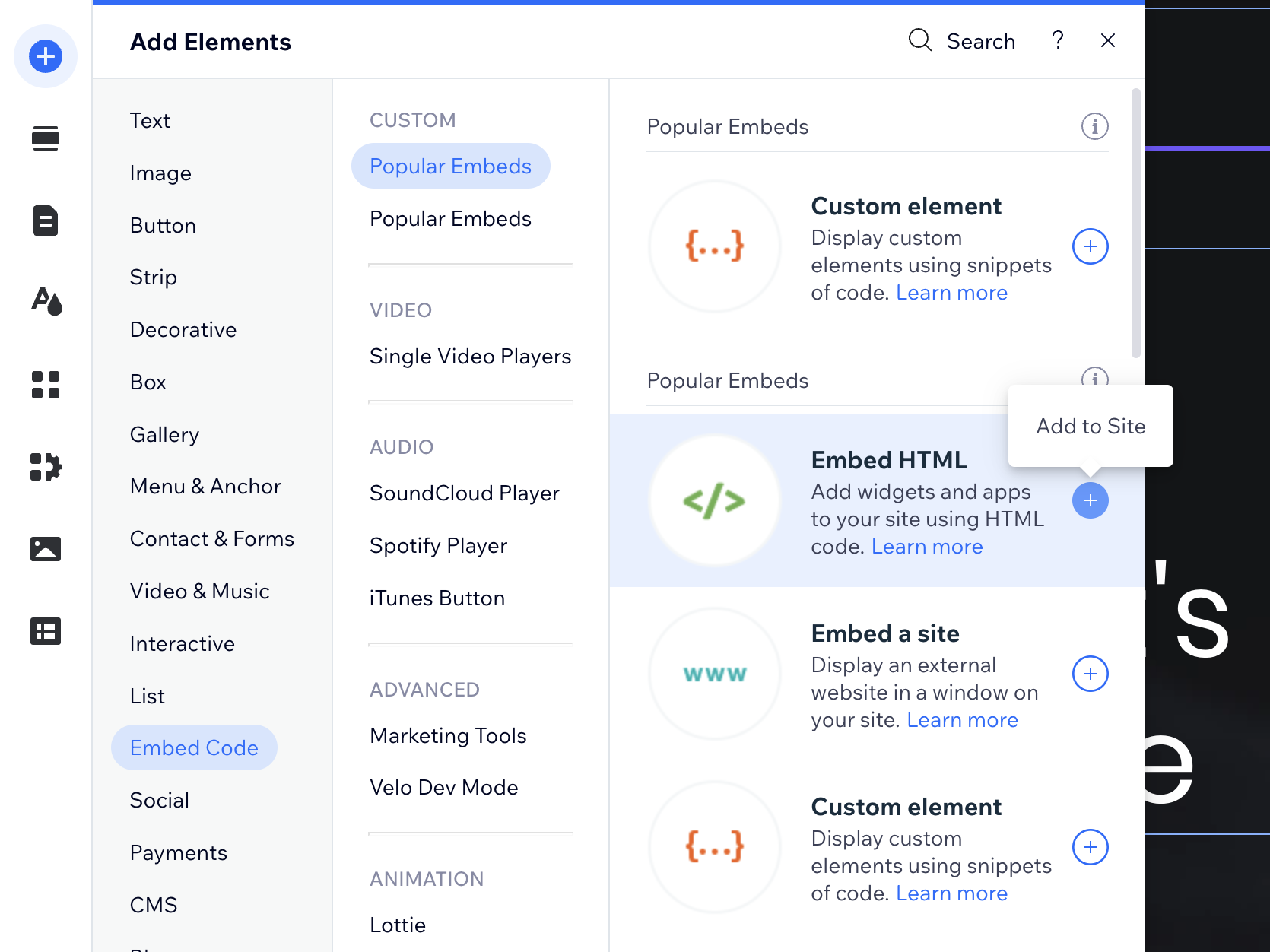
Click **Add** in the left panel, then search for and add an **Embed HTML** element to your page.
### Step 2. Add an Embed HTML element
Click **Add** in the left panel, then search for and add an **Embed HTML** element to your page.
 ### Step 3. Copy the iFrame embed code
For Wix, use the **iFrame** snippet (the second option in the Export tab). The Wix free plan does not support external script tags, so the iFrame method is the most reliable choice.
### Step 3. Copy the iFrame embed code
For Wix, use the **iFrame** snippet (the second option in the Export tab). The Wix free plan does not support external script tags, so the iFrame method is the most reliable choice.
 ### Step 4. Paste and resize
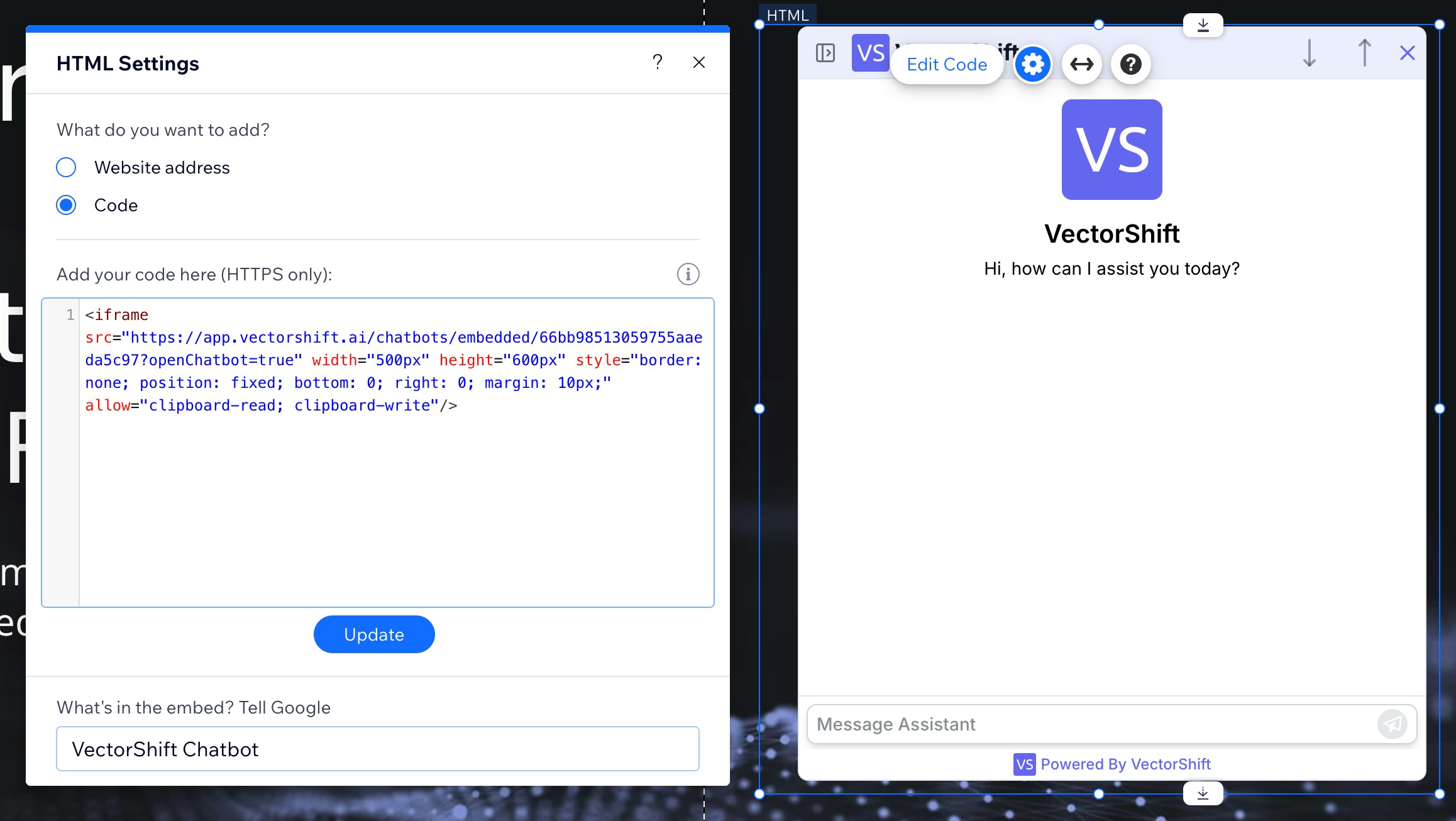
Paste the iFrame code into the Embed HTML element. Drag the element's handles to make the chatbot fully visible on the page.
### Step 4. Paste and resize
Paste the iFrame code into the Embed HTML element. Drag the element's handles to make the chatbot fully visible on the page.
 ### Step 5. Publish and test
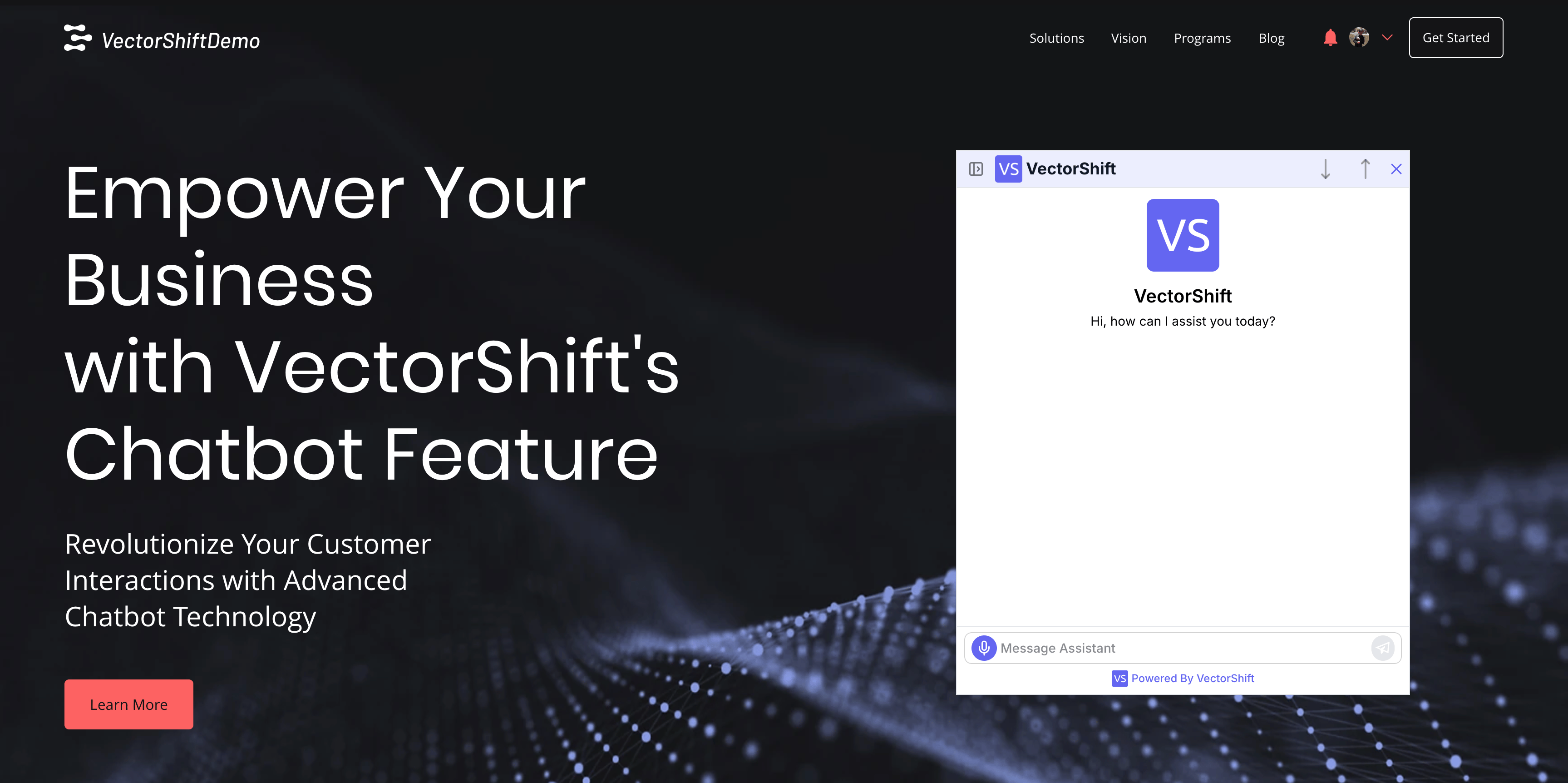
Click **Publish** and open your live site. The chatbot should appear inline where you placed the embed element.
### Step 5. Publish and test
Click **Publish** and open your live site. The chatbot should appear inline where you placed the embed element.
 ## Bubble.io
### Step 1. Open the Bubble.io editor
Log into your Bubble.io account and open the app you want to add the chatbot to.
### Step 2. Add an HTML element in the UI Builder
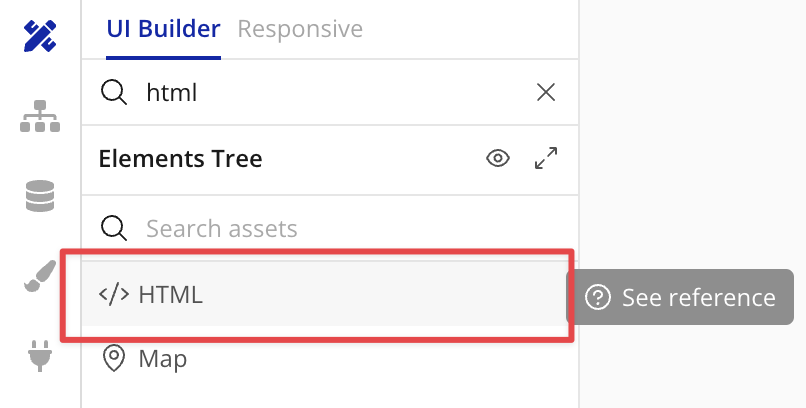
In the Bubble.io UI Builder, drag an **HTML** element onto your page.
## Bubble.io
### Step 1. Open the Bubble.io editor
Log into your Bubble.io account and open the app you want to add the chatbot to.
### Step 2. Add an HTML element in the UI Builder
In the Bubble.io UI Builder, drag an **HTML** element onto your page.
 ### Step 3. Copy the script embed code
Copy the first embed snippet (the script tag) from the Export tab in VectorShift. Bubble.io supports script tags, so this creates a collapsible widget.
Some websites do not allow scripts. If the script does not work on your website, use the iFrame snippet instead.
### Step 3. Copy the script embed code
Copy the first embed snippet (the script tag) from the Export tab in VectorShift. Bubble.io supports script tags, so this creates a collapsible widget.
Some websites do not allow scripts. If the script does not work on your website, use the iFrame snippet instead.
 ### Step 4. Paste the code and enable "Display as an iFrame"
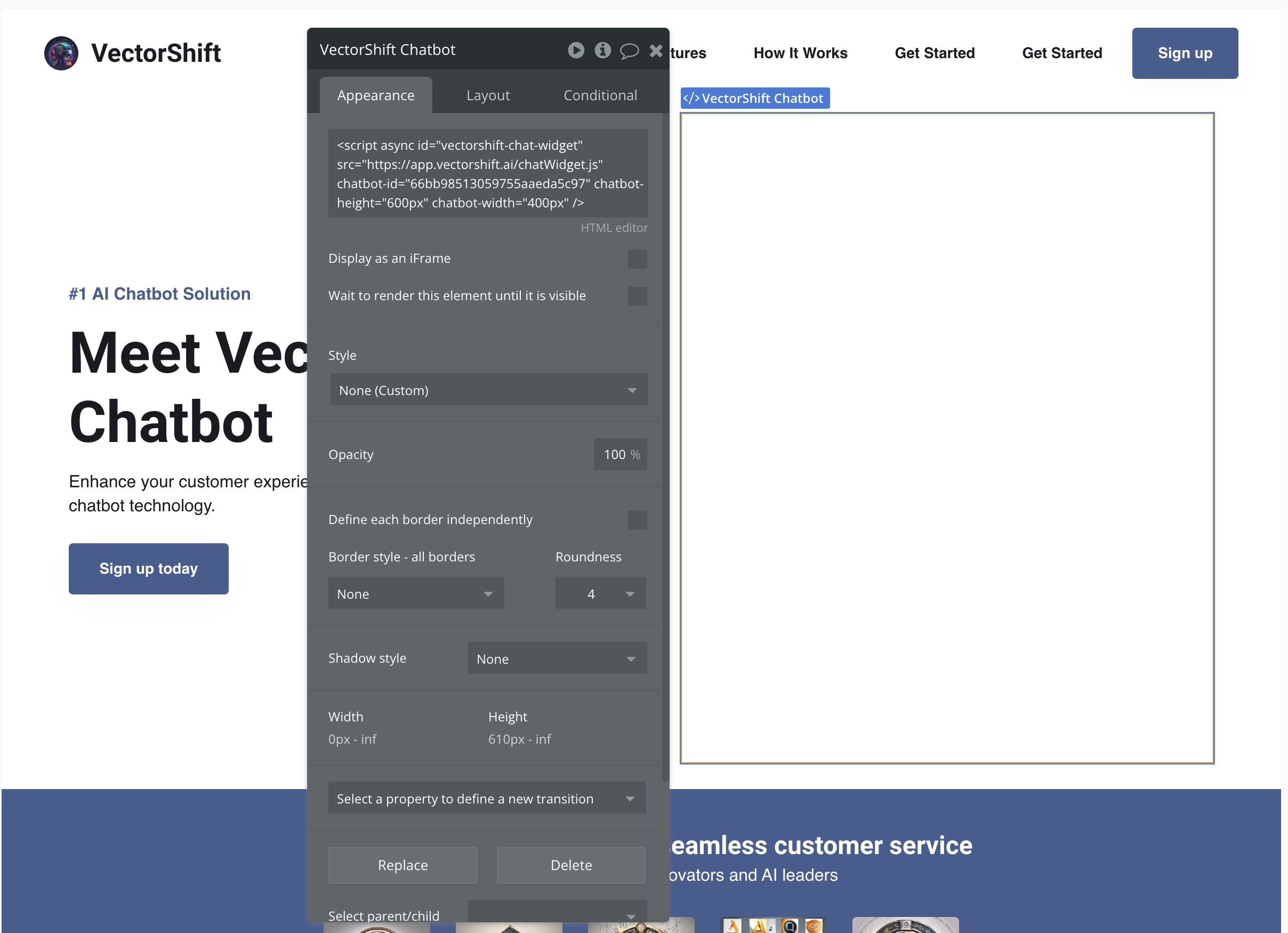
Paste the snippet into the HTML element. Check the **Display as an iFrame** option in the element settings.
### Step 4. Paste the code and enable "Display as an iFrame"
Paste the snippet into the HTML element. Check the **Display as an iFrame** option in the element settings.
 ### Step 5. Configure the layout
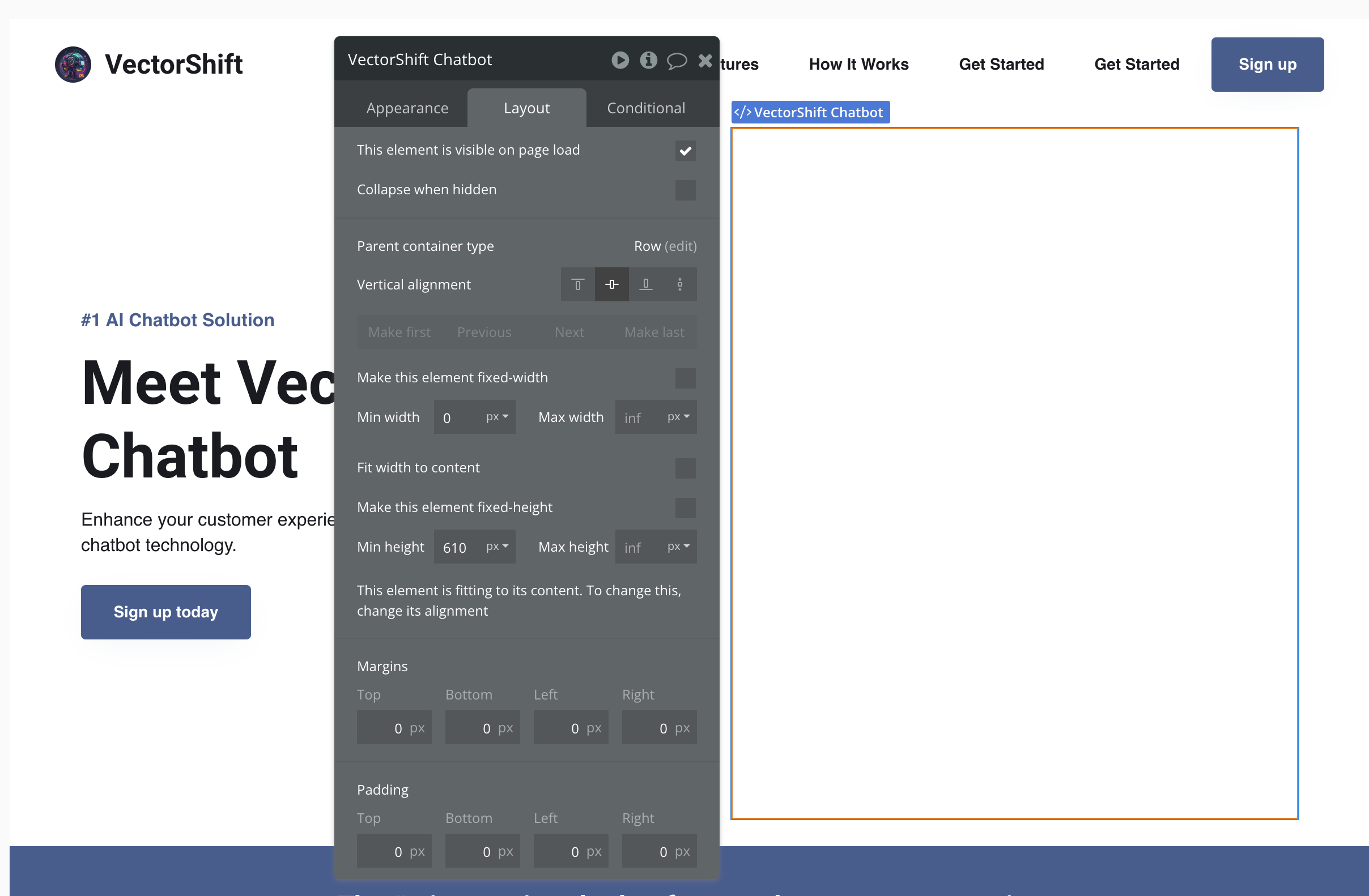
In the **Layout** tab of the element settings, set the minimum height to `610px` to ensure the chatbot is fully visible.
### Step 5. Configure the layout
In the **Layout** tab of the element settings, set the minimum height to `610px` to ensure the chatbot is fully visible.
 ### Step 6. Publish and test
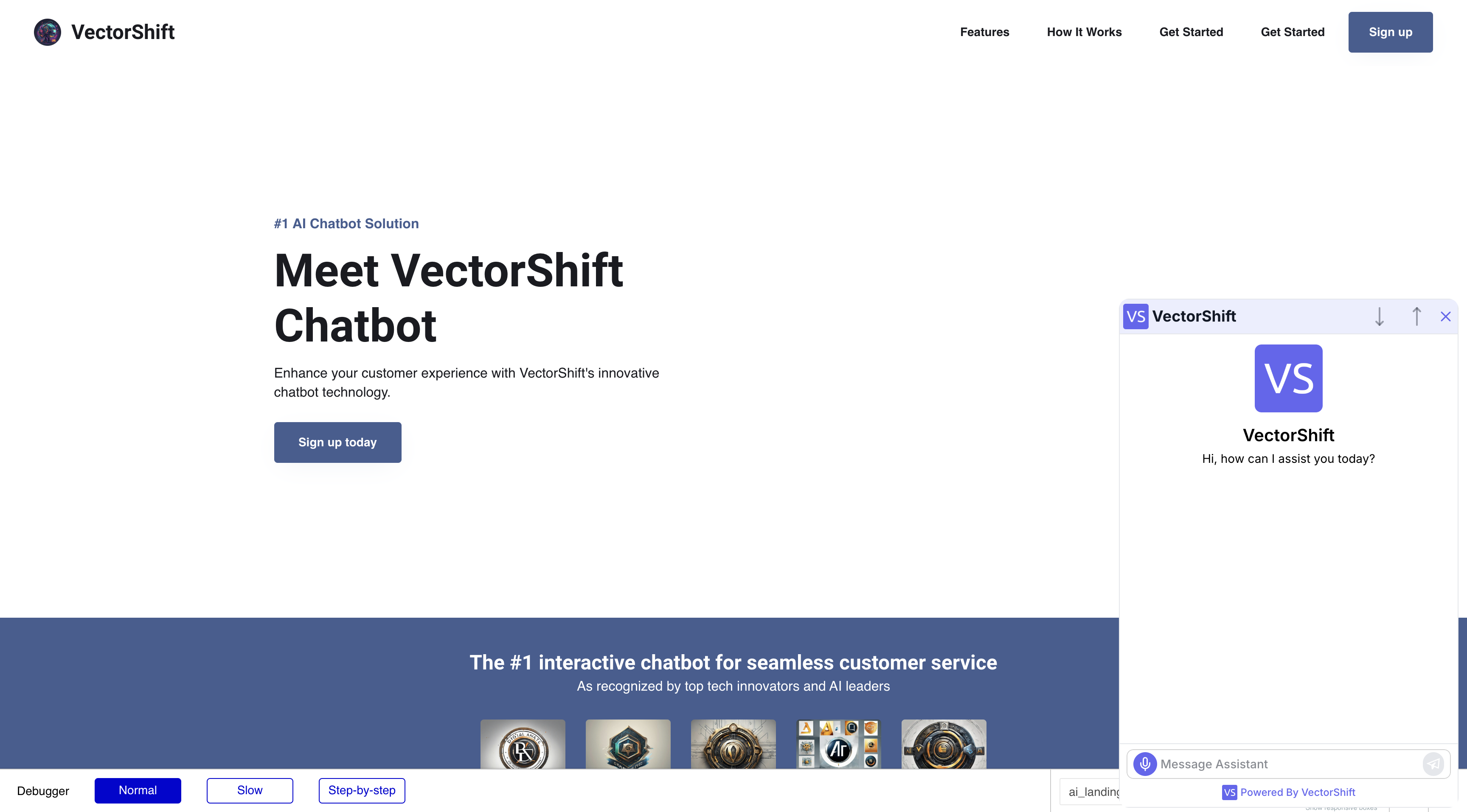
Click **Preview** or **Deploy** to see the chatbot running on your Bubble.io app.
### Step 6. Publish and test
Click **Preview** or **Deploy** to see the chatbot running on your Bubble.io app.
 ## Troubleshooting
* **The widget does not appear.** Make sure the chatbot is deployed (Deployment Enabled is on). Check your browser's developer console for script errors.
* **The chatbot loads but voice input does not work in the iFrame.** Verify that the `allow="clipboard-read; clipboard-write; microphone"` attribute is present on the `
## Troubleshooting
* **The widget does not appear.** Make sure the chatbot is deployed (Deployment Enabled is on). Check your browser's developer console for script errors.
* **The chatbot loads but voice input does not work in the iFrame.** Verify that the `allow="clipboard-read; clipboard-write; microphone"` attribute is present on the `