> ## Documentation Index
> Fetch the complete documentation index at: https://docs.vectorshift.ai/llms.txt
> Use this file to discover all available pages before exploring further.
# Share via link
> Generate a shareable URL for your chatbot with optional access control
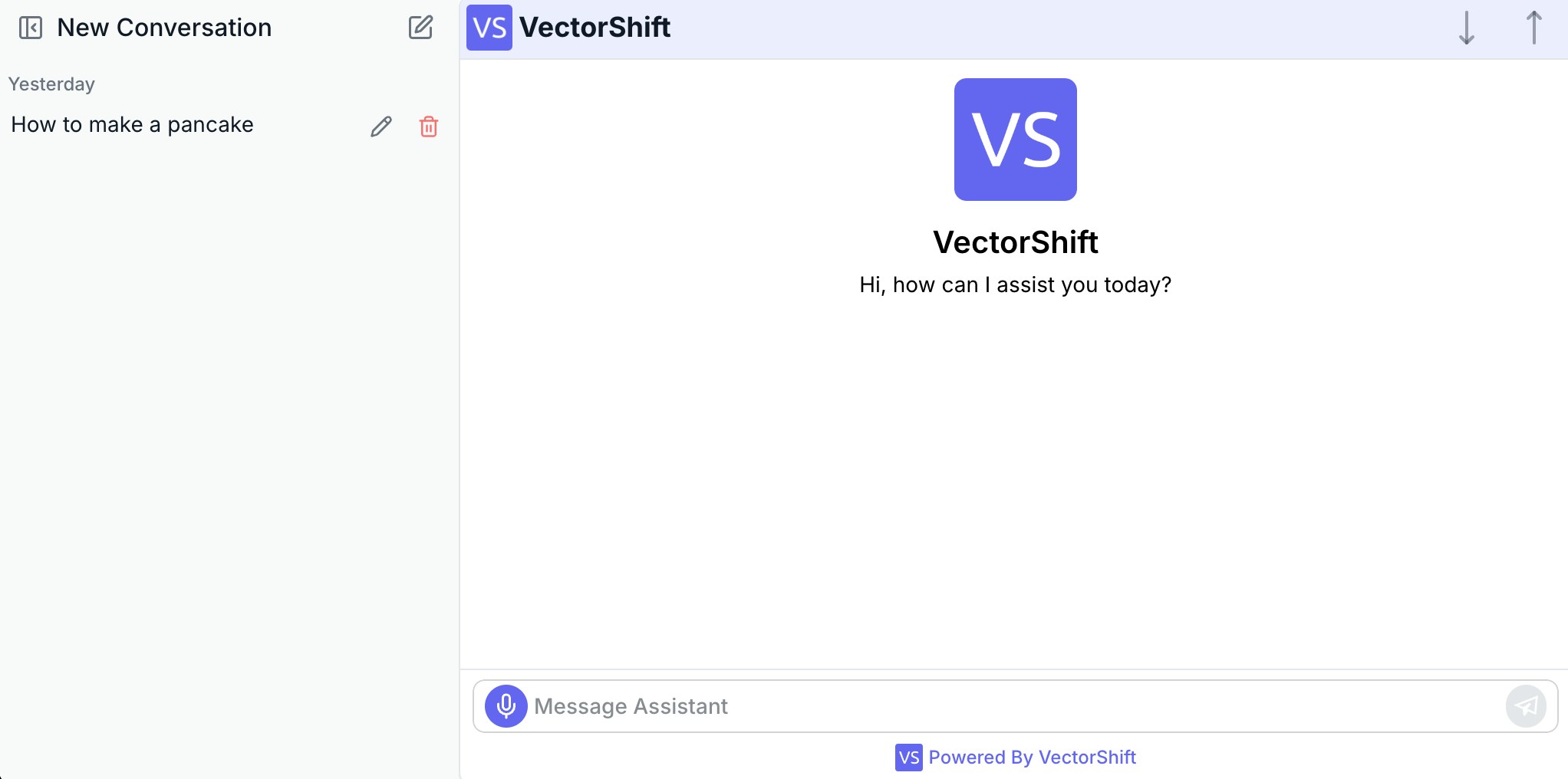
The quickest way to get your chatbot in front of users is to share a direct link. VectorShift generates a unique URL for every chatbot. You send the link, they open it, and they are chatting immediately. You can also protect the link with SSO or a password so only authorized people can access it.
## Prerequisites
Your chatbot must be deployed before the share link will work. Open the chatbot builder, go to the **Export** tab, and toggle **Deployment Enabled** to on. The chatbot URL is only live while deployment is enabled.
## Step 1. Enable deployment and copy the link
In the chatbot builder, open the **Export** tab. The first section you see is the share link panel.
* Toggle **Deployment Enabled** to make the chatbot live. When this toggle is off, anyone visiting the URL will see an error page.
* The **Share Chatbot URL** field shows your chatbot's unique link. Click **Open Chatbot** to test it in a new tab, or copy the URL to share it directly.
The URL follows this format: `https://app.vectorshift.ai/chatbots/deployed/{chatbot_id}`
 ## Step 2. Configure access control (optional)
By default, anyone with the link can access your chatbot. If you need to restrict access, you have two options. SSO and password protection are mutually exclusive: enabling one disables the other.
### Protect with SSO
Toggle **Protect with SSO Auth** to require users to log into VectorShift before they can access the chatbot. When a user opens the link, they are redirected to VectorShift's login page and sent back to the chatbot after authentication.
You can customize the access denied page that users see if they do not have permission:
* **Access Permission Text** (default: "You do not have permission to access this chatbot.")
* **Access Contact Text** (default: "Please contact the owner to request access")
## Step 2. Configure access control (optional)
By default, anyone with the link can access your chatbot. If you need to restrict access, you have two options. SSO and password protection are mutually exclusive: enabling one disables the other.
### Protect with SSO
Toggle **Protect with SSO Auth** to require users to log into VectorShift before they can access the chatbot. When a user opens the link, they are redirected to VectorShift's login page and sent back to the chatbot after authentication.
You can customize the access denied page that users see if they do not have permission:
* **Access Permission Text** (default: "You do not have permission to access this chatbot.")
* **Access Contact Text** (default: "Please contact the owner to request access")
 ### Protect with password
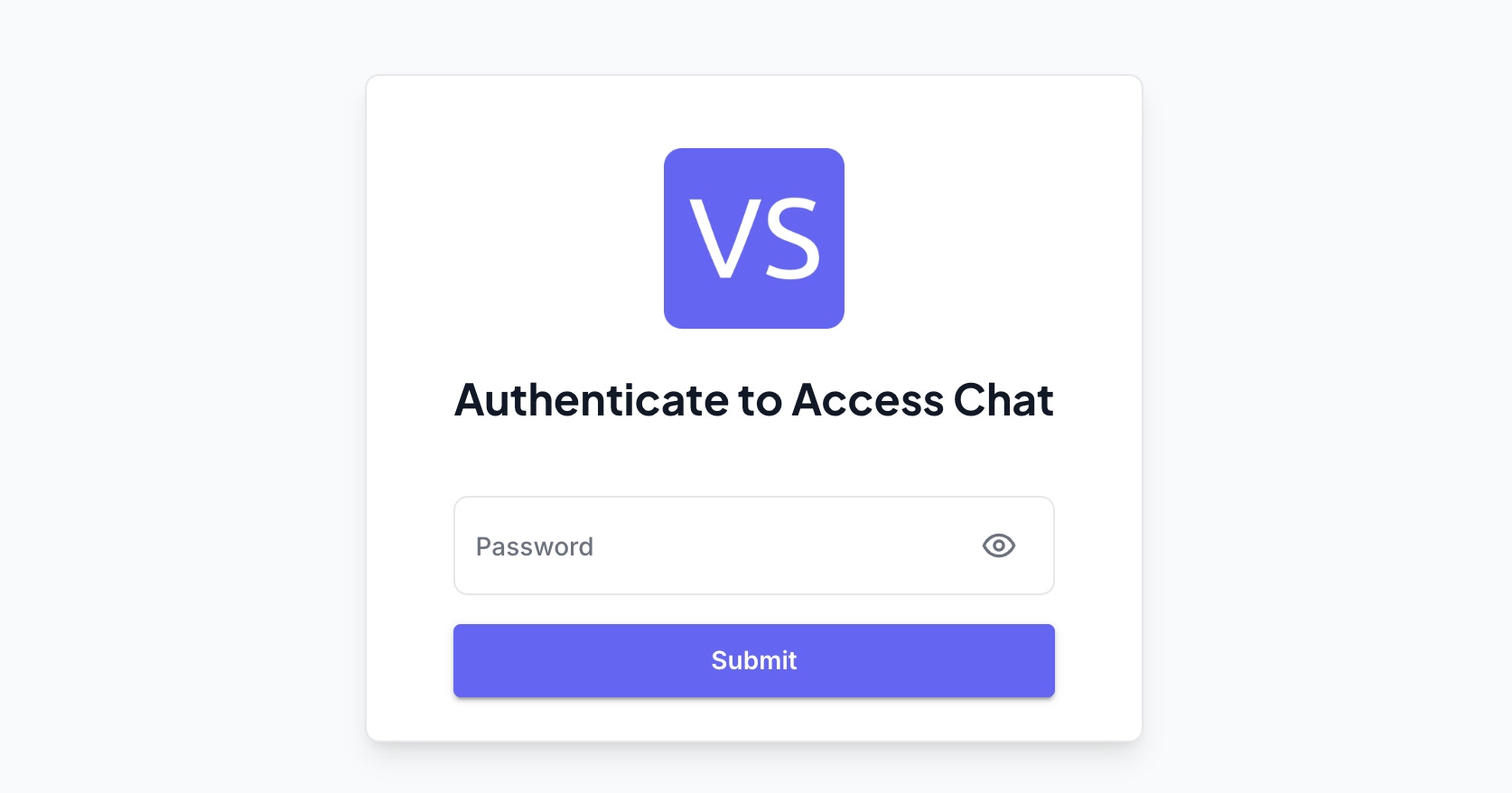
Toggle **Protect with Password** to require a password before users can chat. When enabled, visitors see a custom login screen where they enter the password you set.
You can customize the login page appearance:
* **Login Header** (default: "Authenticate to Chatbot")
* **Login Password Text** (default: "Password")
* **Login Button Text** (default: "Submit")
* **Locked-Out Message** (default: "You do not have permission to access this chatbot.")
### Protect with password
Toggle **Protect with Password** to require a password before users can chat. When enabled, visitors see a custom login screen where they enter the password you set.
You can customize the login page appearance:
* **Login Header** (default: "Authenticate to Chatbot")
* **Login Password Text** (default: "Password")
* **Login Button Text** (default: "Submit")
* **Locked-Out Message** (default: "You do not have permission to access this chatbot.")
 ## Step 3. Test the link
Open the URL in an incognito or private browser window to see exactly what your users will experience. If you enabled SSO, you should be prompted to log in. If you set a password, you should see the custom login screen.
## Undeploying
To take the chatbot offline, toggle **Deployment Enabled** back to off. The URL will immediately stop working. You can re-enable it at any time without losing your chatbot's configuration or conversation history.
## Next steps
If you want to embed the chatbot directly on your website instead of sharing a standalone link, see [Embed on a website](/platform/interfaces/chatbots/export-script).
Add a collapsible chat widget using a script tag or iFrame
Track usage and review conversations
## Step 3. Test the link
Open the URL in an incognito or private browser window to see exactly what your users will experience. If you enabled SSO, you should be prompted to log in. If you set a password, you should see the custom login screen.
## Undeploying
To take the chatbot offline, toggle **Deployment Enabled** back to off. The URL will immediately stop working. You can re-enable it at any time without losing your chatbot's configuration or conversation history.
## Next steps
If you want to embed the chatbot directly on your website instead of sharing a standalone link, see [Embed on a website](/platform/interfaces/chatbots/export-script).
Add a collapsible chat widget using a script tag or iFrame
Track usage and review conversations