> ## Documentation Index
> Fetch the complete documentation index at: https://docs.vectorshift.ai/llms.txt
> Use this file to discover all available pages before exploring further.
# API access
> Run your chatbot programmatically from your own application
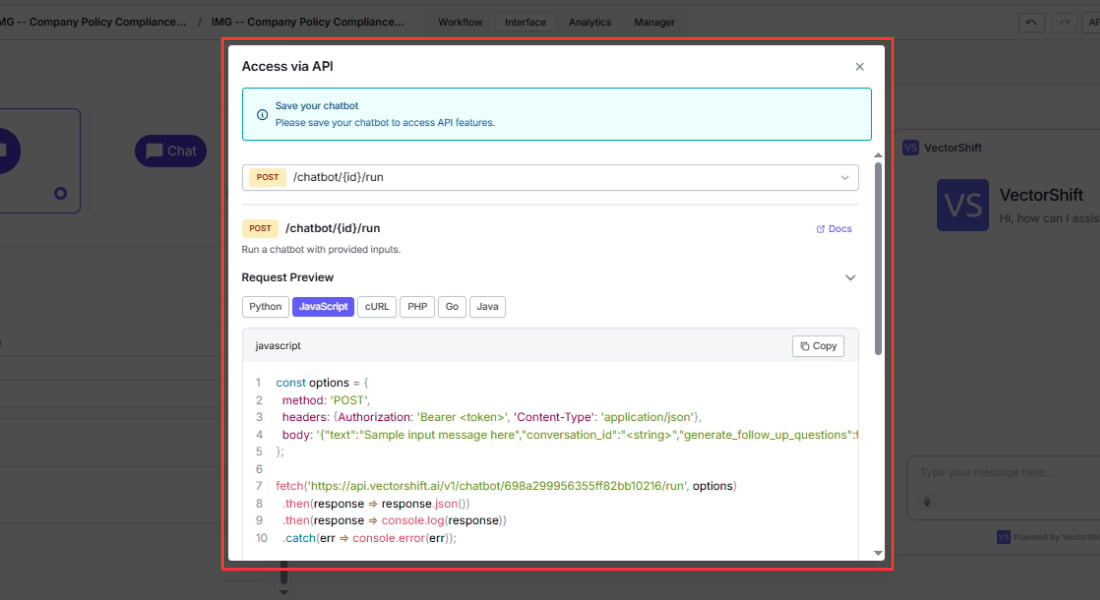
If you are building your own application and want to integrate chatbot functionality into it, you can call the chatbot directly through the VectorShift API. This gives you full control over how messages are sent and responses are displayed, and it supports both synchronous and streaming responses.
## Prerequisites
Your chatbot must be deployed before making API calls. Toggle **Deployment Enabled** in the chatbot builder's Export tab. See [Share via link](/platform/interfaces/chatbots/export-link) for deployment details. You also need your VectorShift **API key**, which you can find by clicking your profile icon in the top-left corner of the VectorShift app, then clicking **API Keys**.

 ## How it works
You send a POST request to the chatbot endpoint with your message. VectorShift runs the connected workflow and returns the chatbot's response. To maintain conversation continuity across multiple messages, you include the `conversation_id` from the previous response in each subsequent request.
1. **First message:** Send your text without a `conversation_id`. The API returns the bot's response along with a new `conversation_id`.
2. **Subsequent messages:** Include the `conversation_id` from the previous response. The chatbot retrieves the conversation history and responds in context.
3. **New conversation:** Omit the `conversation_id` to start a fresh conversation at any time.
Always store the `conversation_id` from the first response and include it in every subsequent call. Without it, each call starts a new conversation and the chatbot loses context.
## Endpoint
```
POST https://api.vectorshift.ai/api/chatbots/run
```
### Request headers
| Header | Value |
| - | - |
| `Content-Type` | `application/json` |
| `Api-Key` | Your VectorShift API key |
### Request body
| Field | Type | Required | Description |
| - | - | - | - |
| `input` | string | Yes | The user's message |
| `chatbot_name` | string | Yes (or `chatbot_id`) | The name of the chatbot to run |
| `chatbot_id` | string | Yes (or `chatbot_name`) | The ID of the chatbot to run |
| `conversation_id` | string | No | The conversation ID from a previous response. Omit to start a new conversation. |
| `stream` | boolean | No | Set to `true` to receive the response as a stream of Server-Sent Events (SSE). Defaults to `false`. |
### Response (non-streaming)
```json theme={"languages":{}}
{
"status": "success",
"output": "Your order #12345 is currently in transit and expected to arrive by Friday.",
"conversation_id": "abc123def456"
}
```
| Field | Description |
| - | - |
| `status` | `"success"` or `"failed"` |
| `output` | The chatbot's response text |
| `conversation_id` | Store this and include it in the next request to continue the conversation |
### Response (streaming)
When `stream` is set to `true`, the response is delivered as Server-Sent Events. Each event contains a chunk of the response text. The final event includes the complete `output` and the `conversation_id`.
## Code examples
### Python
```python theme={"languages":{}}
import requests
API_KEY = "your_api_key"
CHATBOT_ID = "your_chatbot_id"
url = "https://api.vectorshift.ai/api/chatbots/run"
headers = {
"Content-Type": "application/json",
"Api-Key": API_KEY,
}
# First message (no conversation_id)
payload = {
"input": "Where is my order #12345?",
"chatbot_id": CHATBOT_ID,
}
response = requests.post(url, json=payload, headers=headers)
data = response.json()
print(data["output"])
conversation_id = data["conversation_id"]
# Follow-up message (with conversation_id)
payload = {
"input": "Can I change the shipping address?",
"chatbot_id": CHATBOT_ID,
"conversation_id": conversation_id,
}
response = requests.post(url, json=payload, headers=headers)
data = response.json()
print(data["output"])
```
### JavaScript
```javascript theme={"languages":{}}
const API_KEY = "your_api_key";
const CHATBOT_ID = "your_chatbot_id";
const url = "https://api.vectorshift.ai/api/chatbots/run";
// First message (no conversation_id)
const firstResponse = await fetch(url, {
method: "POST",
headers: {
"Content-Type": "application/json",
"Api-Key": API_KEY,
},
body: JSON.stringify({
input: "Where is my order #12345?",
chatbot_id: CHATBOT_ID,
}),
});
const firstData = await firstResponse.json();
console.log(firstData.output);
const conversationId = firstData.conversation_id;
// Follow-up message (with conversation_id)
const followUpResponse = await fetch(url, {
method: "POST",
headers: {
"Content-Type": "application/json",
"Api-Key": API_KEY,
},
body: JSON.stringify({
input: "Can I change the shipping address?",
chatbot_id: CHATBOT_ID,
conversation_id: conversationId,
}),
});
const followUpData = await followUpResponse.json();
console.log(followUpData.output);
```
### cURL
```bash theme={"languages":{}}
# First message (no conversation_id)
curl -X POST https://api.vectorshift.ai/api/chatbots/run \
-H "Content-Type: application/json" \
-H "Api-Key: your_api_key" \
-d '{
"input": "Where is my order #12345?",
"chatbot_id": "your_chatbot_id"
}'
# Follow-up message (include conversation_id from the first response)
curl -X POST https://api.vectorshift.ai/api/chatbots/run \
-H "Content-Type: application/json" \
-H "Api-Key: your_api_key" \
-d '{
"input": "Can I change the shipping address?",
"chatbot_id": "your_chatbot_id",
"conversation_id": "abc123def456"
}'
```
## Error handling
If the chatbot fails to run (for example, the connected workflow encounters an error), the response will have `"status": "failed"` and include an error message. Check that your chatbot is deployed and that the connected workflow is functioning correctly.
For the full API reference, including upload, terminate, and listing endpoints, see the [API Reference](/api-reference/chatbots/run).
## Next steps
Track usage, review conversations, and export data
Explore other deployment channels
This documentation is built and hosted on [Mintlify](https://mintlify.com), a developer documentation platform.
## How it works
You send a POST request to the chatbot endpoint with your message. VectorShift runs the connected workflow and returns the chatbot's response. To maintain conversation continuity across multiple messages, you include the `conversation_id` from the previous response in each subsequent request.
1. **First message:** Send your text without a `conversation_id`. The API returns the bot's response along with a new `conversation_id`.
2. **Subsequent messages:** Include the `conversation_id` from the previous response. The chatbot retrieves the conversation history and responds in context.
3. **New conversation:** Omit the `conversation_id` to start a fresh conversation at any time.
Always store the `conversation_id` from the first response and include it in every subsequent call. Without it, each call starts a new conversation and the chatbot loses context.
## Endpoint
```
POST https://api.vectorshift.ai/api/chatbots/run
```
### Request headers
| Header | Value |
| - | - |
| `Content-Type` | `application/json` |
| `Api-Key` | Your VectorShift API key |
### Request body
| Field | Type | Required | Description |
| - | - | - | - |
| `input` | string | Yes | The user's message |
| `chatbot_name` | string | Yes (or `chatbot_id`) | The name of the chatbot to run |
| `chatbot_id` | string | Yes (or `chatbot_name`) | The ID of the chatbot to run |
| `conversation_id` | string | No | The conversation ID from a previous response. Omit to start a new conversation. |
| `stream` | boolean | No | Set to `true` to receive the response as a stream of Server-Sent Events (SSE). Defaults to `false`. |
### Response (non-streaming)
```json theme={"languages":{}}
{
"status": "success",
"output": "Your order #12345 is currently in transit and expected to arrive by Friday.",
"conversation_id": "abc123def456"
}
```
| Field | Description |
| - | - |
| `status` | `"success"` or `"failed"` |
| `output` | The chatbot's response text |
| `conversation_id` | Store this and include it in the next request to continue the conversation |
### Response (streaming)
When `stream` is set to `true`, the response is delivered as Server-Sent Events. Each event contains a chunk of the response text. The final event includes the complete `output` and the `conversation_id`.
## Code examples
### Python
```python theme={"languages":{}}
import requests
API_KEY = "your_api_key"
CHATBOT_ID = "your_chatbot_id"
url = "https://api.vectorshift.ai/api/chatbots/run"
headers = {
"Content-Type": "application/json",
"Api-Key": API_KEY,
}
# First message (no conversation_id)
payload = {
"input": "Where is my order #12345?",
"chatbot_id": CHATBOT_ID,
}
response = requests.post(url, json=payload, headers=headers)
data = response.json()
print(data["output"])
conversation_id = data["conversation_id"]
# Follow-up message (with conversation_id)
payload = {
"input": "Can I change the shipping address?",
"chatbot_id": CHATBOT_ID,
"conversation_id": conversation_id,
}
response = requests.post(url, json=payload, headers=headers)
data = response.json()
print(data["output"])
```
### JavaScript
```javascript theme={"languages":{}}
const API_KEY = "your_api_key";
const CHATBOT_ID = "your_chatbot_id";
const url = "https://api.vectorshift.ai/api/chatbots/run";
// First message (no conversation_id)
const firstResponse = await fetch(url, {
method: "POST",
headers: {
"Content-Type": "application/json",
"Api-Key": API_KEY,
},
body: JSON.stringify({
input: "Where is my order #12345?",
chatbot_id: CHATBOT_ID,
}),
});
const firstData = await firstResponse.json();
console.log(firstData.output);
const conversationId = firstData.conversation_id;
// Follow-up message (with conversation_id)
const followUpResponse = await fetch(url, {
method: "POST",
headers: {
"Content-Type": "application/json",
"Api-Key": API_KEY,
},
body: JSON.stringify({
input: "Can I change the shipping address?",
chatbot_id: CHATBOT_ID,
conversation_id: conversationId,
}),
});
const followUpData = await followUpResponse.json();
console.log(followUpData.output);
```
### cURL
```bash theme={"languages":{}}
# First message (no conversation_id)
curl -X POST https://api.vectorshift.ai/api/chatbots/run \
-H "Content-Type: application/json" \
-H "Api-Key: your_api_key" \
-d '{
"input": "Where is my order #12345?",
"chatbot_id": "your_chatbot_id"
}'
# Follow-up message (include conversation_id from the first response)
curl -X POST https://api.vectorshift.ai/api/chatbots/run \
-H "Content-Type: application/json" \
-H "Api-Key: your_api_key" \
-d '{
"input": "Can I change the shipping address?",
"chatbot_id": "your_chatbot_id",
"conversation_id": "abc123def456"
}'
```
## Error handling
If the chatbot fails to run (for example, the connected workflow encounters an error), the response will have `"status": "failed"` and include an error message. Check that your chatbot is deployed and that the connected workflow is functioning correctly.
For the full API reference, including upload, terminate, and listing endpoints, see the [API Reference](/api-reference/chatbots/run).
## Next steps
Track usage, review conversations, and export data
Explore other deployment channels
This documentation is built and hosted on [Mintlify](https://mintlify.com), a developer documentation platform.