> ## Documentation Index
> Fetch the complete documentation index at: https://docs.vectorshift.ai/llms.txt
> Use this file to discover all available pages before exploring further.
# xAI LLM
> Generate text responses using xAI's Grok models in your workflows.
Add it in Python with `pipeline.add(name="...").llm(...)`. See the SDK reference.
The xAI LLM node connects your workflows to xAI's Grok family of language models. Use it to generate text responses, analyze documents, or build AI-powered workflows — for example, generating market commentary, classifying financial documents, or building chatbots that leverage Grok's reasoning and search capabilities.
## Core Functionality
* Generate text completions and conversational responses using Grok models
* Access specialized model variants including search-enabled and fast-reasoning models
* Process system instructions and dynamic prompts with variable interpolation
* Stream responses in real time for long-running generations
* Return structured JSON output with optional schema enforcement
* Track token usage and credit consumption per run
* Apply content moderation, PII detection, and safety guardrails
* Retry failed executions automatically with configurable intervals
## Tool Inputs
* `System Instructions` — (String) Instructions that guide the model's behavior, tone, and how it should use data provided in the prompt
* `Prompt` — (String) The data sent to the model. Type `{{` to open the variable builder and reference outputs from other nodes
* `Model` \* — (Enum (Dropdown), default: `grok-4-0709`) Select from available Grok models
* `Use Personal Api Key` — (Boolean, default: `Yes`) Toggle to use your own xAI API key
* `Api Key` — (String) Your xAI API key. Visible when `Use Personal Api Key` is enabled
\* indicates a required field
## Tool Outputs
* `response` — (String (or Stream\ when streaming)) The generated text response from the model
* `prompt_response` — (String) The combined prompt and response content
* `tokens_used` — (Integer) Total number of tokens consumed (input + output)
* `input_tokens` — (Integer) Number of input tokens sent to the model
* `output_tokens` — (Integer) Number of output tokens generated by the model
* `credits_used` — (Decimal) VectorShift AI credits consumed for this run
## Overview
The xAI LLM node in workflows lets you place a Grok model on the canvas and configure it through the settings panel. xAI offers models with different speed-reasoning tradeoffs and built-in search capabilities.
## Use Cases
* **Market commentary generation** — Generate real-time market commentary using Grok's search-enabled models that can access current data.
* **Financial document analysis** — Analyze earnings reports, SEC filings, or research notes using Grok's reasoning capabilities.
* **Fast classification tasks** — Use fast-reasoning variants for high-throughput classification of financial transactions or documents.
* **Research synthesis** — Combine search capabilities with reasoning to synthesize information across multiple sources for investment research.
* **Client communication drafting** — Draft personalized financial communications using Grok's conversational capabilities.
## How It Works
1. **Add the node to your workflow.** From the toolbar, open the **AI** category and drag the **xAI** node onto the canvas.
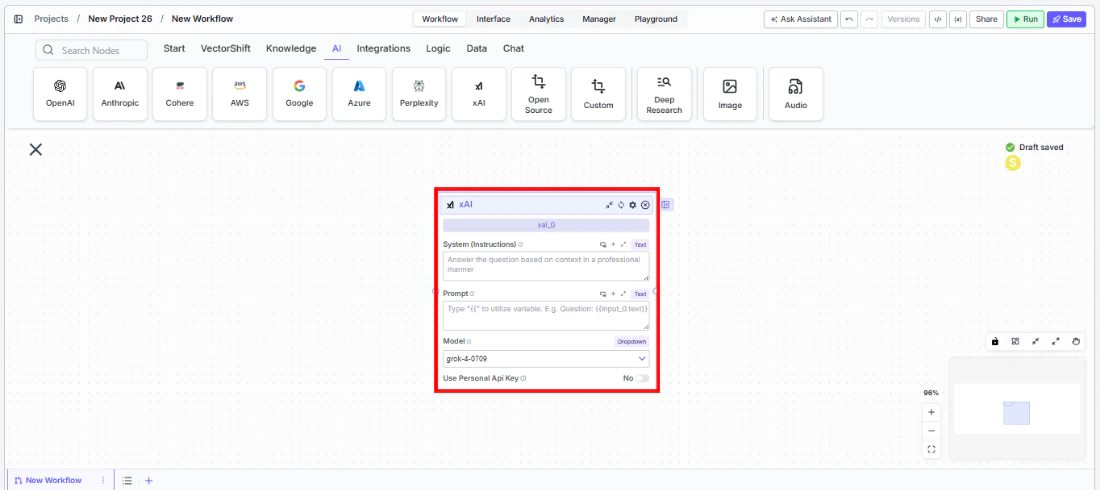 2. **Write your System Instructions.** Enter instructions in the `System Instructions` field.
3. **Configure the Prompt.** In the `Prompt` field, type `{{` to reference upstream node outputs.
4. **Select a model.** Use the `Model` dropdown to choose a Grok model. Available options include `grok-4-0709`, `grok-4`, `grok-4-search`, `grok-4-fast-reasoning`, `grok-4-fast-non-reasoning`, `grok-4-0625`, `grok-3-fast`, `grok-3-fast-beta`, `grok-3-mini-beta`, and others.
2. **Write your System Instructions.** Enter instructions in the `System Instructions` field.
3. **Configure the Prompt.** In the `Prompt` field, type `{{` to reference upstream node outputs.
4. **Select a model.** Use the `Model` dropdown to choose a Grok model. Available options include `grok-4-0709`, `grok-4`, `grok-4-search`, `grok-4-fast-reasoning`, `grok-4-fast-non-reasoning`, `grok-4-0625`, `grok-3-fast`, `grok-3-fast-beta`, `grok-3-mini-beta`, and others.
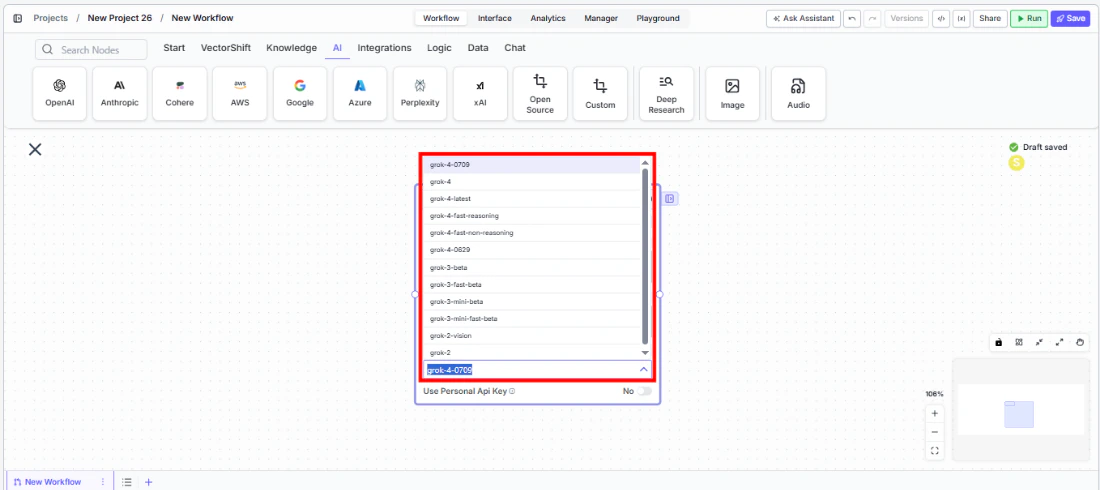 5. **Provide an API key.** The `Use Personal Api Key` toggle defaults to **Yes**. Enter your xAI API key in the `Api Key` field.
6. **Open settings.** Click the **gear icon** (⚙) to configure settings.
5. **Provide an API key.** The `Use Personal Api Key` toggle defaults to **Yes**. Enter your xAI API key in the `Api Key` field.
6. **Open settings.** Click the **gear icon** (⚙) to configure settings.
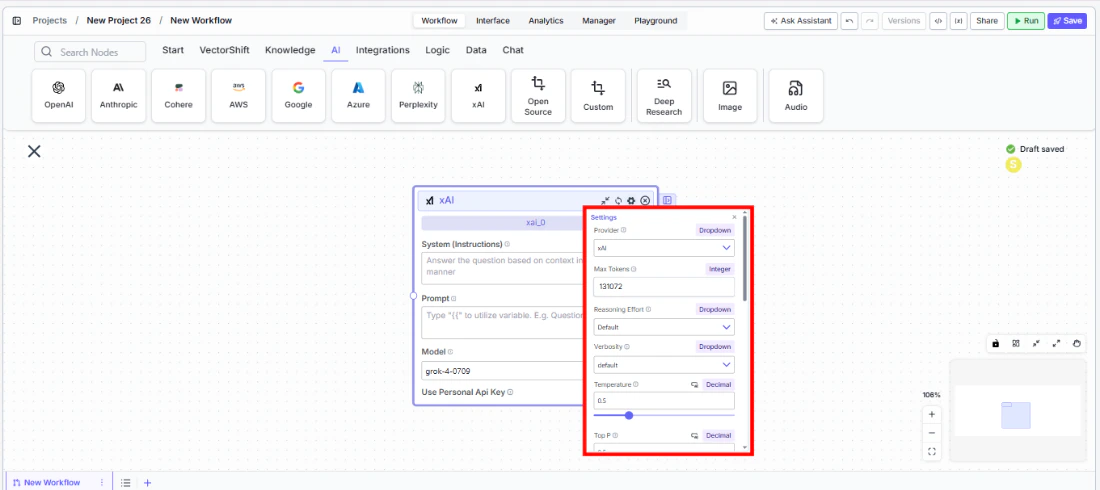 7. **Connect outputs.** Wire the `response` output to downstream nodes. Click the **Outputs** button to see all available outputs.
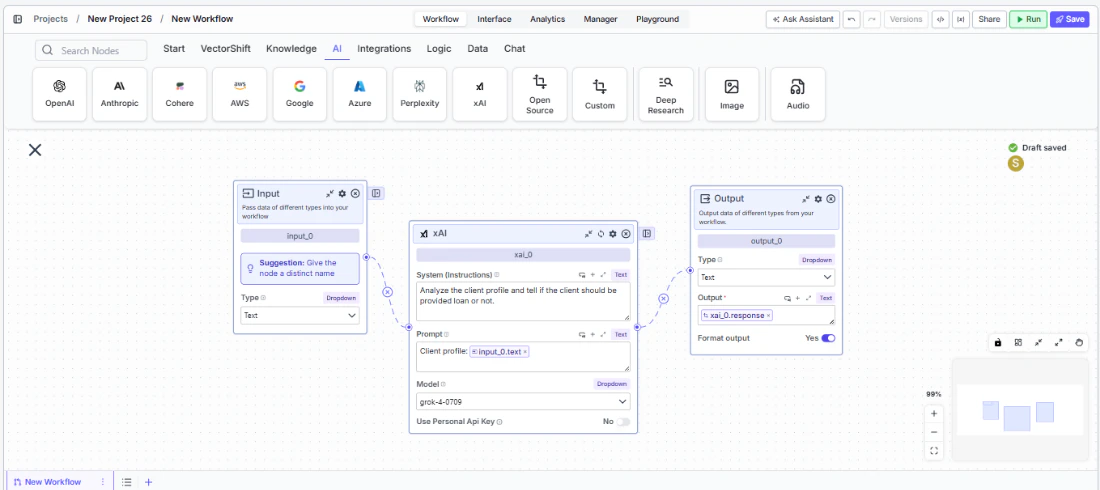 8. **Run your workflow.** Execute the workflow to process inputs through the Grok model.
## Settings
All settings below are accessed via the **gear icon** (⚙) on the node.
| Setting | Type | Default | Description |
| ------------------------------ | -------- | ------- | ------------------------------------------------------------------------------ |
| `Provider` | Dropdown | xAI | The LLM provider. |
| `Max Tokens` | Integer | 131072 | Maximum number of input + output tokens per run. |
| `Reasoning Effort` | Dropdown | Default | Controls the depth of reasoning. |
| `Verbosity` | Dropdown | Default | Controls the verbosity of responses. |
| `Temperature` | Float | 0.5 | Controls response creativity. Range: 0–1. |
| `Top P` | Float | 0.5 | Controls token sampling diversity. Range: 0–1. |
| `Stream Response` | Boolean | Off | Stream responses token-by-token. |
| `JSON Output` | Boolean | Off | Return output as structured JSON. |
| `Show Sources` | Boolean | Off | Display source documents used for the response. |
| `Toxic Input Filtration` | Boolean | Off | Filter toxic input content. |
| `Safe Context Token Window` | Boolean | On | Automatically reduce context to fit within the model's maximum context window. |
| `Retry On Failure` | Boolean | Off | Enable automatic retries when execution fails. |
| `Max Retries` | Integer | — | Maximum retry attempts. |
| `Max Interval b/w re-try` | Integer | — | Interval in milliseconds between retries. |
| `Show Success/Failure Outputs` | Boolean | — | Display additional success and failure output ports. |
## Best Practices
* **Choose the right Grok variant.** Use `grok-4-search` for queries needing current web data, `grok-4-fast-reasoning` for speed-optimized reasoning, and `grok-4` for general-purpose tasks.
* **Use JSON mode for structured extraction.** Enable `JSON Output` for consistent output when extracting financial data from documents.
* **Monitor token usage.** Connect `tokens_used` and `credits_used` for cost tracking across high-volume workloads.
* **Enable Safe Context Token Window.** This is on by default for xAI — keep it enabled to prevent token-limit errors.
* **Apply PII detection for sensitive data.** Enable PII toggles when processing client financial information.
## Common Issues
For troubleshooting common issues with this node, see the [Common Issues](/support) documentation.
8. **Run your workflow.** Execute the workflow to process inputs through the Grok model.
## Settings
All settings below are accessed via the **gear icon** (⚙) on the node.
| Setting | Type | Default | Description |
| ------------------------------ | -------- | ------- | ------------------------------------------------------------------------------ |
| `Provider` | Dropdown | xAI | The LLM provider. |
| `Max Tokens` | Integer | 131072 | Maximum number of input + output tokens per run. |
| `Reasoning Effort` | Dropdown | Default | Controls the depth of reasoning. |
| `Verbosity` | Dropdown | Default | Controls the verbosity of responses. |
| `Temperature` | Float | 0.5 | Controls response creativity. Range: 0–1. |
| `Top P` | Float | 0.5 | Controls token sampling diversity. Range: 0–1. |
| `Stream Response` | Boolean | Off | Stream responses token-by-token. |
| `JSON Output` | Boolean | Off | Return output as structured JSON. |
| `Show Sources` | Boolean | Off | Display source documents used for the response. |
| `Toxic Input Filtration` | Boolean | Off | Filter toxic input content. |
| `Safe Context Token Window` | Boolean | On | Automatically reduce context to fit within the model's maximum context window. |
| `Retry On Failure` | Boolean | Off | Enable automatic retries when execution fails. |
| `Max Retries` | Integer | — | Maximum retry attempts. |
| `Max Interval b/w re-try` | Integer | — | Interval in milliseconds between retries. |
| `Show Success/Failure Outputs` | Boolean | — | Display additional success and failure output ports. |
## Best Practices
* **Choose the right Grok variant.** Use `grok-4-search` for queries needing current web data, `grok-4-fast-reasoning` for speed-optimized reasoning, and `grok-4` for general-purpose tasks.
* **Use JSON mode for structured extraction.** Enable `JSON Output` for consistent output when extracting financial data from documents.
* **Monitor token usage.** Connect `tokens_used` and `credits_used` for cost tracking across high-volume workloads.
* **Enable Safe Context Token Window.** This is on by default for xAI — keep it enabled to prevent token-limit errors.
* **Apply PII detection for sensitive data.** Enable PII toggles when processing client financial information.
## Common Issues
For troubleshooting common issues with this node, see the [Common Issues](/support) documentation.