> ## Documentation Index
> Fetch the complete documentation index at: https://docs.vectorshift.ai/llms.txt
> Use this file to discover all available pages before exploring further.
# Talk — Message
> Send a text message to the user at a specific step in a conversational workflow.
Add it in Python with `pipeline.add(name="...").talk(...)`. See the SDK reference.
The Message node (a variant of the Talk node) sends a text message to the user at a specific step in a chatbot conversation. Use it to deliver information, ask questions, provide instructions, or display dynamic content — for example, greeting a user, presenting a financial summary, or asking a follow-up question before a Listen node captures their response.
## Core Functionality
* Sends a text message to the user at a defined point in the conversational flow
* Supports static text or dynamic content via variable references from upstream nodes
* Optionally embeds an iframe for displaying external web content inline in the chat
* Requires a Start node on the canvas to function
## Tool Inputs
* `Message` \* — Text. Required. The text content to send to the user. Supports variable references via `{{}}` syntax.
* `Send an iFrame` — Toggle. Default: `Off`. When enabled, the message content is rendered as an iframe.
\* *Required field*
## Tool Outputs
The Message node has no outputs. It is a display-only node that sends content to the user.
***
### Overview
In workflows, the Message node sits in a conversational workflow and delivers text to the user when the flow reaches it. It is typically paired with Listen (Capture or Button) nodes to create back-and-forth dialogue.
### Use Cases
* Greet the user and explain what the chatbot can help with at the start of a financial advisory conversation
* Display a portfolio summary or account balance pulled from upstream data processing nodes
* Ask a clarifying question before a Capture node collects the user's response
* Present compliance disclaimers or terms of service that the user must acknowledge
* Show a dynamically generated report or analysis result from an LLM node
### How It Works
#### Step 1: Add a Start Node
The Message node requires a Start node on the canvas. Add one from the **Start** tab if not already present.
#### Step 2: Add the Message Node
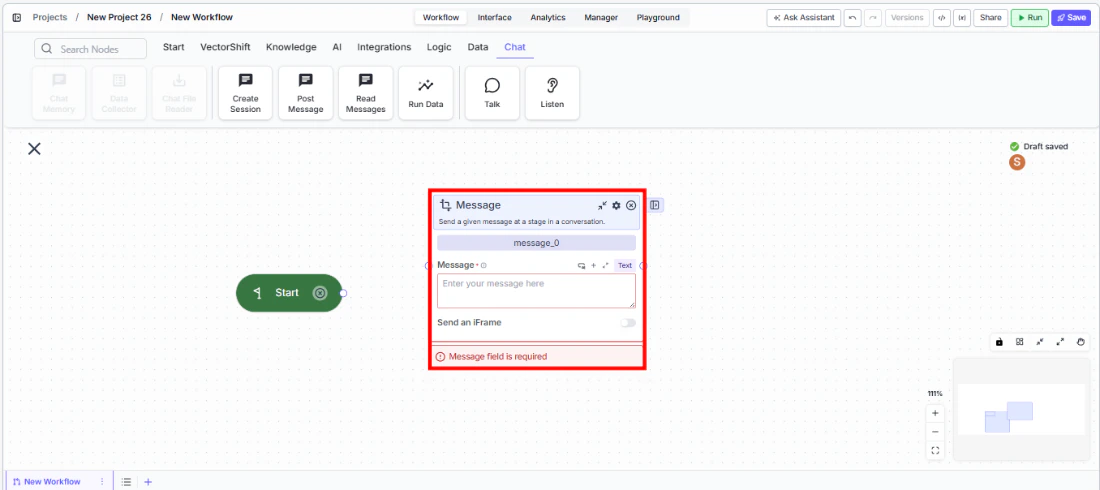
In the workflow canvas, click the **Chat** tab, click **Talk**, then select **Message** from the variant list.
 #### Step 3: Enter the Message Content
Type the message text in the `Message` field, or use `{{}}` syntax to reference outputs from upstream nodes. This field is required.
#### Step 4: Enable iFrame (Optional)
Toggle `Send an iFrame` to embed an external webpage or widget inline in the chat.
#### Step 5: Connect in the Flow
#### Step 3: Enter the Message Content
Type the message text in the `Message` field, or use `{{}}` syntax to reference outputs from upstream nodes. This field is required.
#### Step 4: Enable iFrame (Optional)
Toggle `Send an iFrame` to embed an external webpage or widget inline in the chat.
#### Step 5: Connect in the Flow
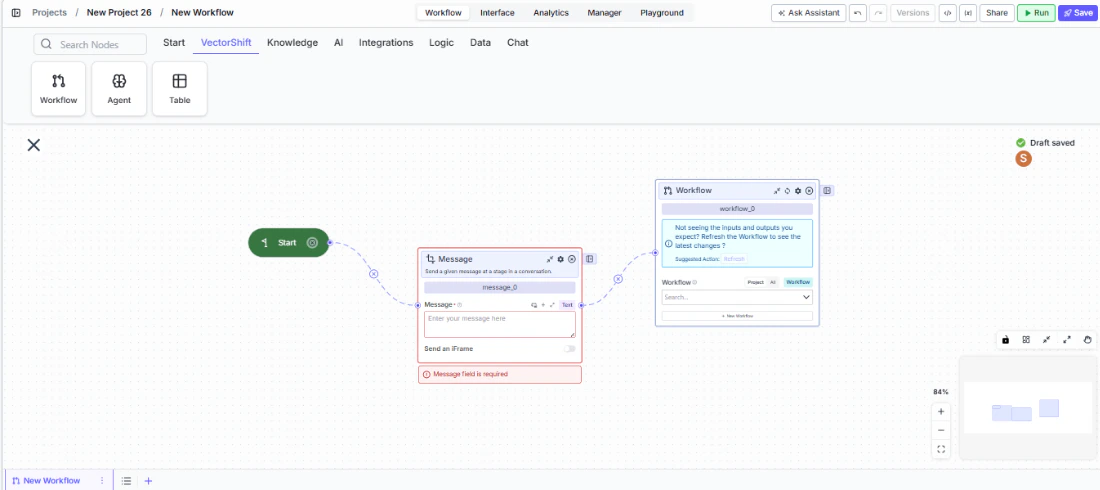 Connect the Message node between other conversational nodes. A common pattern is: Start → Message (greeting) → Capture (user input) → processing → Message (result).
### Settings
| Setting | Type | Default | Description |
| ---------------- | ------ | ------- | ----------------------------------------- |
| `Message` | Text | — | The text content to send. Required. |
| `Send an iFrame` | Toggle | Off | Render the message as an embedded iframe. |
### Best Practices
* **Use variables for dynamic content.** Reference upstream node outputs with `{{}}` to display personalized information.
* **Pair with Listen nodes.** Place a Message node before every Capture or Button node so users know what is expected.
* **Use iFrame for rich content.** Embed dashboards, forms, or visualizations from external tools directly in the chat.
* **Keep messages concise.** Long messages reduce engagement. Break complex information across multiple Message nodes.
* **Test the full conversational flow.** Deploy and walk through the entire conversation to ensure messages appear correctly.
### Related Templates
Handles common customer inquiries and support tickets through conversational AI.
Assists banking customers with account inquiries, transactions, and product questions.
Answers employee questions about internal policies and flags potential compliance issues.
Provides real-time customer support directly embedded within a website interface.
### Common Issues
For help with common configuration issues, see the [Common Issues](/support) page.
Connect the Message node between other conversational nodes. A common pattern is: Start → Message (greeting) → Capture (user input) → processing → Message (result).
### Settings
| Setting | Type | Default | Description |
| ---------------- | ------ | ------- | ----------------------------------------- |
| `Message` | Text | — | The text content to send. Required. |
| `Send an iFrame` | Toggle | Off | Render the message as an embedded iframe. |
### Best Practices
* **Use variables for dynamic content.** Reference upstream node outputs with `{{}}` to display personalized information.
* **Pair with Listen nodes.** Place a Message node before every Capture or Button node so users know what is expected.
* **Use iFrame for rich content.** Embed dashboards, forms, or visualizations from external tools directly in the chat.
* **Keep messages concise.** Long messages reduce engagement. Break complex information across multiple Message nodes.
* **Test the full conversational flow.** Deploy and walk through the entire conversation to ensure messages appear correctly.
### Related Templates
Handles common customer inquiries and support tickets through conversational AI.
Assists banking customers with account inquiries, transactions, and product questions.
Answers employee questions about internal policies and flags potential compliance issues.
Provides real-time customer support directly embedded within a website interface.
### Common Issues
For help with common configuration issues, see the [Common Issues](/support) page.