> ## Documentation Index
> Fetch the complete documentation index at: https://docs.vectorshift.ai/llms.txt
> Use this file to discover all available pages before exploring further.
# Post Message
> Post a message to an active chat session programmatically from within a workflow.
Add it in Python with `pipeline.add(name="...").post_message(...)`. See the SDK reference.
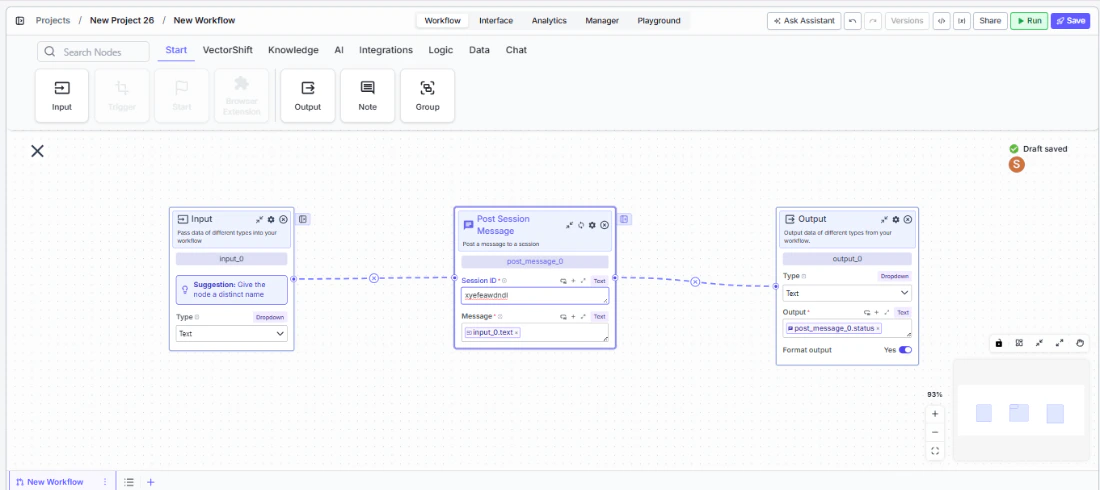
The Post Message node sends a message to an active chat session from within a workflow. It enables workflows to programmatically inject messages into a conversation — useful for delivering proactive notifications, status updates, or follow-up information to a user's ongoing session without requiring the user to send a new message first.
## Core Functionality
* Posts a text message to a specified chat session by session ID
* Enables workflows to push messages into active conversations asynchronously
* Returns a status indicator confirming whether the message was delivered successfully
* Works with any VectorShift chatbot session, including those deployed via website widget, API, Slack, or WhatsApp
## Tool Inputs
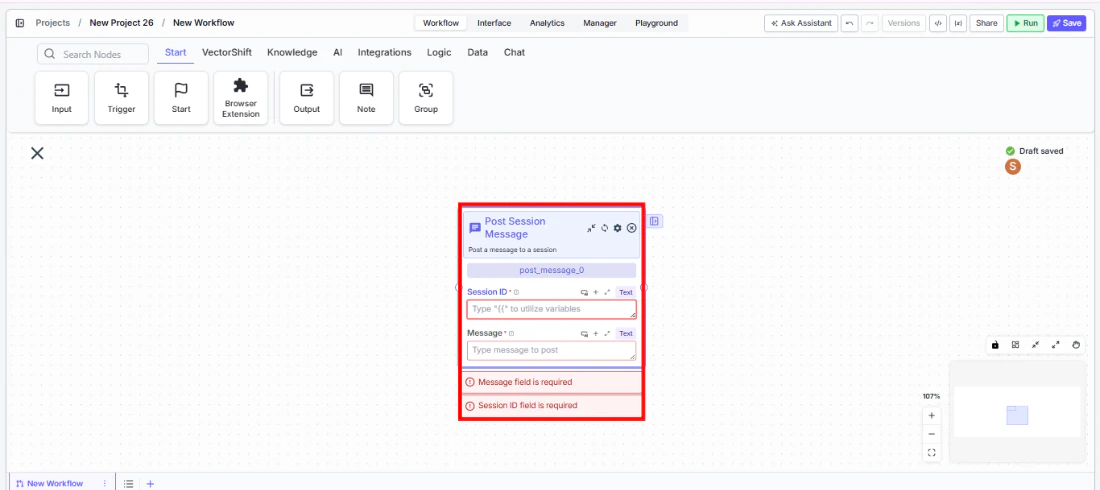
* `Session ID` \* — Text. The unique identifier of the chat session to post the message to. Connect from an upstream node or reference a stored session ID using `{{variable}}` syntax.
* `Message` \* — Text. The message content to post to the session. Can be a static string, a dynamically generated LLM response, or any text value from an upstream node.
 \* *Required field*
## Tool Outputs
* `status` — Text. The status of the message post, indicating whether the message was delivered successfully.
***
### Overview
In workflows, the Post Message node allows a workflow to push messages into an active chat session without waiting for the user to send a new message. This is particularly useful for long-running workflows that need to provide progress updates, for event-driven workflows that deliver notifications to a user's session, or for multi-step processes where the system needs to follow up after an initial conversation. The node requires a valid session ID and a message, and it returns a status indicating delivery success.
### Use Cases
* Send a trade confirmation or order status update to a client's active chat session after a backend process completes
* Deliver real-time portfolio alerts (e.g., a stock crossing a price threshold) to an advisor's open session
* Push compliance review results back to a user's conversation after an asynchronous document analysis finishes
* Notify a customer in their chat session when a scheduled report (e.g., monthly account statement) is ready for download
* Send follow-up information to a session after an approval workflow completes — for example, confirming a wire transfer has been initiated
### How It Works
#### Step 1: Add the Post Message Node
In the workflow canvas, click the **Chat** tab in the node palette and click **Post Message**. Drag it onto the canvas.
\* *Required field*
## Tool Outputs
* `status` — Text. The status of the message post, indicating whether the message was delivered successfully.
***
### Overview
In workflows, the Post Message node allows a workflow to push messages into an active chat session without waiting for the user to send a new message. This is particularly useful for long-running workflows that need to provide progress updates, for event-driven workflows that deliver notifications to a user's session, or for multi-step processes where the system needs to follow up after an initial conversation. The node requires a valid session ID and a message, and it returns a status indicating delivery success.
### Use Cases
* Send a trade confirmation or order status update to a client's active chat session after a backend process completes
* Deliver real-time portfolio alerts (e.g., a stock crossing a price threshold) to an advisor's open session
* Push compliance review results back to a user's conversation after an asynchronous document analysis finishes
* Notify a customer in their chat session when a scheduled report (e.g., monthly account statement) is ready for download
* Send follow-up information to a session after an approval workflow completes — for example, confirming a wire transfer has been initiated
### How It Works
#### Step 1: Add the Post Message Node
In the workflow canvas, click the **Chat** tab in the node palette and click **Post Message**. Drag it onto the canvas.
 #### Step 2: Provide the Session ID
Connect the `Session ID` input to a node that supplies the target session's identifier. This is typically obtained from a trigger, a stored variable, or a previous workflow run that captured the session ID.
#### Step 3: Provide the Message
Connect the `Message` input to the text content you want to post. This can come from an LLM node, a Text node, a template with variables, or any upstream node that produces text.
#### Step 4: Connect the Output
Connect the `status` output to a downstream node if you need to verify delivery or branch logic based on success or failure. For example, connect it to a Condition node to handle failed deliveries.
#### Step 5: Configure Settings (Optional)
Click the settings icon to access additional options:
* **Show Success/Failure Outputs** — Toggle on to expose separate output handles for success and failure paths, enabling conditional logic based on the delivery result.
### Settings
| Setting | Type | Default | Description |
| ------------------------------ | ------ | ------- | ------------------------------------------------------------- |
| `Session ID` | Text | — | The session to post the message to. Required. |
| `Message` | Text | — | The message to post to the session. Required. |
| `Show Success/Failure Outputs` | Toggle | Off | Expose separate output handles for success and failure paths. |
### Best Practices
* **Store session IDs reliably.** Ensure the session ID is captured and stored (e.g., via a variable or database) at the start of the conversation so it can be referenced later by asynchronous workflows.
* **Validate before posting.** Use a Condition node upstream to verify that the session ID is not empty before attempting to post, avoiding unnecessary failures.
* **Handle delivery failures.** Enable the Show Success/Failure Outputs toggle and add error-handling logic for cases where the session has expired or the ID is invalid.
* **Keep messages concise.** Messages posted to a session should be clear and actionable — avoid sending large blocks of text that could overwhelm the chat interface.
* **Use for asynchronous follow-ups.** The Post Message node is most valuable when a workflow runs independently of the chat session (e.g., triggered by a cron job or an external event) and needs to deliver results back to the user.
### Related Templates
Handles common customer inquiries and support tickets through conversational AI.
Assists banking customers with account inquiries, transactions, and product questions.
Summarizes and surfaces key CRM data insights for sales and relationship management teams.
Handles investor inquiries related to portfolios, statements, and fund performance.
### Common Issues
For help with common configuration issues, see the [Common Issues](/support) page.
#### Step 2: Provide the Session ID
Connect the `Session ID` input to a node that supplies the target session's identifier. This is typically obtained from a trigger, a stored variable, or a previous workflow run that captured the session ID.
#### Step 3: Provide the Message
Connect the `Message` input to the text content you want to post. This can come from an LLM node, a Text node, a template with variables, or any upstream node that produces text.
#### Step 4: Connect the Output
Connect the `status` output to a downstream node if you need to verify delivery or branch logic based on success or failure. For example, connect it to a Condition node to handle failed deliveries.
#### Step 5: Configure Settings (Optional)
Click the settings icon to access additional options:
* **Show Success/Failure Outputs** — Toggle on to expose separate output handles for success and failure paths, enabling conditional logic based on the delivery result.
### Settings
| Setting | Type | Default | Description |
| ------------------------------ | ------ | ------- | ------------------------------------------------------------- |
| `Session ID` | Text | — | The session to post the message to. Required. |
| `Message` | Text | — | The message to post to the session. Required. |
| `Show Success/Failure Outputs` | Toggle | Off | Expose separate output handles for success and failure paths. |
### Best Practices
* **Store session IDs reliably.** Ensure the session ID is captured and stored (e.g., via a variable or database) at the start of the conversation so it can be referenced later by asynchronous workflows.
* **Validate before posting.** Use a Condition node upstream to verify that the session ID is not empty before attempting to post, avoiding unnecessary failures.
* **Handle delivery failures.** Enable the Show Success/Failure Outputs toggle and add error-handling logic for cases where the session has expired or the ID is invalid.
* **Keep messages concise.** Messages posted to a session should be clear and actionable — avoid sending large blocks of text that could overwhelm the chat interface.
* **Use for asynchronous follow-ups.** The Post Message node is most valuable when a workflow runs independently of the chat session (e.g., triggered by a cron job or an external event) and needs to deliver results back to the user.
### Related Templates
Handles common customer inquiries and support tickets through conversational AI.
Assists banking customers with account inquiries, transactions, and product questions.
Summarizes and surfaces key CRM data insights for sales and relationship management teams.
Handles investor inquiries related to portfolios, statements, and fund performance.
### Common Issues
For help with common configuration issues, see the [Common Issues](/support) page.